





Reviewing 7 JavaScript XY Chart Types | LightningChart JS
Tutorial
Written by a Human
Get to know some of the most powerful JavaScript XY chart types and how to create them using the LightningChart JS library.
Omar Urbano
Software Engineer

Introduction to XY Chart Types
Welcome to this new article focused on the LightningChart JS library. Unlike other articles where we explain in more detail how to program one or several charts, in this one we will focus on showcasing different charts offered by the interactive example’s library, explaining their purpose, functionality, and briefly showing their implementation with JS code. All the charts we’ll review share a common feature: XY Charts. Below, I will list the charts covered in this article:
- JavaScript Zoom Band Chart
- Heavy Data Set Parallel Coordinate Chart
- JavaScript Sweeping Line Chart Dashboard
- JavaScript Heatmap Grid Chart
- JavaScript Racing Dashboard
- JavaScript Large Line Chart
- JavaScript Multiple Areas Chart
What are XY charts?
An XY chart, also known as a scatter plot (or Cartesian plane), is a graphical representation that shows the relationship between two sets of numerical data. Each point on the chart represents a value on the X-axis (horizontal) and a value on the Y-axis (vertical). This visual representation helps identify patterns, trends, and correlations between the two variables.
XY charts are widely used in science, engineering, business, statistics, and technical applications to graphically represent the relationship between two numerical variables. In physics, chemistry, or biology, they help visualize relationships such as temperature vs. time, pressure vs. volume, or growth rates. In engineering, they are used to monitor sensors, vibrations, and material behavior. In business and finance, they are useful for analyzing trends, studying the relationship between price and demand, or evaluating the behavior of key performance indicators (KPIs).
In statistics and data science, they are used to detect correlations, identify outliers, and analyze joint distributions. They are also essential in machine learning to visualize datasets, perform principal component analysis (PCA), or evaluate model performance. Finally, in technical applications such as embedded systems or IoT, they are applied in real-time monitoring of data from sensors like accelerometers, temperature sensors, or oscilloscope signals.
JavaScript Zoom Band Chart
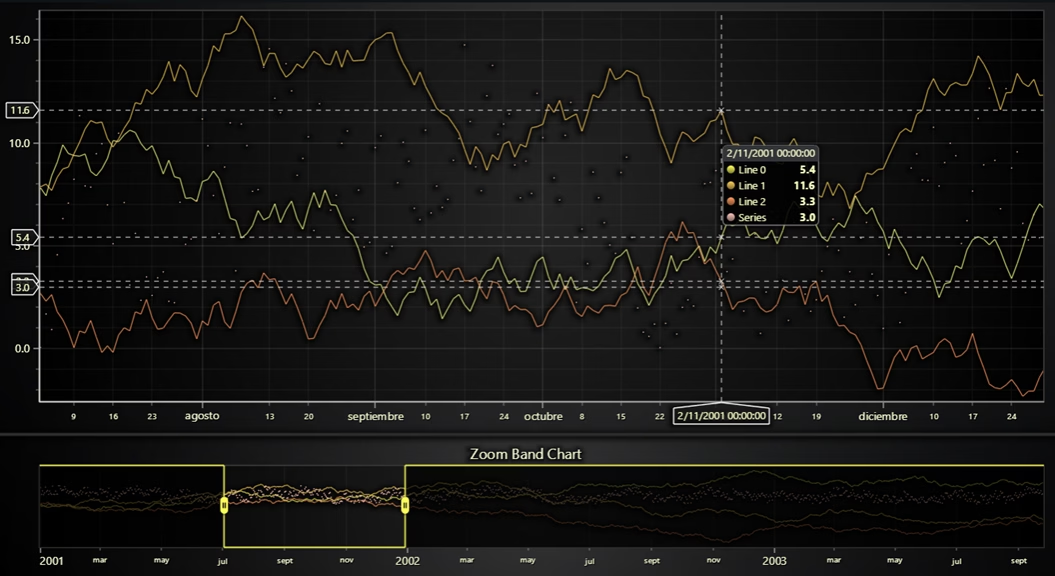
The Zoom Band Chart is a visual tool that provides a summarized (thumbnail) view of a dataset, usually time-based. It acts as an interactive navigation feature, allowing you to select a time range or set of values, and that selection is automatically reflected in one or more main charts. In short, it is an XY chart that positions points based on their value on each axis.
This chart includes a navigation tool that allows us to move across the X-axis (in this case, a timeline). When the user selects a range within the Zoom Band Chart, that range is displayed in the main chart above. This is particularly useful when working with large datasets because:
- You don’t need to manually zoom or scroll through the main chart.
- You can see the full context at the bottom and navigate quickly.
Set up the dashboard and charts
Create a Dashboard with 2 rows: one for the main XY chart and one for the Zoom Band chart. This sets up a visual layout with a top chart for data and a bottom chart for zooming/navigation.
// Do not animate Y Axis Scale changes on either Charts.
chart.getDefaultAxisY().setAnimationScroll(undefined);
chart
    getDefaultAxisX()
    setTickStrategy(AxisTickStrategies.DateTime)
    setDefaultInterval((state) => ({
        end: state.dataMax,
        start: state.dataMax ? state.dataMax - 180 * 24 * 60 * 60 * 1000 : undefined
    }));
// Add Zoom Band Chart to bottom Cell in Dashboard.
const zoomBandChart = dashboard.createZoomBandChart({
    columnIndex: 0,
    columnSpan: 1,
    rowIndex: 1,
    rowSpan: 1,
});
Configure the chart axes and add series
Adds multiple line and point series to the main chart and sync them with the zoom band chart. Sets up the X-axis to show date/time, creates 3 line series and one point series, and links them to the zoom band chart.
// Add Line and Point Series to the XY Chart.
const lines = new Array(3).fill(0).map((_, i) => {
    return chart
        .addPointLineAreaSeries({
            dataPattern: 'ProgressiveX',
        })
        setAreaFillStyle(emptyFill)
        setPointFillStyle(emptyFill)
        setStrokeStyle(strokeStyle => strokeStyle.setThickness(1))
        setName(`Line ${i}`);
});
const points = chart
    addPointLineAreaSeries({ dataPattern: 'ProgressiveX' })
    setAreaFillStyle(emptyFill)
    setStrokeStyle(emptyLine)
    setPointSize(2);
// Add the same Series to the Zoom Band Chart.
lines.forEach((line) => zoomBandChart.add(line));
zoomBandChart.add(points);
Generating and loading random data
Uses the createProgressiveRandomGenerator module to simulate time-series data and populate the charts. Randomly generates 1000 days of mock data and adds it to the line and point series, simulating a historical dataset for visualization.
Generating and loading random data
Uses the createProgressiveRandomGenerator
module to simulate time-series data and
populate the charts. Randomly generates
1000 days of mock data and adds it to the
line and point series, simulating a historical
dataset for visualization.
createProgressiveRandomGenerator()
    setNumberOfPoints(numberOfDays)
    generate()
    toPromise()
    then((data) => {
        // Offset the Y value of each point, then push to the Series.
        points.add(data.map((point) => ({ x: new Date(2001, 0, point.x).getTime(), y: point.y * 15 })));
    });
// Fill the Line Series with data.
lines.forEach((line, i) => {
    createProgressiveTraceGenerator()
        setNumberOfPoints(numberOfDays)
        generate()
        toPromise()
        then((data) => {
            line.add(data.map((point) => ({ x: new Date(2001, 0, point.x).getTime(), y: point.y })));
        });
});
Heavy Dataset Parallel Coordinate Chart
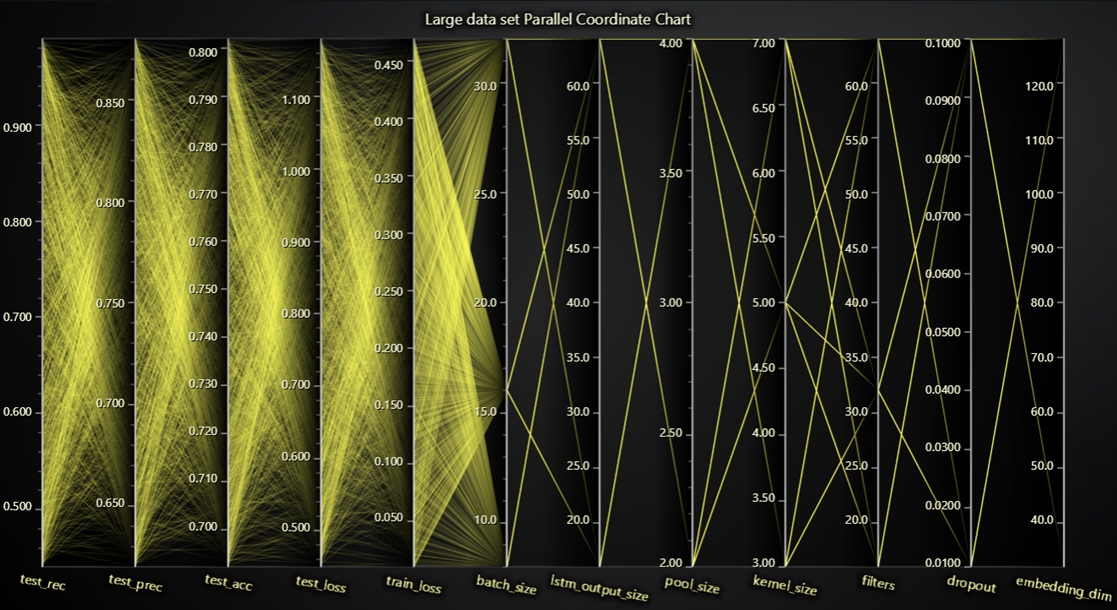
This example uses a Parallel Coordinate Chart to display a large dataset from a Machine Learning training session. Each line represents a sample with multiple attributes (e.g., accuracy, loss, batch size, etc.). The Parallel Coordinate Chart is a key tool for visualizing and analyzing data with multiple variables simultaneously.
It allows for the detection of patterns, relationships, and anomalies across dimensions, which is especially useful in fields like Machine Learning, where model configurations or results are compared. Its ability to handle large volumes of data through semi-transparent lines makes it easier to identify trends based on visual density, making it a powerful solution for exploration analysis of complex datasets.
Create a Parallel Coordinate Chart
const chart = lc
    ParallelCoordinateChart({
        theme: Themes.darkGold,
    })
    setTitle('Large data set Parallel Coordinate Chart')
Initializes a new ParallelCoordinateChart with the dark gold theme and sets a title. This chart is designed to visualize multi-dimensional data, each axis represents one variable, and each series is a data sample
Initializes a new ParallelCoordinateChart
with the dark gold theme and sets a title.
This chart is designed to visualize multi-dimensional
data, each axis represents one variable,
and each series is a data sample
Load and configure axes from external JSON data
fetch(document.head.baseURI + 'examples/assets/1701/network-training-data.json')
    then(r => r.json())
    then((data) => {
        const Axes = {
            test_rec: 0,
            test_prec: 1,
            test_acc: 2,
            test_loss: 3,
            train_loss: 4,
            batch_size: 5,
            lstm_output_size: 6,
            pool_size: 7,
            kernel_size: 8,
            filters: 9,
            dropout: 10,
            embedding_dim: 11,
        }
        chart.setAxes(Axes)
        chart.forEachAxis((axis) => axis.setTitleRotation(10))
    })
- Loads a JSON dataset of training results (network-training-data.json).
- Defines the axis names and their order.
- Sets these axes on the chart.
- Rotates axis titles slightly for readability.
Optimize for performance and load series
chart.setSeriesStrokeThickness(-1)
// Disabling splines can enable visualization of larger data sets.
chart.setSpline(false)
chart.setUnselectedSeriesColor((color) => color.setA(10))
data.forEach((sample) =>
    chart
        addSeries({ automaticColorIndex: 0 })
        setName(`Sample ${sample.uid}`)
        setData(sample)
        // With large data sets, opacity is generally used to differentiate series.
        setColor((color) => color.setA(20)),
)- Sets thin lines for performance (-1 thickness = crisp 1px).
- Disables spline smoothing to render faster and show true data trends.
- Uses low opacity for both selected and unselected series to visually detect clusters.
- Iterates through each sample from the data, creates a series, assigns the values, and names them Sample {uid}.
JavaScript Sweeping Line Chart Dashboard
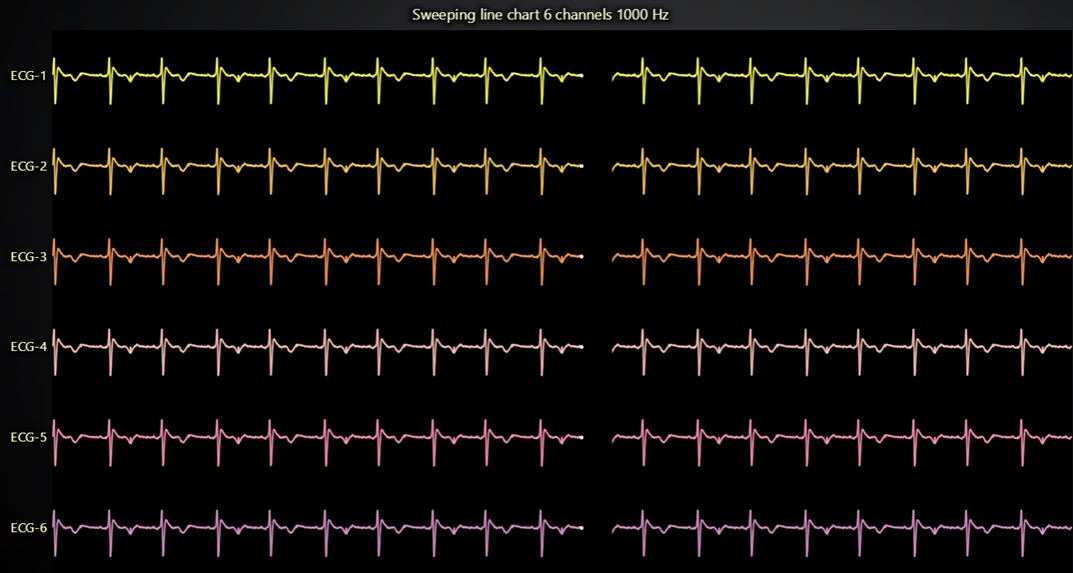
This Sweeping line chart dashboard demonstrates how to implement a sweeping line chart for ECG signals using LightningChart JS, enabling real-time visualization of up to six data channels at 1000 Hz. Although the library does not include this functionality by default, it is achieved using alternating series that represent the “new” and “old” data in each channel, creating the sweeping effect. Despite the increased code complexity, visualization remains efficient even when handling multiple channels simultaneously.
The use of sweeping line charts in monitoring biometric signals, such as ECG, is crucial for continuously and efficiently analyzing real-time data. This type of visualization allows you to see how signals change over time, revealing activity patterns that can be essential for detecting anomalies, such as arrhythmias or variations in heart rhythm.
When managing multiple data channels, it becomes possible to monitor different aspects of the ECG signal simultaneously, providing a more comprehensive view of the patient’s health. Additionally, the ability to handle large volumes of high-frequency data, such as the 1000 Hz used in this example, ensures that the system can meet the demands of advanced medical devices, delivering accurate and timely monitoring, which is essential for effective preventive and emergency medical care.
Initial Setup and Chart Configuration
const lc = lightningChart().ChartXY()
const chart = lc.ChartXY({
    theme: Themes.darkGold,
})

const theme = chart.getTheme()
const ecgBackgroundFill = new SolidFill({
    color: theme.isDark ? ColorHEX('#000000') : ColorHEX('#ffffff'),
})
chart
    setSeriesBackgroundFillStyle(ecgBackgroundFill)
    setSeriesBackgroundStrokeStyle(emptyLine)
    setTitle(`Sweeping line chart ${CHANNELS.length} channels 1000 Hz`)
    setCursorMode(undefined)
    setUserInteractions(undefined)
const axisX = chart
    getDefaultAxisX()
    setTickStrategy(AxisTickStrategies.Empty)
    setStrokeStyle(emptyLine)
    setScrollStrategy(undefined)
    setInterval({ start: 0, end: xViewMs, stopAxisAfter: false })
chart.getDefaultAxisY().dispose()
The code begins by creating a LightningChart instance and setting up a chart with a dark gold theme. It configures the X and Y axes, setting background colors and styles, and preparing for data visualization. The chart title and interactions are also defined, but with some elements (like cursor and user interactions) disabled to focus on the core data presentation.
The code begins by creating a LightningChart instance and setting up a chart with a dark gold theme.
It configures the X and Y axes, setting background colors and styles, and preparing for data visualization.
The chart title and interactions are also defined, but with some elements (like cursor and user interactions) disabled to focus on the core data presentation.
Handling ECG Data for Multiple Channels
const channels = CHANNELS.map((info, ich) => {
    const axisY = chart
        addAxisY({ iStack: CHANNELS.length - ich })
        setStrokeStyle(emptyLine)
        setInterval({ start: info.yMin, end: info.yMax })
        setTickStrategy(AxisTickStrategies.Empty)
        setTitle(info.name)
        setTitleRotation(0)

    // Series for displaying "old" data.
    const seriesRight = chart
        addPointLineAreaSeries({
            dataPattern: 'ProgressiveX',
            automaticColorIndex: ich,
            yAxis: axisY,
        })
        setName(info.name)
        setAreaFillStyle(emptyFill)
        setStrokeStyle((stroke) => stroke.setThickness(2))
        setEffect(false)
        setMaxSampleCount(dataRateHz * xViewMs)
    // Rectangle for hiding "old" data under incoming "new" data.
    const seriesOverlayRight = chart
        addRectangleSeries({ yAxis: axisY })
        setPointerEvents(false)
        setEffect(false)
        setCursorEnabled(false)
    const figureOverlayRight = seriesOverlayRight
        add({ x1: 0, y1: 0, x2: 0, y2: 0 })
        setFillStyle(ecgBackgroundFill)
        setStrokeStyle(emptyLine)
})
The code then prepares multiple ECG channels, each with its own Y-axis. For each channel, two series are created: one for displaying “old” data (right) and another for displaying incoming “new” data (left). These series use progressive data patterns and adjust the stroke thickness for visualization.
The chart also includes logic to highlight the last data point for each series and synchronize the highlighting between the “left” and “right” series to show continuity.
Simulating Real-Time Data Streaming
let tStart = window.performance.now()
let pushedDataCount = 0
const xStep = 1000 / dataRateHz
const streamData = () => {
    const tNow = window.performance.now()
    // NOTE: This code is for example purposes only (streaming stable data rate)
    // In real use cases, data should be pushed in when it comes.
    const shouldBeDataPointsCount = Math.floor((dataRateHz * (tNow - tStart)) / 1000)
    const newDataPointsCount = shouldBeDataPointsCount - pushedDataCount
    if (newDataPointsCount > 0) {
        const newDataPoints = []
        for (let idp = 0; idp < newDataPointsCount; idp++) {
            const x = (pushedDataCount + idp) * xStep
            const iData = (pushedDataCount + idp) % ecgData.length
            const y = ecgData[iData]
            const point = { x, y }
            newDataPoints.push(point)
        }
        // For this examples purposes, stream same data into all channels.
        handleIncomingData(new Array(CHANNELS.length).fill(0).map(() => newDataPoints))
        pushedDataCount += newDataPointsCount
    }
    requestAnimationFrame(streamData)
}
streamData()
Finally, the code simulates real-time streaming of ECG data. It tracks the elapsed time and generates new data points at a defined rate (1000 Hz).The data is pushed to the chart in batches, and the chart is updated in real-time using a sweeping line effect.
The data is pushed to each channel, and the chart displays the incoming data, ensuring that the old data moves off the screen as new data is added. This simulation mimics the continuous data flow in a real-time scenario.
JavaScript Heatmap Grid Chart
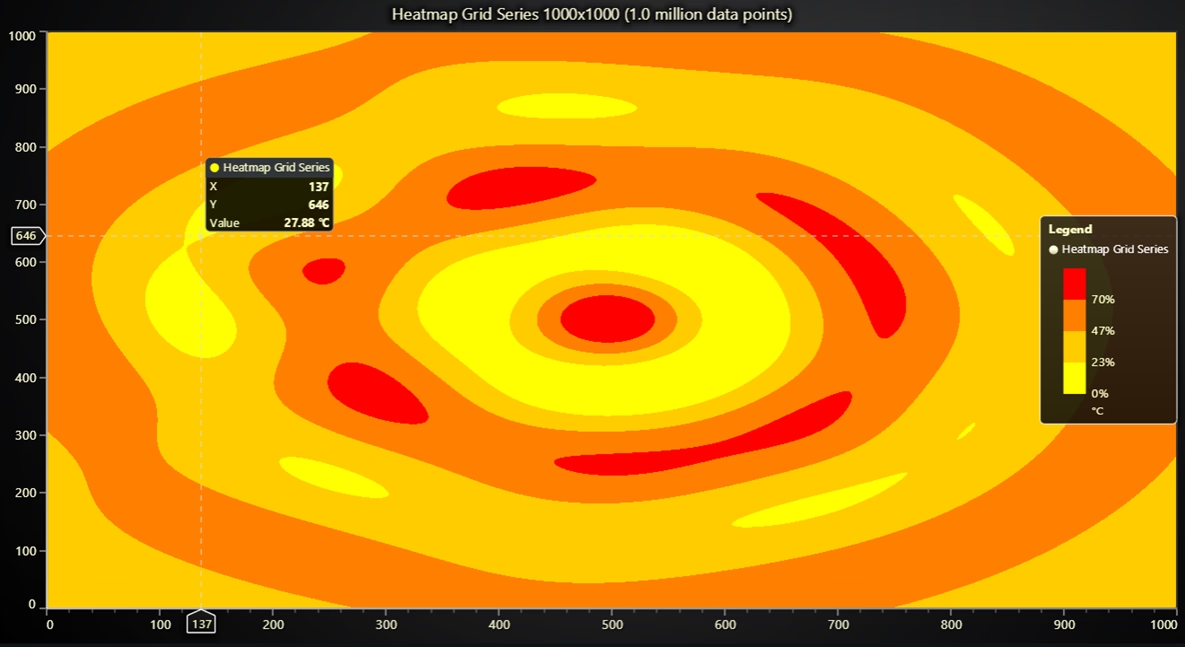
This JavaScript heatmap grid chart example demonstrates the basic use of HeatmapGridSeries, a simple yet extremely powerful chart type for visualizing three-dimensional data: X position, Y position, and color (representing value). This type of chart is ideal for efficiently displaying large volumes of data, as it can handle millions of data points even on low-performance devices, and with sufficient RAM, it is capable of visualizing billions of points. Heatmaps are essential when identifying patterns, concentrations, or distributions within large datasets.
Their main advantage is the color-based visual representation, which allows for quick detection of areas with higher or lower intensity, such as temperatures, activity levels, population density, or physiological signals. In fields like medical science, engineering, or research, heatmaps help analyze complex data in real time, enabling decision-making based on visual trends that would be difficult to spot in tables or conventional charts.
Chart Initialization and Heatmap Resolution Setup
// Specify the resolution used for the heatmap.
const resolutionX = 1000
const resolutionY = 1000
// Create a XY Chart.
const chart = lightningChart()
    ChartXY({
        theme: Themes.darkGold,
    })
    setTitle(
        `Heatmap Grid Series ${resolutionX}x${resolutionY} (${((resolutionX * resolutionY) / 1000000).toFixed(1)} million data points)`,
    )
The code sets the resolution of the heatmap (1000×1000), then creates a chart with a dark theme and a descriptive title that includes the number of data points in millions.
Color Palette (LUT) Configuration
const palette = new LUT({
    units: '°C',
    percentageValues: true,
    steps: regularColorSteps(
        // first color at min value
        0,
        // last color at 70% between min and max value
        0.7,
        theme.examples.intensityColorPalette,
    ),
    interpolate: false,
})
It defines a Lookup Table (LUT) to map intensity values (like temperature) to colors. The LUT is based on the chart’s theme and specifies that the gradient should stop at 70% of the range to emphasize midrange intensity.
Generate and Render Heatmap Data
createWaterDropDataGenerator()
    setRows(resolutionX)
    setColumns(resolutionY)
    generate()
    then((data) => {
        // Add a Heatmap to the Chart.
        const heatmap = chart
            addHeatmapGridSeries({
                columns: resolutionX,
                rows: resolutionY,
                dataOrder: 'columns',
            })
            setStart({ x: 0, y: 0 })
            setEnd({ x: resolutionX, y: resolutionY })
            // Color Heatmap using previously created color look up table.
            setFillStyle(new PalettedFill({ lut: palette }))
            setWireframeStyle(emptyLine)
            invalidateIntensityValues(data)
        // Add LegendBox.
        const legend = chart
            addLegendBox()
            // Dispose example UI elements automatically if they take too much space.
            setAutoDispose({
                type: 'max-width',
                maxWidth: 0.3,
            })
            add(chart)
    })
It uses createWaterDropDataGenerator() to generate synthetic 2D data, then adds a heatmap series to the chart. The heatmap uses the LUT for coloring, sets its position and size, and displays the data. A legend is also added to help interpret the color scale.
It uses createWaterDropDataGenerator() to
generate synthetic 2D data, then adds a heatmap
series to the chart.
The heatmap uses the LUT for coloring, sets its
position and size, and displays the data. A legend
is also added to help interpret the color scale.
JavaScript Large Line Chart
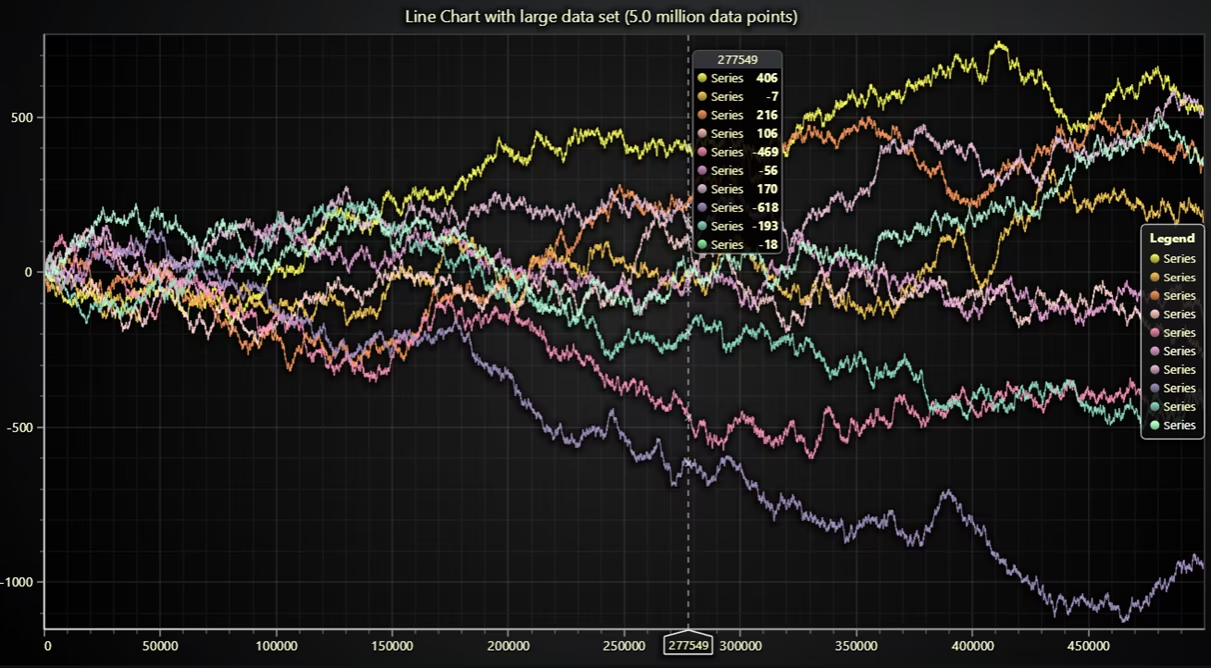
This JavaScript large line chart example demonstrates how to visualize a line chart with a very large dataset, spanning several million data points. Thanks to LightningChart JS, it is possible to render these massive visualizations directly in the browser with outstanding performance, something that was previously nearly unattainable without complex optimizations and still came with significant limitations regarding smooth interaction like zooming and panning.
Why is this type of chart important?
Line charts with millions of data points allow for the exploration of high-resolution, continuous time-based information without sacrificing fluidity or visual detail. This is critical in fields such as real-time telemetry, financial time series analysis, industrial sensor monitoring, or biometric signal processing. For example, an analyst can identify abnormal spikes in a machine’s behavior, or a medical researcher can track detailed changes in an ECG signal over time.
Additionally, the use of WebGL in LightningChart JS replaces traditional technologies like SVG or Canvas, which quickly become overwhelmed by large volumes of data, allowing even browsers on modest devices to handle millions of data points with instant interactions. In summary, these charts not only allow for clear and fast visualization of large data volumes, but they also democratize data analysis by making it accessible from any modern browser, without the need for specialized hardware.
Chart Configuration and Title Based on Data Size
const trendsCount = 10
const dataPerTrend = 500 * 1000
// Create chart and series.
const chart = lightningChart()
    ChartXY({
        theme: Themes.darkGold,
    })
    setTitle(`Line chart with large data set (${((trendsCount * dataPerTrend) / 10 ** 6).toFixed(1)} million data points)`)
    setCursor((cursor) => cursor.setTickMarkerVisible(false).setGridStrokeStyle(emptyLine))
This part initializes a chart using the lightningChart().ChartXY() function with a dark theme. It sets a dynamic title that reflects the total number of data points being plotted (e.g., 10 trends × 500,000 points = 5 million).
Generate Large Data Sets Asynchronously
Promise.all(
    new Array(trendsCount).fill(0).map((_, i) => createProgressiveTraceGenerator().setNumberOfPoints(dataPerTrend).generate().toPromise())
)
It creates 10 separate large data sets asynchronously using a ProgressiveTraceGenerator. Each dataset consists of 500,000 points and is wrapped in a Promise.all() to wait for all to be ready before rendering.
It creates 10 separate large data sets asynchronously
using a ProgressiveTraceGenerator. Each
dataset consists of 500,000 points and is wrapped
in a Promise.all() to wait for all to be ready
before rendering.
Plot Each Trend as a Line Series on the Chart
then((allData) => {
  for (let i = 0; i < trendsCount; i = i + 1) {
    chart
      addPointLineAreaSeries({
        dataPattern: 'ProgressiveX',
      })
      setStrokeStyle((stroke) => stroke.setThickness(1))
      setAreaFillStyle(emptyFill)
      appendJSON(allData[i])
  }
  const legend = chart
    addLegendBox()
    add(chart)
    // Dispose example UI elements automatically if they tak
    setAutoDispose({
      type: 'max-width',
      maxWidth: 0.3,
    })
})
Once the data is generated, each dataset is plotted using addPointLineAreaSeries() configured with a simple line (no fill). A legend box is also added to help identify elements and is automatically resized to fit the screen well.
JavaScript Multiple Areas Chart
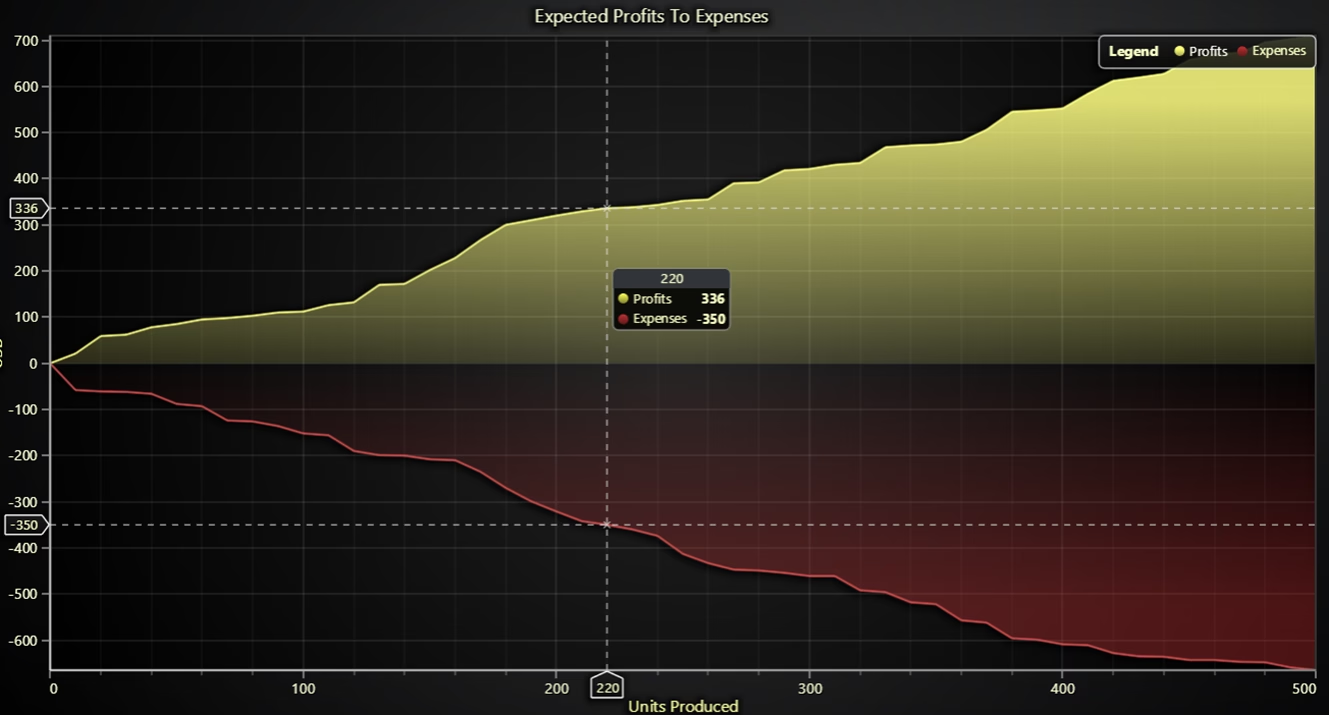
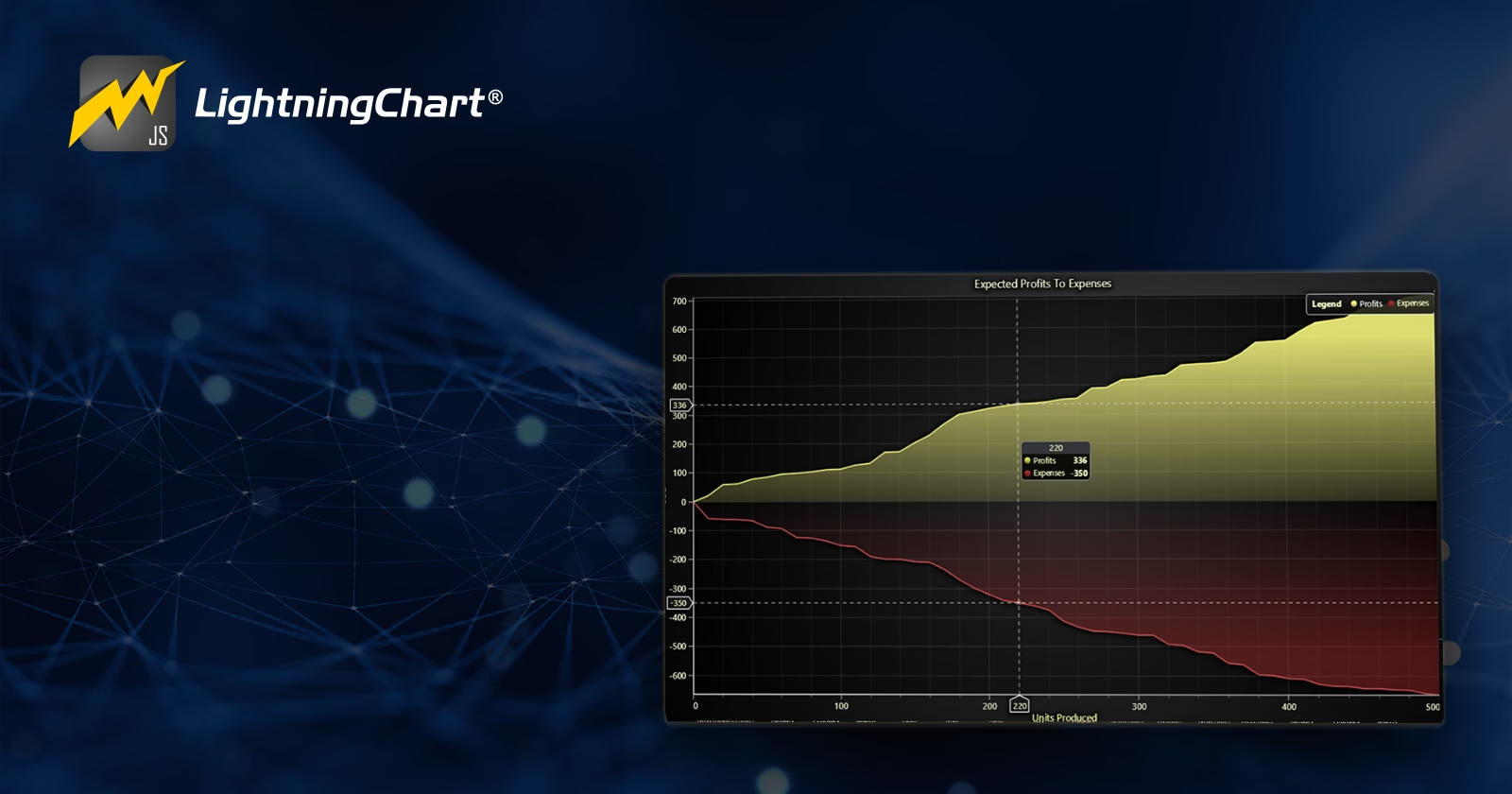
This JavaScript multiple areas chart, commonly known as an Area Chart, allows for the visualization of quantitative data in an immersive way, highlighting not only the trend but also the magnitude of the value in relation to baseline. Unlike a conventional line chart, the area between the data curve and the baseline is filled with color, which visually emphasizes the volume of the data.
What does this example show? In this case, two unipolar area series are used, each extending in opposite directions from a central baseline. One represents positive values (upward) and the other represents negative values (downward). This arrangement facilitates a direct comparison between two datasets that share the same horizontal axis but are distributed in opposite directions relative to a common reference point.
What is its usefulness and importance?
Multiple area charts like this are especially useful for representing phenomena that involve contrasts or balances, such as:
- Gains vs. losses in financial analysis.
- Energy consumption vs. production.
- Biometric data, like positive and negative muscle activity relative to a physiological baseline.
- Deviations from a reference value in industrial or scientific processes.
This type of visualization allows for the quick identification of areas of interest or imbalance, facilitating an intuitive visual interpretation. Additionally, the ability to combine multiple areas in the same chart without losing clarity makes it a powerful tool for exploring and analyzing dense or complex datasets.
Chart and Legend Setup
// Create a XY Chart.
const xyChart = lightningChart()
  ChartXY({
    theme: Themes.darkGold,
  })
  setTitle('Expected Profits To Expenses')
// Create a LegendBox as part of the chart.
const legend = xyChart
  addLegendBox(LegendBoxBuilders.HorizontalLegendBox)
  // Dispose example UI elements automatically if they take
  setAutoDispose({
    type: 'max-width',
    maxWidth: 0.8,
  })
The code starts by importing LightningChartJS modules and creating an XY chart with a dark theme and a title. It also sets up a horizontal LegendBox, which helps users visually toggle and identify the data series.
Add Area Series for Profits and Expenses
// ---- Add multiple Area series with different baselines and direction. ----
const areaProfit = xyChart.addAreaSeries({ type: AreaSeriesTypes.Positive }).setName('Profits')
const areaExpense = xyChart.addAreaSeries({ type: AreaSeriesTypes.Negative }).setName('Expenses')
// Set Axis nicely
xyChart.getDefaultAxisX().setTitle('Units Produced')
xyChart.getDefaultAxisY().setTitle('USD')
Two area series are created using AreaSeriesTypes.Positive for profits andAreaSeriesTypes.Negative for expenses. This ensures the “Profits” area is drawn above the X-axis, and “Expenses” below it. Axis titles are also set for clarity.
Populate Series with Data and Style the Legend
// ---- Generate points using `xydata`-library and add it to every plot. ----
profitData.forEach((point) => {
  areaProfit.add(point)
})
expensesData.forEach((point) => {
  areaExpense.add(point)
})
// Add series to LegendBox and style entries.
legend.add(areaProfit, true, 'Expected Profits To Expenses', UIElementBuilders.CheckBox.setButtonShape(PointShape.Circle))
legend.add(areaExpense, true, 'Expected Profits To Expenses', UIElementBuilders.CheckBox.setButtonShape(PointShape.Circle))
Each area series is filled with its respective dataset (profitData and expensesData). Then, both are added to the legend with styled circular checkboxes so users can toggle their visibility.
JavaScript Racing Dashboard
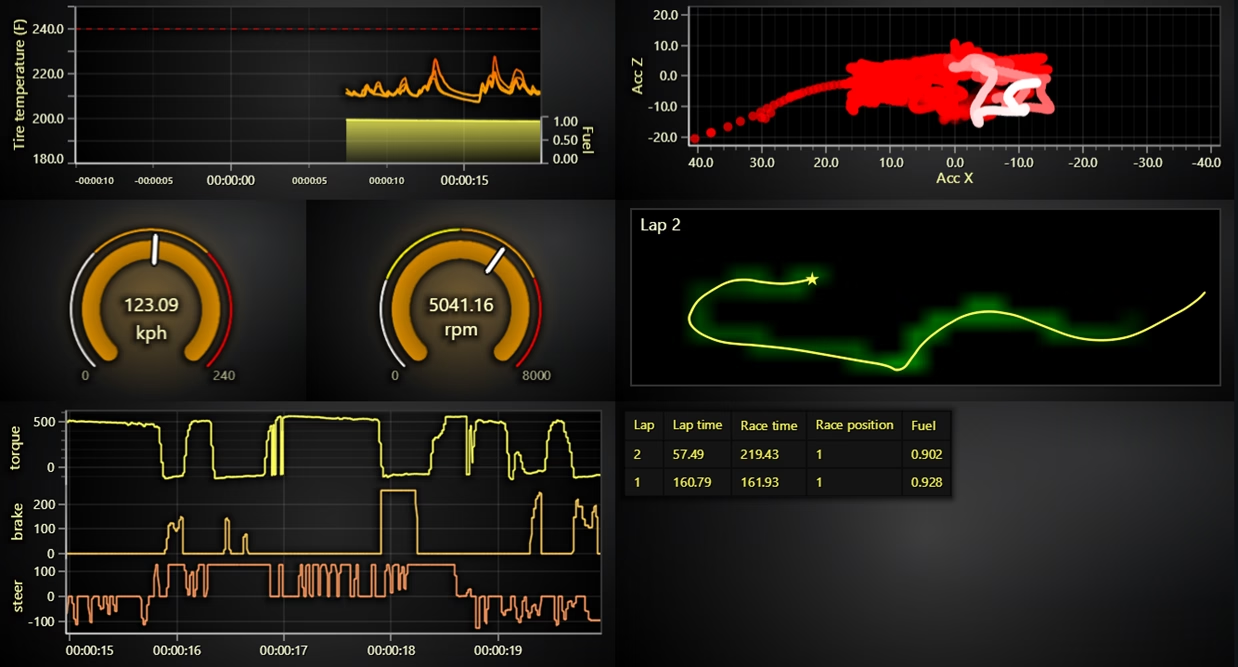
This is a JavaScript racing dashboard consisting of 6 components, and its goal is to monitor the performance of a race car through various laps. Within the information displayed, we will see:
- torque
- brake
- steering
- speed
- engine rounds per minute
- tire temperatures
- fuel
- accelerations along XZ planes
- current lap time
- race position
These are the 6 charts displayed on the dashboard:
- Line series to display torque, brake, steer with a fast 5 second scrolling time window.
- Two gauges to display speed and engine revolutions.
- Dynamically colored line series for tire temperatures (hot temperatures show as orange/red).
- Dynamically colored, fading over time scatter series for XZ accelerations (new samples show as bright white, old samples fade away)
- Freeform line series to display racetrack along with a moving marker for the current racer position, A heatmap under this line series displays time loss relative to the last lap (red = time lost, green = time gain)
- A data grid for displaying per-lap information, lap times, positions and fuel levels.
Tire Temperatures Chart (Line chart with area)
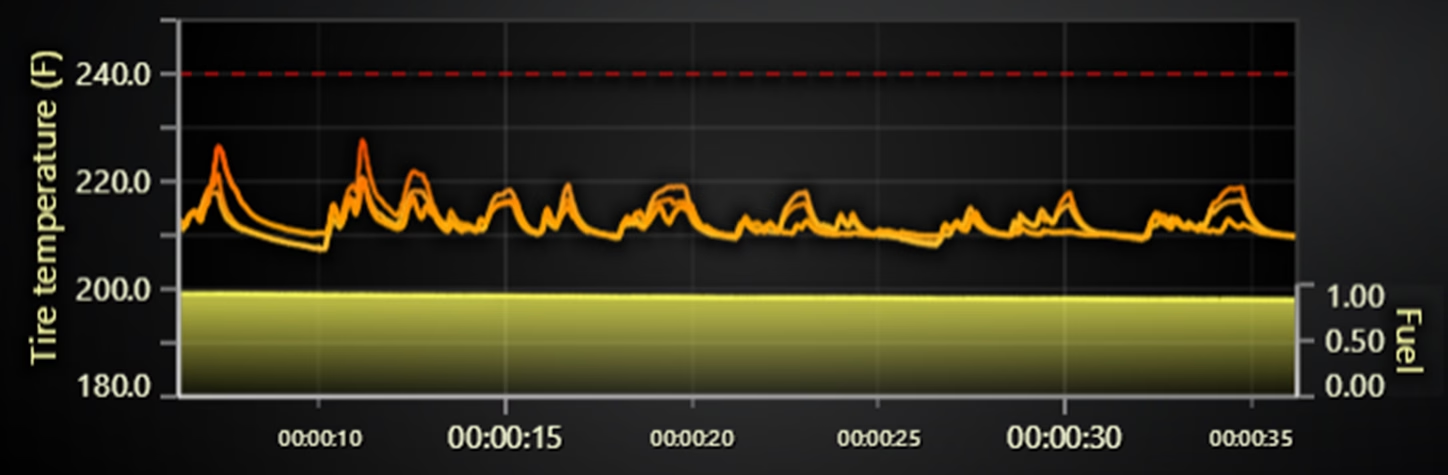
The chart is created with a ChartXY component.
const chartTireTemperatures = lc
  ChartXY({
    container: containerTireTemperatures,
    defaultAxisX: { type: 'linear-highPrecision' },
    theme: Themes.darkGold,
  })
  setTitle('')
containerTireTemperatures.style.position = 'absolute'
containerTireTemperatures.style.left = '0px'
containerTireTemperatures.style.top = '0px'
containerTireTemperatures.style.width = '50%'
containerTireTemperatures.style.height = '30%'
const isDarkTheme = chartTireTemperatures.getTheme().isDark
if (isDarkTheme) {
  if (IsImageFill(chartTireTemperatures.engine.getBackgroundFillStyle())) {
    chartTireTemperatures.engine.setBackgroundFillStyle(new SolidFill({ color: ColorRGBA(0, 0, 0, 0) }))
  }
}
chartTireTemperatures.axisX
  setTickStrategy(AxisTickStrategies.Time)
  setScrollStrategy(AxisScrollStrategies.progressive)
  setDefaultInterval((state) => {
    end: state.dataMax ?? 0,
    start: (state.dataMax ?? 0) - 30_000,
    stopAxisAfter: false,
  })
chartTireTemperatures.axisY
  setTitle('Tire temperature')
  setAnimationScroll(false)
  setUnits('F')
The x axis is set for time-based data with AxisTickStrategies.Time and AxisScrollStrategies.progressive. The y-axis is for tire temperature, with a set range and units in Fahrenheit. Data for tire temperatures from different tires (front left, front right, rear left, rear right) are appended using PointLineAreaSeries. The line color is dynamically adjusted using a PalettedFill based on the temperature.
The X-axis is set for time-based data with AxisTickStrategies.Time and AxisScrollStrategies.progressive.
The Y-axis is for tire temperature, with a set range and units in Fahrenheit.
Data for tire temperatures from different tires (front left, front right, rear left, rear right) are appended using PointLineAreaSeries.
The line color is dynamically adjusted using a PalettedFill based on the temperature.
const tireTemperaturesSeriesList = [
  'tire_temp_front_left',
  'tire_temp_front_right',
  'tire_temp_rear_left',
  'tire_temp_rear_right',
].map((key, i) => {
  const series = chartTireTemperatures
    addPointLineAreaSeries({ dataPattern: 'ProgressiveX' })
    setName(key)
    setAreaFillStyle(emptyFill)
    setMaxSampleCount(200_000)
    setStrokeStyle(temperatureStroke)
  onData((sample) => {
    series.appendSample({ x: sample.time, y: sample[key] })
  })
})
A fuel axis is added to the chart, and a new series is created for fuel data, which is updated in real time as new data comes in.
const fuelAxis = chartTireTemperatures
  addAxisY({ opposite: true })
  setTitle('Fuel')
  setLength({ pixels: 50 })
  setTickStrategy(AxisTickStrategies.Numeric, (strategy) =>
    strategy.setTickStyle((ticks) => ticks.setGridStrokeStyle(emptyLine)),
  )
  setInterval({ start: 0, end: 1 })
const fuelSeries = chartTireTemperatures
  addPointLineAreaSeries({
    dataPattern: 'ProgressiveX',
    axisY: fuelAxis,
    automaticColorIndex: 0,
  })
  setMaxSampleCount(200_000)
Speed Gauge
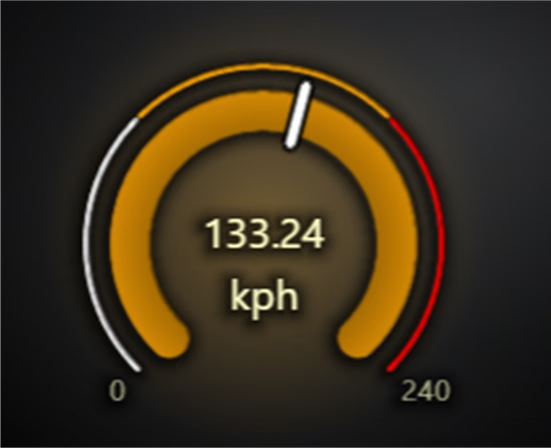
A Gauge is created to visualize the speed, with custom units (kph) and a needle indicating the speed.
const speedGauge = lc
  Gauge({
    container: containerSpeedGauge,
    theme: Themes.darkGold,
  })
  setTitle('')
  setUnitLabel('kph')
  setPadding(0)
  setBarThickness(20)
  setTickFont((font) => font.setSize(14))
  setValueLabelFont((font) => font.setSize(20))
  setUnitLabelFont((font) => font.setSize(20))
  setNeedleLength(30)
The gauge is styled, including adjusting the thickness of the bar and the size of the needle, as well as configuring ranges for speed (color-coded from white to red).
setNeedleThickness(5)
setValueIndicators([
  { start: 0, end: 80, color: ColorHEX('#ffffff') },
  { start: 80, end: 160, color: ColorHEX('#ffa500') },
  { start: 160, end: 240, color: ColorHEX('#ff0000') },
])
setValueIndicatorThickness(3)
setTickFormatter((value) => (value > 0 && value < 240 ? '' : value.toFixed(0)))
setInterval(0, 240)
The gauge value is updated in real-time using the onData callback, where the speed data is transformed and displayed as kph.
onData((sample) => {
  speedGauge.setValue((sample.speed ?? 0) * 3.6)
  rpmGauge.setValue(sample.current_engine_rpm ?? 0)
})
RPM Gauge
Another Gauge is created, this time to show engine RPM (rotations per minute). The gauge is like the speed gauge but has a different range and unit.
const rpmGauge = lc
  Gauge({
    container: containerRPMGauge,
    theme: Themes.darkGold,
  })
  setTitle('')
  setUnitLabel('rpm')
  setPadding(0)
  setBarThickness(20)
  setTickFont((font) => font.setSize(14))
  setValueLabelFont((font) => font.setSize(20))
  setUnitLabelFont((font) => font.setSize(20))
The gauge is styled to include multiple value ranges, each with a different color representing different RPM levels (e.g., green, yellow, orange, red).
setNeedleThickness(5)
setInterval(0, 8000)
setValueIndicators([
  { start: 0, end: 2000, color: ColorHEX('#ffffff') },
  { start: 2000, end: 4000, color: ColorHEX('#FFFF00') },
  { start: 4000, end: 6000, color: ColorHEX('#ffa500') },
  { start: 6000, end: 8000, color: ColorHEX('#ff0000') },
])
setValueIndicatorThickness(3)
setTickFormatter((value) => (value > 0 && value < 8000 ? '' : value.toFixed(0)))
Like the speed gauge, the RPM gauge is updated in real-time using the onData callback to reflect the engine RPM.
onData((sample) => {
  speedGauge.setValue((sample.speed ?? 0) * 3.6)
  rpmGauge.setValue(sample.current_engine_rpm ?? 0)
})
Time Series Chart (Line chart)
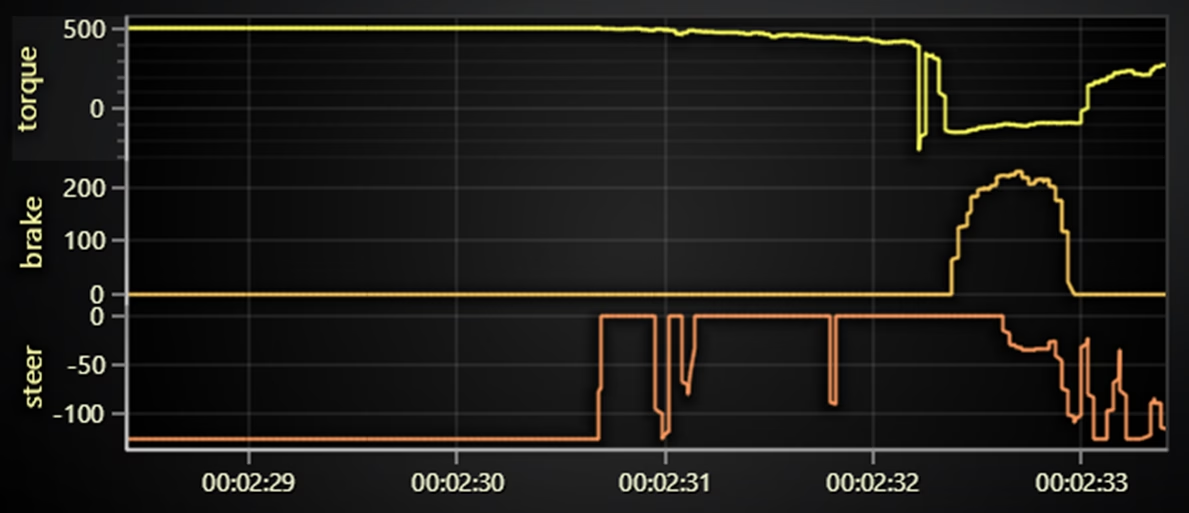
ChartXY was created to visualize time-based data like torque, brake, and steering. The x-axis is time-based, and the y-axis is specific to each of the data types (torque, brake, steer).
const chartTimeSeries = lc
  ChartXY({
    container: containerTimeSeries,
    defaultAxisX: { type: 'linear-highPrecision' },
    theme: Themes.darkGold,
  })
  .setTitle('')
Each time series (torque, brake, steer) is added as a separate PointLineAreaSeries, each with their own y axis for better visualization.
const timeSeriesList = ['torque', 'brake', 'steer'].map((key, i) => {
  const axisY = chartTimeSeries
    addAxisY({ isStack: -i })
    setTitle(key)
    setAnimationScroll(false)
    setScrollStrategy(AxisScrollStrategies.fitting)
  const series = chartTimeSeries
    addPointLineAreaSeries({ dataPattern: 'ProgressiveX', axisY })
    setMaxSampleCount(200_000)
    setAreaFillStyle(emptyFill)
Data is appended to each series in real-time using the onData callback, which is then rendered dynamically as the data comes in.
onData((sample) => {
    series.appendSample({ x: sample.time, y: sample[key] });
});
Scatter Graph
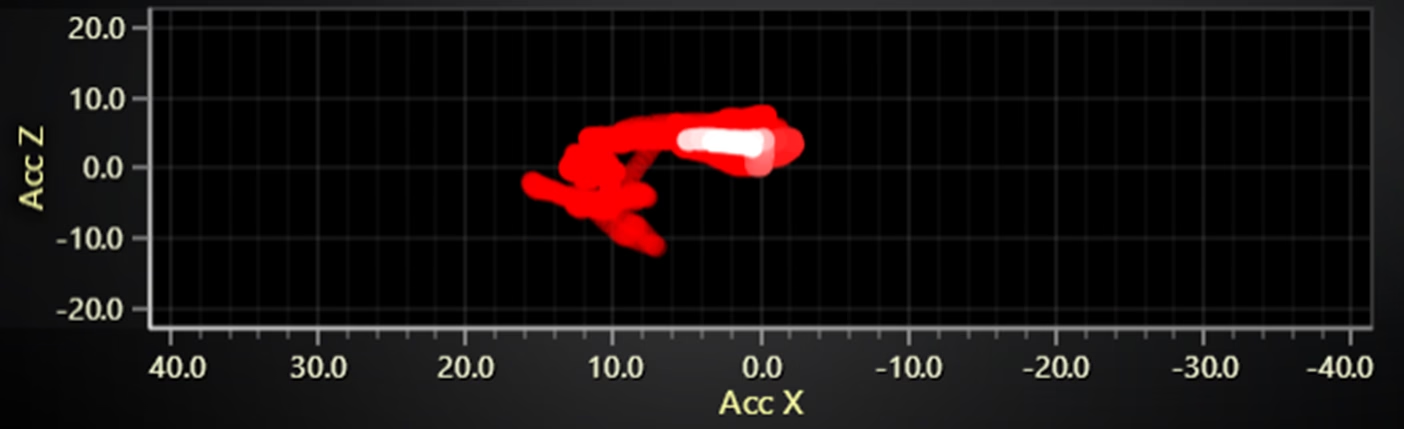
A ChartXY is created to plot acceleration data on the x-axis (Acc X) and y-axis (Acc Z), which represents the acceleration data in two dimensions.
const chartScatter = lc
  ChartXY({
    container: containerScatter,
    theme: Themes.darkGold,
  })
  setTitle('')
containerScatter.style.width = '50%'
containerScatter.style.height = '30%'
containerScatter.style.top = '0px'
containerScatter.style.right = '0px'
containerScatter.style.position = 'absolute'
A PointLineAreaSeries is used to represent the data as scatter points, with each point sized and shaped as a circle.
const seriesScatter = chartScatter
  addPointLineAreaSeries({ dataPattern: null, lookupValues: true })
  setStrokeStyle(emptyLine)
  setPointFillStyle(transparentFill)
  setPointSize(10)
  setPointShape(PointShape.Circle)
  setEffect(false)
The scatter plot is updated every 100ms, changing the point colors based on time to visualize data trends (newer data is white, older data is red).
onData((sample) => {
  seriesScatter.appendSample({
    x: sample.acceleration_x,
    y: sample.acceleration_z,
    lookupValue: sample.time,
  })
})
setInterval(() => {
  seriesScatter.setPointFillStyle(
    new PalettedFill({
      lookupProperty: 'value',
      lut: new LUT({
        interpolate: true,
        steps: [
          { value: performance.now(), color: ColorHEX(isDarkTheme ? '#ffffff' : '#000000') },
          { value: performance.now() - 1000, color: ColorHEX('#ff0000') },

          value: performance.now() - 10_000,
          color: ColorHEX('#ff00000'),
        ],
      }),
    }),
  )
}, 100)
Heatmap
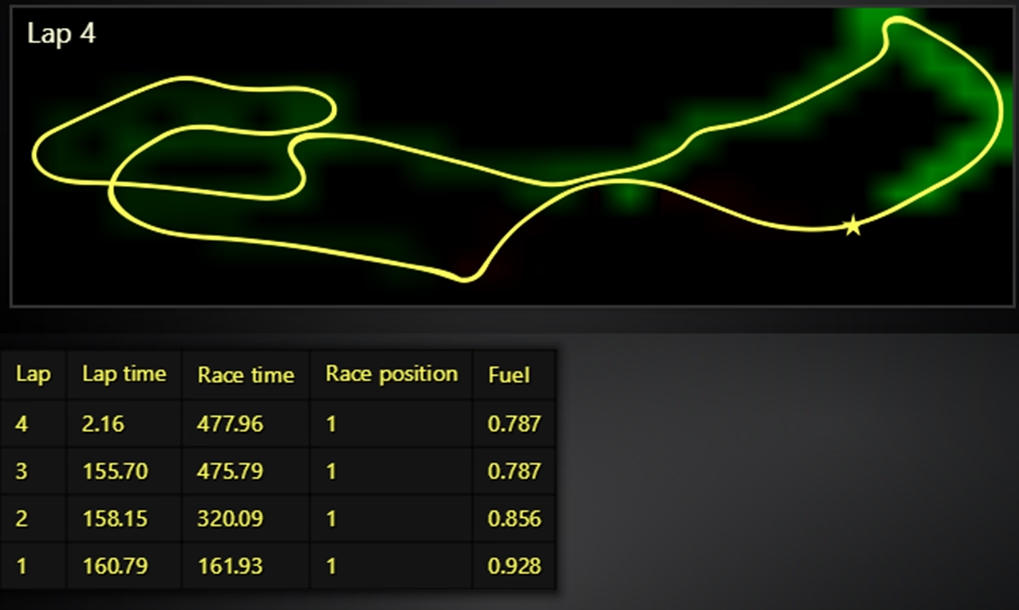
ChartXY is used to display a heatmap of the track’s data, with a grid defined by columns and rows, and the data representing the position on the track.
const chartHeatmap = lc
  ChartXY({
    container: containerHeatmap,
    theme: Themes.darkGold,
  })
  setTitle('')
  setTitlePosition('series-left-top')
  setCursorMode(undefined)
containerHeatmap.style.width = '50%'
containerHeatmap.style.height = '30%'
containerHeatmap.style.top = '30%'
containerHeatmap.style.right = '0px'
containerHeatmap.style.position = 'absolute'
The heatmap uses HeatmapGridSeries to visualize the data, with colors representing different values (e.g., green for low values, red for high values).
setFillStyle(
  new PalettedFill({
    lut: new LUT({
      interpolate: true,
      steps: [
        { value: -5, color: ColorHEX('#00ff00') },
        { value: 0, color: ColorHEX(isDarkTheme ? '#000000' : '#ffffff') },
        { value: 5, color: ColorHEX('#ff0000') },
      ],
    }),
  }),
)
Real-time data updates the heatmap and tracks the position of the car on the track, updating both the heatmap and a separate “latest position” series in real time.
if ((!prev || !IX !== prev.IX || !IY !== prev.IY) && sample.lap_number > 0) {
  let closestPerLap = new Array(10).fill(undefined)
  for (let i = 0; i < iSample; i++) {
    const s2 = data[i]
    if (s2.lap_number >= sample.lap_number) break

    const delta =
      (s2.position_x - sample.position_x) ** 2 +
      (s2.position_z - sample.position_z) ** 2 +
      (s2.current_lap_time - sample.current_lap_time) ** 2 // NOTE: current lap time purpose is for po

    const curClosest = closestPerLap[s2.lap_number]
    if (!curClosest || curClosest.delta > delta) closestPerLap[s2.lap_number] = { delta, sample: s2 }
  }
}
Conclusion
Thank you for making it this far. I hope this collection of XY charts has been to your liking and helpful. XY charts can be as simple as a basic line chart or as complex as a heatmap chart. Developing such charts today can be quite simple, thanks to the wide range of libraries available on the internet. However, each development, implementation, and maintenance can become complicated when its purpose goes beyond a simple static data chart.
As I mentioned in several examples, implementing real-time sensor monitoring, real-time financial analysis, and other applications that require constant analysis can complicate things due to performance and resource consumption. This is where LightningChart offers us high-performance tools and WebGL rendering. Developing a chart is quite straightforward, thanks to the interactive examples and extensive documentation at our disposal.
The real challenge will be creating a data source that meets the format LC requires. In each of the examples, you can see the great capacity to process thousands of data points per second, and how performance remains unaffected. You can also observe very useful tools, like legend boxes or tooltips for each data point. All of this is generated by LC JS, greatly facilitating the development of our project.
Thank you for your attention, bye!
Continue learning with LightningChart
Audio Input Spectrogram Chart
Written by a human | Updated on April 10th, 2025Audio Input Spectrogram Chart LightningChart .NET is a powerful data visualization tool that provides advanced charting capabilities for the .NET framework. One of its key features is the spectrogram chart, which...

EEG Chart
Written by a human | Updated on April 10th, 2025EEG Chart The human brain is one of the most complex and fascinating structures in the world. Scientists have been studying the brain for years to better understand how it works and to find ways to diagnose and...

Best WPF Charting Library
Written by a human | Updated on April 10th, 2025What is the best WPF charting library? WPF (Windows Presentation Foundation) is a graphical subsystem in .NET for building Windows desktop applications. It provides rich graphical capabilities, allowing developers...



If you have any questions, feel free to contact us!
©LightningChart Ltd 2025. All rights reserved.