








Creating a Parallel Coordinate Plot with Range selector and Data Grid Features with LightningChart JS
Tutorial
Written by a Human
Discover how to build an interactive app with LightningChart JS that features a detailed parallel coordinate plot with advanced UI features.
Omar Urbano
Software Engineer

Introduction
In this article, we’ll do a short exercise using LightningChart JS tools to create a parallel coordinates chart and a data grid. This exercise will help us learn how to develop a chart that interacts with a data grid, allowing us to filter the rows we want to display in the chart. Before jumping into the code, let’s take a moment to review some theory to better understand the purpose of this type of chart.
What is a parallel coordinate plot with a range selector?
Parallel coordinates plots allow us to analyze a dataset with many variables at once and uncover patterns among them. This type of plot is ideal for visualizing multidimensional data, that is, data with many columns or features per row. In this chart, each variable (such as weight, price, speed, etc.) is represented as a vertical axis, and each record in the dataset (for example, a car, a patient, a product) appears as a line that crosses all those axes, connecting the corresponding values.
Each variable is assigned to its own axis, and all axes are arranged in parallel. These axes can have different scales, since variables are often expressed in different units of measurement; however, it’s also possible to normalize them so that all scales are uniform. When many lines are viewed together, trends, groupings, or even outliers can start to emerge. Now, the real power comes when you add a range selector. A range selector lets you interact with the chart dynamically.
You can select a specific range on any of the axes (for example, filter only cars with a price between $10,000 and $20,000), and the chart will automatically update to show only the lines that meet that criterion. This helps you focus on specific subsets of the data without having to modify tables or write manual filters. This kind of visualization is especially useful when you’re exploring data and don’t know exactly what you’re looking for but want to uncover hidden relationships among multiple variables at once.
Parallel coordinates charts are used in fields such as:
- Data science and exploratory analysis
- Finance (to compare multiple financial indicators)
- Engineering and manufacturing (comparing quality measurements)
- Medicine (for analyzing patients with multiple characteristics)
Project Overview
To follow this project, download the ZIP file with all the necessary resources.
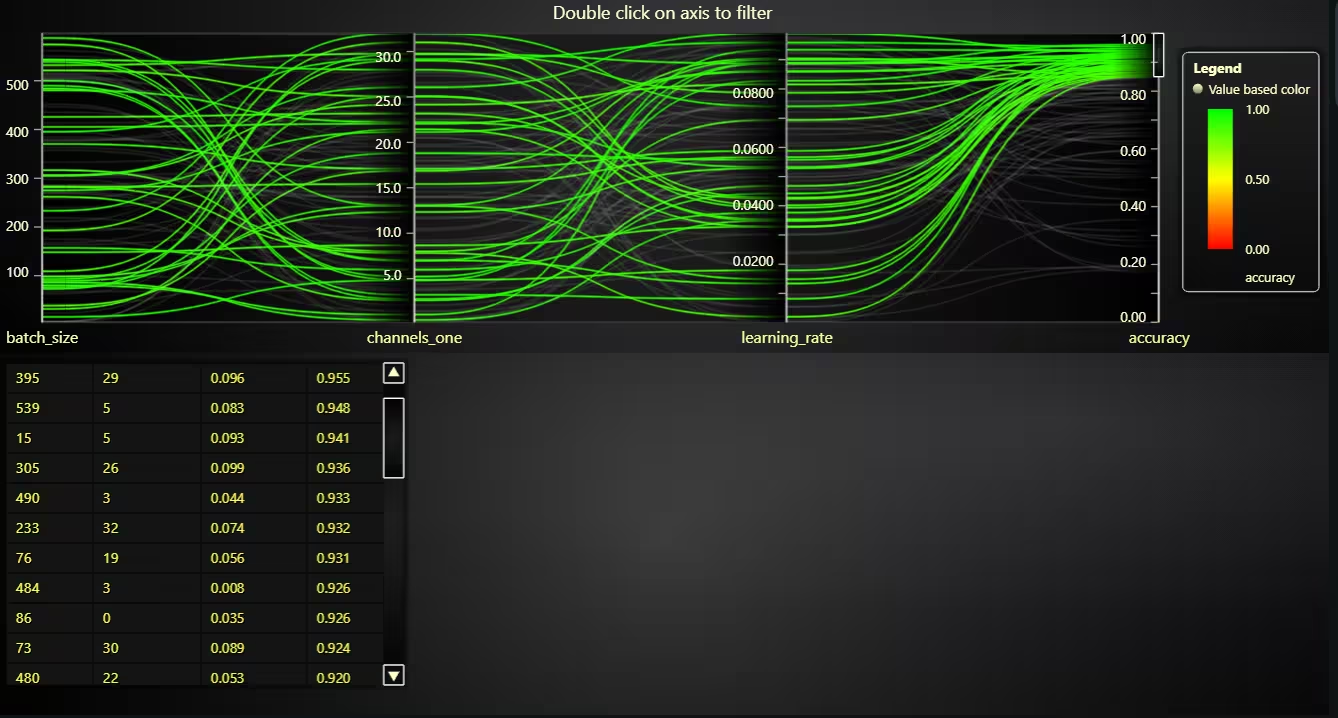
 Parallel Coordinate Plot with Advanced UI Features
Template Setup
1. Download the template provided to follow the tutorial.
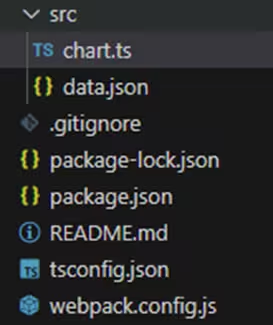
2. After downloading the template, you’ll see a file tree like this:
3. Open a new terminal and run the npm install command
4. It is important to keep the configuration in the tsconfig.json file. This configuration will help you to import JSON files as data objects.
Getting Started
We recommend you use and update to the most recent versions of LightningChart JS and XYData. This is because some LightningChart JS tools do not exist in previous versions. In the project’s package.json file you can find the LightningChart JS dependencies:
"dependencies": {
    "@lightningchart/lcjs": "^7.1.1",
    "@lightningchart/xydata": "^1.5.0"
}
1. Importing classes
We will start by importing the necessary classes to create our chart.
const lcjs = require('@lightningchart/lcjs')
const { lightningChart, Themes, LUT, regularColorSteps, LegendBoxBuilders } = lcjs
2. Add license key (free)
Once the LightningChart JS libraries are installed, we will import them into our chart.ts file. Note you will need a trial license, which is free.
let license = undefined
try {
    license = 'xxxxxxxxxxxxx'
} catch (e) {}Chart.ts
This script builds a rich, interactive visualization that lets users explore machine learning accuracy data through a parallel coordinate plot and a synchronized data grid.
Load data and set up the HTML container
The script begins by importing data from a JSON file (machine-learning-accuracy-data.json).
import data from './machine-learning-accuracy-data.json'It then looks for a DOM element with the ID chart. If it doesn’t exist, it defaults to using the document.body and styles it to take the full viewport width and height.
const exampleContainer = document.getElementById('chart') || document.body
if (exampleContainer === document.body) {
    exampleContainer.style.width = '100vw'
    exampleContainer.style.height = '100vh'
    exampleContainer.style.margin = '0px'
}
Two <div> elements (containerChart1 and containerChart2) are created and appended. These are the containers where the charts will be rendered (stacked vertically) at 50% height each.
const containerChart1 = document.createElement('div')
const containerChart2 = document.createElement('div')
exampleContainer.append(containerChart1)
exampleContainer.append(containerChart2)
containerChart1.style.width = '100%'
containerChart1.style.height = '50%'
containerChart2.style.width = '100%'
containerChart2.style.height = '50%'
Initialize the charting library
The lightningChart library is initialized with this license. Two charts are created using the parallelCoordinateChart method, where each axis represents a variable:
const lc = lightningChart({license:license})dataGrid method is a table to display detailed values of selected data points.const parallelCoordinateChart = lc
.ParallelCoordinateChart({
container: containerChart1,
theme: Themes.darkGold,
})
.setTitle('Double click on axis to filter')
const dataGrid = lc
.DataGrid({
container: containerChart2,
theme: Themes.darkGold,
})
.setTitle('')Configure axes and appearance
The parallelCoordinateChart method is themed using Themes.darkGold, and its axes are defined using a mapping (batch_size, channels_one, etc.). The y-axis for accuracy is limited to a range between 0 and 1. A color scale (LUT – Look-Up Table) is applied to the accuracy axis, using a color gradient that maps low to high accuracy values (e.g., red-to-green if using badGoodColorPalette). Each data sample from the JSON file is added as a line (series) in the parallel coordinate chart.
const theme = parallelCoordinateChart.getTheme()
const Axes = {
    batch_size: 0,
    channels_one: 1,
    learning_rate: 2,
    accuracy: 3,
}
parallelCoordinateChart.setAxes(Axes)
parallelCoordinateChart.getAxis(Axes.accuracy).setInterval({ start: 0, end: 1 })
parallelCoordinateChart.setLUT({
    axis: parallelCoordinateChart.getAxis(Axes.accuracy),
    lut: new LUT({
        interpolate: true,
        steps: regularColorSteps(0, 1, theme.examples.badGoodColorPalette),
    }),
})
data.forEach((sample) => parallelCoordinateChart.addSeries().setData(sample))
Add a legend and adjust layout
A vertical legend box is added to explain the meaning of lines or color coding. Some right-side padding is added to make space for the legend.
const legend = parallelCoordinateChart.addLegendBox(LegendBoxBuilders.VerticalLegendBox).add(parallelCoordinateChart)
parallelCoordinateChart.setPadding({ right: 140 })
Handle user interaction: series selection
When the user selects data lines in the chart (e.g., by clicking or lassoing), an event is triggered. The selected lines (series) are sorted in descending order based on their accuracy values. A table is built from these selected series and rendered in the dataGrid chart below. This shows the raw numbers for the selected data, with column headers and bold styling for the first row.
parallelCoordinateChart.addEventListener('seriesselect', (event) => {
    const { selectedSeries } = event
    selectedSeries.sort((a, b) => b.getData()['accuracy'] - a.getData()['accuracy'])
    const tableContent = [['batch_size', 'channels_one', 'learning_rate', 'accuracy']]
    selectedSeries.forEach((series) => {
        const data = series.getData()
        const row = []
        tableContent.push(row)
        row.push(Math.round(data['batch_size']))
        row.push(Math.round(data['channels_one']))
        row.push(data['learning_rate'].toFixed(3))
        row.push(data['accuracy'].toFixed(3))
    })
    dataGrid
        .removeCells()
        .setTableContent(tableContent)
        .setRowTextFont(0, (font) => font.setWeight('bold'))
})
Add a range selector to filter data visually
A range selector is programmatically added to the accuracy axis, highlighting values between 0.85 and 1.0. This helps the user visually filter out lower accuracy models and can also be added/adjusted interactively via double-clicking or dragging on the axis.
parallelCoordinateChart.getAxis(Axes.accuracy).addRangeSelector().setInterval(0.85, 1.0)Another example is the heatmap rendered below using traceDataArray, showing how intensity varies across distance and time. The chart’s cursor is customized to show detailed tooltips from both series (area and heatmap).
const heatmapSeries = chart
        .addHeatmapGridSeries(heatmapOptions)
        .setStart({
            x: CONFIG.opticalFibreDistanceStart,
            y: CONFIG.timeStart - dateOrigin,
        })
        .setStep({
            x: CONFIG.opticalFibreDistanceStep,
            y: CONFIG.timeStep,
        })
        .setIntensityInterpolation('disabled')
        .invalidateIntensityValues(traceDataArray)
        .setFillStyle(
            new PalettedFill({
                lookUpProperty: 'value',
                lut,
            }),
        )
        .setWireframeStyle(emptyLine)
npm start
In the terminal, write the command npm start to visualize the chart in your local server; enter, and you’ll see a response with http://localhost:8080/, where the chart will be stored and ready to be visualized.
Conclusion
Thank you for making it this far. Although this has been a brief tutorial, that doesn’t mean the chart is a simple or low-utility object. Instead, LightningChart JS allows us to create these complex objects with minimal effort for a developer familiar with JavaScript.
This code demonstrates just how surprisingly simple and powerful it can be to work with LightningChart to build complex visualizations like parallel coordinates charts. With just a few lines of configuration, you can load data, render multiple comparative axes, apply visual filters, and display interactive details in a synchronized table.
What stands out the most is how the library abstracts away technical complexity; you don’t need to worry about render loops, complex DOM events, or manual calculations for scales or colors. Everything flows very intuitively: you define your axes, add the data, apply a LUT for meaningful visualization, and the result is an interactive chart that responds to selections and filters effortlessly.
Continue learning with LightningChart
Choosing the right XY line series
LightningChart .NET features 10 different line series. Read more about their characteristics and functionalities and choose the best for your app.

JavaScript Refreshing Spectrum Chart
Written by a human | Updated on April 10th, 2025JavaScript Refreshing Spectrum Chart Hello again, this time I bring a quick but helpful tutorial on how to create a JavaScript refreshing spectrum chart. A spectrum chart is commonly used in reading and plotting...
Horizontal Bar Chart of Russia-Ukraine War Weaponry Data
Written by a human | Updated on April 10th, 2025 JavaScript Horizontal Bar Chart In this article, we aim to respectfully create a JavaScript horizontal bar chart that simulates the weaponry usage on recent war conflicts. While the data have been taken from Kaggle and...



If you have any questions, feel free to contact us!
©LightningChart Ltd 2025. All rights reserved.