








Creating a Real-Time JavaScript Dashboard with ChatGPT Prompts
Tutorial
Written by a Human
Learn how I used ChatGPT to create a real-time dashboard using LightningChart JS.
Omar Urbano
Software Engineer

Introduction
Welcome to this article where we’ll be discussing a very interesting topic, one that has sparked both positive and negative opinions. Humanity is entering a new era, a stage where we have begun to develop artificial intelligence capable of creating applications, images, sound, video, and other digital tools that were once very difficult to make, or even to imagine.
Although this may sound shocking, the reality is that the changes in the use of these AI models have been adopted in a very “organic” way, positively helping humans by accelerating tasks or projects exponentially. Of course, not everything is positive, and much has been said about the potential problems that AIs might bring to society.
There has been a lot of talk about future unemployment, or the disappearance of jobs currently performed by humans, for example, the extinction of roles such as programmers, administrators, financial analysts, designers, and others.
As a programmer, I’ve had to face these kinds of questions and, therefore, I can’t give an answer without having experimented a bit with these AI chats beforehand. So, before diving into a conclusion, I’d like us to do a brief exercise focused on code development.
Project Overview
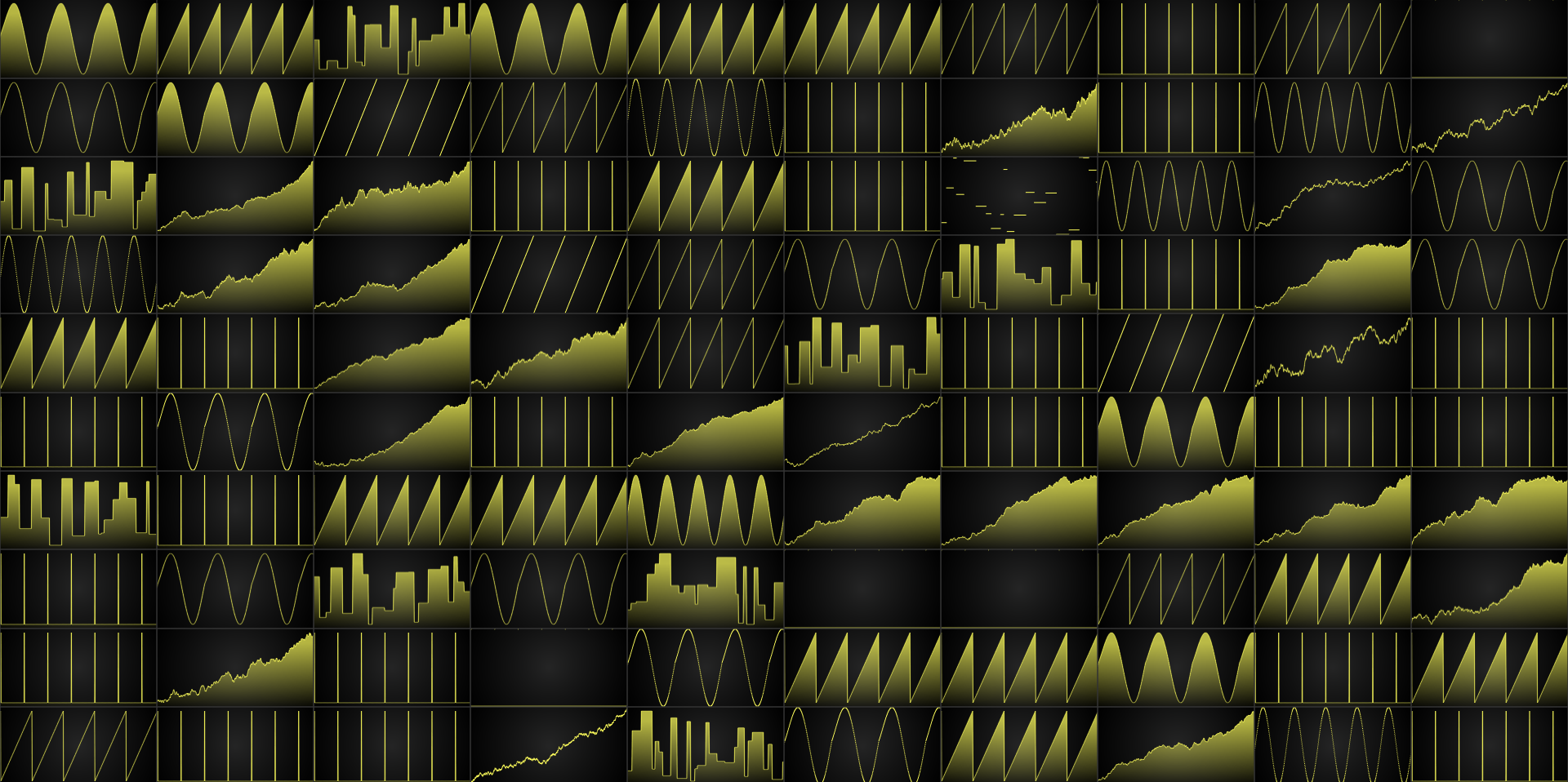
It’s important that you look at the dashboard beforehand, since we’ll be using its code as the basis for writing instructions that the AI can understand and use to generate the code we need.
If you want, you can see the original ChatGPT conversation used in this article. By accessing the original conversation, you will assess which code is useful, what modifications are needed, and determine whether ChatGPT is reliable enough to delegate at least 80% of the entire development work. By the end of this article, I’d like to find the answer to the question “Will AI replace programmers?”
What is ChatGPT?
ChatGPT is an artificial intelligence model developed by OpenAI, designed to understand and generate text in natural language. You can talk to it as if it were a person, ask questions, request help with writing, programming, translating, learning concepts, solving problems, and much more.
- Chat: because it functions as a chat, a conversation.
- GPT: stands for Generative Pre-trained Transformer, which is a neural network architecture specialized in processing and generating text.
ChatGPT doesn’t get its information by searching the internet in real time; instead, it responds based on everything it learned during an extensive training process. This process involves reading massive amounts of text from books, articles, public web pages, technical documentation, and other freely available resources on the internet. All that knowledge was used to train in how language works and how to respond to different types of questions.
It’s important to clarify that ChatGPT does not have access to private information or personal databases. It also cannot remember past conversations unless the user has enabled the memory feature. In its standard operation, each conversation starts from scratch. However, in advanced versions like ChatGPT Plus, it can have access to additional tools such as web browsing, allowing it to search for up-to-date informati on when enabled.
Is ChatGPT good for coding?
Based on my experience, I can say yes, ChatGPT is excellent. This is because ChatGPT has a vast amount of technical knowledge about libraries, frameworks, and development tools, and mathematical knowledge. This allows ChatGPT to generate code based on mathematical formulas of varying complexity, accelerating the analysis and calculation process for any average developer.
Although the above may sound almost miraculous, there are several issues that can affect a project that relies entirely on ChatGPT. ChatGPT tends to “go off track,” making everything confusing, for example, a simple question is often broken down into an overly detailed explanation, adding more functions, recommendations, and topics that aren’t necessary at the moment.
Many times, it’s necessary to start a new chat because ChatGPT loses the core concept and mixes it with all the content generated from that one simple question. I wouldn’t recommend relying completely on ChatGPT, as it might steer you away from your original idea.
My recommendations about using ChatGPT for coding
Use ChatGPT to quickly and accurately generate mathematical methods and basic functions related to data processing or file manipulation. Speed up web interface development by generating HTML components and CSS styles. Take advantage of its ability to assist with well-documented processes, such as installing dependencies, creating projects with specific frameworks, or installing and updating packages.
I also recommend using ChatGPT to review your code quality and apply proper design patterns. To look up command-line (CLI) instructions or commands related to operating systems or frameworks you’re not familiar with. ChaatGPT is also good for explaining parts of your code you don’t understand, such as complex functions or unfamiliar structures, or interpreting poorly documented errors or difficult-to-understand error codes.
In all cases, it’s always recommended that you understand the context of the project, the goal, what it needs to do, and how it should do it. With that in mind, you’ll be able to tell whether ChatGPT is guiding you in the right direction or if the generated code might interfere with other processes. For example, ChatGPT often focuses on performance, removing variables or functions that you may need elsewhere in your project.
This can cause a lot of problems, and it’s important that you understand exactly what you’re passing into your project. ChatGPT is good at programming because it acts as an intelligence development assistant that can help you through different stages of the programming process from idea generation to debugging. However, you should always keep in mind that it does not compile or test the code it generates.
Instead, what ChatGPT produces is an estimate based on training patterns, not actual execution. That’s why you must always test the code yourself. In summary, ChatGPT is excellent as an assistant, but only you know what you need, where you need it, and the direction your project is heading.
Prompt Coding a Dashboard with ChatGPT
In this section, we will dive into coding using ChatGPT.
Creating the Project
The first instruction will be to create an initial Node.js project. In this instruction, we include the installation of the LightningChart JS package.
Generate a new node JS project, add the latest "@lightningchart/lcjs" package

Here's how to generate a new Node.js project and add the latest version of the @lightningchart/lcjs package.
The following series of instructions pose no problems, as it is a very basic process.
1. Create a new directory for your project
mkdir lightningchart-demo
cd lightningchart-demo

2. Initialize the Node.js project
npm init -y
An important point is that it managed to identify the library we requested and generated the command to install it.
3. Install the latest @lightningchart/lcjs package
npm install @lightningchart/lcjs

4. Create an entry point file (e.g., index.js)
touch index.js
The index file can be created in the traditional way, by creating a file and giving it whatever name we want. In this first batch, ChatGPT will generate examples and a lot of code that we can ignore.
Configuring our main file
The following instruction will add the LightningChart JS classes:
add the following classes and add a License value to the license property inside
the lightningchart object:

lightningChart,
AxisTickStrategies,
emptyLine,
AxisScrollStrategies,
emptyFill,
disableThemeEffects,
isImageFill,
SolidFill,
ColorRGBA,
Themes,
An important point is that I had to specify the necessary classes for the chart we will use. Because ChatGPT does not fully know the implementations of LC JS, we need to be very specific with certain instructions. Here is a very important point about ChatGPT: Generating code with ChatGPT requires a solid understanding of the project you are working on.
This way, we can provide enough context to ChatGPT and thus generate more precise code that doesn’t cause bugs or programming errors when “copying and pasting.” The generated code is quite accurate.
✅ Modified index.js
// Import required classes from lcjs
const {
    lightningChart,
    AxisTickStrategies,
    emptyLine,
    AxisScrollStrategies,
    emptyFill,
    disableThemeEffects,
    isImageFill,
    SolidFill,
    ColorRGBA,
    Themes,
} = require('@lightningchart/lcjs');

// Attach a license key to the lightningChart object
lightningChart.License = 'YOUR_LICENSE_KEY_HERE'; // Replace with your actual license key

// Example usage (optional)
console.log('lightningChart with license:', lightningChart);
console.log('Available classes:', {
    AxisTickStrategies,
    emptyLine,
    AxisScrollStrategies,
    emptyFill,
    disableThemeEffects,
    isImageFill,
    SolidFill,
    ColorRGBA,
    Themes
});
As expected, ChatGPT generates auxiliary code that can be ignored. This can be a problem when you need to go back to a certain prompt, as it can be confusing to navigate through so much spaghetti code. The import of the license value seems to be “reinterpreted” by ChatGPT, so I ignored it and decided to use the traditional method specified in the LC JS documentation.
const lc = lightningChart({
    license: license,
    sharedContextOptions: {
        useIndividualCanvas: false,
        canvas,
    },
})
Generate HTML components
This prompt will generate the HTML containers we need for our project.
Create a container for the chart with the ID chart,
and if it doesn't exist, use document.body.

Make sure the container fills the screen if using body,
and apply styles like display:
flex,
flex-direction: column,
overflow: hidden.
At this point, I’ve realized that ChatGPT will generate precise code in cases where LC JS is not involved.
let container = document.getElementById('chart')
if (!container) {
    container = document.body
    // Apply styles to fill the screen
    Object.assign(document.body.style, {
        margin: '0',
        padding: '0',
        height: '100vh',
        width: '100vw',
        display: 'flex',
        flexDirection: 'column',
        overflow: 'hidden'
    })
    document.documentElement.style.height = '100%' //
}
The instruction “CreateChart” is correct, but I will have to add some properties on my own.
// Create the chart
const chart = lightningChart().ChartXY({ container })
It’s easier for me to do it myself than to try to explain to ChatGPT which properties to add.
.ChartXY({
    container,
    interactable: false,
    animationsEnabled: false,
    theme: Themes.darkGold,
})
.setTitle('')
.setPadding(0)
.setTitleEffect(false)
.setSeriesBackgroundEffect(false)
Creating the iteration for multiple charts
The following instructions are quite complex. After many attempts, ChatGPT barely managed to generate code that could be useful to me. I would like to clarify that ChatGPT may not be the problem, as the logic of my request might not have been explained clearly enough.
Inside a for loop that iterates from 0 to columnCount (columnCount is a declared variable with an integer value 10), create a child container div inside a childDiv with the flex-grow:1 style.

For each container, create an XY chart using lc.ChartXY with the properties:
container,
interactable: false,
animationsEnabled: false,
Themes.darkGold theme.

Set the chart with no title, no fill, no title effects, and no background on the series.

If the background is an image, replace it with a solid black color.

For each axis, remove the tick marks and line styles.

Set the X-axis with a progressive scrolling strategy and interval based on the
timeWindowS and streamRatePerChHz variables.

Add an area series
with progressive data,
with max samples based on those variables,
with a weight of 1, and no effect.

Assign a random style type to the series (line, area, or scatter).

Finally, add the {chart, series} object to the externally declared charts array.
If you notice, I make many references to the properties of LightningChart JS. This is where ChatGPT has a lot of trouble identifying or applying them correctly.
// Fix background: if it's an image fill, replace with solid black color
const bgFill = chart.getBackgroundFillStyle()
if (isImageFill(bgFill)) {
    chart.setBackgroundFillStyle(new SolidFill({ color: ColorRGBA(0, 0, 0) }))
}

// Remove ticks and line styles for both axes
chart.getDefaultAxisX()
    .setTickStrategy(AxisTickStrategies.Empty)
    .setStrokeStyle(emptyLine)

chart.getDefaultAxisY()
    .setTickStrategy(AxisTickStrategies.Empty)
    .setStrokeStyle(emptyLine)

// Set X axis with progressive scrolling strategy and interval
chart.getDefaultAxisX()
    .setScrollStrategy(AxisScrollStrategies.progressive)
    .setInterval({ start: 0, end: timeWindow * streamRatePerHz, false, false }) // no anim
// Create area series with progressive data, max samples based on timeWindow
const maxSamples = timeWindow * streamRatePerHz
// Choose a random style type: 'line', 'area', or 'scatter'
const styleTypes = ['line', 'area', 'scatter']
const styleType = styleTypes[Math.floor(Math.random() * styleTypes.length)]
let series
switch (styleType) {
case 'line':
series = chart.addLineSeries({ progressive: true, maxSamples })
break
case 'area':
series = chart.addAreaSeries({ progressive: true, maxSamples })
break
case 'scatter':
series = chart.addPointSeries({ progressive: true, maxSamples })
break
}However, the structure is very similar to what is specified in the LightningChart documentation. This is quite useful if you are starting a new project and need a template to get started with. I had a problem with the “setStrokeStyle” property; ChatGPT couldn’t use it correctly, which resulted in a lot of erroneous code.
This is where I decided to implement the exact code provided by LightningChart. This was due to the time I lost trying to craft a prompt precise enough for ChatGPT to fix the issue. Again, I emphasize that ChatGPT may be unaware of the latest version of LightningChart and might be using an implementation that doesn’t work with the version we are using.
Function to generate data
The following instruction is where ChatGPT was truly very useful and accurate. Partly because I didn’t ask it to use properties from third-party libraries. In this function, data arrays are generated using mathematical formulas.
OK, forget previous instruction.
now focus on this:
"Create a function that, for each element in the charts array, generates a yList data set based on a variable value obtained with Math.round(5 * Math.random()).
Depending on the variable value (from 0 to 5), it generates different data patterns:

0: 120-point sine wave
1: 120-point sawtooth wave
2: 180-point variable-amplitude sine wave
3: Single pulse every 90 points at 900 points
4: Random progressive trend of 3000 points plus its reverse
5: Random steps at 1200 points with infrequent changes Returns an array with all these data sets, one for each chart."
In my first attempt, I had some problems with the generated code, so I tried with a new instruction. Again, I had to create a prompt precise enough for ChatGPT to understand it and generate the code I needed. It’s important to know what is required and how to generate it. This is where ChatGPT becomes a useful tool, as it allows us to generate code with mathematical calculations in just seconds. But I repeat, it is necessary that we clearly understand what we need.
The code is quite good, although I made some modifications. I made an error because I didn’t specify to ChatGPT that I only needed to return a single array instead of a multidimensional array. I just had to remove the variable [allYLists] and return [yList]. Finally, I needed my result in a constant, so I changed the function structure to a constant.
Data storage function
The following and final instruction is responsible for assigning the progressive data from the previous function to each chart.
Create a function called pushData that does the following:

Maintains an external variable tPrev that stores the timestamp (in milliseconds) of the last execution using performance.now().
On each execution, retrieves the current timestamp tNow with performance.now().
Calculates the elapsed time since the last execution as tNow - tPrev, limiting this maximum value to 1000 ms (1 second).

Calculates how many new data points to generate based on the
streamRatePerChHz sampling rate
and
the elapsed time (in seconds).

Uses a variable modulus to accumulate the decimal part of the number of new points, so as not to lose data on subsequent calls.

Rounds the number of new points down to an integer, and updates modulus with the remaining decimal part.

If the number of new points is greater than zero, for each chart in the global charts array:

a) Get the corresponding pre-loaded data array cachedLoopedExampleData[iChart].
b) Create a temporary array ysToPush with newPointCount values,
   taking values  from cachedLoopedExampleData[iChart] starting at position samplePosition
   and using modulo to perform loop access.
c) Add these new points to the chart series using
   chart.series.appendSamples({ yValues: ysToPush }).

Increment the global variable samplePosition with the number of points added.
Update the variable tPrev with the current timestamp for the next run.
If you notice, the instructions are quite long, I had to be very specific about what I needed. This is where I used reverse engineering with ChatGPT. I asked ChatGPT to explain the code provided by LightningChart. In this way, I analyzed it and created a series of instructions which I then asked ChatGPT to review and improve in phrasing.
This allowed me to obtain very precise and understandable instruction for ChatGPT. The result was a block of code almost identical to the original code. I only had to add the requestAnimationFrame function.
tPrev = tNow
requestAnimationFrame(pushData)
}
pushData()
And change its format from a function to a constant.
const pushData = () => {
    const tNow = performance.now()
    let elapsedMs = tNow - tPrev
    if (elapsedMs > 1000) elapsedMs = 1000
Conclusion
Well, after this dashboard with ChatGPT exercise, we’ve had a brief experience of how to quickly develop an application with ChatGPT and LC JS. If you pay attention to the code section, you’ll recall some situations where I had to intervene. For example, in the loop that generates multiple charts, I had to keep using the previous code.
This is where a very common situation with AIs occurs. AIs rely entirely on the information shared on the web (if they have permission from the user and the website); otherwise, their analysis will be poor, using classes or libraries incorrectly or in outdated ways. If you mention an error with some class, the AI may seem to “invent” a solution.
It’s obvious that the solution generated by ChatGPT is based on programming rules and logic, but not on the internal rules of the LightningChart library.This problem was to be expected, since LC JS is not an open-source library, which can be summarized as having little popularity or simply little support from a developer community that ChatGPT can access.
Although ChatGPT has its own learning algorithm, it’s a matter of time before many of these errors can be solved as you practice more with the same topic using it. Another point I’ve always kept in mind is that the AI has an excellent way of generating code, using best practices and programming rules… but that doesn’t mean it’s always applicable to existing projects.
ChatGPT always assumes that every project was created under an almost perfect logic, with modern architecture and almost recent packages. This is where many problems can arise, since many times we must work with projects that were developed years ago, with complex or messy logic.
This affects the use of instructions generated by an AI, since human intervention will always be necessary to find solutions to unforeseen errors, such as failure in the structure of a database, (which an AI does not have access to and should not have access to) or problems with deprecated or outdated dependencies.
ChatGPT, like other freely available AIs, is not recommended for use with sensitive data, as it could pose risks to the privacy of each company or corporation. So, can an AI replace a programmer? Well, there are tasks or processes that can be carried out by an AI, but there are others that cannot. As I mentioned earlier, there are projects with a long history that are not easy to migrate, and this is where the maintenance and expertise of the human mind must intervene.
On the other hand, there is system confidentiality. Unless a company has its own AI, it might hesitate to trust fully AI-driven development, since this implies very high budgets that may be unattainable for many companies worldwide. For now, I do not believe that AI will replace programmers, as the human element will always be necessary when making decisions that require safeguarding the integrity of a project.
Will AI replace other professions? Yes, but not at this moment.
Now, I want to elaborate on my answer. Over the years, many jobs have been replaced by machines, and many others have disappeared due to technological advances, and eventually, this will happen with the intervention of AIs. However, this does not mean that everything is negative. Each new generation will grow up with the help of AI and will become increasingly intelligent.
The greater the technological advancement, the greater the needs, and therefore, new jobs and new professions emerge to support these tools. For example, an accountant from three or more generations ago, used to perform tasks manually, with paper and pencil; nowadays, it is increasingly common to perform tasks using computers, databases, and automated processes.
This greatly expands the scope compared to what an accountant’s role was many years ago. Personally, I see AIs as tools that enhance our capabilities and will allow us to create complex projects in much less time, contributing to the technological development and evolution of humanity. To wrap up, how about we ask ChatGPT? “Will programmers be replaced by AIs?”
ChatGPT: A very common — and very important — question. The short answer is… no, programmers will not be replaced by AI, at least not completely. But they will see a profound transformation in their work. “What will change?” Programmers will do fewer repetitive tasks and focus more on design and review. It will become more important to know how to guide and supervise AIs that write code.
A new skill will emerge being a “prompt engineer,” someone who knows how to effectively ask the AI for what they need. As ChatGPT mentions, it is very likely that the role of “Software Engineer” will disappear, but it is also very likely that a new job will become trendy, something like… “Prompt Engineer” or “AI Software Architect.”
I hope you enjoyed this article. Thank you!
Continue learning with LightningChart
Javascript Charting Library comparison 2026
Every year someone publishes a listicle of JavaScript charting libraries. They screenshot a demo, note the GitHub stars, paste in the npm install command, and call it a day. Then you follow their recommendation, get six months into your project, and discover that your...
Visualizing 10 Million Data Points in the Browser (2026): The Technical Deep-Dive
Ten Million Data Points in the Browser: How WebGL Makes Mass Datasets Interactive Ten million data points. That number used to mean a database problem, not a front-end problem. Now research teams want to explore it interactively in a browser. Trading desks want...
Elliott Wave Theory in Trading
Financial markets often appear chaotic, but many traders believe that price movements follow recurring patterns driven by human psychology. One of the most influential approaches based on this idea is the Elliott Wave Theory. Developed nearly a century ago, it remains one of the most widely studied methods of technical analysis.



If you have any questions, feel free to contact us!
©LightningChart Ltd 2025. All rights reserved.