








LightningChart JSJavaScript Data Grid
ArticleLC JS DataGrid: the best JavaScript Data Grid for data applications
Written by a human | Updated on April 24th, 2025
What is a Data Grid and its usefulness in data analysis?
A data grid is a component or container that displays data within a table. This table is divided into cells, which are generated by a certain number of rows and columns. These cells create a grid, which gives its name to this component. The main objective of a data grid is to display data obtained from various sources (database queries, internal processes, loading external files, etc.).
The definition of a data grid component is quite simple, but what makes it complex is the number of analysis tools that it can offer.For example, a data grid in Excel offers us various filters, functions, visual properties, etc. I think it is quite logical to identify its importance in data analysis. You can try to use other components, such as forms, text fields, flat files, etc…. But none will offer you a more orderly and optimized way to visualize and interact with miles or hundreds of miles of data.
Nowadays, it is very common to see data grids with various controls that allow modifying, deleting, updating, or executing subprocesses for records within a row. There are other controls such as the paginator, which allow displaying a specific amount of data per “page”.
This controller is essential for the visualization of hundreds or thousands of data, since it optimizes the rendering of these, consuming few resources, and helping the user to have a more controlled analysis of enormous amounts of information. This is where the data grid component becomes a basic and essential tool for any analysis software or application.
Data Grids & Programming
In the world of programming, creating a data grid can be a really complex task. This is because the developer must consider various aspects for development, for example, the programming language, framework, packages, optimization, controls and functions for each row, etc.
During my experience as a developer, I have had to work with data grids using .NET, Java, JavaScript, jQuery, Angular, etc. tools. Each tool has its advantages and disadvantages. In some cases (Blazor, Razor, WPF), development is easier, but in these cases, data grids can be very slow, consume more resources than necessary, and can greatly limit the manipulation of some controls or visual properties.
When using JavaScript and jQuery data grids, these can be fast, much easier to implement (due to HTML support), and very pleasing to the user’s eye (thanks to CSS support), but they need constant maintenance. It is common that after a few months or years, your package is no longer supported, or when updating it, it generates many errors or bugs that imply unplanned development time. Not to mention that some packages are not 100% compatible with various devices, generating frustration and loss of time for the development team.
Currently, there are many licensed JavaScript data grids, that offer constant support and documentation, but not all of them have been developed with the scientific analysis mindset, including the implication of working with millions of data points. This is where LightningChart JS and its JavaScript Data Grid component offer developers many advantages and complete integration with its extensive catalog of 2D and 3D charts.
LightningChart JavaScript Data Grid
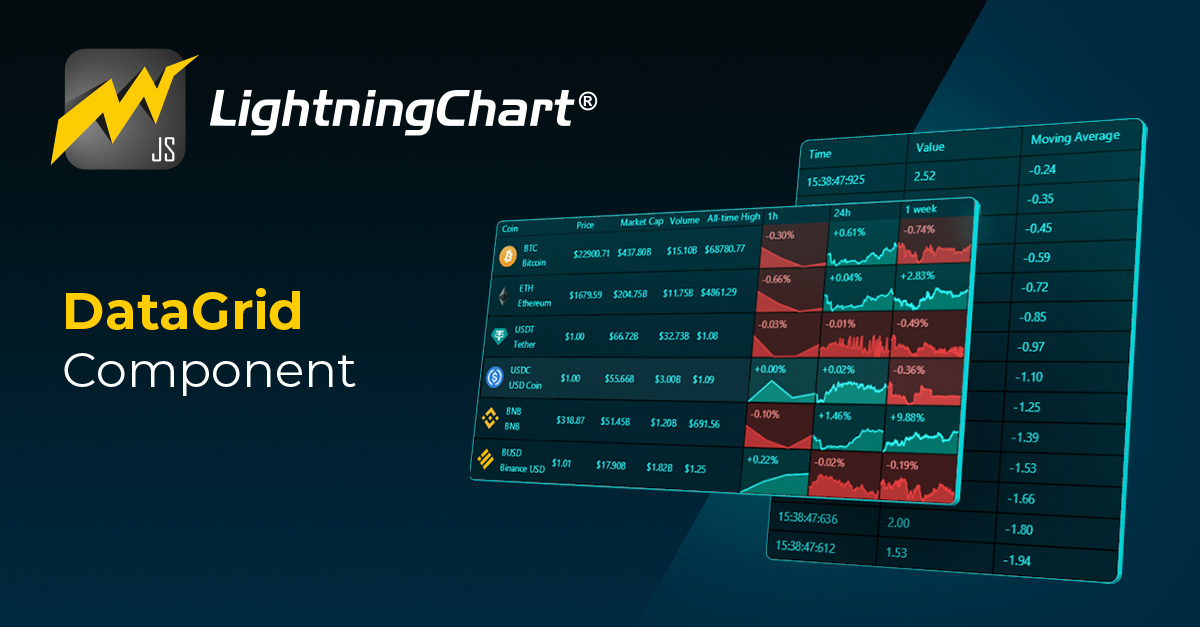
Web application development is becoming more and more popular thanks to the diversity of open-source frameworks and packages. LightningChart JS offers tools for easy implementation that can immediately be integrated into data-related projects.
The constant support and documentation LightningChart offers makes it a truly reliable JavaScript data visualization library. Like the LightningChart JS charting library, its JavaScript Data Grid component is designed in a way that developers can focus more on the implementation and integration than on programming.
What I mean is that you only need to call a data grid object, configure the visual properties, and add an object that contains your data source. The JavaScript Data Grid component will take care of the formatting, sorting your data, and creating the table automatically. This considerably reduces immense hours of work.
Interaction between Data Grid and LightningChart JS charts
The interaction between a data grid component and LightningChart JS charts will allow you to create advanced components and applications. For example, you will be able to easily manipulate series, coordinates, and categories directly from the JavaScript data grid by using simple mouse events. Likewise, you can update, delete, or hide rows or cells from the data grid from whichever events you added to the chart. All these functionalities will allow you to present a robust tool (application) for data analysis to your users.
JavaScript Data Grid Functions
We will now review the JavaScript Data Grid Crypto Dashboard. This chart example is a drill-down type of application that integrates LightningChart JS + a JavaScript data grid in a cryptocurrency context. The data grid is used to display a lot of top-level information about various items. In the application, we see how to use icons, spark charts, dynamic colors, highlighting, and mouse events.
This component allows us to choose from a variety of chart types, including sparklines, area charts, bar charts, profit and loss charts, and pie charts. For data analysis, a JavaSCript data grid can effectively display your app’s data more compellingly.
If you noticed, the data source is linked between the data grid, the line charts, and the area charts. This allows the user to have full control over the charts through the data grid. The user can use the spark charts to change the data source of each chart in relation to the currency type.
About the features
- Icons: Currencies are identified with Icons.
- Spark Charts: A lot of data can be put into small spaces with these small miniature charts. In this case, for each currency the valuation history is displayed for the last hour, day and week.
- Drill-down: Clicking on the Data Grid row changes the drill down view on the right.
- Highlighting: Actively focused row is highlighted.
Dynamic Coloring
The LightningChart JavaScript Data Grid component allows us to perform asynchronous updates that provide a constant update of values and visual properties of an already rendered data grid. One of these functions is dynamic coloring. With dynamic coloring, both cells and backgrounds support dynamic colors based on data values. This function can be used to represent temperature values, financial values, levels, or changes in scientific studies.
This is the use case of a JavaScript Data Grid Monitoring Heatmap Application where the data grid and the line chart consume the same data source, allowing us to analyze each data point in two ways. The line chart draws and joins each data point within the Cartesian plane.
In this chart, we can assign a color to a range of values, e.g., you can see how red was assigned to negative values. In the real-time example, we can observe the behavior of the data grid, constantly changing values between the “latest value” and “previous value” columns. The data grid heatmap monitoring example can update immediately, regardless of the amount of data processed in real time.
Real-Time Data Processing
In this other use case JavaScript Monitoring Data Grid, the application processes data in real-time and updates the JavaScript data grid component in real-time as well.
This application simulates real-time data arriving and being processed at high speed. The data is then displayed in a scrollable line chart and a data grid. With such a high input rate, it can be very difficult to spot the information in the data grid. To facilitate this, the cells in the data grid can be color-coded like a heat map.
For example, for potentially problematic values, the text or cell background could be colored red. In these types of cases, the JavaScript Data Grid component makes it possible to display data that traditional line charts cannot. For example, complementary measurements such as temperature, transmission latency, etc.
Cells-Merging & Customization
The component can combine cells to provide an even more organized and efficient way to analyze and present data. This unique feature adds versatility to your data visualization process and takes your data analysis to the next level.
Among the properties that the data grid offers, there is the possibility of specifying measures, content, and cell style. Likewise, we can remove cells in real-time, which allows the user to interact and configure a data grid based on their analytical needs. Below are the properties that we can configure in our cells.
Cell content
As mentioned, the Data grid is fully dynamic, as cells can be created and removed at any time. Each cell can contain text, numbers, an Icon, or a Spark Chart. There are several different methods for specifying cell content, here’s a conclusive list:
setCellContent:Set content of 1 cell. This method also allows the definition of merged cells.setColumnContent:Set contents of n cells along a single column.setRowContent:Set contents of n cells along a single row.setTableContent:Set contents of many cells by supplying a matrix.
Cells can be emptied by setting their content to undefined, or completely removed with the following methods:
removeCell:Remove 1 cell.removeColumn:Remove all cells along a single column.removeRow:Remove all cells along a single row.removeCells:Remove all cells.
Cell style
Each cell in a Data grid can be styled individually. Each cell has the following style properties:
- Padding
- Borders Visibility
- Text FillStyle
- Text Font
- Content Alignment
- Background FillStyle
- Highlighting
Here are methods for setting the style of existing cells:
setCellPadding:Set padding of 1 cell.setColumnPaddings:Set padding of all cells along a single column.setRowPaddings:Set padding of all cells along a single row.setCellBorders:Set border visibility of 1 cell.setColumnBorders:Set border visibility of all cells along a single column.setRowBorders:Set border visibility of all cells along a single row.setCellTextFillStyle:Set text fill style of 1 cell.setColumnTextFillStyle:Set the text fill style of all cells along a single column.setRowTextFillStyle:Set the text fill style of all cells along a single row.setCellTextFont:Set text font of 1 cell.setColumnTextFont:Set the text font of all cells along a single column.setRowTextFont:Set the text font of all cells along a single row.setCellContentAlignment:Set the content alignment of 1 cell.setColumnContentAlignment:Set the content alignment of all cells along a single column.setRowContentAlignment:Set the content alignment of all cells along a single row.setCellBackgroundFillStyle:Set background fill style of 1 cell.setColumnBackgroundFillStyle:Set the background fill style of all cells along a single column.setRowBackgroundFillStyle:Set the background fill style of all cells along a single row.setCellHighlight:Set highlighting of 1 cell.setColumnHighlight:Set highlighting of all cells along a single columnsetRowHighlight:Set highlighting of all cells along a single row
The default style for new cells can be defined separately. These methods both alter the styles of all existing cells, as well as any cells defined afterward.
setCellsPaddings:Set padding of all existing and future cells.setCellsBorders:Set border visibility of all existing and future cells.setCellsTextFillStyle:Set the text fill style of all existing and future cells.setCellsTextFont:Set the text font of all existing and future cells.Data grid.setCellsAlignment: Set content alignment of all existing and future cells.setCellsBackgroundFillStyle:Set the background fill style of all existing and future cells.
Apart from cell-specific styles, there are also more style setters on the Data Grid.
API Events for User Interactions
We saw some interactive examples of real-world scenarios in the previous Data Grid case studies. In some of those case studies, it is possible to have full control over the charts by executing a click event on a row or category. This type of behavior can be achieved thanks to the event support offered by the LightningChart JavaScript data grid component. Lightning Chart JS is constantly monitoring the user behavior on its components, which allows us to execute complex functions or methods when a condition is met.
From displaying an object when clicking on a cell or row to gathering information when placing the mouse over a cell in the data grid. In the interactive example JavaScript Lasso Selection Chart, the events onSeriesBackgroundMouseMove, onSeriesBackgroundMouseLeave<, onSeriesBackgroundMouseClick are used to locate the coordinates of each point, create an anchor point when clicking with the mouse, and generate an area with all the anchor points when double-clicking.
Once the area is generated, a data grid will be displayed with all the points within the area:
User Interactions
The data grid allows subscribing to user interaction events like other LightningChart JS components. As an important note for cell mouse interactions to work, their background must have a non-empty fill style. This is true by default. To attach mouse interactions to a cell without visible background fill, use transparentFill.
Use the following methods to attach event handlers to events:
onCellMouseEnter: Event fired when the mouse enters any cell in the Data grid (triggered again if a different cell is under pointer)onCellMouseLeave: Event fired when the mouse leaves any cell in the Data grid (triggered again if the different cell is under pointer)onCellMouseClick: Event fired when the mouse clicks any cell in the Data gridonCellMouseDoubleClick: Event fired when mouse double clicks enter any cell in the Data gridonCellMouseDown: Event fired when mouse presses down on any cell in the Data gridonCellMouseUp: Event fired when mouse releases up on any cell in the Data gridonCellMouseMove: Event fired when the mouse moves above any cell in the Data gridonCellMouseDrag: Event fired when the mouse is dragged while holding a button above any cell in the Data gridonCellMouseDragStart: Event fired when mouse drag is started on any cell in the Data gridonCellMouseDragStop: Event fired when mouse drag stops on any cell in the Data gridonCellMouseWheel: Event fired when the mouse is wheeled above any cell in the Data gridonCellTouchStart: Event fired when touch start event fires above any cell in the Data gridonCellTouchMove: Event fired when touch move event fires above any cell in the Data gridonCellTouchEnd: Event fired when touch end event fires above any cell in the Data grid
These events have their variants for the point series, and together, they can trigger complex actions, either by executing a click on a cell that modifies a chart or by modifying the information shown in a row of the data grid when selecting a series.
Implementation of a JavaScript Data Grid
When working with multiple charts, a dashboard is used as the main container and any chart or data grid will have to be attached to this dashboard. Here is the code for the JavaScript data grid implementation of a dashboard with one or two columns:
const dashbaord = lightningChart({
	license: license,
}).Dashboard({
	theme: Themes.cyberSpace,
	numberOfRows: 1,
	numberOfColumns: 2,
})
CreateDataGrid will create a data grid instance inside our dashboard. Its location will be specified in the column and row index. We can use the column/row span to create a cell with a larger visual area.
const dataGrid = dashboard
	.createDataGrid({
		columnIndex: 1,
		rowIndex: 0,
		columnSpan: 1,
		rowSpan: 1,
	})
	.setTitle('DataGrid')
	.setColumnWidth(0, { min: 140 })
	.setColumnWidth(1, { min: 140 })
	.setColumnWidth(2, { min: 140 })
To create the data grid columns, we have to create a nested array where each object will represent a column:
const dataGridContent = [['Time', 'Value', 'Moving Average']]You can create a loop that adds a new array with the values in the same order as the columns:
dataGridContent.splice(1, 0, [
	'${sampleDateTime.toLocaleTimeString('en-US', {
			hour: 'numeric',
			minute: 'numeric'
			second: 'numeric'
			hour12: false,
	})}:${milliSeconds(sampleDateTime)}',
	'${sample.y.toFixed(2)}',
	'${sma.toFixed(2)}',
])
You can assign a row limit and finally add the nested array object to the data grid instance:
dataGridContent.length = Math.min(dataGridContent.length, 25)

dataGrid.removeCells().setTableContent(dataGridContent)

//result
Conclusion
Data grids are essential tools that help us display information in a clear and organized way. The more features a data grid offers, the better the user experience and interaction with our application will be. Lightning Chart JS stands out with its powerful charts designed for scientific analysis, capable of processing millions of data points. However, not all data grids can handle such a large processing load.
To address this, LC JS provides its own data grid, offering the same high-level optimization as its charts, along with seamless integration with any chart in its extensive catalog. Setting it up is straightforward, allowing you to create a data grid in just a few minutes.
The LC JS data grid also enables easy interaction with other components of the library, such as dashboards, data annotations, and legend boxes. Comprehensive documentation is available to guide you through advanced dashboard configurations, along with a variety of articles to help you create data grids in different ways.
As a well-maintained package, LC JS ensures you won’t have to worry about deprecated versions affecting your web projects, and it offers compatibility with today’s most popular frameworks. I encourage you to explore our JavaScript data grid articles, where you’ll find unique and fascinating examples that are hard to come by in other libraries.

Omar Urbano
Software Engineer


Continue learning with LightningChart

Trend Lines in Trading
Trend lines are among the simplest yet most powerful tools in technical analysis. They help traders visualize market direction, identify potential support and resistance levels, and make more informed trading decisions. Despite their simplicity, trend lines remain a...
Best Python Charting Library in 2026
Python's charting ecosystem is large, overlapping, and regularly misunderstood. Most comparison guides stop at Matplotlib, Plotly, and Seaborn. This one goes further: it covers what happens when your datasets grow large, your update rates increase, or your chart types...
Best TradingView Charting Library Alternative
TradingView's charting libraries are the most visible option for fintech developers. Visibility is not the same as capability. This guide is for developers who have hit the wall on candle count limits, watermark restrictions, branding requirements, real-time...



If you have any questions, feel free to contact us!



©LightningChart Ltd 2026. All rights reserved.