








LightningChart JSJavaScript Dashboard FREE Template
TutorialCreate your own JavaScript dashboard application using LightningChart JS
Written by a human | Updated on April 24th, 2025
JavaScript Dashboard
In this article, we will create a new dashboard using the dashboard object from the LC JS library. Other examples of dashboards that utilize HTML components have already been published, so I recommend checking them out.
Remember, you can download this template, so be sure to look at the installation section as well. For this dashboard, we will be using pie, radar, and area charts. The donut chart is a visual variant of the pie chart, differing mainly in the modification of the circle’s radius, which creates an empty inner circle. Each of these charts has a dedicated article, so I encourage you to visit the blog section for more details.
Project Overview
Here you can find the original JavaScript dashboard interactive example.
 Download the project to follow the tutorial
Template Setup
1. Download the template provided to follow the tutorial.
2. After downloading the template, you’ll see a file tree like this:

3. Open a new terminal and run the npm install command
4. It is important to keep the configuration in the tsconfig.json file. This configuration will help you to import JSON files as data objects.
Getting Started
We recommend you use and update to the most recent versions of LightningChart JS and XYData. This is because some LightningChart JS tools do not exist in previous versions. In the project’s package.json file you can find the LightningChart JS dependencies:
"dependencies": {
"@arction/lcjs": "^5.2.0",
"@arction/xydata": "^1.4.0",
}
1. Importing libraries
We will start by importing the necessary libraries to create our chart.
const {
    lightningChart,
    SliceLabelFormatters,
    AreaSeriesTypes,
    PointShape,
    UIOrigins,
    UIDraggingModes,
    PieChartTypes,
    UIElementBuilders,
    emptyFill,
    emptyLine,
    Themes,
} = lcjs
2. Add license key (free)
Once the LightningChart JS libraries are installed, we will import them into our chart.ts file. Note you will need a trial license, which is free. We would then add it to a variable that will be used for creating the JavaScript dashboard object.
let license = undefined
try {
    license = 'xxxxxxxxxxxxx'
} catch (e) {}
Chart.ts
Once the LC JS components have been imported, we can continue with the creation of our JavaScript dashboard. We will start with the JavaScript dashboard as follows:
const grid = lightningChart({license:license}).Dashboard({
    theme: Themes.darkGold,
    numberOfRows: 3,
    numberOfColumns: 2,
})
The JavaScript dashboard object will serve as a parent container and will be divided into cells. We must specify the number of columns and rows and in this case, we will create 3 rows since the annotation panel will be divided into two sections. We will assign two columns: one for the pie chart one for the spider chart, one for the donut chart, and the last one for the XY chart and the annotation panel.
// Create a legendBox docked to the Dashboard.
const legend = grid.createLegendBoxPanel({
    columnIndex: 1,
    rowIndex: 2,
    columnSpan: 1,
    rowSpan: 1,
})
The annotation panel will be placed in column 1 (the column index starts at zero), in the third row. This will have a span of one so that we can keep only two rows for the rest of the JavaScript dashboard:

Pie Chart
Now we will create the pie chart. We will assign the first column to the first row. This chart will display the labels inside or outside the slices depending on the window size:
const pieType = window.innerWidth > 850 ? PieChartTypes.LabelsOnSides : PieChartTypes.LabelsInsideSlices

//Pie Chart
{
    //Create a Pie Chart
    const pie = grid
        .createPieChart({
            columnIndex: 0,
            rowIndex: 0,
            columnSpan: 1,
            rowSpan: 1,
            pieOptions: { type: pieType },
        })
        .setTitle('CPU Usage')
.setMultipleSliceExplosion(true)setMultipleSliceExplosion: Set if it is allowed for multiple Slices to be ‘exploded’ at the same time or not. When a Slice is exploded, it is drawn differently from a non-exploded state usually slightly “pushed away” from the center of the Pie Chart.
Pie charts require an array of objects to display data. The objects must have name and value properties where each object will be equal to a slice:
const data = [
        { name: 'OS', value: 20 },
        { name: 'Browser', value: 5 },
        { name: 'Video editor', value: 10 },
        { name: 'Unused', value: 65 },
    ]
Now we will create the slices, for this, we just need to map our “data” object. The addSlice function will take care of all the work, we will only need to specify the name and the value.
const slices = data.map((item) => pie.addSlice(item.name, item.value))

    // Specify function which generates text for Slice Labels(LabelFormatter).
    pie.setLabelFormatter(SliceLabelFormatters.NamePlusRelativeValue)
    pie.setLabelFont((font) => font.setSize(15))

    // Add Pie chart to LegendBox
    legend.add(pie)
The setLabelFormatter property allows you to customize the labels on chart slices. You can format these labels in different ways depending on what information you want to display. This gives you the flexibility to decide whether you want to show just the name, the name with a percentage, or the name with a specific value on your chart.
Properties of FontSettings
- size: CSS font size.
- family: CSS font family, or list of font families.
- weight: CSS font-weight.
- style: CSS font style.
- variant: CSS font variant. true = ‘small-caps’, false = ‘normal’.
The add function will add the legend box controls of this pie chart to the annotation panel.
Area Range – XY Chart
To create a XY chart, we need to use the method createChartXY under the JavaScript dashboard object:
const xyChart = grid
        .createChartXY({
            columnIndex: 1,
            rowIndex: 1,
            columnSpan: 1,
            rowSpan: 1,
        })
        .setTitle('Power Consumption')
This chart will be assigned to the second row in the second column. In this chart, we will show two range values (GPU / CPU):
const areaCPU = xyChart.addAreaSeries({ type: AreaSeriesTypes.Positive }).setName('CPU')

const areaGPU = xyChart.addAreaSeries({ type: AreaSeriesTypes.Positive }).setName('GPU')
So, we need to create to area series where the area series will create filled area objects inside the cartesian plane. A line series or point line series will only display a line or points with no colored area.
- AreaSeriesTypes: Used when creating an AreaSeries with addAreaSeries. The selected option tells what the returned Series type will be – different Series types can have different APIs.
- Select AreaSeriesTypes.Positive: to show only the area above the baseline.
- Select AreaSeriesTypes.Negative: to show only the area below the baseline.
- Select AreaSeriesTypes.Both: to show both areas from both sides of the baseline.
To add data points to this area chart, we only need to create two arrays of objects:
const cpuData = [ ...
]

const gpuData = [ ...
]
Each of these arrays will contain objects with the value property for X axis:
const cpuData = [
        { x: 0 },
        { x: 4 },
        { x: 8 },
All XY 2-dimensional charts require both X and Y values, but for this example, we’ll generate the Y values using random math functions. The add function will add each data point to the series.
areaCPU.add(cpuData.map((point) => ({ x: point.x, y: point.x * 3.2 + Math.random() * 9.4 })))
areaGPU.add(gpuData.map((point) => ({ x: point.x, y: point.x * 2.8 + Math.random() * 6.6 })))
Now, we will use the table formatter method to create the information tooltip:

areaCPU.setCursorResultTableFormatter((builder, series, position, highValue, lowValue) => {
        return builder
            .addRow('CPU')
            .addRow('Power Consumption ' + highValue.toFixed(0) + ' watts')
            .addRow('component load ' + position.toFixed(0) + ' %')
})SetResultTableFormatter. Can be used to specify the information that is displayed, when hovering the mouse/pointer over a Map region. For each line in the table, we need to add a new row. This row can have multiple concatenated values.
legend.add(xyChart)add function will add the legend box controls of this area chart to the annotation panel.Spider chart
This chart will be assigned to the second column in the first row.
const chart = grid
        .createSpiderChart({
            columnIndex: 1,
            rowIndex: 0,
            columnSpan: 1,
            rowSpan: 1,
        })
        .setTitle('Average Component Load')
        .setScaleLabelFont((font) => font.setSize(12))
        .setAxisLabelFont((font) => font.setSize(14).setStyle('italic'))
The label fonts can be specified for scale and axis lines:
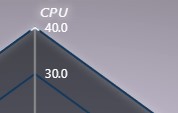
The addSeries property will create a spider series in this chart but for this example, we will create only one series.
chart
        .addSeries(PointShape.Circle)
        .setName('System Load')
        .addPoints(
            { axis: 'CPU', value: 10 },
            { axis: 'Memory', value: 10 },
            { axis: 'Network', value: 20 },
            { axis: 'Hard-Drive', value: 40 },
            { axis: 'GPU', value: 20 },
        )
The point shape can be configured with one of the available enumeration members and for data points, we only need the axis name and the value. We can create information tooltips by using the setCursorResultTableFormatter method:
.setCursorResultTableFormatter((tableContentBuilder, series, value, axis, formatValue) =>
            tableContentBuilder
                .addRow(series.name)
                .addRow(axis)
                .addRow(value + ' %'),
        )
    // Add Spider Chart to LegendBox
    legend.add(chart)
The add function will add the legend box controls of this spider chart to the annotation panel.
Donut Chart
The donut chart will be in the first column, second row.
const donut = grid
        .createPieChart({
            columnIndex: 0,
            rowIndex: 1,
            columnSpan: 1,
            rowSpan: 2,
            pieOptions: { type: pieType },
        })
        .setTitle('Memory Usage')
        .setMultipleSliceExplosion(false)
        .setInnerRadius(50)
We can use the same condition we used in the pie chart and depending on the screen size, the labels will be shown inside or outside the slices.
setMultipleSliceExplosion: Sets if it is allowed for multiple Slices to be ‘exploded’ at the same time or not. When a Slice explodes, it is drawn differently from the non-exploded state.setInnetRadius: This method can style the Pie Chart as a Donut Chart, with the center hollow. The donut chart has the same structure as the pie chart, so, the data source will have the same format, name, and value:
const processedData = [
        {
            name: 'OS',
            value: 1000
        },
        {
            name: 'Browser',
            value: 692
        },
        {
            name: 'Video editor',
            value: 2000
        },
        {
            name: 'Unused',
            value: 4500
        }
We will use the addSlice function to create a slice per object:
let totalMemoryUse = 0

    // ----- Create Slices -----
    processedData.map((item) => {
        donut.addSlice(item.name, item.value);
        totalMemoryUse+= item.value;
    })
The variable totalMemoryUse will contain the total sum of all the values.
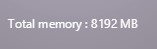
We will format the labels as follows:
donut.setLabelFormatter(SliceLabelFormatters.NamePlusValue)
    donut.setLabelFont((font) => font.setSize(15))

    //add Donut to Legend Box
    legend.add(donut)
The add function will add the legend box controls of this donut chart to the annotation panel. To display a label in the current chart, we need to use the addUIElement method:
donut
        .addUIElement(UIElementBuilders.TextBox)
        .setPosition({ x: 50, y: 10 })
        .setOrigin(UIOrigins.Center)
        .setDraggingMode(UIDraggingModes.notDraggable)
        .setMargin(5)
        .setBackground((background) => background.setFillStyle(emptyFill).setStrokeStyle(emptyLine))
        .setTextFont((fontSettings) => fontSettings.setSize(12))
        .setText(`Total memory : ${totalMemoryUse} MB`)
Conclusion
Typically, when we create charts with LightningChart JS, each one contains its own legend box. This legend box allows us to hide and show series or categories in the chart, allowing the user to identify and analyze specific study objects.
When creating a JavaScript dashboard, we will be limited by the size of each cell or container in each chart component. This creates problems when trying to display the legend boxes.
To do this, we can make use of LC JS’s ability to assign a parent legend box to an independent container, and in turn, inherit the controls of each chart. This will allow us to have a better-organized JavaScript dashboard with a much more professional look.
Creating a JavaScript dashboard is quite easy since we only need to create a chart using the dashboard object as a parent reference. In this way, all the charts will be added to this component, and in turn, the charts will inherit visual properties according to the JavaScript dashboard.
This template can serve as the base code for your projects since the creation and configuration of the charts are almost always the same. You’ll be able to add or remove properties you don’t need and format your data source the same.
If the format is the same, the charts will reflect your data immediately. Remember that there are articles with dashboard variants. If you need a specific chart, there is most likely already a related article. If you need help, don’t hesitate to leave us a message.
Thanks!

Omar Urbano
Software Engineer


Continue learning with LightningChart
Nbody Simulation Data Visualization
Written by a human | Updated on April 9th, 2025N-body Simulation Nbody simulation is maybe one of the most advanced data visualization types out there. The truth is that we’re not talking anymore about visualizing traditional data with a business focus and it...
Data Visualization Components for React Applications
Written by a human | Updated on April 9th, 2025React Data Visualization Components React is one of the most popular front-end development frameworks on the web in the year 2022. It is a free and open-source front-end JS library that is used to build interactive...
What Is LiDAR Data Visualization?
LiDAR Data Visualization The LiDAR method conveys another yet complex level of data visualization as it is widely used in demanding industries that require plotting, e.g., topographic or cartography 3D data. But the use of LiDAR goes further as it is also used...



If you have any questions, feel free to contact us!



©LightningChart Ltd 2026. All rights reserved.