LightningChart .NETGDI+ Chart Development with System.Drawing Package
TutorialGDI chart development with LightningChart .NET
Written by a human | Updated on April 14th, 2025
GDI Chart Development with System.Drawing & LightningChart .NET
This article will focus on GDI chart development. Concretely, we will build a custom ViewXY chart application with LightningChart .NET. Even if it sounds too complicated, I’ll walk you through the easy way to take advantage of this component.
For those who aren’t that familiar with the GDI chart development term, GDI stands for Graphics Device Interface. This is Microsoft’s legacy component which creates graphics and transmits them to end devices. For instance, transmitting graphical objects to monitors.
What is GDI+?
Windows GDI+ is an object-oriented API designed for C and C++ developers. It empowers applications to employ graphical elements and formatted text, enabling their seamless display on both computer screens and printers.
So, when applications rely on the Microsoft Win32 API as their foundation, they do not establish direct connections with the underlying graphics hardware. Instead, the GDI+ component acts as the intermediary, facilitating interactions with the device drivers (on behalf of these applications).
System.Drawing
The System.Drawing package is like a handy toolbox for computer programs. It provides a set of tools and functions that allow these programs to create and manipulate images and graphics.
Think of it as a collection of virtual pens, brushes, and canvases that help computer software draw pictures, shapes, and text on your screen or even on paper when connected to a printer! It’s like having an artist’s kit for your computer to make things look nice and visually appealing in various applications and software.
This is the package we will be using for manipulating and rendering images within a LightningChart object.
Project Overview
This GDI chart development project will use the GDI+ graphics library for creating the customized ViewXY chart. Part of the chart will be modified based on a resizing event of an annotation. For this, we’ll use the event handle, which is a mechanism that responds to events (like resizing). This resizing event somehow affects the bitmap fill of an annotation object within the chart.
 Download the project to follow the tutorial
Local Setup
For this project, we need to take into count the following requirements to compile the project.
- OS: 32-bit or 64-bit Windows Vista or later, Windows Server 2008 R2 or later.
- DirectX: 9.0c (Shader model 3 and higher) or 11.0 compatible graphics adapter.
- Visual Studio: 2010-2019 for development, not required for deployment.
- Platform .NET Framework: installed version 4.0 or newer.
Now go to the next URL and download LightningChart .NET. You’ll then be redirected to a sign-in form where you’ll have to complete a simple sign-up process. When you’re done with the registration process, you’ll have access to your LightningChart account.

After you sign into your account, you will be able to download the SDK. This SDK will be a “free trial” version, but you will be able to use many important features for this Digital Signal Processing Filters App tutorial. When you download the SDK, you’ll have a .exe file like this:

The installation will be a typical Windows process, so please continue with it until it is finished. After the installation, you will see the following programs:

License Manager
In this application, you will see the purchase options. All the projects that you will create with this trial SDK, will be available for future developments with all features enabled.

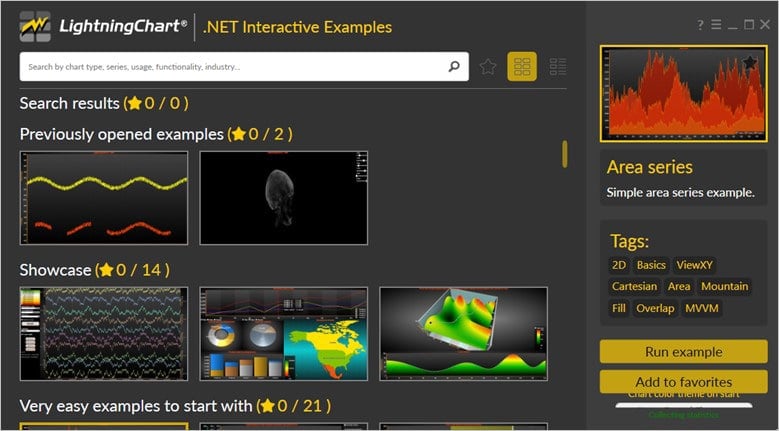
LightningChart .NET Interactive Examples
Now you can see 100+ interactive visualizations available for WPF, WinForms, and/or UWP.
Visual Studio Project
Now let’s work with Visual Studio. The main difference between using the LightningChart visualizer and Visual Studio is that we will be able to analyze and experiment with many features within the source code. In the LC visualizer, select the ViewXY custom GDI+ rendering chart and run the example:

In the top-right zone of the windows, you will see the following options:
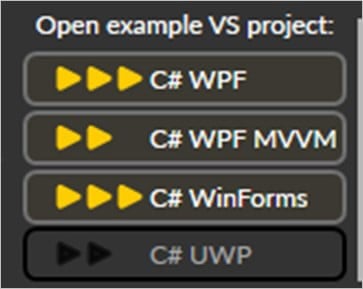
For the trial SDK, we will be able to use the WPF framework. After clicking the framework to use, we will need to specify a folder where the project will be created:

Finally, the project will be created and Visual Studio will be opened and ready for executing the digital signal processing filters application.
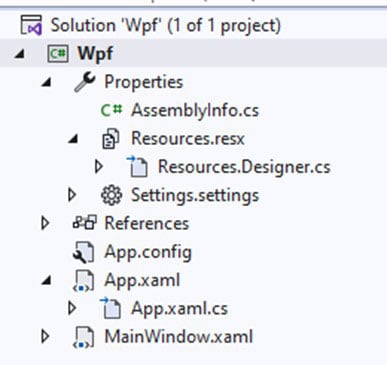
Code Review
The main code will be wrapped inside MainWindow.xaml.cs. Here we will find the code for UI controls.
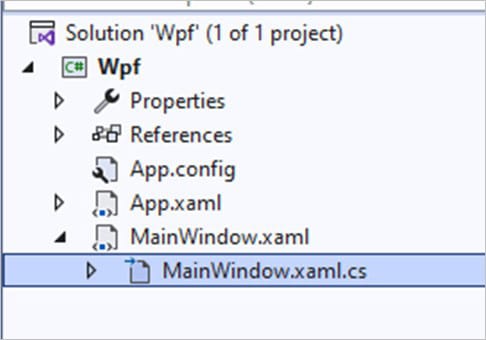
Inside the code, we will check two methods that will create the properties that we need to correctly draw the chart. The interactive example is built with various user controls, to manipulate and change the visual properties of the chart. These controls are not required to generate this graph, so we will focus on the code responsible for generating the object.
CreateChart()
This main method will create the chart object:
_chart = new LightningChart
            {
                ChartName = "ViewXY custom GDI+ rendering chart"
            };
We need to disable the control repaints while we update the chart properties:
_chart.BeginUpdate();

            AxisX xAxis = _chart.ViewXY.XAxes[0];
            AxisY yAxis = _chart.ViewXY.YAxes[0];
BeginUpdate() will help us with control repaints. We can have access to the X and Y axes and assign those objects to an X-axis/Y-axis object. To create a Line Series, we need to create an example of a PointLineSeries:
PointLineSeries pointLineSeries = new PointLineSeries(_chart.ViewXY, xAxis, yAxis);
pointLineSeries.LineStyle.Color = Colors.BlueViolet;
pointLineSeries.LineStyle.Width = 5;
A PointLineSeries; can present a simple line, points (scatter), or both as a point line. Add the series to the chart by adding PointLineSeries objects to the PointLineSeries list:
int pointsCount = 51;
SeriesPoint[] pointsArray = new SeriesPoint[pointsCount];
Random rand = new Random();
for (int i = 0; i < pointsCount; i++)
{
	pointsArray[i].X = i;
	pointsArray[i].Y = 20.0 + Math.Sin(i / 8.0 - 10.0) * 10.0 + (rand.NextDouble() - 0.5) * 1.0;
}

//Assign points array
pointLineSeries.Points = pointsArray;
In the code above, an array of data points will be created with a limit of 51 points. The values will be created stochastically. The point line series will wait for an array, so we just need to assign the created array to the Points property.
Adding the line series to the chart:
_chart.ViewXY.PointLineSeries.Add(pointLineSeries);Creating the annotations ellipse:
AnnotationXY annot1 = new AnnotationXY(_chart.ViewXY, xAxis, yAxis)
            {
                Style = AnnotationStyle.RectangleArrow,
                Sizing = AnnotationXYSizing.ScreenCoordinates
            };
An annotation allows the displaying of mouse-interactive text labels or graphics anywhere in the chart area (as in the image). A user can freely move annotations around with the mouse and these can be resized and rotated, and their target and location can be changed too.
Alternatively, chart annotations can be controlled by custom code. Annotations are also great when custom graphics must be rendered on the screen, as they can be rendered in different styles and shapes.
Create AnnotationXY objects in ViewXY.Annotations collection. By moving the mouse over an annotation, it goes into a mouse-interactive edit state, allowing relocating the annotation, resizing it, rotating it, and determining where the arrow points to.

Assigning properties to the annotation ellipse.
There are several annotation properties that can be customized. Here’s the code of the ones modified for this instance:
annot1.SizeScreenCoords.Width = 300;
annot1.SizeScreenCoords.Height = 200;
annot1.Anchor.X = 0.5f;
annot1.Anchor.Y = 0.5f;
annot1.Shadow.Visible = false;
annot1.Fill.Style = RectFillStyle.Bitmap;
annot1.Text = "Annotation with custom drawing";
annot1.TextStyle.Font = new WpfFont("Segoe UI", 12f, true, false);
annot1.TextStyle.VerticalAlign = AlignmentVertical.Bottom;
annot1.LocationCoordinateSystem = CoordinateSystem.ScreenCoordinates;
annot1.LocationScreenCoords.X = 300;
annot1.LocationScreenCoords.Y = 300;
annot1.TextStyle.Color = Colors.White;
annot1.TargetAxisValues.X = pointsArray[30].X;
annot1.TargetAxisValues.Y = pointsArray[30].Y;
annot1.Fill.Bitmap.Image = CreateCustomDrawing((int)annot1.SizeScreenCoords.Width, (int)annot1.SizeScreenCoords.Height);
annot1.Fill.Bitmap.Layout = BitmapFillLayout.Center;
annot1.Fill.Color = Colors.Transparent;
annot1.Fill.GradientFill = GradientFill.Solid;
annot1.ResizedByUser += annot1_ResizedByMouse;
_chart.ViewXY.Annotations.Add(annot1);- ScreenCoordinates enables setting a size by the screen coordinates. This property uses
SizeScreenCoords.HeightandSizeScreenCoords.Width.
- Anchor property controls how the text area is placed at Location. By setting
Anchor.X= 0.5 andAnchor.Y= 0.5, the beginning of the arrow is in the middle. When setting Anchor.X 0.1 and Anchor.Y = 0.25, the arrow start is near the upper left corner.

- Location is the starting point of the arrow. It can be set by screen coordinates, axis values, or as a relative offset from
Target. UseLocationCoordinateSystemto select andLocationScreenCoords,LocationAxisValuesorLocationRelativeOffsetto control the location by the selected method. Location is also the center point of text area rotation.
CreateCustomDrawing:- Draw GDI+ graphics into a bitmap image object:
System.Drawing.Bitmap bm = new System.Drawing.Bitmap(width, height);
System.Drawing.Graphics graphics = System.Drawing.Graphics.FromImage(bm);
Color color = Colors.Lime;
System.Drawing.Brush brush = new System.Drawing.SolidBrush(System.Drawing.Color.FromArgb(128, color.R, color.G, color.B));
graphics.SmoothingMode = System.Drawing.Drawing2D.SmoothingMode.AntiAlias;-
- Draw filled ellipse:
graphics.FillEllipse(brush, new System.Drawing.Rectangle(0, 0, width, height));-
- Draw lines:
graphics.DrawLine(new System.Drawing.Pen(System.Drawing.Color.Red, 3.0F), new System.Drawing.Point(width / 2, 0), new System.Drawing.Point(width / 2, height));
graphics.DrawLine(new System.Drawing.Pen(System.Drawing.Color.Red, 3.0F), new System.Drawing.Point(0, height / 2), new System.Drawing.Point(width, height / 2));-
- Save to PNG formatted memory stream. PNG stores alpha colors info:
MemoryStream memStream = new MemoryStream();
bm.Save(memStream, ImageFormat.Png);-
Creating BitMapFrame: It represents the image data returned by a decoder and accepted by the encoders.
BitmapFrame bmpf = BitmapFrame.Create(memStream, BitmapCreateOptions.None, BitmapCacheOption.OnLoad);-
- Release resources and return
BitMapFrame:
- Release resources and return
graphics.Dispose();
memStream.Dispose();

return bmpf;-
annot1_ResizedByMouse: This method recreates the fill image in the correct size.
private void annot1_ResizedByMouse(object sender, AnnotationResizedByUserXYEventArgs e)
        {
            //Cancel the ongoing rendering, as this handler will cause repaint by property changes
            e.CancelRendering = true;

            //Recreate the fill image in correct size
            _chart.ViewXY.Annotations[0].Fill.Bitmap.Image =
                CreateCustomDrawing
                (
                    (int)e.NewSize.Width,
                    (int)e.NewSize.Height
                );
        }
Final Application

Finally, you can see in the above video a short demo of the final app using GDI+ and LightningChart .NET. We also reviewed some fundamentals of GDI and GDI+ and basically created this instance chart with the System.Drawing package.
We’ve learned how GDI+ serves as a class-based API allowing applications to improve rendered graphics. Simply view, GDI chart development using the System.Drawing package is a great way to improve how applications and graphics hardware communicate. As seen, GDI chart development ensures seamless interactions with the device drivers on behalf of the applications.
When adding LightningChart .NET as the chart library source, you’re also improving the graphics rendering results by using only high-end charting components. To wrap it all up, we also learned about custom annotations which are particularly useful for the end-user. This involved setting screen coordinates and defining properties for the annotations.
Thanks for reading this GDI chart development project and I hope you find it useful. See you in the next article!

Omar Urbano
Software Engineer


Continue learning with LightningChart

Trend Lines in Trading
Trend lines are among the simplest yet most powerful tools in technical analysis. They help traders visualize market direction, identify potential support and resistance levels, and make more informed trading decisions. Despite their simplicity, trend lines remain a...
Best Python Charting Library in 2026
Python's charting ecosystem is large, overlapping, and regularly misunderstood. Most comparison guides stop at Matplotlib, Plotly, and Seaborn. This one goes further: it covers what happens when your datasets grow large, your update rates increase, or your chart types...
Best TradingView Charting Library Alternative
TradingView's charting libraries are the most visible option for fintech developers. Visibility is not the same as capability. This guide is for developers who have hit the wall on candle count limits, watermark restrictions, branding requirements, real-time...



If you have any questions, feel free to contact us!



©LightningChart Ltd 2026. All rights reserved.