








LightningChart .NETData Acquisition System Application
TutorialTutorial on how to create a DAQ system application with a Hi-Speed DAQ chart.
Written by a human | Updated on February 14th, 2026
Data Acquisition System Application: Hi Speed DAQ Chart
In this article, we will be creating a Data Acquisition System application using a Hi-Speed DAQ chart and we will see how to add real-time source data. We will create a tool: the Hi-Speed chart which is fundamental in DAQ systems software applications. Data acquisition systems are used in different industries and are used (as the name suggests), to collect data that experts later process and analyze.
Data is collected from sources like sensors which relates closely to the concept of industrial telemetry. Data acquisition system applications feature Sensors and input devices that are used to measure data such as temperature, pressure, or motion.
These sensors convert these measurements into electrical signals. These raw signals from the sensors often need to be processed or conditioned. This can include amplification, filtering, and converting the signal into a form suitable for digitization. An example of this is the signal processing application that processes data and applies filters to it.
Example of a Digital Signal Processing application made with LightningChart .NET.
What is a Data Acquisition System Application?

The acronym DAQ refers to “Data Acquisition System”, which is a tool used in the collection and processing of data from various sources. These tools use sensors to obtain data on temperature, vibration, electricity, etc. Among the measurements that a DAQ usually performs you can find the following:
- Temperature measurement.
- Voltage measurement.
- Current measurement.
- Pressure measurement.
- Flow measurement.
- Force measurement.
- Acceleration measurement.
- Humidity measurement.
- Light intensity measurement.
The entire measurement process of a DAQ system is carried out thanks to the use of hardware focused on reading data from the sensors. This hardware may be a computer developed just for measurement, or it may be a device that collects information and connects to a computer for data extraction and representation.
In some cases, DAQ hardware can be connected via USB ports, and in others via PCI ports. For data representation, DAQ software is required. DAQ software is responsible for recording the data obtained on a computer, and then translating the values into a representation that is understandable to humans.
Typically, the values are represented in the form of graphs or charts, which help to interpret the behavior of the sources studied.
What is a Hi Speed DAQ chart?
This is where we get to LightningChart. LightningChart is a platform that offers two development tools for many types of charts: Lightning Chart .NET and Lightning Chart JS. LC .NET offers us tools for the development of charts with C# and Visual Studio, while LC JS offers us JavaScript libraries for the implementation of charts in various frameworks compatible with this language.
In the practical part of this article, I will show you how to create a .NET chart, using the interactive examples tool. We will create a Hi Speed DAQ Chart.
This chart will allow us to simulate a massive reading of data within several channels, configure different visual properties that will help better interpret the data, and generate a large number of values using C# code. The code is fully editable, so you can add your own data source and generate your own DAQ chart. Let’s get started with the Hi Speed DAQ char tutorial!
Project Overview
This WPF Hi Speed DAQ Chart serves as a data acquisition system application that contains a massive count of channels with high sample rates. It supports different scrolling modes and the user can add markers and stop the signal generator to enter data review. It uses the ViewXY property.

 Download the project to follow the tutorial
Local Setup
To get started with this data acquisition system application project, we need to take into count the following requirements to compile the project.
- OS: 32-bit or 64-bit Windows Vista or later, Windows Server 2008 R2 or later.
- DirectX: 9.0c (Shader model 3 and higher) or 11.0 compatible graphics adapter.
- Visual Studio: 2010-2019 for development, not required for deployment.
- Platform .NET Framework: installed version 4.0 or newer.
Now go to the next URL and download LightningChart .NET. You’ll then be redirected to a sign-in form where you’ll have to complete a simple sign-up process. When you’re done with the registration process, you’ll have access to your LightningChart account.

After you sign into your account, you will be able to download the SDK. This SDK will be a “free trial” version, but you will be able to use many important features for this Digital Signal Processing Filters App tutorial. When you download the SDK, you’ll have a .exe file like this:

The installation will be a typical Windows process, so please continue with it until it is finished. After the installation, you will see the following programs:

License Manager
In this application, you will see the purchase options. All the projects that you will create with this trial SDK, will be available for future developments with all features enabled.

LightningChart .NET Interactive Examples
Now you can see 100+ interactive visualizations available for WPF, WinForms, and/or UWP.
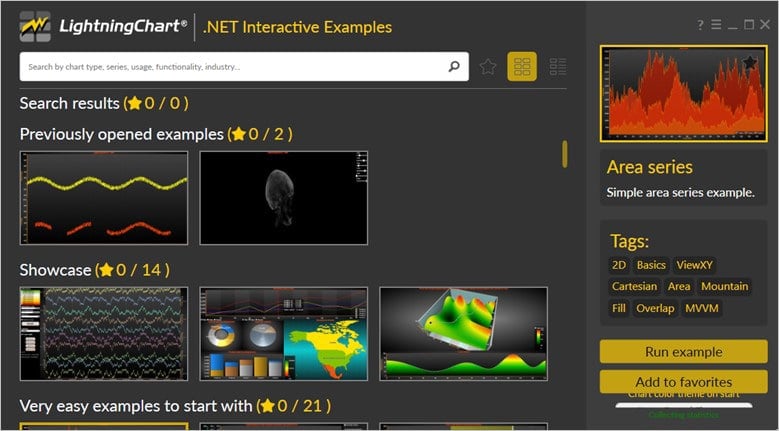
Visual Studio Project
Now let’s work with Visual Studio. The main difference between using the LightningChart visualizer and Visual Studio is that we will be able to analyze and experiment with many features within the source code. In the LC visualizer, select the Hi Speed DAQ chart and run the example:

In the top-right zone of the windows, you will see the following options:
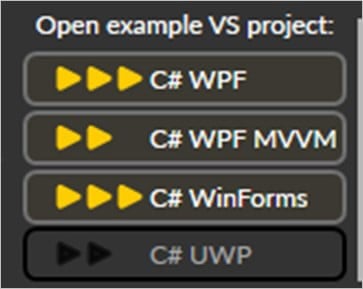
For the trial SDK, we will be able to use the WPF framework. After clicking the framework to use, we will need to specify a folder where the project will be created:

Finally, the Hi Speed DAQ chart project will be created and Visual Studio will be opened and ready for executing the digital signal processing filters application.
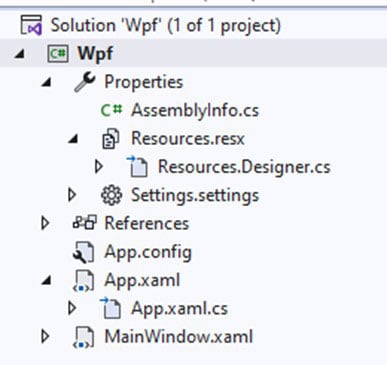
Code Review
The main code will be wrapped inside MainWindow.xaml.cs. Here we will find the code for UI controls.
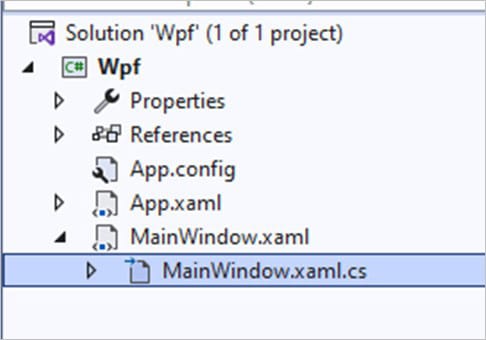
Inside the code, we will check two methods that will create the properties that we need to correctly draw the hi speed DAQ chart. The interactive example is built with various user controls, to manipulate and change the visual properties of the Hi Speed DAQ chart. These controls are not required to generate this graph, so we will focus on the code responsible for generating the object.
CreateChart()
This method will create the Hi Speed DAQ chart object, which will be displayed within an XAML frame. We need to create a LightningChart-type object. This constructor will allow us to create an instance of a chart, specify the type of chart, and access different properties.
//Create new chart
_chart = new LightningChart();

//Disable rendering, strongly recommended before updating chart properties
_chart.BeginUpdate();

//Chart name
_chart.ChartName = "High-speed DAQ chart";
The BeginUpdate function will allow us to stop drawing the chart, which will allow us to set up the properties that we want to customize. As long as the update is not closed, the chart will not show the changes we make, this will help with the performance of the chart construction.
//Reduce memory usage and increase performance
_chart.ViewXY.DropOldSeriesData = true;
_chart.ViewXY.DropOldEventMarkers = true;
The properties above will help us reduce memory usage, eliminating data series whose values are less than the minimum value of the X-axis. It is recommended to set these properties to “true”, as they help with the performance of real-time monitoring charts.
_chart.ViewXY.XAxes[0].Maximum = 10;
_chart.ViewXY.XAxes[0].SweepingGap = 2;
_chart.ViewXY.XAxes[0].ScrollMode = XAxisScrollMode.Sweeping;
_chart.ViewXY.XAxes[0].Title.Text = "Time";
The chart we are configuring is of type XY which means that we have 2 axes and two dimensions. To configure an axis, we just need to use the XAxes/YAxes property and specify the axis index. We can have more than one X-axis and one Y-axis, but in this case, we will only have one X-axis (for this reason we use the index 0).
The maximum value indicates the maximum value of the X-axis, the sweeping gap is the percentage of the chart width and is used in sweeping charts. The ScrollMode for this example will be sweeping but we can use the types scrolling, stepping, triggering, or none.
_chart.Title.Font = new WpfFont("Segoe UI", 20f, true, false);
_chart.Title.Align = ChartTitleAlignment.TopRight;
_chart.Title.Offset.SetValues(-10, 14);
The title property refers to the main text or name of our data acquisition system application chart. We can configure its text style, position, and alignment.
for (int channel = 0; channel < _chanelCount; channel++)
{
    //New y-axis
    AxisY axisY = new AxisY(_chart.ViewXY)
    {
        Minimum = -50,
        Maximum = 50
    };
    axisY.MiniScale.Visible = false;
    axisY.MajorDivTickStyle.Alignment = Alignment.Far;
    axisY.MajorDivTickStyle.Color = Colors.Gray;
    axisY.MinorDivTickStyle.Alignment = Alignment.Far;
    axisY.MinorDivTickStyle.Color = Colors.Gray;
    axisY.MajorGrid.Visible = gridVisible;
    axisY.MinorGrid.Visible = gridVisible;
    axisY.Title.Visible = false;
    axisY.Units.Visible = true;
    axisY.Units.Color = Colors.OrangeRed;
    axisY.Units.Text = "µV";
    axisY.Units.Font = new WpfFont("Lucida console", 12f, true, false);
    axisY.Units.VerticalAlign = YAxisTitleAlignmentVertical.Bottom;
    axisY.Units.HorizontalAlign = YAxisTitleAlignmentHorizontal.Right;
    axisY.AutoDivSeparationPercent = 10;
    axisY.Units.Angle = 30;
    axisY.Units.Shadow.Style = TextShadowStyle.Off;
    axisY.LabelsColor = Colors.White;
    axisY.Alignment = AlignmentHorizontal.Right;
    _chart.ViewXY.YAxes.Add(axisY);
In the code block above, we can observe the Y-axis configuration. This configuration is executed within a loop, which will create a Y-axis for the number of channels specified in the _chanelCount variable. For each Y-axis, we will create a line called series, which will help us present signal data.
SampleDataBlockSeries series = new SampleDataBlockSeries(_chart.ViewXY, _chart.ViewXY.XAxes[0], axisY);
_chart.ViewXY.SampleDataBlockSeries.Add(series);
series.Color = DefaultColors.SeriesForBlackBackgroundWpf[channel % DefaultColors.SeriesForBlackBackgroundWpf.Length];
series.AllowUserInteraction = false;
series.ScrollModePointsKeepLevel = 1;
Now we will create the constant line. Constant lines are fixed to their Y-axis and are represented as a horizontal line above the signal data.
ConstantLine cls = new ConstantLine(_chart.ViewXY, _chart.ViewXY.XAxes[0], axisY);
cls.Title.Text = "Constant line";
cls.Title.Visible = false;
cls.LineStyle.Color = Color.FromArgb(150, 255, 192, 0);
cls.Behind = true;
cls.LineStyle.Width = 2;
cls.AllowUserInteraction = false;
cls.Value = 0;
_chart.ViewXY.ConstantLines.Add(cls);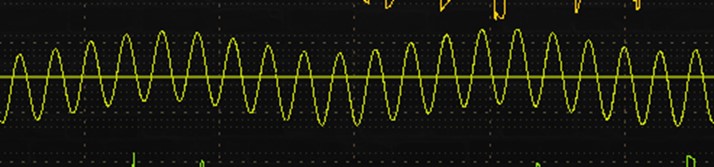
Creating cursor
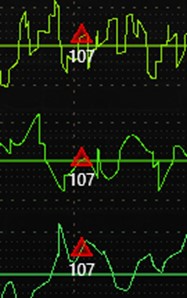
Now we will create a cursor for our signals. Line series cursors enable visual analysis of line series data by tracking values by X coordinate.
LineSeriesCursor cursor1 = new LineSeriesCursor(_chart.ViewXY, _chart.ViewXY.XAxes[0])
{
    ValueAtXAxis = 1
};
cursor1.LineStyle.Width = 5;
Color color = Colors.OrangeRed;
cursor1.LineStyle.Color = Color.FromArgb(180, color.R, color.G, color.B);
cursor1.FullHeight = true;
cursor1.SnapToPoints = true;
cursor1.Style = CursorStyle.PointTracking;
cursor1.TrackPoint.Color1 = Colors.Yellow;
cursor1.TrackPoint.Color2 = Colors.Transparent;
cursor1.TrackPoint.Shape = Shape.Circle;
_chart.ViewXY.LineSeriesCursors.Add(cursor1);
CreateSignalGenerators()
The SignalGenerator component can be used to generate signals in real time. The signal is produced as the sum of different waveforms. Multiple SignalGenerator components can be linked using a parent-child relationship to produce a synchronized multichannel output.
private void CreateSignalGenerators()
{

    int channelCount = int.Parse(textBoxChannelCount.Text);
    int samplingFrequency = int.Parse(textBoxFreq.Text);

    //Generator per channel
    _generators = new SignalGenerator[channelCount];
    for (int i = 0; i < channelCount; i++)
    {
        string name = "Ch " + (i + 1).ToString();

        //Create and initialize generator
        SignalGenerator generator = new SignalGenerator
        {
            GeneratorName = name
        };
        generator.WaveformSines.Clear();
        generator.WaveformRandomNoises.Clear();
        generator.SamplingFrequency = samplingFrequency;
        generator.OutputInterval = 2;
        generator.ThreadType = ThreadType.Timer;
Creating Shapes
Now we will create shapes for our sign. We will create sines, squares, and triangles that will be added to our signal (SignalGenerator).
foreach (SineComponent sc in RandomizeSineWaveformComponents())
{
    generator.WaveformSines.Add(sc);
}
foreach (SquareComponent sqc in RandomizeSquareWaveformComponents())
{
    generator.WaveformSquares.Add(sqc);
}
foreach (TriangleComponent tc in RandomizeTriangleWaveformComponents())
{
    generator.WaveformTriangles.Add(tc);
}WaveFormComponents functions which will return a list with a random number of elements// Sine Component
private List<SineComponent> RandomizeSineWaveformComponents()
{
List<SineComponent> listSines = new List<SineComponent>();
int counter = (int)(4.0 * rand.NextDouble());
for (int i = 0; i < counter; i++)
{
SineComponent sineComp = new SineComponent
{
Amplitude = rand.NextDouble() * 20.0,
DelayMs = rand.NextDouble() * 1000.0,
Frequency = rand.NextDouble() * 10.0,
Offset = 0,
Enabled = true
};
listSines.Add(sineComp);
}
return listSines;
// Square Component
private List<SquareComponent> RandomizeSquareWaveformComponents()
{
List<SquareComponent> listSquares = new List<SquareComponent>();
int counter = (int)(4.0 * rand.NextDouble());
for (int i = 0; i < counter; i++)
{
SquareComponent squareComp = new SquareComponent
{
Amplitude = rand.NextDouble() * 20.0,
DelayMs = rand.NextDouble() * 1000.0,
Frequency = rand.NextDouble() * 10.0,
Offset = 0,
//set in range 0.1...0.9
Symmetry = 0.1 + rand.NextDouble() * 0.8,
Enabled = true
};
listSquares.Add(squareComp);
// Trangle Component
private List<TriangleComponent> RandomizeTriangleWaveformComponents()
{
List<TriangleComponent> listTriangles = new List<TriangleComponent>();
int counter = (int)(4.0 * rand.NextDouble());
for (int i = 0; i < counter; i++)
{
TriangleComponent triangleComp = new TriangleComponent
{
Amplitude = rand.NextDouble() * 20.0,
DelayMs = rand.NextDouble() * 1000.0,
Frequency = rand.NextDouble() * 10.0,
Offset = 0,
Symmetry = 0.1 + rand.NextDouble() * 0.8, //set in range 0.1...0.9
Enabled = true
};
listTriangles.Add(triangleComp);
}
return listTriangles;Finally, we generate noise signals in case waveforms have not been generated in the previous step
if (generator.WaveformSines.Count + generator.WaveformSquares.Count + generator.WaveformTriangles.Count == 0)
{
    SineComponent sineComp = new SineComponent
    {
        Amplitude = 20.0,
        DelayMs = 0,
        Frequency = 5,
        Offset = 0,
        Enabled = true
    };
    generator.WaveformSines.Add(sineComp);

    RandomNoiseComponent noiseComp = new RandomNoiseComponent
    {
        Amplitude = 2.0,
        Offset = 0,
        Enabled = true
    };
    generator.WaveformRandomNoises.Add(noiseComp);

}

_generators[i] = generator;
Final Data Acquisition System Application
Thanks for getting here. The topic of data acquisition systems applications is very interesting and very important today. Maybe you have a watch that shows your heart rate or a GPS installed in your car, and without thinking about it before, you have made use of telemetry in your daily life.
Let us remember that data acquisition system applications conveys the transmission of data remotely. The data transmitted to the Hi Speed DAQ chart is generated by sensors focused on the type of source we wish to analyze. A DAQ (Data Acquisition) is a tool that allows us to manipulate the data obtained through these sensors.
DAQs can be independent devices or can be complemented with a computer. DAQs make use of software that allows you to read, interpret, and manipulate data. A DAQ Chart is a representation of analog data previously converted to digital which will help us with the study of the source.
With LightningChart .NET you will have the possibility to generate your own data acquisition system applications chart, whether out of curiosity or professional work, you will not have to worry about starting from scratch.
The interactive examples offer an initial template with which you can begin a fairly advanced project. Using XAML will allow you to create custom controls that fit your development vision. Within the LightningChart article catalog, you can find many projects that will help you complement your own projects.
Thanks for your attention. Bye!

Omar Urbano
Software Engineer


Continue learning with LightningChart
The Head and Shoulders Pattern in Technical Analysis
The Head and Shoulders Pattern in Technical Analysis The Head and Shoulders Pattern in Technical Analysis The Head and Shoulders pattern is one of the most recognized and widely used chart patterns in technical analysis. It is considered a reliable reversal pattern...
Best Telerik Charts Alternative in 2026: GPU Performance for WPF, WinForms, and Web
Telerik from Progress is a comprehensive UI component suite covering WPF, WinForms, ASP.NET, Blazor, and JavaScript. The charting components: RadChartView for WPF and WinForms, and Kendo UI Charts for web and Blazor, arrive bundled with the suite purchase. For teams...
Streaming Data Visualization with WebSockets (2026): The Complete Tutorial
Every WebSocket tutorial on the internet shows the same thing: a server sends a random number every second, a chart updates. It works. The demo looks great. Then you deploy to production, your IoT sensors push 800 updates per second across twelve channels, and the...



If you have any questions, feel free to contact us!



©LightningChart Ltd 2026. All rights reserved.