





LightningChart JSCreating a DataGrid Crypto Dashboard in JavaScript
TutorialLearn how to create an interactive Crypto Dashboard in JavaScript with LightningChart JS
Written by a human | Updated on April 14th, 2025
Introduction to Crypto Dashboards
Hello! If you’ve been following our latest articles, you’ll see that LightningChart has recently introduced the DataGrid control for developing JavaScript applications. And this time, I bring an interesting tutorial on how to create a crypto dashboard using LightningChart JS.
A cryptocurrency is a digital currency created using encryption algorithms. The use of this currency and its accounting is entirely virtual. These digital currencies are stored in cryptocurrency wallets, which allow you to manage and use this digital money. On the other hand, a crypto dashboard is mainly a web-based (or software-based) app that provides a centralized UI for monitoring crypto data.
Basically, all data on cryptocurrencies can be tracked and monitored from one place: the crypto dashboard application. This application may include different technical indicators and show information on performance, trends, and real-time data. In this case, the LightningChart JS Data Grid control covers all these aspects and focuses heavily on providing a high performance when processing real-time data within the crypto dashboard.
Features of a Crypto Dashboard
When monitoring cryptocurrency data, you’ll mainly be interested in developing or using an application that can quickly follow and respond to new market data and trends. For instance:
- Real-time data aggregation: in this application tutorial, you’ll see that the DataGrid component collects data from several cryptocurrencies. In real life, you’ll have to deal with different blockchain networks and data providers so your application must be able to process all these data without problems.
- Visualizations: chart components are essential in a crypto dashboard. A dashboard can basically allocate any type of chart. In this tutorial, we will use the DataGrid component, XY series, and Heatmaps.
- Monitoring: a crypto dashboard application should be able to track prices, performance, trends, and other types of key trading data as it happens, in real-time.
- UI and customization: a user-friendly interface is always appreciated by end-users and it reduces the complexity of working with cryptocurrencies’s data.
Maybe up to this point, you will be wondering how to get crypto coins. Well, it is normal to ask if you are not very familiar with this topic. Cryptocurrencies can be purchased, exchanged, or mined. There are pages that allow us to buy virtual currencies through transfers or PayPal.
What is Bitcoin mining?
Bitcoin mining consists of the process of validating and recording transactions. The main goal of Bitcoin mining is to validate transactions to prevent fraud and add new blocks to the blockchain.
Project Overview
Before we start this project, it is important to mention that it is necessary to have a LightningChart JS Trader license to be able to visualize this project. In this dashboard for crypto currencies, we will list 6 of the most important cryptocurrencies today: Bitcoin, Ethereum, Tether, USD, BNB, and Binance USD.
In this project we will carry out the aforementioned points, using second dimension XY type charts, and a dynamic data table. When you select a currency, the XY charts will be updated with their corresponding values. We’ll also add some visual properties, such as using icons and red and green colors for negative and positive values. Let’s get started!
 Download the project to follow the tutorial
Local Setup
1. Download the template provided to follow the tutorial.
2. After downloading the template, you’ll see a file tree like this:

3. Open a new terminal and run the npm install command:
As usual in a NodeJS project, you need to run the npm install command. That would be everything for our initial setup. Let’s code.
CHART.ts
Inside this file, we will have all the logic needed to create our chart, configure animations, and format the data.
1. Import all JSON and PNG files to be use in this dashboard:
import coins from "./assets/coins-list.json";
import BNB from "./assets/BNB.json";
import BTC from "./assets/BTC.json";
import BUSD from "./assets/BUSD.json";
import ETH from "./assets/ETH.json";
import USDC from "./assets/USDC.json";
import USDT from "./assets/USDT.json";
import BNB_PNG from './images/BNB.png';
import BTC_PNG from './images/BTC.png';
import BUSD_PNG from './images/BUSD.png';
import ETH_PNG from './images/ETH.png';
import USDC_PNG from './images/USDC.png';
import USDT_PNG from './images/USDT.png';
2. Declare the constant lcjs that will refer to our @arction/lcjs/xydata libraries.
// Import LightningChartJS
const lcjs = require('@arction/lcjs')
3. Extract required classes from lcjs
const { AxisTickStrategies, emptyTick, FormattingFunctions, SolidLine, SolidFill, synchronizeAxisIntervals, lightningChart, Themes } = lcjs4. Creating the chart object:
The License property will contain the license string provided by your LightningChart JS account once you’ve purchased one.
let license = undefined
try {
    license = 'xxxxxxxxxx'
} catch (e) {}

const dashboard = lightningChart({
    license: license,
}).Dashboard({
    theme: Themes.darkGold,
    numberOfColumns: 2,
    numberOfRows: 4,
})- License property. This contains the license string provided by your LightningChart JS account once you’ve purchased one.
- Themes. This property is used to specify the UI theme.
- Dashboard. The dashboard object requires a number of columns and rows to be drawn. These will create a grid inside the dashboard object.
5. Calculate Delta
In this step, we calculate the delta between the open and close for a given time range (1 hour, 1 day, etc.) from a list of data points. This function will be used later, so keep it in mind.
const calcDataAtAGlance = (dataPoints, tStart, tEnd) => {
    const dataPointsOut = []
    const dataPointsLen = dataPoints.length
    for (let i = 0; i < dataPointsLen; i += 1) {
        const { date, rate } = dataPoints[i]
        if (date >= tStart && date <= tEnd) {
            dataPointsOut.push({ x: date, y: rate })
        }
    }
    let delta = 0
    if (dataPointsOut.length >= 1) {
        const rateOpen = dataPointsOut[0].y
        const rateClose = dataPointsOut[dataPointsOut.length - 1].y
        delta = (100 * rateClose) / rateOpen - 100
    }
    return { dataPoints: dataPointsOut, delta }
}
XY charts
1. Creating the XY charts
The method setDrillDrown() will be executed later and will receive the selected coin data from the Data Grid. For example, if we click on the Ethereum cryptocurrency, this will update all charts with that related data. Basically, this method will create the 4 charts that we will allocate within the crypto dashboard. The process is almost the same for all charts, with some changes in properties.
const setDrillDown = (() => {
    let activeDrillDown

    return (coinInfo, coinData) => {
        if (activeDrillDown) {
            if (activeDrillDown.info === coinInfo) {
                return
            }
            activeDrillDown.dispose()
        }

        const { name } = coinInfo
2. Assigning the chart rate
const chartRate = dashboard
            .createChartXY({ columnIndex: 1, rowIndex: 0 })
            .setTitle(`${name} Rate $`)
            .setTitlePosition('series-left-top')
            .setTitleMargin(0)
            .forEachAxis((axis) => axis.setAnimationScroll(false))
        chartRate.getDefaultAxisX().setTickStrategy(AxisTickStrategies.Empty)
        const seriesRate = chartRate
            .addLineSeries({ dataPattern: { pattern: 'ProgressiveX' } })
            .setName(`${name} Rate $`)
            .add(coinData.map((p) => ({ x: p.date, y: p.rate })))
            .setCursorResultTableFormatter((builder, series, x, y, dataPoint) =>
                builder
                    .addRow(series.getName())
                    .addRow(timeAxis.formatValue(dataPoint.x))
                    .addRow(`$${series.axisY.formatValue(dataPoint.y)}`),
            )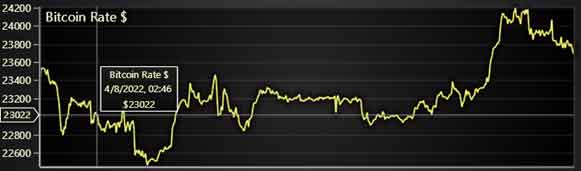
The chart rate is assigned to the second column (Index = 1) at the top of the dashboard (Row index 0). The title will correspond to the name of the selected coin (Bitcoin, Ethereum, Tether, etc.) and will be located to the left top.
-
getDefaultAxisX/Y: Get a reference to the default X/Y Axis of the ChartXY. This will always return a reference to the X/Y Axis that is closest to the chart (starting from left). The user can safely destroy the default Axis (with Axis.dispose, as long as there are no series attached to it).
AxisTickStrategies: AxisTickStrategies modify the logic of drawing Axis Ticks and formatting to better suit different user applications. For example, a DateTime Axis is created by selectingAxisTickStrategies.DateTime.
- Progressive: when used, the axis will scroll to show new progressive data but will keep its interval constant – leaving older data out of view.
- Add: all the members in the JSON data will be mapped and added as a data point.
-
setCursorResultTableFormatter: Configures formatting of Cursor ResultTable when pointing at this series.
3. Chart volume
const chartVolume = dashboard
            .createChartXY({ columnIndex: 1, rowIndex: 1 })
            .setTitle(`${name} Volume $`)
            .setTitlePosition('series-left-top')
            .setTitleMargin(0)
            .forEachAxis((axis) => axis.setAnimationScroll(false))
        chartVolume.getDefaultAxisX().setTickStrategy(AxisTickStrategies.Empty)
        chartVolume
            .getDefaultAxisY()
            .setTickStrategy(AxisTickStrategies.Numeric, (ticks) => ticks.setFormattingFunction(FormattingFunctions.NumericUnits))
        const seriesVolume = chartVolume
            .addAreaSeries()
            .setName(`${name} Volume $`)
            .add(coinData.map((p) => ({ x: p.date, y: p.volume })))
            .setCursorResultTableFormatter((builder, series, x, high, low) =>
                builder
                    .addRow(series.getName())
                    .addRow(timeAxis.formatValue(x))
                    .addRow(`$${(high / 10 ** 9).toFixed(3)} B`),
            )
The creation of this chart is very similar to the previous chart. The main difference is in the type of series and the value taken from the JSON object. For the chart rate, we used the lineSeries, for the chart volume, we need to use the AreaSeries.
The AreaSeries is a series type used for visualizing the area between a static baseline and supplied curve data. The AreaSeries is optimized for processing large amounts of data and is key for processing data in the crypto currency dashboard. For this chart, we will use the volume value instead rate value.

4. Chart liquidity
const chartLiquidity = dashboard
            .createChartXY({ columnIndex: 1, rowIndex: 2 })
            .setTitle(`${name} Liquidity $`)
            .setTitlePosition('series-left-top')
            .setTitleMargin(0)
            .forEachAxis((axis) => axis.setAnimationScroll(false))
        chartLiquidity.getDefaultAxisX().setTickStrategy(AxisTickStrategies.Empty)
        chartLiquidity
            .getDefaultAxisY()
            .setTickStrategy(AxisTickStrategies.Numeric, (ticks) => ticks.setFormattingFunction(FormattingFunctions.NumericUnits))
        const seriesLiquidity = chartLiquidity
            .addLineSeries({ dataPattern: { pattern: 'ProgressiveX' } })
            .setName(`${name} Liquidity $`)
            .add(coinData.map((p) => ({ x: p.date, y: p.liquidity })))
            .setCursorResultTableFormatter((builder, series, x, y, dataPoint) =>
                builder
                    .addRow(series.getName())
                    .addRow(timeAxis.formatValue(dataPoint.x))
                    .addRow(`$${series.axisY.formatValue(dataPoint.y)}`),
            )
This chart is very similar to the rate chart. The main difference is the Y-tick strategy and the use of liquidity value instead of rate/volume.
- AxisTickStrategies.Numeric: Axis Tick Strategy that is designed for depicting numeric values of all magnitudes. NumericTickStrategy is the default selection for all Axes.
- Axis interval ranges supported by NumericTickStrategy:
- Minimum: 10e-9
- Maximum: Unlimited.
5. Chart cap
const chartCap = dashboard
            .createChartXY({ columnIndex: 1, rowIndex: 3 })
            .setTitle(`${name} Market Cap $`)
            .setTitlePosition('series-left-top')
            .setTitleMargin(0)
            .forEachAxis((axis) => axis.setAnimationScroll(false))
        chartCap.getDefaultAxisX().setTickStrategy(AxisTickStrategies.DateTime, (ticks) => ticks.setGreatTickStyle(emptyTick))
        chartCap
            .getDefaultAxisY()
            .setTickStrategy(AxisTickStrategies.Numeric, (ticks) => ticks.setFormattingFunction(FormattingFunctions.NumericUnits))
        const seriesCap = chartCap
            .addLineSeries({ dataPattern: { pattern: 'ProgressiveX' } })
            .setName(`${name} Market Cap $`)
            .add(coinData.map((p) => ({ x: p.date, y: p.cap })))
            .setCursorResultTableFormatter((builder, series, x, y, dataPoint) =>
                builder
                    .addRow(series.getName())
                    .addRow(timeAxis.formatValue(dataPoint.x))
                    .addRow(`$${series.axisY.formatValue(dataPoint.y)}`),
            )
The chart Cap property sets strategies for both axes. The data for the Y-axis will be the cap value from the JSON data.
AxisTickStrategies.DateTime: AxisTickStrategies modify the logic of drawing Axis Ticks and formatting to better suit different user applications. For example, a DateTime Axis is created by selecting AxisTickStrategies.DateTime.
JSON Data
1. JSON file structure
In the Assets folder, we will find the JSON files for each coin. The structure will be the same for all the cryptocurrency coins:
{
        "date": 1659528600000,
        "rate": 294.3869827892823,
        "volume": 1273061758,
        "cap": 47495589477,
        "liquidity": 146368710
    },
There is a JSON file named coins-list.json. This file will contain metadata for each type of coin (age, rank, name, etc):
{
        "name": "Tether",
        "rank": 3,
        "age": 2962,
        "color": "#e9f4f4",
        "png32": "https://lcw.nyc3.cdn.digitaloceanspaces.com/production/currencies/32/usdt.png",
        "png64": "https://lcw.nyc3.cdn.digitaloceanspaces.com/production/currencies/64/usdt.png",
        "webp32": "https://lcw.nyc3.cdn.digitaloceanspaces.com/production/currencies/32/usdt.webp",
        "webp64": "https://lcw.nyc3.cdn.digitaloceanspaces.com/production/currencies/64/usdt.webp",
        "exchanges": 242,
        "markets": 12684,
        "pairs": 4147,
        "categories": ["stablecoins"],
        "allTimeHighUSD": 1.083725330741659,
        "circulatingSupply": 66517962690,
        "totalSupply": 66517962690,
        "maxSupply": null,
        "links": {
            "website": "https://tether.to",
            "whitepaper": "https://tether.to/wp-content/uploads/2015/04/Tether-White-Paper.pdf",
            "twitter": "https://twitter.com/tether_to",
            "reddit": "https://reddit.com/r/Tether",
            "telegram": "https://t.me/OfficialTether",
            "discord": null,
            "medium": null,
            "instagram": null
        },
        "code": "USDT",
Crypto Dashboard DataGrid
Creating this crypto dashboard Data Grid component could be very similar to creating a table in other programming languages, including creating an Excel table using a macro. Basically, we need to specify some properties for each cell, such as column name, cell colors, text colors, animations, values, etc.
1. Create a Data Grid object
We need to use the method createDataGrid on the dashboard object. The grid will be located in the first column(column index 0), and first row.
const dataGrid = dashboard.createDataGrid({ columnIndex: 0, rowIndex: 0, rowSpan: 4 })2. Assigning indexes to each column
const gridColHighlight = 0
    const gridColCoin = 1
    const gridColPrice = 3
    const gridColMarketCap = 4
    const gridColVolume = 5
    const gridColAllTimeHigh = 6
    const gridCol1h = 7
    const gridCol24h = 8
    const gridCol1w = 9
3. Theme properties
Getting font, colors, and fill properties from the assigned theme.
const theme = dataGrid.getTheme()
    const fontHeader = theme.header2Font
    const fontSymbol = theme.header1Font
    const fontSymbolLong = theme.header3Font
    const textFillHeader = theme.chartTitleFillStyle
    const textFillGood = theme.examples.positiveTextFillStyle
    const textFillBad = theme.examples.negativeTextFillStyle
    const backgroundFillGood = theme.examples.positiveBackgroundFillStyle
    const backgroundFillBad = theme.examples.negativeBackgroundFillStyle
    const areaFillGood = theme.examples.positiveAreaFillStyle
    const areaFillBad = theme.examples.negativeAreaFillStyle
    const strokeGood = new SolidLine({ fillStyle: theme.examples.positiveFillStyle, thickness: 2 })
    const strokeBad = new SolidLine({ fillStyle: theme.examples.negativeFillStyle, thickness: 2 })
    const bgHighlightFill = new SolidFill({ color: theme.examples.highlightDataGridColor })
const bgNormalFill = theme.examples.dataGridCellBackgroundFillStyle- Theme: A collection of default implementations can be accessed by Themes. The color theme of the components must be specified when it is created, and can’t be changed afterward (without destroying and recreating the component). All properties can be consulted in the theme’s documentation.
4. Set cell contents
dataGrid
        .setTitle('Crypto Watch')
        .setCellsBorders({})
        .setCellsPaddings(0)
        .setCellContent(gridColHighlight, 0, ' ')
        .setCellContent(gridColCoin, 0, 2, 1, 'Coin')
        .setCellContent(gridColPrice, 0, 'Price')
        .setCellContent(gridCol1h, 0, '1h')
        .setCellContent(gridCol24h, 0, '24h')
        .setCellContent(gridCol1w, 0, '1 week')
        .setCellContent(gridColMarketCap, 0, 'Market Cap')
        .setCellContent(gridColVolume, 0, 'Volume')
        .setCellContent(gridColAllTimeHigh, 0, 'All-time High')
This property sets the content of a single cell at an intersection of the supplied column and row. This creates a new cell if it doesn’t exist, and overrides any previously set content in the cell.
Parameters
- Column: number. Column index starting from 0.
- Row: number. Row index starting from 0.
- Content: DataGridCellContent.
5. Set the columns’ width
The key parameters here for the crypto dashboard include
- Index column width in pixels.
.setColumnWidth(gridColHighlight, 6)
        .setColumnWidth(gridCol1h, 100)
        .setColumnWidth(gridCol24h, 100)
        .setColumnWidth(gridCol1w, 100)
6. Row properties
- Set Rows properties:
FontHeaderandtextFillHeadervalues were taken from the theme as in the previous step.
.setRowTextFont(0, fontHeader)
        .setRowBorders(0, { bottom: true })
        .setRowTextFillStyle(0, textFillHeader)
Cryptocurrencies Settings
The coins’ information is stored in the following file coins-list.json.
const coinsInfo = coins;
    const coinsData = new Array(coinsInfo.length).fill(0)

    const dNow = new Date(2022, 7, 8)
    const tNow = dNow.getTime()
1. Mapping coins data
for (let iCoin = 0; iCoin < coinsInfo.length; iCoin += 1) {
        const coinInfo = coinsInfo[iCoin]
        const { code, name, rate, cap, volume, allTimeHighUSD } = coinInfo
        const coinData = getJSON(code);
        coinsData[iCoin] = coinData
        const coinRowTop = 1 + iCoin * 2
        const coinRowBottom = coinRowTop + 1
        const coinIconUrl = getImage(code);
        const coinIconImage = new Image()
        coinIconImage.crossOrigin = '*'
        coinIconImage.src = coinIconUrl
        const icon = dataGrid.engine.addCustomIcon(coinIconImage, { height: 32 })
This method will construct a row for each coin in the data grid.
coinDatawill contain the data extracted from JSON files.getJSON()will return the JSON object depending on the name of the current coin.
2. getJSON()
function getJSON(file:string){
    switch(file) {
        case "BTC":
            return BTC;
        case "ETH":
            return ETH;
        case "USDT":
            return USDT;
        case "USDC":
            return USDC;
        case "BNB":
            return BNB;
        case "BUSD":
            return BUSD;
    }
}
3. getImage()
The function coinIconImage will return the icon PNG image using the getImage() method by sending the current coin name.
function getImage(file:string){
    switch(file) {
        case "BTC":
            return BTC_PNG;
        case "ETH":
            return ETH_PNG;
        case "USDT":
            return USDT_PNG;
        case "USDC":
            return USDC_PNG;
        case "BNB":
            return BNB_PNG;
        case "BUSD":
            return BUSD_PNG;
    }
}
4. Calculating delta time
Calculate the delta between opening and closing for a given time range (1 hour, 1 day, etc.) from a list of data points.
const dataGlance1h = calcDataAtAGlance(coinData, tNow - 1 * 60 * 60 * 1000, tNow)
        const dataGlance24h = calcDataAtAGlance(coinData, tNow - 24 * 60 * 60 * 1000, tNow)
        const dataGlance1w = calcDataAtAGlance(coinData, tNow - 7 * 24 * 60 * 60 * 1000, tNow)
5. Assigning cell content and cell properties
The properties of a DataGrid component may sound very familiar if you have knowledge of CSS styling. Content, Padding, Font, and Fill, are very common properties that help us create a personalized table according to our needs.
In this case, you will need to make use of LightningChart JS properties. Below I will list the functions used for this DataGrid component. Remember to visit the LightningChart JS documentation for more information. Values are taken from coins-list.json
dataGrid
            .setRowHeight(coinRowTop, 30)
            .setRowHeight(coinRowBottom, 30)
            // NOTE: First column just used for highlighting active row.
            .setCellContent(gridColHighlight, coinRowTop, 1, 2, ' ')
            .setCellContent(gridColCoin, coinRowTop, 1, 2, icon)
            .setCellPadding(gridColCoin, coinRowTop, { left: 5, right: 5 })
            .setCellPadding(gridColCoin, coinRowTop, { left: 5 })
            .setCellContent(gridColCoin + 1, coinRowTop, 1, 1, code)
            .setCellTextFont(gridColCoin + 1, coinRowTop, fontSymbol)
            .setCellTextFillStyle(gridColCoin + 1, coinRowTop, textFillHeader)
            .setCellContentAlignment(gridColCoin + 1, coinRowTop, 'left-bottom')
            .setCellContent(gridColCoin + 1, coinRowBottom, 1, 1, name)
            .setCellContentAlignment(gridColCoin + 1, coinRowBottom, 'left-top')
            .setCellTextFont(gridColCoin + 1, coinRowBottom, fontSymbolLong)
            .setCellTextFillStyle(gridColCoin + 1, coinRowBottom, textFillHeader)
            .setCellContent(gridColPrice, coinRowTop, 1, 2, `$${rate.toFixed(2)}`)
            .setCellContent(gridColMarketCap, coinRowTop, 1, 2, `$${(cap / 10 ** 9).toFixed(2)}B`)
            .setCellContent(gridColVolume, coinRowTop, 1, 2, `$${(volume / 10 ** 9).toFixed(2)}B`)
            .setCellContent(gridColAllTimeHigh, coinRowTop, 1, 2, `$${allTimeHighUSD.toFixed(2)}`)
            .setCellContent(gridCol1h, coinRowTop, `${dataGlance1h.delta >= 0 ? '+' : ''}${dataGlance1h.delta.toFixed(2)}%`)
.setCellTextFillStyle(gridCol1h, coinRowTop, dataGlance1h.delta > 0 ? textFillGood : textFillBad)- setCellContent: Set the content of a single cell at the intersection of the supplied column and row. This creates a new cell if it doesn’t exist, and overrides any previously set content in the cell.
- setCellPadding: Set the padding of a cell at the intersection of the specified row and column. This does not affect any cells that are defined after the method is called.
- setCellTextFont: Set the text font of a cell at the intersection of the specified row and column. This does not affect any cells that are defined after the method is called.
- setCellTextFillStyle: Set the text fill style of a cell at the intersection of the specified row and column. This does not affect any cells that are defined after the method is called.
- setCellContentAlignment: Set cell content alignment of a cell at the intersection of the specified row and column. This does not affect any cells that are defined after the method is called.
- setCellBackgroundFillStyle: Set the background fill style of a single cell at the intersection of supplied column and row. This does not affect any cells that are defined after the method is called.
- setColumnBorders: Set the selection of visible borders of a column of cells at the supplied column index. This does not affect any cells that are defined after the method is called.
DataGrid mouse actions
- onCellMouseEnter: Subscribe to the event when a cell in the Data Grid is entered with the mouse.
- onCellMouseLeave: Subscribe to the event when a cell in the Data Grid is left with the mouse.
- onCellMouseClick: Subscribe to the event when a cell in the Data Grid is clicked with the mouse.
NPM Start
Run the NPM start command to visualize the chart in a local server. Here’s the final crypto dashboard application:
Conclusion
Currently, it is possible to obtain real-time values of each cryptocurrency. I can think of several applications using LightningChart JS to create these crypto dashboards. If you are investing in digital currencies, having your own dashboard would be very useful, or you could also develop dashboards for third parties.
JavaScript development could be quite complex, but the LC JS library would make everything much easier since you would only need to configure properties. Remember that you can download this template and practice with it. In previous articles, we developed applications for mobile devices and for Microsoft Windows (standalone).
This crypto dashboard can be compiled without problems with frameworks such as ionic, electron JS, Angular, Vue.js, etc. Thank you very much for your attention. Bye!

Omar Urbano
Software Engineer


Continue learning with LightningChart
Create a JavaScript Pie Chart with NodeJS, TypeScript & LightningChart
Written by a human | Updated on April 10th, 2025JavaScript Pie Chart with NodeJS & TypeScript Today, we are going to do a short tutorial on how to generate a pie chart using Node JS, TypeScript, and LigningCharts JS. To see how to get LightningChart JS for...
Real-time data visualization with WebSockets
Written by a human | Updated on April 10th, 2025WebSockets Data Visualization in Real-Time These days it is ever increasingly common that people require web solutions for their applications and services. Data visualization is not an exception to this, as...
Why Performance Matters in Data Visualization?
Written by a human | Updated on April 10th, 2025Performance in Data VisualizationI was doing a Google search a couple of days ago and particularly, I wanted to know what are the options for developers who need to visualize large amounts of data points within...



If you have any questions, feel free to contact us!
©LightningChart Ltd 2025. All rights reserved.