LightningChart .NETXY Zoom Bar Chart
TutorialCreating an XY Zoom Bar Chart project with LightningChart .NET
XY Zoom Bar Chart
Today we will continue working with XY charts, but now we will have two charts within the same project. A chart will traditionally display a signal while the other chart will serve as an analysis tool showing us the area of the signal we are studying. This will allow us to select an area we want on the main chart. This chart aims to show how to use other charts as analysis tools, which can complement each other.
What is an X and Y axis chart?
LightningChart .NET has a wide collection of XY charts. These charts are based on a two-dimensional plane known as the Cartesian Coordinate System which may also include an Z-axis for a three-dimensional plane. Similarly, LightningChart has great examples of both 2D and 3D charts.
Within the Cartesian Coordinate System, we have both X and Y axes where any data point can be allocated in a specified X and Y coordinate:

What is LightningChart .NET?
LightningChart .NET is a high-performance charting library compatible with WPF, UWP, and WinForms. It features hundreds of chart types such as medical charts, scientific, trading charts, and more. LightningChart .NET is performance-oriented and its charting controls support high-end capabilities including a massive amount of data intake, real-time charts, a high FPS rate, and more.
Project Overview
The chart that we will be creating today is a LightningChart .NET Zoom Bar XY chart. An interesting feature of this type of chart is that, in addition to the normal XY cartesian plot, the chart application provides an overview of the entire data. The user can then interact with this overview by dragging it left or right and expanding the zoom range to visualize a specific area.
 Download the project to follow the tutorial
Local Setup
For this project, we need to take into count the following requirements to compile the project.
- OS: 32-bit or 64-bit Windows Vista or later, Windows Server 2008 R2 or later.
- DirectX: 9.0c (Shader model 3 and higher) or 11.0 compatible graphics adapter.
- Visual Studio: 2010-2019 for development, not required for deployment.
- Platform .NET Framework: installed version 4.0 or newer.
Now go to the next URL and download LightningChart .NET. You’ll then be redirected to a sign-in form where you’ll have to complete a simple sign-up process. When you’re done with the registration process, you’ll have access to your LightningChart account.

After you sign into your account, you will be able to download the SDK. This SDK will be a “free trial” version, but you will be able to use many important features for this XY Zoom Bar Chart tutorial. When you download the SDK, you’ll have a .exe file like this:

The installation will be a typical Windows process, so please continue with it until it is finished. After the installation, you will see the following programs:

License Manager
In this application, you will see the purchase options. All the projects that you will create with this trial SDK, will be available for future developments with all features enabled.

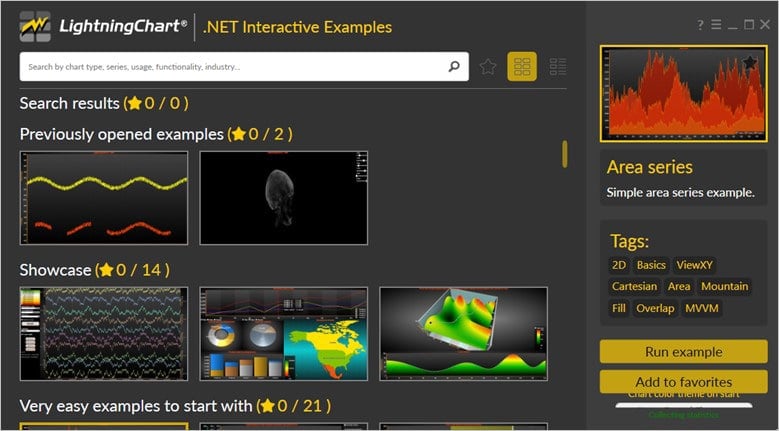
LightningChart .NET Interactive Examples
Now you can see 100+ interactive visualizations available for WPF, WinForms, and/or UWP.
Visual Studio Project
Now let’s work with Visual Studio. The main difference between using the LightningChart visualizer and Visual Studio is that we will be able to analyze and experiment with many features within the source code. In the LC visualizer, select the XY Zoom Bar Chart and run the example:
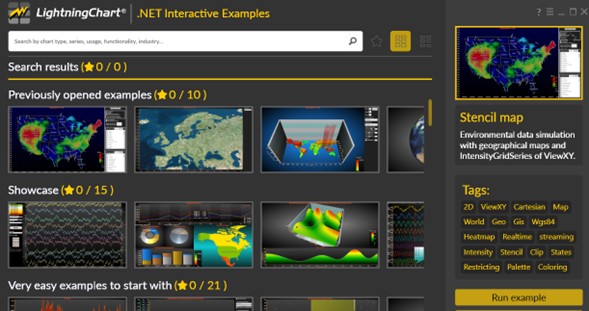
In the top-right zone of the windows, you will see the following options:
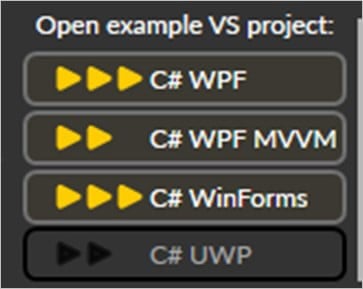
For the trial SDK, we will be able to use the WPF framework. After clicking the framework to use, we will need to specify a folder where the project will be created:

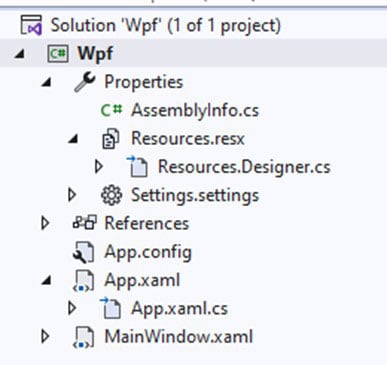
Finally, the XY Zoom Bar Chart project will be created and Visual Studio will be opened and ready for executing the digital signal processing filters application.
Code Review
The main code will be wrapped inside MainWindow.xaml.cs. Here we will find the code for UI controls.
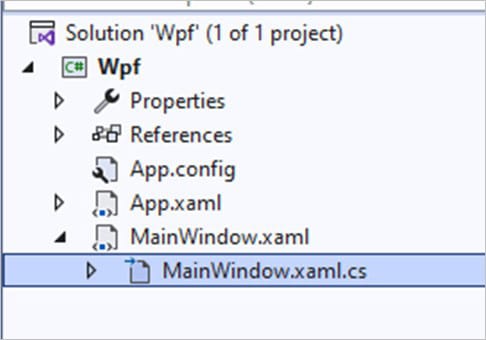
Inside the code we will check two methods that will create the properties that we need to correctly draw the chart. The interactive example is built with various user controls, to manipulate and change the visual properties of the chart. These controls are not required to generate this graph, so we will focus on the code responsible for generating the object.
GenerateData()
We will start with the InitializeComponent method. This will allow us to load our XAML template and access the objects within it.
InitializeComponent();If you look closely, some variables have been declared and will help us store values that will be used later.
private LightningChart _chart;
        private double[] _xValues;
        private double[] _yValues;
        private LightningChart _zoomBarChart;
In the xValues and yValues arrays, we will store the data generated by the GenerateData() method, and we can use them later.
private const int PointCount = 50000;

        private LightningChart _chart;
        private double[] _xValues;
        private double[] _yValues;
        private LightningChart _zoomBarChart;
The values will be generated randomly within a loop and will be stored in the aforementioned arrays:
private void GenerateData()
        {
            double previousY = 0;
            double y = 0;
            Random random = new Random();

            _xValues = new double[PointCount];
            _yValues = new double[PointCount];

            for (int i = 0; i < PointCount; i++)
            {
                // Use latest value and generate some difference to it.
                y = previousY + (random.NextDouble() - 0.5) * 3.0;

                // Limit between 0 and 100.
                if (y > 100)
                {
                    y = 100;
                }
                if (y < 0)
                {
                    y = 0;
                }

                previousY = y;

                _xValues[i] = i;
                _yValues[i] = y;
            }
        }
CreateChart()
The CreateChart() method will execute the CreateDetailedChart() method and add the chart object to the XAML zoom grid.
CreateDetailedChart()This method will build the XY Zoom bar chart, will configure the axes, and assign their values. Now, we need to create a LightningChart type object. This constructor will allow us to create an instance of a chart, specify the type of chart, and access different properties.
_chart = new LightningChart
{
    ChartName = "Detailed chart"
};
_BeginUpdate
The BeginUpdate function will allow us to stop drawing the chart, which will allow us to set up the properties that we want to customize. As long as the update is not closed, the chart will not show the changes we make, this will help with the performance of the chart construction.
_chart.BeginUpdate();Chart Type
We need to specify the active chart view or the type of chart that will be created. In this case, we use the XY view. There are several types of views:
- XY
- 3D
- Pie3D
- Polar
- Smith
_chart.ActiveView = ActiveView.ViewXY;Axis Configuration
To add properties to both the X and Y axes, we will use the AxisX and AxisY classes. Similarly, we can add tags, and executor behaviors, among other configurations.
// Set graph margins.
            _chart.ViewXY.Margins = new Thickness(80, 10, 30, 50);

            // Set chart title.
            _chart.Title.Align = ChartTitleAlignment.TopLeftMargin;
            _chart.Title.Font.Size = 15;
            _chart.Title.Text = "Detailed";

            // Set axes.
            _chart.ViewXY.XAxes[0].ValueType = Arction.Wpf.Charting.AxisValueType.Number;
            _chart.ViewXY.XAxes[0].RangeChanged += ExampleZoomBar_RangeChanged;

            _chart.ViewXY.YAxes[0].Title.Visible = false;
Value type
In this case, we will be using a regular numeric format for the integer and decimal number presentation. When the AutoFormatLabels property is disabled, then the LabelsNumberFormat applies by default.
Range Changed
Note that when modifying the range of the XY zoom bar chart’s overview section (the one above the main chart), the range of the detailed chart will be modified in real time. This will generate an automatic zoom-in/out effect:
Series Point
In this part, we need to create a SeriesPoint array type. A SeriesPoint array is the data type expected by the PointLineSeries class.
SeriesPoint[] data = new SeriesPoint[PointCount];
            for (int i = 0; i < PointCount; i++)
            {
                data[i].X = _xValues[i];
                data[i].Y = _yValues[i];
            }
PointLineSeries
PointLineSeries allows us to create the lines of data we want to display in our chart. We can define properties such as the type of lines and style of points. The add function will help us to add the point line series to the XY Zoom bar chart.
PointLineSeries pointLineSeries = new PointLineSeries(_chart.ViewXY, _chart.ViewXY.XAxes[0], _chart.ViewXY.YAxes[0])
            {
                Points = data
            };

            _chart.ViewXY.PointLineSeries.Add(pointLineSeries);
Final Chart Settings
Some of the final settings we’ll add to the XY Zoom bar chart will be adjusting the default zoom. When using ZoomToFit(), the chart will zoom to the full size of the line series. The Y-axis will have a maximum value slightly larger than the original axis size.
_chart.ViewXY.ZoomToFit();
_chart.ViewXY.YAxes[0].Maximum *= 1.2;
Set the X-axis grid strips visible
The axis grid (division) intervals can be shown over the graph background as fills. By setting ViewXY.AxisLayout.AxisGridStrips = X, an X-axis is used to set the strips. Similarly, by setting AxisGridStrips = Y, the Y-axis is used to set the strips.
- AxisGridStrips = Both sets the strips by both X and Y axes. Setting it to None means no grid strips are used at all.
XGridStripAxisIndexsets the X-axis that is to be used for strips. Only one X-axis can be set.YGridStripAxisIndexLayeredsets the Y axis to be used for strips whenYAxisLayout = Layered.
When YAxisLayout = Stacked, all the Y-axes have their own strips
Finishing the chart configuration
_chart.ViewXY.LegendBoxes[0].Offset = new PointIntXY(-15, -70);

_chart.EndUpdate();

gridChart.Children.Add(_chart);
To finish, we will give a location to the default legend box for the XY zoom bar chart. We will reactivate the chart repaint and add the chart to the XAML grid.
Conclusion
Thank you for getting this far, remember that a ViewXY allows you to present several series of points and lines, series of areas, series of highs and lows, series of intensity, heat maps, series of bars, bands, series of lines cursors, etc. in XY Cartesian graph format.
The series is linked to the X and Y axes and uses the range of values of the assigned axes. The PointLineSeries can be used to draw a line, a group of points, or a line of points. Point and line styles are available in the LineStyle and PointStyle properties. Within this xy zoom bar chart we can have many lines, generating new types of chart (such as an ECG).

This article was quite short, but it serves as a good introductory example to XY charts. Additionally, when creating an XY chart using LightningChart .NET, you can have advanced features such as a zoom bar chart. This offers a high level of detail to end-users who need to interact with the chart and get better insights from it.
I hope the article has been useful, thank you!

Omar Urbano
Software Engineer


Continue learning with LightningChart




If you have any questions, feel free to contact us!