








Zooming and Panning in Polar and Smith Charts
Tutorial
Written by a Human
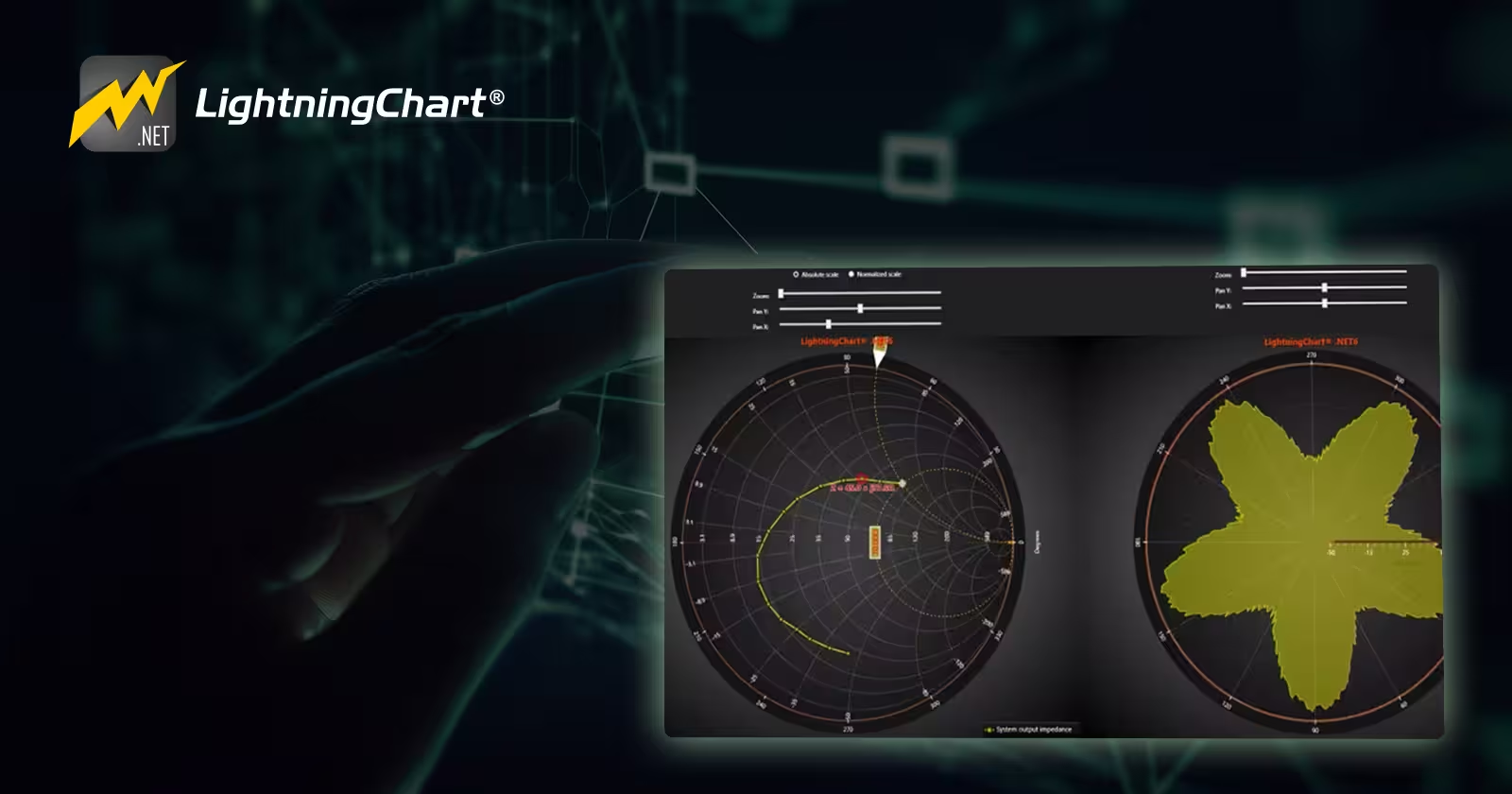
In this tutorial, we will be creating zooming and panning features for .NET Polar and Smith charts.
Omar Urbano
Software Engineer

Introduction
This will be a quite brief, but very useful article, as we will be working with some zooming and panning UI properties in Smith and Polar type charts. I have already published articles for each type of chart, so we will focus more on the controls.
You can find those articles in the Lightning Chart Blog section. In this article, we will be working with LightningChart .NET version 12. I recommend looking at the installation section, as you can generate base projects with the help of the interactive examples tool. Let’s get started!
What is Zooming in User Interface?
“Zooming” in a user interface is the action of enlarging or reducing a part of the data to see more details or get an overview. It’s like using a zoom on a camera, but in this case, on the axes of the chart. For example, if you have a line chart with data for an entire year, you can zoom in to see only the last few months and view the details more clearly. It is typically done using gestures on touch screens or through controls in the interface, such as buttons or sliders.
What is Panning in User Interface?
Panning in a user interface is the process of moving the view from one area to another, as if you were scrolling a map or chart from side to side. Instead of zooming in to see more details, panning allows you to move the chart horizontally or vertically to explore different sections of the data without changing the level of detail. It can be done with a mouse by dragging the chart or with touch gestures like swiping.
Why are zooming and panning features important when interacting with high-performance charts in applications?
Zoom and panning are crucial in high-performance charts because they allow you to navigate and zoom in on the data easily and quickly.
- Zoom: It lets you zoom in on a specific part of the chart to see details without having to look at the entire dataset at once. This is key when there’s a lot of information or when you want to spot small patterns or details.
- Panning: It’s like moving the chart from side to side. This allows you to explore different areas without getting lost or having to load new views. It makes navigation smoother and less frustrating.
In summary, these functions let you work with large data sets in a more comfortable and efficient way.
Project Overview
Feel free to download the ZIP file to follow this zooming and panning project.
 Download the project to follow the tutorial
Local Setup
- OS: 32-bit or 64-bit Windows Vista or later, Windows Server 2008 R2 or later.
- DirectX: 9.0c (Shader model 3 and higher) or 11.0 compatible graphics adapter.
- Visual Studio: 2022 for development, not required for deployment.
- Platform .NET Framework: installed version 8.0 or newer.
Now go to the next URL and download LightningChart .NET. You’ll then be redirected to a sign-in form where you’ll have to complete a simple sign-up process to get access to your LightningChart account.

After signing in to your account, you can download the SDK “free trial” version that allows you to use important features for this tutorial. When you download the SDK, you’ll have a .exe file like this:

The installation will be a typical Windows process, so please continue with it until it is finished. After the installation, you will see the following programs:

License Manager
In this application, you will see the purchase options. All the projects that you will create with this trial SDK will be available for future developments with all features enabled.

Creating the project
Once you run the example in the “interactive examples” application, you will see the following option
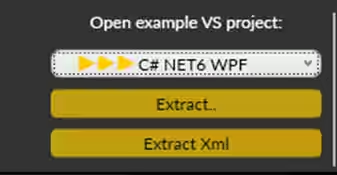
Lightning Chart can generate a project for the current selected chart, using Windows Presentation Foundation (WPF), WinForms, and their NET6 versions
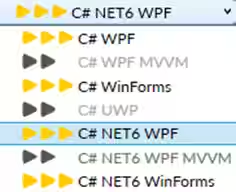
Once you select the extract option, you will have to create a new folder for the project
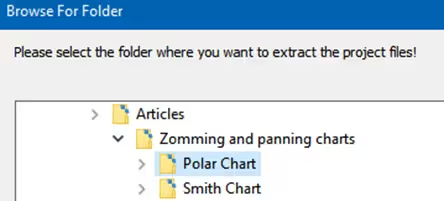
Once the project is saved, Visual Studio will open by itself and you’ll see a project like this
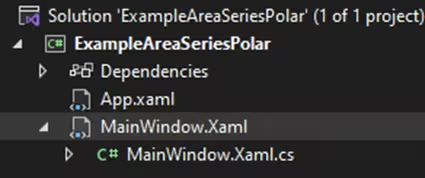
XAML Code
Grid
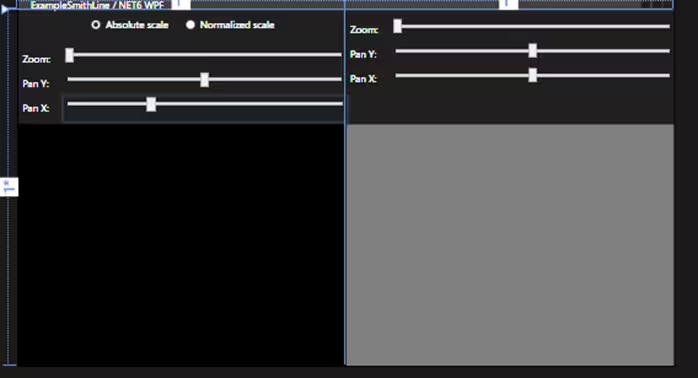
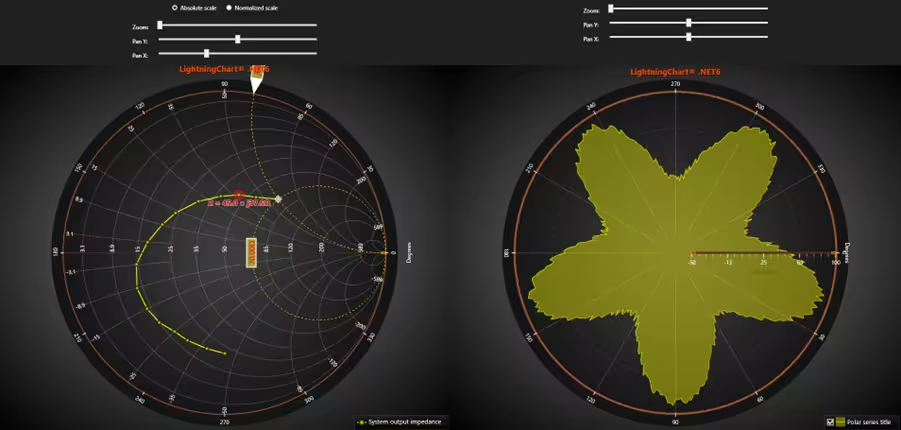
The primary layout container is a Grid, structured with two rows and two columns:
- First row: Holds a StackPanel containing control elements (radio buttons and sliders).
- Second row: Divided into two columns for displaying content, with areas for charts or other visual elements.
StackPanels
There are two StackPanels:
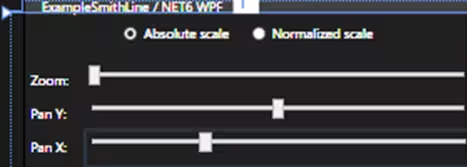
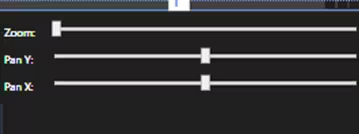
Left StackPanel: Positioned in the first column, spanning both rows. It contains the interactive controls for “Smith” settings (zoom and panning). Within it, there are RadioButton elements for scale selection, and Slider controls for zoom and panning on the Y and X axes.
Right StackPanel: Located in the second column, it also spans both rows. Like the left side, this contains Slider controls for the “Polar” settings (zoom and panning).
Controls
RadioButtons: Used for selecting between “Absolute scale” or “Normalized scale” options. They trigger the Checked and Unchecked events to handle user interactions.
Sliders
- SmithZoomSlider: Adjusts zoom for the Smith settings.
- SmithPanningSliderY and SmithPanningSliderX: Control the panning along the Y and X axes for Smith settings.
- PolarZoomSlider: Adjusts zoom for the Polar settings.
- PolarPanningSliderY and PolarPanningSliderX: Control the panning along the Y and X axes for Polar settings.
Each slider is linked to an event (ValueChanged) that triggers a corresponding function to update the display.
Smith Chart
Since we are going to focus on the zooming and panning features, I will briefly explain the code that generates the Smith chart (CreateSmithChart). Remember that there are articles focused on these charts, so you can get more details by viewing each one of them.
Chart Initialization and Configuration
// Create a new chart.
_smithChart = new LightningChart();
// Disable rendering, strongly recommended before updating chart properties.
_smithChart.BeginUpdate();
// Set optional name for the chart.
_smithChart.ChartName = "Smith line chart";
_smithChart.ActiveView = ActiveView.ViewSmith;
_smithChart.ViewSmith.ZoomPanOptions.ZoomPadding = new Thickness(10, 30, 10, 10); - A new instance of LightningChart is created and stored in the
_smithChartvariable. - The
BeginUpdatemethod is called to prepare the chart for modifications (disables rendering temporarily to optimize performance). - The chart’s name is set to “Smith line chart“.
- The active view is set to
ViewSmith, indicating that this chart will be a Smith chart, a graphical representation of complex impedance. ZoomPanOptions.ZoomPaddingis configured to provide some padding when zooming or panning.
Series and Data Points
A PointLineSeriesSmith is created, which will represent a line series on the Smith chart. It is associated with the Smith chart view and its axis.
//Add a line series
PointLineSeriesSmith series = new PointLineSeriesSmith(_smithChart.ViewSmith, _smithChart.ViewSmith.Axis)
{
    PointsVisible = true
};
series.PointStyle.Color1 = series.LineStyle.Color;
series.Title.Text = "System output impedance";
_smithChart.ViewSmith.PointLineSeries.Add(series);
//Create data points. Re, Img, Tag. Set generator test frequency in Tag, so it can be resolved with cursor.
SmithSeriesPoint[] dataPoints = new SmithSeriesPoint[] {
    new SmithSeriesPoint(70, 60, 10000),
    new SmithSeriesPoint(55, 45, 15000),
    new SmithSeriesPoint(45, 37.5, 20000),
    new SmithSeriesPoint(37.5, 30, 25000),
    new SmithSeriesPoint(30, 22, 30000),
    new SmithSeriesPoint(24, 14, 35000),
    new SmithSeriesPoint(21, 9, 40000),
    new SmithSeriesPoint(17.5, 3, 45000),
    new SmithSeriesPoint(14.5, -3, 50000),
    new SmithSeriesPoint(13.5, -9, 55000),
    new SmithSeriesPoint(14, -15, 60000),
    new SmithSeriesPoint(15, -20, 65000),
    new SmithSeriesPoint(17, -25, 70000),
    new SmithSeriesPoint(18, -30, 75000),
    new SmithSeriesPoint(20, -37.5, 80000),
    new SmithSeriesPoint(22, -45, 85000),
};
series.Points = dataPoints;
The series is made visible by setting PointsVisible = true and given a title (“System output impedance”).
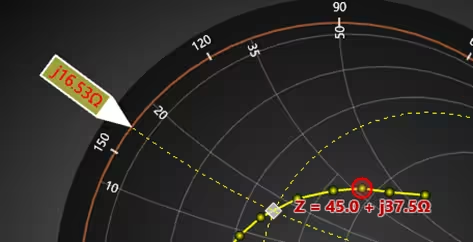
A set of data points (SmithSeriesPoint) is created, where each point consists of real and imaginary components (e.g., 70, 60, 10000). These data points are then assigned to the Points property of the series.
Cursor and Marker Configuration
PointShapeStyle pss = new PointShapeStyle(null);
EventMarkerTitle title = new EventMarkerTitle(null)
{
    Color = Colors.Red,
    Text = "Cursor"
};
_cursor = new SmithEventMarker(_smithChart.ViewSmith, _smithChart.ViewSmith.Axis, pss,
    1, 0.5, title, new PointInt(0, 0))
{
    SnapToClosestPoint = RoundEventMarkerBase.MarkerSnapToType.All
};
_cursor.SetSnapSeries(series);
_cursor.Label.Font = new WpfFont("Segoe UI", 16, true, false);
_cursor.Label.Shadow.Style = TextShadowStyle.HighContrast;
_cursor.Label.Color = Color.FromArgb(255, 192, 0, 0);
_cursor.Symbol.Width = _cursor.Symbol.Height = 17;
_cursor.Symbol.BorderWidth = 2;
_cursor.Symbol.BorderColor = Colors.Red;
_cursor.Symbol.Color1 = Colors.Transparent;
_cursor.Symbol.Color2 = Color.FromArgb(100, 255, 0, 0);
_cursor.PositionChanged += Cursor_PositionChanged;
_cursor.Symbol.Shape = LightningChartLib.WPF.Charting.Shape.Circle;
_cursor.RealValue = dataPoints[2].RealValue;
_cursor.ImgValue = dataPoints[2].ImgValue;
_smithChart.ViewSmith.Markers.Add(_cursor);
A cursor (represented as an event marker) is created to act as a data-value resolver on the Smith chart. This cursor allows users to see the value of a specific data point by “snapping” to the closest point.
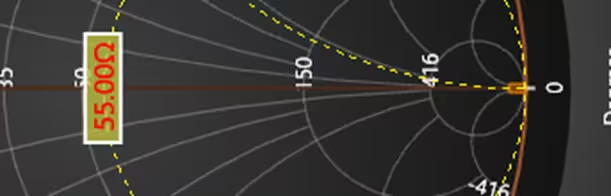
The cursor’s appearance is configured as follows
Its label font, color, shadow, and symbol (shape and border) are customized. The cursor is initially set to the 3rd data point in the dataPoints array. The cursor is added to the chart’s marker collection (Markers.Add), allowing it to interact with the chart.
Configure Smith Chart Axis
The Smith chart axis reference value is set to 50 ohms (standard reference impedance).
_smithChart.ViewSmith.Axis.ReferenceValue = 50; //ohms
_smithChart.ViewSmith.Axis.ShowAbsoluteValues = true;
_smithChart.ViewSmith.Axis.AxisThickness = 2;
_smithChart.ViewSmith.Axis.Title.Visible = false;
_smithChart.ViewSmith.Axis.GridImg.LineWidth = 1.1f;
_smithChart.ViewSmith.Axis.GridReal.LineWidth = 1.1f;
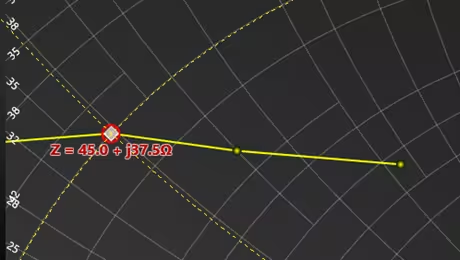
The chart is configured to show absolute values, the axis thickness is set, and grid line widths are adjusted. The axis title is hidden for a cleaner presentation.
Smith Zoom Slider
This method handles the zoom functionality of the Smith chart. When the zoom slider’s value changes, this method adjusts the zoom level of the Smith chart.
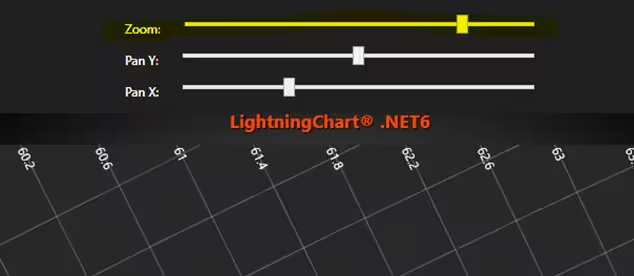
SmithZoomSlider.Value: This value represents the zoom factor from the slider, which is a numerical value (typically between 0 and 100 or other ranges).
_smithChart.ViewSmith.ZoomScale: This property sets the zoom scale of the Smith chart. The zoom scale value directly affects how much the chart is zoomed in or out.
The chart’s zoom level is updated whenever the slider value changes
private void SmithZoomSlider_ValueChanged(object sender, RoutedPropertyChangedEventArgs<double> e)
{
    if (_smithChart != null)
    {
        double zoomFactor = SmithZoomSlider.Value;
        _smithChart.ViewSmith.ZoomScale = zoomFactor;
    }
}
Smith Panning Slider
The methods X-axis and SmithPanningSliderX_ValueChangedhandles panning the Smith chart along the X-axis (real part). This method updates the horizontal panning (along with the real axis) of the Smith chart.
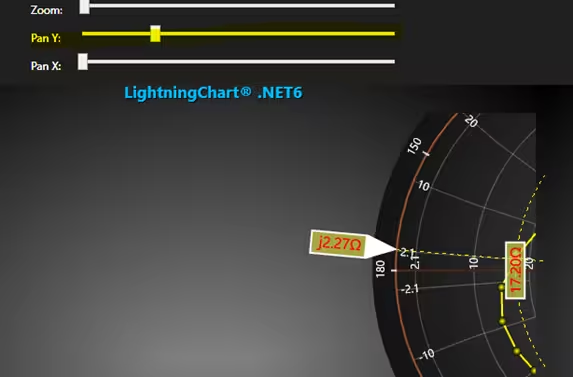
SmithPanningSliderX.Value: This value is obtained from the X-axis panning slider. It represents how much the user wants to pan along the real axis (horizontal axis).
_smithChart.ViewSmith.ZoomCenter: This represents the center of the zoom in the chart. It contains both the real and imaginary parts (RealValue and ImgValue).
The method retrieves the current real and imaginary values of the zoom center and then updates the ZoomCenter to a new PointSmith with the panX value and the existing “img” value.This allows panning horizontally while keeping the Y-axis (imaginary part) unchanged.
private void SmithPanningSliderX_ValueChanged(object sender, RoutedPropertyChangedEventArgs<double> e)
{
    if (_smithChart != null)
    {
        double panX = SmithPanningSliderX.Value;
        // Get the current zoom center values for both real and imaginary parts
        double real = _smithChart.ViewSmith.ZoomCenter.RealValue;
        double img = _smithChart.ViewSmith.ZoomCenter.ImgValue;
        _smithChart.ViewSmith.ZoomCenter = new PointSmith(panX, img);
    }
}
Polar Chart
Here, I will explain the main differences between the two charts, since both are similar, they have many changes in implementation.
Coordinate System
Smith Chart: The Smith chart is a polar chart specialized for representing complex impedance in electrical engineering, but the scale and interpretation of the polar coordinates are different. It usually uses normalized impedance and represents both the real and imaginary components as radial and angular coordinates.
Polar Chart: The polar chart here is a general-purpose chart designed to plot data in polar coordinates, typically for representing radial data. The focus is on the amplitude and angle for each point in the series.
Purpose
Smith Chart: Specifically used for impedance or admittance in RF (Radio Frequency) applications. It maps complex impedance values onto a circle and is commonly used in electrical engineering.
Polar Chart: The polar chart created here can be used for a variety of applications, such as plotting data like signal patterns or radial distributions, but it is more generic and less specialized than the Smith chart.
The amplitude changes with the angle (i), following a sine function (Math.Sin(5.0 * 2.0 * Math.PI * i / 360.0)). This creates a periodic pattern, with each data point represented as a pair of (Amplitude, Angle).
for (int i = 0; i < pointCounter; i++)
{
    amplitude = 45 + 40.0 * Math.Sin(5.0 * 2.0 * Math.PI * i / 360.0) + _random.NextDouble() * 10.0;

    if (amplitude < 0)
    {
        amplitude = 0;
    }

    seriesPoints[i].Amplitude = amplitude;
    seriesPoints[i].Angle = i;
}
Data Representation
Smith Chart: Points are represented as complex numbers (real and imaginary components), and the chart includes characteristics like normalized impedance and often includes elements like resistance, reactance, and reflection coefficient.
Polar Chart: In this case, the data is represented by a set of amplitude and angle values, typically used in polar plots to visualize things like waveforms or radial distributions.
Zoom and Panning
Smith Chart: Features specific zooming and panning functionality for fine-tuning the view of the impedance data, including the ability to zoom in and out or pan along the real and imaginary axes.
Polar Chart: The polar chart’s zoom and panning are more general and focus on angular and radial dimensions, adjusting the view of the amplitude and angular distribution of the data.
private void PolarZoomSlider_ValueChanged(object sender, RoutedPropertyChangedEventArgs<double> e)
{
    if (_polarChart != null)
    {
        double zoomFactor = PolarZoomSlider.Value;
        _polarChart.ViewPolar.ZoomScale = zoomFactor;
    }
}
private void PolarPanningSliderY_ValueChanged(object sender, RoutedPropertyChangedEventArgs<double> e)
{
    if (_polarChart != null)
    {
        double panY = PolarPanningSliderY.Value;
        // Get the current zoom center values for both real and imaginary parts
        double X = _polarChart.ViewPolar.ZoomCenter.X;
        _polarChart.ViewPolar.ZoomCenter = new PointUnitCircle(X, panY);
    }
}
private void PolarPanningSliderX_ValueChanged(object sender, RoutedPropertyChangedEventArgs<double> e)
{
    if (_polarChart != null)
    {
        double panX = PolarPanningSliderX.Value;
        // Get the current zoom center values for both real and imaginary parts
        double Y = _polarChart.ViewPolar.ZoomCenter.Y;
        _polarChart.ViewPolar.ZoomCenter = new PointUnitCircle(panX, Y);
    }
Conclusion
In the analysis of charts like Smith and Polar types, zoom and panning are essential tools for detailed and efficient data exploration. Smith charts, commonly used in engineering or signal analysis, can display a large amount of information in a limited space, making zoom crucial for focusing on specific ranges.
On the other hand, Polar charts, with their focus on representing data in circles, benefit from panning to navigate through different sections without losing context. In both cases, these functions enhance the user experience by making it easier to visualize complex patterns and compare real-time data, ensuring a more accurate and effective analysis.
Although both charts have a similar logical basis, it’s important to specify the type of chart we’re targeting, as each one has its own zoomCenter property, which helps us modify the chart’s position.
For Smith charts, we use PointSmith, while for Polar charts, we use PointUnitCircle. In the former, X-Y coordinates are used, while in the latter, we work with the Real and Imaginary properties.
These values are used to represent complex numbers, where the magnitude of the number is the distance from the origin (near the axis), and the angle (or phase) is the angle it forms with the real axis. Visually, Real could represent our X-axis, while Imaginary represents the Y-axis. I hope this information has been helpful to you.
Continue learning with LightningChart
![[Tutorial] How to embed interactive charts in PowerPoint presentations](https://lightningchart.com/wp-content/uploads/2022/12/Interactive-Charts-in-PowerPoint-feature-image.jpg)
[Tutorial] How to embed interactive charts in PowerPoint presentations
Written by a human | Updated on April 9th, 2025Embed interactive charts in PowerPoint presentations Embedding charts within PowerPoint presentations has always been possible but perhaps one of the most ignored possibilities is actually embedding web applications...
Motorsports Analytics
Updated on April 10th, 2025 | Written by human Motorsports Analytics Large companies in the motorsports industry are collecting huge volumes of real-time data coming from different sources on and off the pitch during racing competitions. These data are both...
High-Performance Charting Controls for Fintech App Development
Written by a human | Updated on April 10th, 2025Charting Controls for Fintech Apps Money makes the world go round and as such, tracking and controlling financial transactions and information are some of the most important activities to do for any...




If you have any questions, feel free to contact us!
©LightningChart Ltd 2025. All rights reserved.