





Creating a Stem Plot Example with LightningChart .NET
Tutorial
Written by a Human
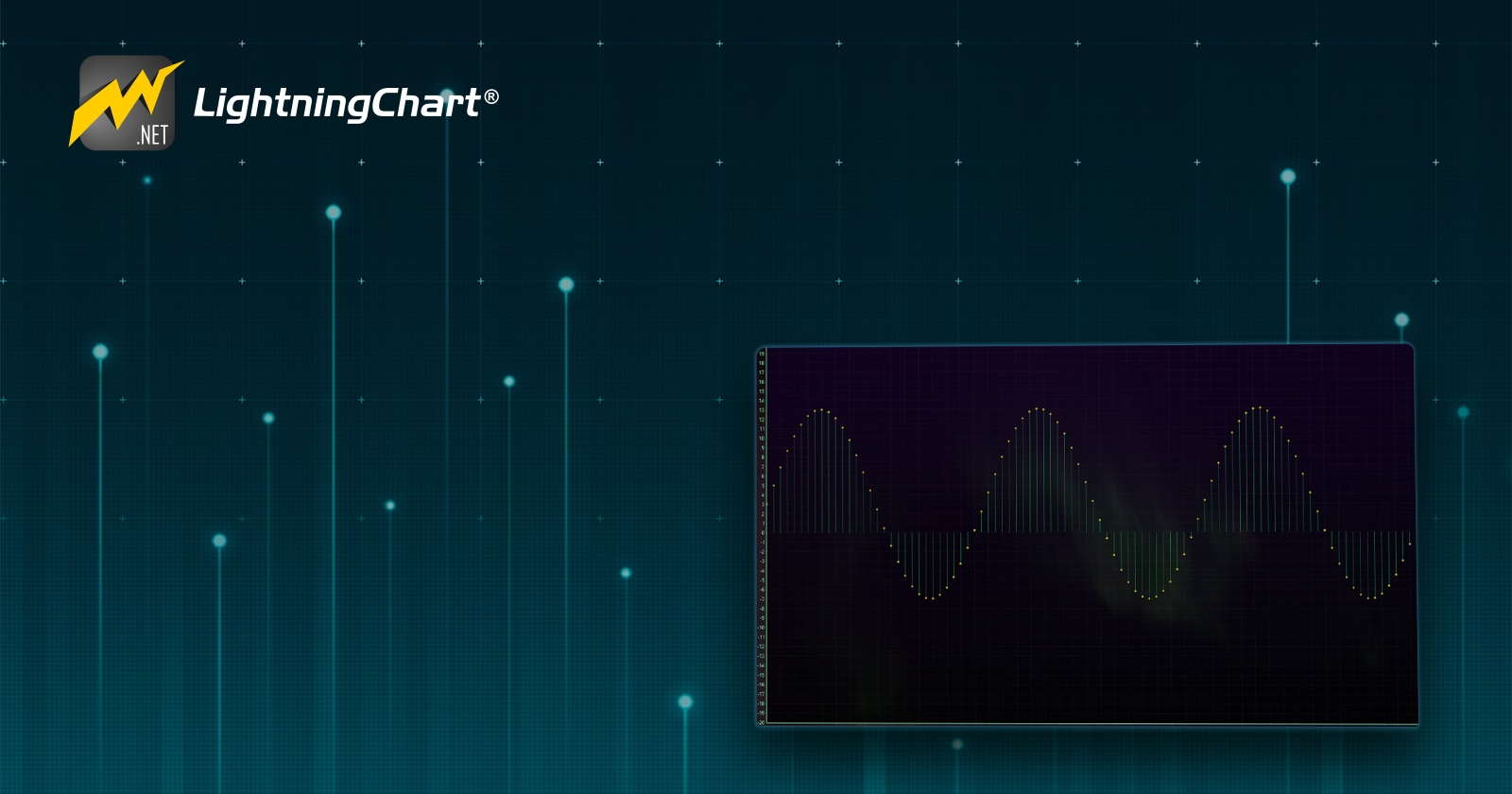
Learn how to create your own stem plot charting application in WPF using the LightningChart .NET library.
Omar Urbano
Software Engineer

Introduction
This time we’ll be looking at the .NET version of LightningChart, where we’ll create a Stem plot using the .NET interactive examples tool. To continue with the practical part of this article, you’ll need to download LightningChart SDK, as well as the interactive examples application. If you need a trial license, you can create a user account and request one.
What is a stem plot and how is it used in data analysis?
A stem-and-leaf plot is a graphical tool used to display the distribution of a dataset. Its main feature is that it separates each value into two parts: the “stem” and the “leaf.” The stem usually represents the most significant digits of the data, while the leaf shows the least significant digits. This allows you to quickly visualize the shape of the distribution, identify clusters of values, and detect potential outliers.
In data analysis, stem-and-leaf plots are used to explore small to medium-sized datasets, providing a clear way to see patterns and the frequency of values without losing the exact information of each observation. They are especially useful when you want to combine numerical precision with a simple visual representation, acting as a bridge between data tables and histograms.
What are the advantages of using a stem plot over a histogram or box plot?
Stem-and-leaf plots offer several advantages over other representations, such as histograms or box plots. They allow you to see the individual values of each data point, which is not possible in a histogram, where data is grouped into intervals, or in a box plot, where only quartiles and extreme values are shown.
This makes stem plots ideal when you want to maintain numerical precision while still getting a visual overview of the distribution. Stem plots make it easy to immediately identify patterns and clusters within the data, such as concentrations of values or exact repetitions, whereas in a histogram, these groupings might be lost depending on the bin size.
They also make detecting outliers clear, as any leaf that is far from the other stems stands out immediately. Stem-and-leaf plots are simple and quick to create, require less configuration than a histogram, and are especially useful for small to medium-sized datasets, where each individual data point is relevant.
Can stem plots be used for non-numerical or categorical data?
Quick answer: No (or not recommended). Stem-and-leaf plots are designed for numerical data because their structure relies on separating each value into a stem and a leaf, which requires ordering and digit representation. For categorical or non-numeric data, a stem plot doesn’t make sense, as there’s no natural way to split a category into a “stem” and a “leaf.” In those cases, other visualizations are more suitable, such as:
- Bar charts: clearly show the frequency of each category.
- Pie charts: useful for seeing relative proportions.
- Categorical dot plots: allow you to see the repetition of each category simply.
If your data is numeric and you want to see each individual value and its distribution, a stem plot works very well. If it’s categorical, there are better visual alternatives.
How do you interpret a stem plot?
Interpreting a stem-and-leaf plot is quite intuitive once you understand how it’s organized. Each data point is split into a stem and a leaf: the stem represents the most significant digits, and the leaf represents the least significant digits. For example, if you have the number 47, the “4” could be the stem and the “7” the leaf.
When reading the plot, you can identify the data distribution: a concentration of leaves around certain stems indicates where values cluster. Stems with few leaves or leaves that are far from the others reveal outliers.
It’s also possible to detect patterns and trends using stem plots. For instance, if the leaves are evenly distributed, the data is roughly balanced; if the leaves cluster around specific stems, there are strong concentrations. A stem plot allows you to see each individual data point while also giving an overview of the distribution, making it very useful for small to medium-sized datasets.
Project Overview
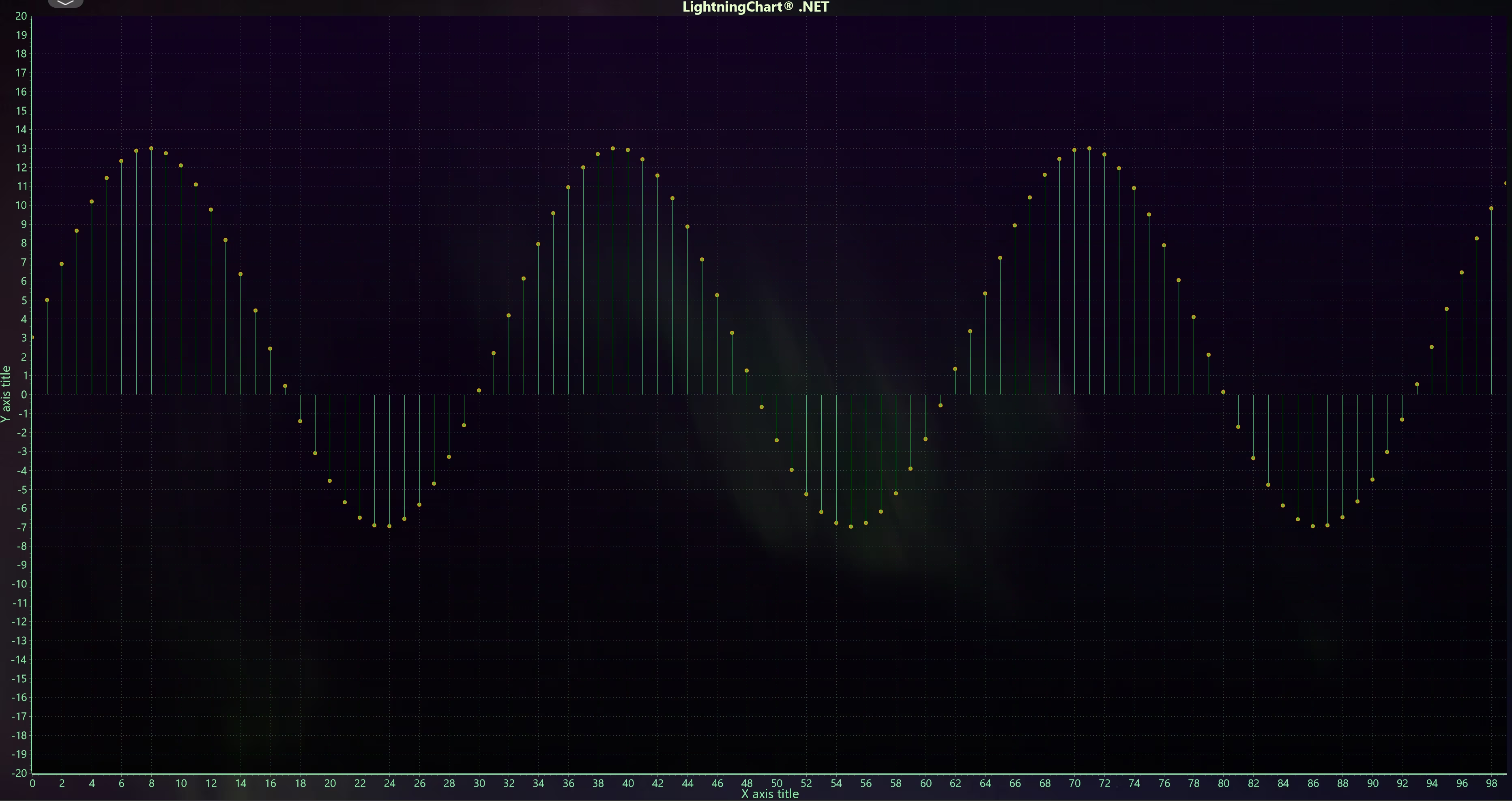
This project is an example of how to create an interactive stem plot using LightningChart for C# in a WPF application. The main idea is to visualize a set of points distributed along the X-axis, where each point has a specific Y value, and then connect them with vertical “stems” that extend from the X-axis to each point, creating the classic stem plot shape.
The code generates a defined number of points (in this case, 100) with values calculated using a sinusoidal function and draws them as individual points on the chart. Then, vertical segments are added for each point, simulating the stems that connect each observation to the X-axis.
The axis ranges, point, and line colors are configured, ensuring that the chart is drawn efficiently and clearly. The implementation also includes resource cleanup through the Dispose method, guaranteeing that the chart and its resources are properly released when the window is closed.
This project serves as a demonstration of how to build an interactive and customizable stem plot, showing the distribution of individual data points clearly and allowing the focus to remain on visualization without worrying about low-level rendering details. To follow this project, download the ZIP file with all the necessary resources.
 Download the project to follow the tutorial
Local Setup
- OS: 32-bit or 64-bit Windows Vista or later, Windows Server 2008 R2 or later.
- DirectX: 9.0c (Shader model 3 and higher) or 11.0 compatible graphics adapter.
- Visual Studio: 2022 for development, not required for deployment.
- Platform .NET Framework: installed version 8.0 or newer.
Now go to the next URL and download LightningChart .NET. You’ll then be redirected to a sign-in form where you’ll have to complete a simple sign-up process to get access to your LightningChart account.

After signing in to your account, you can download the SDK “free trial” version that allows you to use important features for this tutorial. When you download the SDK, you’ll have a .exe file like this:

The installation will be a typical Windows process, so please continue with it until it is finished. After the installation, you will see the following programs:

License Manager
In this application, you will see the purchase options. All the projects that you will create with this trial SDK will be available for future developments with all features enabled.

Creating the project
Once you run the example in the “interactive examples” application, you will see the following option
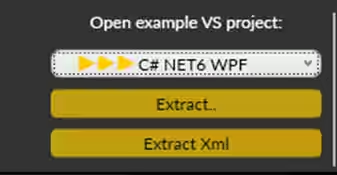
Lightning Chart can generate a project for the current selected chart, using Windows Presentation Foundation (WPF), WinForms, and their NET6 versions.
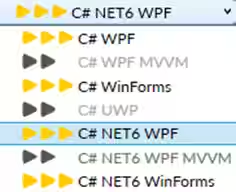
Once you select the extract option, you will have to create a new folder for the project
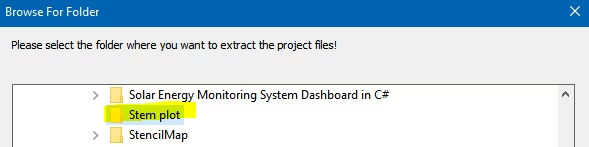
Once the project is saved, Visual Studio will open by itself, and you’ll see a project like this
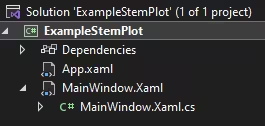
CreateChart
The project starts by declaring the main class ExampleStemPlot, which inherits from Window (WPF) and implements IDisposable to handle resources properly. A _chart object of type LightningChart is defined, which will be our main chart inside the window. This allows creating, updating, and eventually releasing chart resources safely.
public partial class ExampleStemPlot : Window, IDisposable
{
    private LightningChart _chart;
In the window constructor, the WPF visual components are initialized with InitializeComponent(). Then, CreateChart() is called, which contains all the logic for creating and configuring the stem plot. This ensures that the chart is generated automatically when the window opens.
public ExampleStemPlot()
{
    InitializeComponent();
    CreateChart();
}
Here a new instance of the chart is created. BeginUpdate() indicates that multiple modifications will be made consecutively, preventing unnecessary intermediate renders. The chart is named, the X axis is set as numeric, and the legend is hidden since a simple stem plot usually does not require it.
// Create a new chart.
_chart = new LightningChart();

_chart.BeginUpdate();
_chart.ChartName = "Stem Plot chart";
_chart.ViewXY.XAxes[0].ValueType = AxisValueType.Number;
_chart.ViewXY.LegendBoxes[0].Visible = false;
A point series (PointLineSeries) is created to represent the individual values of the chart. The series is configured to show only points (no connecting lines), and different colors are assigned for clarity. This ensures that the data is displayed as discrete markers on the chart.
//Add series for points only, not line
PointLineSeries seriesForPoints = new PointLineSeries(_chart.ViewXY, _chart.ViewXY.XAxes[0], _chart.ViewXY.YAxes[0])
{
    PointsVisible = true
};
seriesForPoints.PointStyle.Color1 = Colors.White;
seriesForPoints.PointStyle.Color2 = Colors.Orange;
seriesForPoints.LineVisible = false;
_chart.ViewXY.PointLineSeries.Add(seriesForPoints);
This block generates stem plot data. An array of SeriesPoint is created, with X values set progressively and Y values calculated using a sinusoidal function. This produces a wavy distribution of points, which is ideal for illustrating how a stem plot looks with continuous or periodic data.
SeriesPoint[] points = new SeriesPoint[PointCount];

for (int i = 0; i < PointCount; i++)
{
    double x = i;

    points[i].X = x;
    points[i].Y = 3 + Math.Sin(x / 5.0) * 10.0;
}
seriesForPoints.Points = points;
A LineCollection is created for the vertical stems of the plot. Each line connects the X axis with the corresponding Y value of the point. The line style, width, and color are defined. This gives the chart its classic stem plot appearance.
//Add vertical sticks
LineCollection stickCollection = new LineCollection(_chart.ViewXY, _chart.ViewXY.XAxes[0], _chart.ViewXY.YAxes[0]);
stickCollection.LineStyle.Width = 1;
stickCollection.LineStyle.AntiAliasing = LineAntialias.None;
stickCollection.LineStyle.Color = Colors.Orange;
In this block, the coordinates of each vertical stem are set: the top point (AX, AY) matches the data point, and the bottom point (BX, BY) sits at the X axis (Y=0). Then all the lines are added to the chart. This completes the visual representation of the stem plot: marked points with stems connecting them to the baseline.
SegmentLine[] lines = new SegmentLine[PointCount];

for (int i = 0; i < PointCount; i++)
{
    lines[i].AX = points[i].X;
    lines[i].AY = points[i].Y;

    lines[i].BX = points[i].X;
    lines[i].BY = 0;
}

stickCollection.Lines = lines;
_chart.ViewXY.LineCollections.Add(stickCollection);
The axis ranges are adjusted so all points are visible. EndUpdate() signals that modifications are done, allowing the chart to be rendered efficiently. The chart is then added to the window (gridChart) so it becomes visible in the user interface.
stickCollection.Lines = lines;
_chart.ViewXY.LineCollections.Add(stickCollection);

_chart.ViewXY.XAxes[0].SetRange(0, PointCount - 1);
_chart.ViewXY.YAxes[0].SetRange(-20, 20);

_chart.EndUpdate();

gridChart.Children.Add(_chart);
The Dispose() method handles resource cleanup when the window closes, or the object is discarded. This prevents memory leaks and ensures LightningChart properly releases GPU and internal resources.
public void Dispose()
{
    // Don't forget to clear chart grid child list.
    gridChart.Children.Clear();

    if (_chart != null)
    {
        _chart.Dispose();
        _chart = null;
    }
Conclusion
Thank you for making it this far. The stem plot example clearly demonstrates how easy it is to create an interactive and understandable visualization using LightningChart in C#. By combining individual points with vertical stems, the chart highlights each value precisely while maintaining a clear and organized structure.
So, stem plots are especially useful for analyzing discrete, periodic, or small datasets where identifying each measurement is important. LightningChart handles all the complexities of rendering, optimization, and GPU resource management, meaning the developer doesn’t need to worry about drawing lines manually or optimizing real-time data updates.
With just a few lines of configuration, it is possible to create a professional stem plot with colors, point and stem styles, and defined axis ranges and scales, making the process much faster and more efficient. This stem plot implementation provides an interactive experience: axis ranges can be adjusted, different sections of the data explored, and patterns or behaviors revealed that would be difficult to identify in simpler charts.
LightningChart .NET offers an ideal solution for creating high-performance, clear, and visually appealing stem plots, freeing developers from the graphical infrastructure so they can focus on data analysis and interpretation. Thank you very much, see you in the next article!
Continue learning with LightningChart
Why Performance Matters in Data Visualization?
Written by a human | Updated on April 10th, 2025Performance in Data VisualizationI was doing a Google search a couple of days ago and particularly, I wanted to know what are the options for developers who need to visualize large amounts of data points within...

Geospatial data visualization with Google Maps & LightningChart
Written by a human | Updated on April 10th, 2025Geospatial Data Visualization This article showcases and describes a particular use case of LightningChart JS for geospatial data visualization. LightningChart JS is a JavaScript charting tool designed for...
![[Tutorial] How to embed interactive charts in PowerPoint presentations](https://lightningchart.com/wp-content/uploads/2022/12/Interactive-Charts-in-PowerPoint-feature-image.jpg)
[Tutorial] How to embed interactive charts in PowerPoint presentations
Written by a human | Updated on April 9th, 2025Embed interactive charts in PowerPoint presentations Embedding charts within PowerPoint presentations has always been possible but perhaps one of the most ignored possibilities is actually embedding web applications...



If you have any questions, feel free to contact us!
©LightningChart Ltd 2025. All rights reserved.