








Creating a Multi Channel Data App From a Real-Time Thread Data Feeding
Tutorial
Written by a Human
Learn how to create a powerful app using LightningChart that effectively handles multi channel data from a real-time thread source.
Omar Urbano
Software Engineer

Introduction
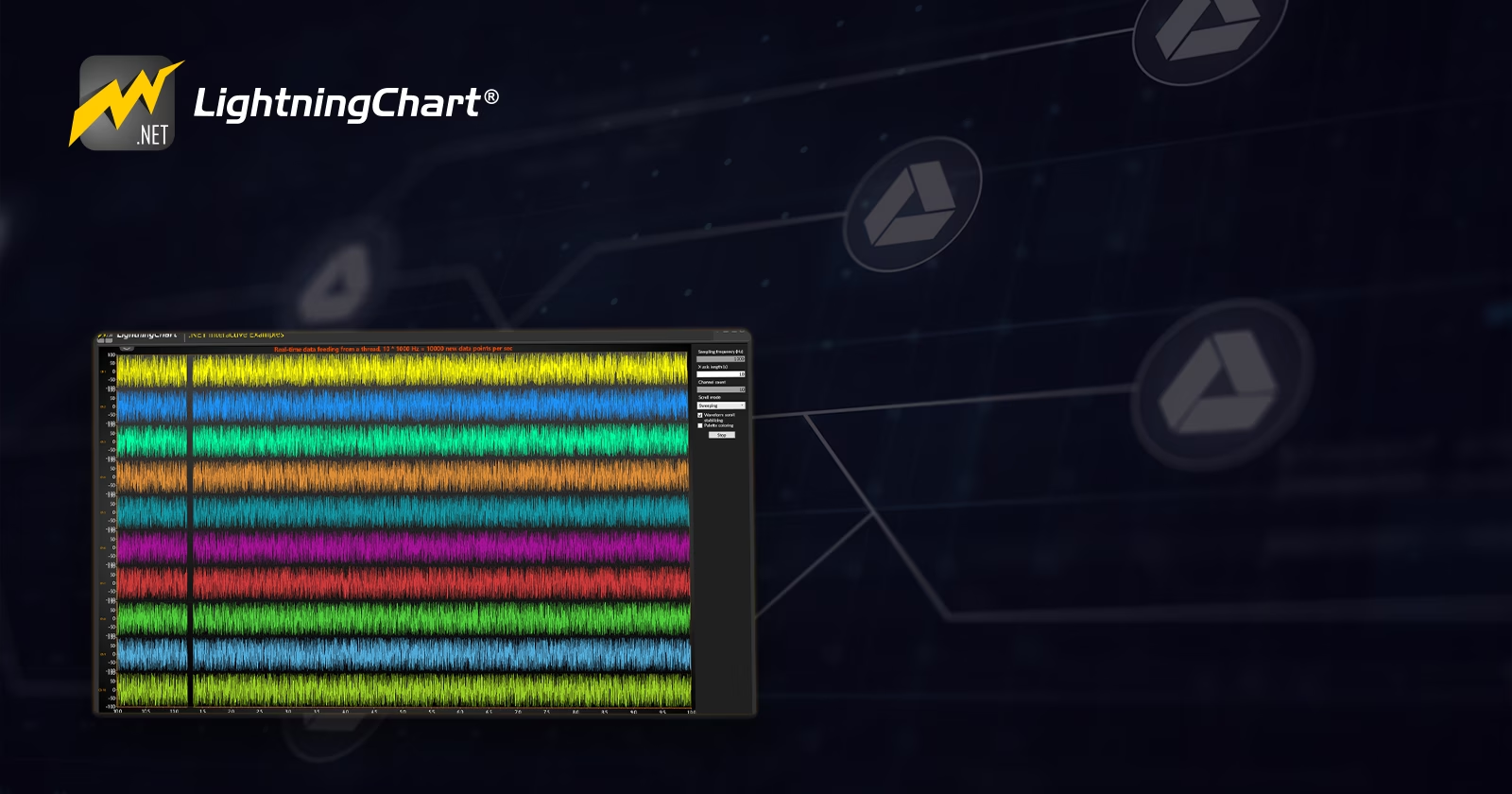
In this article, we will create a brief project focused on implementing threads to generate multiple channels in a LightningChart .NET XY chart. The goal of this project is to simulate the generation and visualization of real-time data using LightningChart .NET, a powerful charting library specifically designed for scientific, medical, industrial, or financial applications where high speed and precision in graphics are required.
The idea is to create an interface that represents multiple data channels (as if we were reading information from sensors or signal acquisition devices) and display them on a chart that updates dynamically as new data is generated. This simulation does not depend on real hardware but is random data generated to emulate the behavior of a signal. Before we dive into the code, how about we take a look at some programming theory?
Threads and Concurrency
In programming, a thread is the basic unit of execution within a process. A single program can have multiple threads running in parallel, each tasked with performing specific tasks independently.
Why use threads?
Imagine an application that needs to process huge volumes of information (for example, up to 1 trillion data points in real time) and at the same time respond fluidly to user actions (such as clicks, scrolling, or window resizing). If all this load falls on a single thread, the interface can become slow, unresponsive, or even crash completely. To avoid this, secondary or “background” threads are used, which can handle intensive tasks without compromising the user’s experience.
What is concurrency?
Concurrency allows multiple tasks to be executed simultaneously or alternated between tasks efficiently. In the context of workload-intensive applications, it is common to have a main thread for the graphical interface, while other threads handle operations such as complex calculations, data analysis, or generating large volumes of information. In this project, we used a separate thread dedicated exclusively to generating and processing real-time data, capable of handling up to a trillion data points. This ensures that, even under a massive load of information, the graphical interface remains agile, fluid, and fully interactive.
Sampling Rate
The sampling rate indicates how many samples per second are taken from a continuous signal to convert it into digital data. For example, if you have a temperature sensor and want to record its value 100 times per second, then your sampling rate is 100 Hz (100 samples per second).
Why is it important?
An appropriate sampling rate is essential to accurately represent a signal. If you sample too slowly, you risk missing critical changes or generating imprecise data. On the other hand, sampling too fast may result in an overwhelming amount of data that can strain system resources.
In large-scale data environments (such as those processing up to 1 trillion (1,000,000,000,000) data points), choosing the right sampling rate becomes even more crucial. Efficient sampling ensures meaningful information is captured without overwhelming memory or computing capacity.
In this project, we use the sampling rate to simulate how many samples should have been generated based on the time elapsed, helping maintain a smooth and consistent chart update rhythm. This approach is designed to remain efficient and responsive, even when handling extremely high data volumes.
Well, with this brief introduction, I think we’re ready to move on with the project. Let’s get started!
Project Overview
To follow this project, download the ZIP file with all the necessary resources.
 Download the project to follow the tutorial
Local Setup
- OS: 32-bit or 64-bit Windows Vista or later, Windows Server 2008 R2 or later.
- DirectX: 9.0c (Shader model 3 and higher) or 11.0 compatible graphics adapter.
- Visual Studio: 2022 for development, not required for deployment.
- Platform .NET Framework: installed version 8.0 or newer.
Now go to the next URL and download LightningChart .NET. You’ll then be redirected to a sign-in form where you’ll have to complete a simple sign-up process to get access to your LightningChart account.

After signing in to your account, you can download the SDK “free trial” version that allows you to use important features for this tutorial. When you download the SDK, you’ll have a .exe file like this:

The installation will be a typical Windows process, so please continue with it until it is finished. After the installation, you will see the following programs:

License Manager
In this application, you will see the purchase options. All the projects that you will create with this trial SDK will be available for future developments with all features enabled.

Creating the project
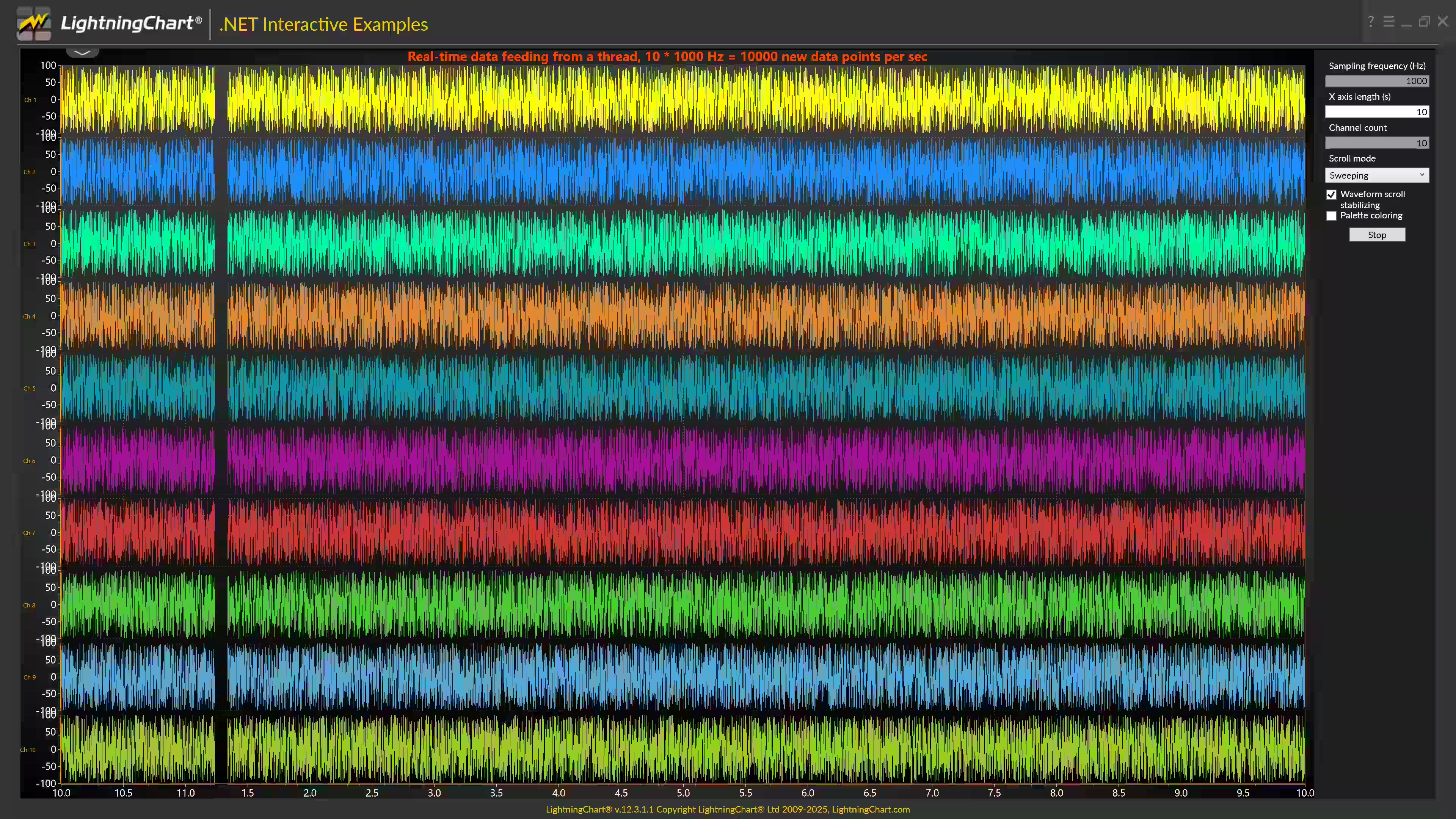
Once you run the example in the “interactive examples” application, you will see the following option
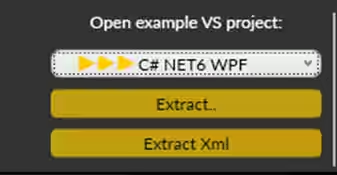
Lightning Chart can generate a project for the current selected chart, using Windows Presentation Foundation (WPF), WinForms, and their NET6 versions.
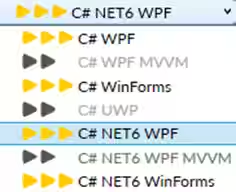
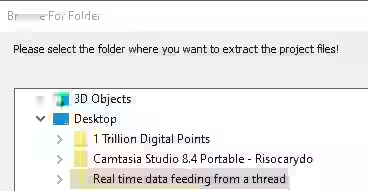
Once you select the extract option, you will have to create a new folder for the project
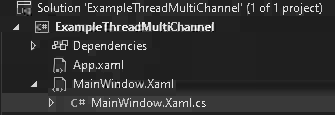
Once the project is saved, Visual Studio will open by itself, and you’ll see a project like this
CreateChart
The StartStop (buttonStartStop_Click) method starts or stops a real-time data simulation on a LightningChart when the user clicks a button. If the simulation isn’t running, it reads user inputs like channel count, sampling frequency, and X-axis length, validates them, and then sets up the chart by clearing old data.
This configures new Y-axes and data series for each channel with specific visual styles. It then starts with a background thread to continuously generate and feed simulated data to the chart in real time. If the simulation is already running, the method stops the thread and re-enables the input fields for new settings.
Check if the data thread is running
If _thread is null, it means the chart is not currently running, so the code prepares to start the data simulation.
if (_thread == null)
{
    //Start

    buttonStartStop.Content = "Stop";
    textBoxSampFreq.IsEnabled = false;
    textBoxChannelCount.IsEnabled = false;
    bool bWaveformScrollStabilizing = checkBoxWaveformScrollStabilizing.IsChecked == true;
If _thread is not null, it means data is being generated, so the method instead sets _stop to true to stop the simulation and enable the input fields again.
else
{
    // Stop.
    buttonStartStop.Content = "Start";
    textBoxSampFreq.IsEnabled = true;
    textBoxChannelCount.IsEnabled = true;

    _stop = true;
}
Read and validate user input
The method reads values from the UI textboxes, which are Number of channels (textBoxChannelCount), Sampling frequency (textBoxSampFreq), and X-axis length (textBoxXLen). If the user enters invalid values (e.g., non-numeric text), it shows a message and stops the process.
try
{
    _channelCount = int.Parse(textBoxChannelCount.Text);
}
catch
{
    MessageBox.Show("Invalid channel count text input");
    return;
}

//Read sampling frequency
try
{
    _samplingFrequency = double.Parse(textBoxSampFreq.Text);
}
catch
{
    MessageBox.Show("Invalid sampling frequency text input");
    return;
}

//Read X axis length
try
{
    _xLength = double.Parse(textBoxXLen.Text);
}
catch
{
    MessageBox.Show("Invalid X-Axis length text input");
    return;
}
if (_chart == null)
{
    return;
}
Prepare the chart for new data
In this step, the multi channel data app disables the chart rendering temporarily by using the method _chart.BeginUpdate() to avoid flickering during setup. It clears any previous data and axes from the chart to make room for the new configuration. It also updates the chart title to show how many data points per second will be generated based on user input.
_chart.BeginUpdate();

int newPointsCount = _channelCount * (int)_samplingFrequency; //Amount of new generated points per second

_chart.Title.Text = "Real-time data feeding from a thread, " + _channelCount.ToString() + " * " + _samplingFrequency.ToString("0") + " Hz = " + newPointsCount.ToString() + " new data points per sec";

view.YAxes.Clear();                 //Remove existing y-axes
view.SampleDataSeries.Clear();      //Remove existing SampleDataSeries
Configure Y-axes and data series for each channel
For each channel, a new Y-axis is added with a label like “Ch 1”, “Ch 2”, etc.
for (int channelIndex = 0; channelIndex < _channelCount; channelIndex++)
{
    AxisY axisY = new AxisY(view);
    axisY.SetRange(YMin, YMax);
    axisY.Title.Font = new WpfFont("Segoe UI", 8.0, false, false);
    axisY.Title.Text = string.Format("Ch {0}", channelIndex + 1);
    axisY.Title.Angle = 0;
    axisY.Units.Visible = false;
view.YAxes.Add(axisY);SampleDataSeries is added and customizedSampleDataSeries series = new SampleDataSeries(view, view.XAxes[0], axisY);
view.SampleDataSeries.Add(series);
series.SampleFormat = SampleFormat.DoubleFloat;
series.LineStyle.Color = DefaultColors.SeriesForBlackBackgroundWpf[channelIndex % DefaultColors.SeriesForBlackBackgroundWpf.Length];
series.SamplingFrequency = _samplingFrequency;
series.FirstSampleTimeStamp = 1.0 / _samplingFrequency;
series.LineStyle.Width = 1;
series.LineStyle.AntiAliasing = LineAntialias.None;
series.ScrollModePointsKeepLevel = 1;
series.ScrollingStabilizing = bWaveformScrollStabilizing;
series.AllowUserInteraction = false;
series.UsePalette = checkBoxPaletteColoring.IsChecked.Value;Also, the sampling frequency is applied, configuring a line style, width, anti-aliasing, and color palette. Also, a color gradient is used to visually distinguish values on the chart.
//Set custom colored palette
System.Windows.Media.Color colorEdge = ChartTools.CalcGradient(series.LineStyle.Color, System.Windows.Media.Colors.Black, 50);
System.Windows.Media.Color colorCenter = series.LineStyle.Color;

series.ValueRangePalette.Steps.Clear(); //Remove existing palette steps
series.ValueRangePalette.Steps.Add(new PaletteStep(series.ValueRangePalette, colorEdge, -100));
series.ValueRangePalette.Steps.Add(new PaletteStep(series.ValueRangePalette, colorCenter, 0));
series.ValueRangePalette.Steps.Add(new PaletteStep(series.ValueRangePalette, colorEdge, 100));
Finalize chart setup and start the thread
In this step, we set the scroll mode and X-axis range, end the chart update to allow it to be rendered, and initialize the internal variables such as _samplesOutput and _startTicks to start counting from zero. Finally, we start a new background thread running the ThreadLoop method to begin generating and feeding data in real time.
SetScrollMode();
view.XAxes[0].SetRange(0, _xLength);

//Allow rendering
_chart.EndUpdate();

_chart.Loaded += _chart_Loaded;

_samplesOutput = 0;
_startTicks = DateTime.Now.Ticks;

_stop = false;

_thread = new Thread(new ThreadStart(ThreadLoop));
_thread.Start();
If the simulation is already running, you can still stop it i.e., _thread is not null), the button acts as a “Stop” button:
- It changes the button label back to “Start”.
- It enables the input fields again.
- It sets
_stopto true, which causes the background thread to exit its loop and stop generating data.
ThreadLoop
The ThreadLoop method powers the live data simulation by repeatedly generating and sending batches of random values to the chart, based on elapsed time and sampling rate. It ensures smooth real-time updates without blocking the user interface and includes logic to gracefully stop and clean up when needed. This is a core piece of the chart’s live data feed system.
Keep looping while not stopping
The method runs inside a background thread and continues looping as long as _stop is false. This allows continuous data generation while the chart is active.
while (_stop == false)
{
    // Generate data for each channel. Use StopWatch to
    // investigate how many samples must be generated.
Calculate how many samples to generate
It uses DateTime.Now.Ticks to get the current timestamp and calculate how many samples should have been generated so far based on how much time has passed since the simulation started (_startTicks) and the user-defined sampling frequency.
_now = DateTime.Now.Ticks; //Get current time stamp.

long currentSampleIndex =
    (long)(TimeSpan.FromTicks(_now - _startTicks).TotalSeconds * _samplingFrequency);
Check if new samples are needed
If there’s a gap between how many samples should be generated and how many have been sent to the chart (_samplesOutput), the code prepares to create that batch of missing data to catch up.
Generate random data per channel
It builds a 2D array where each row represents a data channel. For each channel, it fills the array with random values between YMin and YMax, simulating real-time sensor data.
if (sampleBundleToGenerate > 0)
{
    double yRange = YMax - YMin;

    double[][] multiChannelData = new double[_channelCount][];

    for (int channelIndex = 0; channelIndex < _channelCount; channelIndex++)
    {
        multiChannelData[channelIndex] = new double[sampleBundleToGenerate];

        //Generate random data
        for (int sampleIndex = 0; sampleIndex < sampleBundleToGenerate; sampleIndex++)
        {
            multiChannelData[channelIndex][sampleIndex] = YMin + _rand.NextDouble() * yRange;
        }
    }
Send data to the chart safely
Once the data is generated, it updates _samplesOutput and sends the new data to the chart using Dispatcher.Invoke, which ensures the update happens on the main UI thread without causing thread conflicts.
    _samplesOutput += sampleBundleToGenerate;
    // Invoke FeedNewDataToChart.
    Dispatcher.Invoke(_chartUpdate, System.Windows.Threading.DispatcherPriority.ContextIdle, multiChannelData as object);
}
Sleep briefly and clean up when done
The thread sleeps for 1 millisecond in each loop cycle to avoid hogging the CPU and keep the UI responsive. When _stop becomes true, it exits the loop, sets _thread to null, and if cleanup is required (_cleanUp == true), it safely disposes resources on the UI thread.
    // Sleep a little while so that UI stays responsive.
    Thread.Sleep(1);
}

_thread = null;

if (_cleanUp == true)
{
    Dispatcher.BeginInvoke(
        new Action(
            delegate
            {
                Dispose();
            }
        )
    );
}
Conclusion
The implementation of these two methods (buttonStartStop_Click and ThreadLoop) provides a well-structured approach to simulating real-time data streaming with LightningChart. The overall logic is clear and modular: one method prepares the chart and starts the simulation, while the other runs in the background, generating data at a controlled rate.
While working with threads and UI updates can sometimes be complex, the code handles it clearly using Dispatcher.Invoke, which maintains stability and avoids common threading issues. From a development perspective, logic is relatively easy to follow once you understand the function of each part: reading input, setting up the chart, generating data, and UI-safe updates.
At first, the hardest part may be understanding the math of time-based sampling, but once you get the idea (generating samples based on elapsed time and frequency), everything falls into place easily. In terms of performance, using a background thread to handle data generation is a smart move. It keeps the UI fluid and responsive, even when generating thousands of points per second. LightningChart is also optimized for this type of workload, so performance won’t be an issue unless you scale extremely high channel counts or sample rates.
Continue learning with LightningChart
Ionic Capacitor
Learn how to use Ionic Capacitor for data visualization and build a mobile charting application with Angular & LightningChart JS
Create a JavaScript Pie Chart with NodeJS, TypeScript & LightningChart
Written by a human | Updated on April 10th, 2025JavaScript Pie Chart with NodeJS & TypeScript Today, we are going to do a short tutorial on how to generate a pie chart using Node JS, TypeScript, and LigningCharts JS. To see how to get LightningChart JS for...
Real-time data visualization with WebSockets
Written by a human | Updated on April 10th, 2025WebSockets Data Visualization in Real-Time These days it is ever increasingly common that people require web solutions for their applications and services. Data visualization is not an exception to this, as...



If you have any questions, feel free to contact us!
©LightningChart Ltd 2025. All rights reserved.