








Implementing a 3D Waterfall Chart in WPF | LightningChart .NET
Tutorial
Written by a Human
Leverage LightningChart and WPF to create a 3D waterfall chart data visualization application for advanced analytics.
Omar Urbano
Software Engineer

Introduction
We’re back with a LightningChart .NET tutorial: how to create a 3D waterfall chart in WPF. This example is accessible from the interactive examples app and is a variation of the regular 2D waterfall chart. A 3D waterfall chart visualizes the accumulation or decrease of a value across a series of positive and negative factors, but with the added dimension of 3D columns that create a sense of visual depth.
What is a 3D Waterfall Chart and how does it differ from a standard waterfall chart?
A 3D waterfall chart is a visual variant of the standard waterfall chart, but with the added feature of depth, providing greater realism and visual impact. In a traditional waterfall chart, values are displayed as columns that “fall” or “rise” sequentially, helping to understand how an initial value is affected by increases and decreases until reaching a final value.
The key difference with the 3D version is that the blocks are not just flat 2D columns, but three-dimensional structures that add volume. This not only enhances aesthetics but also allows for better organization of multiple categories or series in parallel, making comparisons easier than in a standard waterfall.
In short, the 3D chart preserves the logic of the classic waterfall but delivers greater clarity when showcasing multiple sequences of changes, while also looking far more engaging for presentations or executive dashboards.
How can a 3D Waterfall Chart be used to visualize grouped or time-series data?
A 3D waterfall chart comes into play when you not only want to see how data changes over time but also compare it across multiple groups at once. Imagine you’re reviewing your company’s sales. With a regular waterfall chart, you can see how sales rise or fall month by month overall.
But if you switch to 3D, you can place each region or product in its own “row” within the same chart, instantly giving you a much more complete view of the whole picture. For example, let’s say you’re analyzing revenue, costs, and profits across different departments.
In a flat chart, you’d only see one at a time. With the 3D version, you can place each department’s waterfall side by side, making it easier to spot who’s growing, who’s stalling, or where money is being lost. A 3D waterfall is like going from watching a movie in 2D to seeing it in 3D: the information is there in both cases, but the extra dimension makes comparisons clearer and helps you understand the story your data is telling much better.
What customization options are available in LightningChart .NET for enhancing a 3D Waterfall Chart
In LightningChart .NET, 3D waterfall charts come with a wide range of customization options that let you go far beyond just showing “floating bars.” The idea is not only to visualize the data, but also to adjust the visual experience so it’s clear, aesthetic, and even interactive.
Chart Appearance
- Surface colors: You can apply gradients, heatmap palettes, or even dynamic colors that change according to the value.
- Transparency: Useful for overlaying multiple series or making a dense chart more readable.
- Mesh styles: Solid surface, mesh lines, points, or combinations of these.
- Shadows and lighting: Control over scene lighting to add more realism.
Axes and Scales
- Manual or automatic range adjustment.
- Linear, logarithmic, categorical, time, and other scales.
- Axis labels with custom formats (e.g., dates, percentages, scientific notation).
- Rotation and text styling for labels.
Interactivity
- Free 3D rotation with the mouse.
- Zoom (with scroll wheel or area selection).
- Panning to move within the 3D space.
- Tooltips / data cursors: inspect exact values when hovering.
Series and Data
- Overlay multiple 3D waterfall series to compare data groups.
- Define point density (finer or coarser sampling).
- Control over the thickness of the “bands” or columns.
Additional Aesthetics
- Titles, legends, and annotations in 2D or 3D.
- Border styles (line width, dash patterns, colors).
- Custom color palettes (e.g., blue → green → yellow → red for intensity).
- Configurable backgrounds: solid color, gradient, or images.
Performance and Rendering
- GPU acceleration to handle large datasets without sacrificing smoothness.
- Rendering quality configuration (to balance between performance and visual detail).
What are common use cases for 3D Waterfall Charts in engineering and scientific research?
3D waterfall charts have very practical applications in engineering and science, as they allow us to observe how data changes in two dimensions at the same time. Unlike a flat chart, which only shows a partial view, a 3D waterfall chart reveals the full evolution of the curves and makes it easier to detect patterns, anomalies, or hidden trends.
In the field of signal engineering and telecommunications, for example, they are used to visualize frequency spectra over time. This is essential when analyzing audio, radar, or wireless communication signals, since the chart clearly shows when interferences or noise spikes appear. In this sense, the 3D waterfall becomes a powerful tool for characterizing and monitoring complex signals.
In mechanical engineering, they also play a key role. When analyzing vibrations in machines, motors, or structures, the chart allows us to see how natural frequencies are distributed and how they evolve over time. This is particularly useful in predictive maintenance tasks, as an unexpected change in vibration patterns may indicate wear or imminent failure in critical components such as bearings or turbines.
The fields of physics and chemistry also take advantage of these charts to represent experimental spectra. Whether in spectroscopy, X-ray diffraction, or mass spectrometry, a 3D waterfall chart makes it easier to compare multiple scans in a single visual space. This way, variations between samples or the responses of a substance under different experimental conditions can be more easily identified.
In biology and medicine, they are used to study biomedical signals such as EEG or ECG, where the additional dimension helps to understand how waves evolve in different regions or over time. Likewise, in environmental sciences and geophysics, these charts are applied to analyze phenomena such as earthquakes or weather changes, showing the progression of vibrations or atmospheric variables across different observation points.
Project Overview
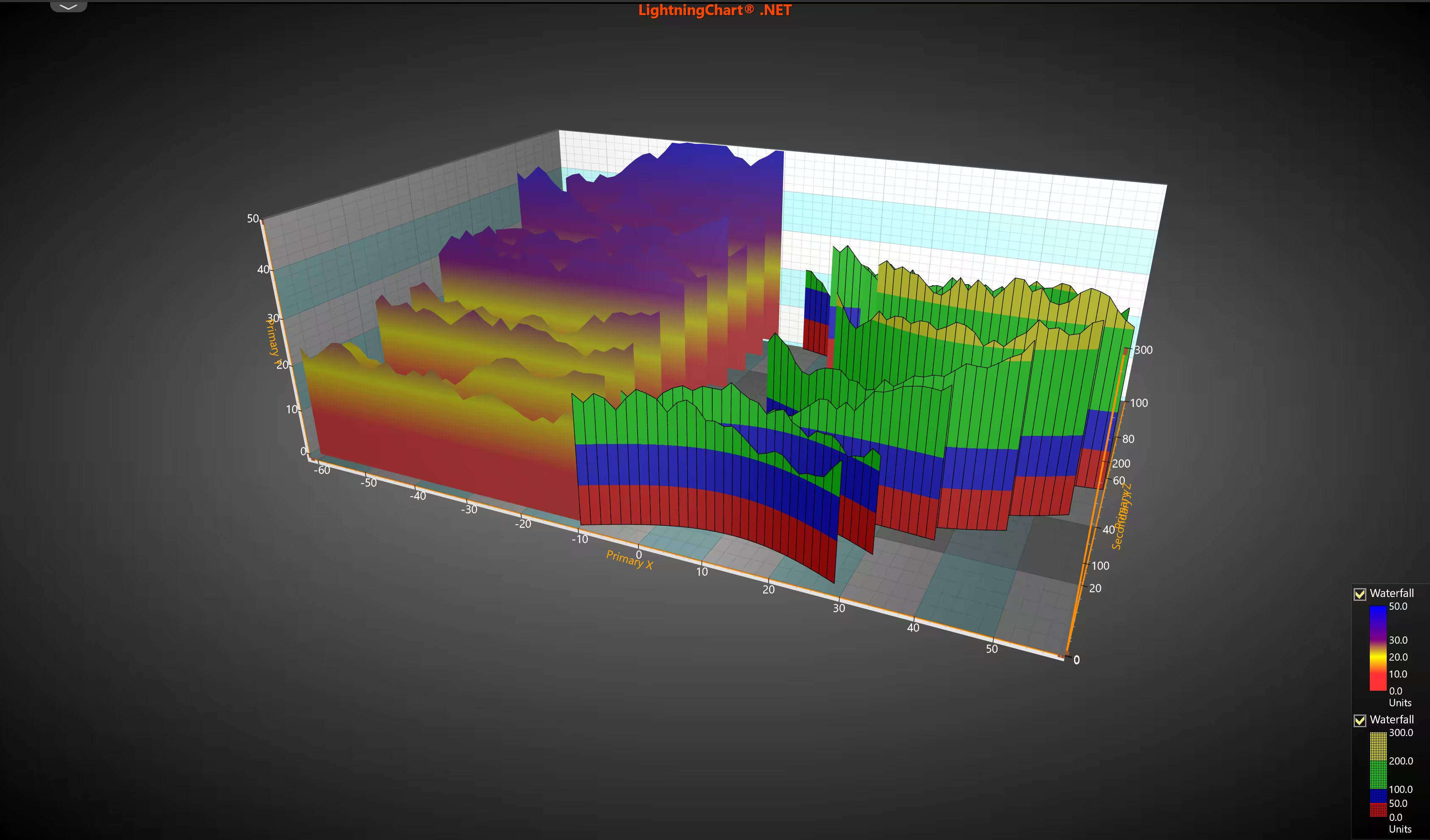
This project demonstrates how to create and customize a 3D Waterfall Chart in a WPF application. The idea is to provide an interactive three-dimensional visualization where the data is organized in the form of surfaces or “waterfalls,” making it easier to analyze trends and variations across different axes.
The main class (ExampleWaterFall3D) is responsible for initializing the chart, configuring the 3D axes (X, Y, and Z), and setting up the camera for visualization. Through the CreateChart method, the ranges of each axis, the chart dimensions, and the camera projection are defined, ensuring that the representation is clear and easy to navigate. The project generates two independent waterfall series:
- Waterfall A: positioned on the negative side of the X-axis, with a gradient color palette (red, yellow, purple, and blue) that helps differentiate values and patterns on the surface.
- Waterfall B: placed on the positive side of the X-axis, using a mesh (wireframe) style and a uniform color palette (red, blue, green, and yellow) to provide visual contrast with the first series.
Both series are fed with randomly generated data, allowing you to observe how the shape of the waterfalls changes dynamically.
 Download the project to follow the tutorial
Local Setup
- OS: 32-bit or 64-bit Windows Vista or later, Windows Server 2008 R2 or later.
- DirectX: 9.0c (Shader model 3 and higher) or 11.0 compatible graphics adapter.
- Visual Studio: 2022 for development, not required for deployment.
- Platform .NET Framework: installed version 8.0 or newer.
Now go to the next URL and download LightningChart .NET. You’ll then be redirected to a sign-in form where you’ll have to complete a simple sign-up process to get access to your LightningChart account.

After signing in to your account, you can download the SDK “free trial” version that allows you to use important features for this tutorial. When you download the SDK, you’ll have a .exe file like this:

The installation will be a typical Windows process, so please continue with it until it is finished. After the installation, you will see the following programs:

License Manager
In this application, you will see the purchase options. All the projects that you will create with this trial SDK will be available for future developments with all features enabled.

Creating the project
Once you run the example in the “interactive examples” application, you will see the following option
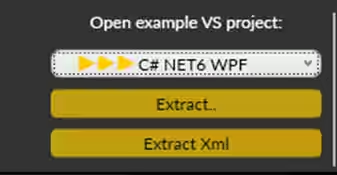
Lightning Chart can generate a project for the current selected chart, using Windows Presentation Foundation (WPF), WinForms, and their NET6 versions.
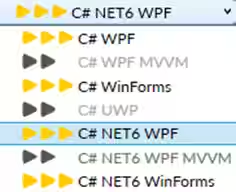
Once you select the extract option, you will have to create a new folder for the project
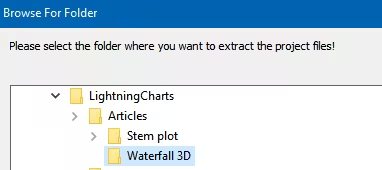
Once the project is saved, Visual Studio will open by itself, and you’ll see a project like this
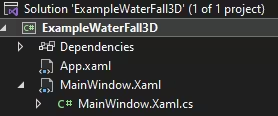
CreateChart
The constructor begins by setting the chart and the two-waterfall series (_waterfallA and _waterfallB) to null. Then it initializes the WPF components and calls CreateChart(), which builds the actual 3D chart. Finally, ZoomToDataAndLabelsArea adjusts the view, so the chart fits neatly within the window.
 _chart = null;
 _waterfallA = null;
 _waterfallB = null;

 InitializeComponent();
 CreateChart();

 ChartTools.ZoomToDataAndLabelsArea(_chart);
Event Handlers for Interactivity
Here the code wires up event handlers for different UI controls (dropdowns and sliders). These let the user interactively change the camera angle, projection mode, and zoom level of the 3D chart. The method EnabledChangedEvents() then activates these handlers, so the chart reacts to user input.
ChartTools.ZoomToDataAndLabelsArea(_chart);
m_comboBoxCameraValueChanged = new SelectionChangedEventHandler(ComboBoxCamera_SelectionChanged);
m_comboBoxProjectionValueChanged = new SelectionChangedEventHandler(comboBoxProjection_SelectionChanged);
m_distanceSliderValueChanged = new RoutedPropertyChangedEventHandler<double>(sliderDistance_ValueChanged);
m_horizontalSliderValueChanged = new RoutedPropertyChangedEventHandler<double>(sliderHorizontalRotation_ValueChanged);
m_sideSliderValueChanged = new RoutedPropertyChangedEventHandler<double>(sliderSideRotation_ValueChanged);
m_verticalSliderValueChanged = new RoutedPropertyChangedEventHandler<double>(sliderVerticalRotation_ValueChanged);

EnabledChangedEvents();
Configuring the 3D View and Generating Data
This section connects the chart’s camera view changes to an event handler, so the UI updates when the perspective changes. Then, it synchronizes the control values (SetControlValuesFromChart, SetViewPoint) with the current chart state. Finally, it simulates button clicks on Random A and Random B to generate random data for both waterfall series as soon as the chart loads.
if (_chart != null)
{
    switch (_chart.ActiveView)
    {
        case ActiveView.View3D:
            m_view = _chart.View3D;
            if (m_view != null)
            {
                ((View3D)m_view).CameraViewChanged += new View3D.CameraViewChangedHandler(ViewPointEditor_CameraViewChanged);
            }

            break;
        case ActiveView.ViewPie3D:
            m_view = _chart.ViewPie3D;
            if (m_view != null)
            {
                ((ViewPie3D)m_view).CameraViewChanged += new ViewPie3D.CameraViewChangedHandler(ViewPointEditor_CameraViewChanged);
            }

            break;
        default:
            m_view = null;
            break;
    }
}

SetControlValuesFromChart();
SetViewPoint();


buttonRandomA.RaiseEvent(new RoutedEventArgs(Button.ClickEvent));
buttonRandomB.RaiseEvent(new RoutedEventArgs(Button.ClickEvent));
Clear Existing Chart
Before creating a new chart, this code clears any existing chart from the gridChart container. If _chart already exists, it disposes of it to free resources and avoid memory leaks. This ensures a fresh start every time CreateChart() is called.
gridChart.Children.Clear();

if (_chart != null)
{
    _chart.Dispose();
    _chart = null;
}
Initialize the New 3D Chart
A new LightningChart instance was created and named. BeginUpdate() temporarily disables rendering while the chart properties are set, which improves performance. Then the chart’s 3D view is activated, preparing it for 3D data visualization.
// Create a new chart.
_chart = new LightningChart
{
    ChartName = "Waterfall chart"
};

//Disable rendering, strongly recommended before updating chart properties
_chart.BeginUpdate();

//Set 3D view active
_chart.ActiveView = ActiveView.View3D;
Configure Axes, Dimensions, and Camera
This part sets up the primary and secondary axes for X, Y, and Z, including ranges and visibility. The chart’s 3D “wall” is configured, and dimensions for width, height, and depth are set. The camera distance is adjusted for a good initial view. Finally, EndUpdate() re-enables rendering, and the chart is added to the UI container.
//Setup primary y-axis
_chart.View3D.YAxisPrimary3D.SetRange(-1, 50);
_chart.View3D.YAxisSecondary3D.SetRange(-1, 300);
_chart.View3D.YAxisSecondary3D.Visible = true;
_chart.View3D.YAxisSecondary3D.Location = AxisYLocation3D.FrontRight;

//Setup primary z-axis
_chart.View3D.ZAxisPrimary3D.SetRange(0, 100);

//Setup right wall
_chart.View3D.WallOnRight.YGridAxis = GridAxis.Secondary;

//Set dimensions
_chart.View3D.Dimensions.SetValues(300, 100, 200);

//Setup camera
_chart.View3D.Camera.ViewDistance = 400;

//Allow chart rendering
_chart.EndUpdate();

//Set chart to view point editor
//viewPointEditor1.Chart = _chart;

gridChart.Children.Add(_chart);
SetControlValuesFromChart
The method starts by checking that a 3D view (m_view) exists, no camera updates are currently triggered internally (m_bOwnChange), and all camera rotation and distance values are valid. It temporarily disables UI event handlers to prevent triggering changes while updating control values.
if (m_view != null && !m_bOwnChange && !double.IsNaN(m_view.Camera.RotationX) && !double.IsNaN(m_view.Camera.RotationZ) && !double.IsNaN(m_view.Camera.RotationY) && !double.IsNaN(m_view.Camera.ViewDistance))
{
    DisableChangedEvents();
Sync Camera Settings with UI Controls
This section updates combo boxes based on the camera’s projection and orientation. It ensures that the UI reflects the current 3D camera mode, whether it’s orthographic, perspective, or a mixed orientation.
// Check and correct selected value index based on camera.
if (m_view.Camera.Projection == ProjectionType.Orthographic)
{
    comboBoxProjection.SelectedIndex = 0;
}
else if (m_view.Camera.Projection == ProjectionType.OrthographicLegacy)
{
    comboBoxProjection.SelectedIndex = 1;
}
else
{
    comboBoxProjection.SelectedIndex = 2; //Perspective.
}

if (m_view.Camera.OrientationMode == OrientationModes.XYZ_Mixed)
{
    comboBoxCamera.SelectedIndex = 0;
}
else
{
    comboBoxCamera.SelectedIndex = 1;
}
Update Sliders and Dimension TextBoxes
Here, the method reads the camera’s rotations and view distance, clamps them within min/max ranges, and updates sliders and corresponding text boxes. It also sets the 3D chart dimensions in the text boxes, ensuring they remain within safe bounds. Finally, UI event handlers are re-enabled, completing the synchronization.
double dRotation = m_view.Camera.RotationX;
double dChange = 89 * (dRotation < 0 ? -1 : 1);
dRotation = (int)((dRotation + dChange) % 360D - dChange);
if (dRotation > sliderVerticalRotation.Maximum)
{
    dRotation = sliderVerticalRotation.Maximum;
}
if (dRotation < sliderVerticalRotation.Minimum)
{
    dRotation = sliderVerticalRotation.Minimum;
}
sliderVerticalRotation.Value = (int)Math.Round(dRotation);
tbVerticalRotation.Text = sliderVerticalRotation.Value.ToString();

dRotation = m_view.Camera.RotationY;
dChange = 179 * (dRotation < 0 ? -1 : 1);
sliderHorizontalRotation.Value = (int)((dRotation + dChange) % 360D - dChange);
tbHorizontalRotation.Text = sliderHorizontalRotation.Value.ToString();

dRotation = m_view.Camera.RotationZ;
dChange = 179 * (dRotation < 0 ? -1 : 1);
sliderSideRotation.Value = (int)((dRotation + dChange) % 360D - dChange);
tbSideRotation.Text = sliderSideRotation.Value.ToString();

sliderDistance.Value = (int)m_view.Camera.ViewDistance;
tbDistance.Text = sliderDistance.Value.ToString();
Conclusion
Thank you for making it this far. This project clearly demonstrates how simple it is to implement a 3D Waterfall Chart using LightningChart .NET. With just a few lines of code, you can create a fully interactive chart, configure axes, ranges, dimensions, and camera, and generate dynamic data series that are displayed in an attractive and professional way.
LightningChart takes care of all the complexity of 3D rendering, optimization, and resource management, allowing the developer to focus on data visualization and analysis without worrying about low-level details. The ability to customize colors, palettes, wireframe styles, and outlines makes it easy to adapt each chart to the specific needs of the project.
LightningChart .NET greatly simplifies the creation of high-performance 3D Waterfall Charts, offering complete interactive experience and a fast, efficient, and reliable implementation for engineering, research, or data analysis applications. Thank you very much, see you in the next article!
Continue learning with LightningChart

Javascript Charting Library comparison 2026
Every year someone publishes a listicle of JavaScript charting libraries. They screenshot a demo, note the GitHub stars, paste in the npm install command, and call it a day. Then you follow their recommendation, get six months into your project, and discover that your...

Visualizing 10 Million Data Points in the Browser (2026): The Technical Deep-Dive
Ten Million Data Points in the Browser: How WebGL Makes Mass Datasets Interactive Ten million data points. That number used to mean a database problem, not a front-end problem. Now research teams want to explore it interactively in a browser. Trading desks want...
Elliott Wave Theory in Trading
Financial markets often appear chaotic, but many traders believe that price movements follow recurring patterns driven by human psychology. One of the most influential approaches based on this idea is the Elliott Wave Theory. Developed nearly a century ago, it remains one of the most widely studied methods of technical analysis.



If you have any questions, feel free to contact us!
©LightningChart Ltd 2025. All rights reserved.