








NASDAQ Stock Market Data Visualization with LightningChart Python Trader
Tutorial
Written by a Human
Learn how to create a NASDAQ stock market data analysis examining close and open prices, their correlation, and ranges using LightningChart.
Mikael Virtanen
Data Science Python Developer

Introduction
This article demonstrates how to perform basic stock analysis on the LightningChart Python trader. Charts will be used to examine how different variables such as close, and open prices might correlate with volume, and the range between the first two.
Dataset
The data for this article was acquired from a Kaggle dataset by Oleh Onyshchak. The dataset contains data for both stocks and ETFs; this analysis will focus on stocks. The data is first downloaded as is and then imported to the trader. Data import is done using simple Python code and Pandas, a Python library with a focus on data analysis.
Plotted variables
Python trader requires Open, High, Low, Close (O, H, L, C) values to work (as well as a date). These values refer to the stock’s Highest and Lowest prices during the day, as well as what its price was at market open and close. Volume value is not required for the trader to work, but is needed for certain indicators. The dataset provides both adjusted and unadjusted close values. Both will be used.
Libraries used
- LightningChart Python trader
- Pandas
pip install pandas
pip install lightningchart_trader
LightningChart Python Trader
LightningChart’s Python trader (PT) provides extensive charting solutions with a high degree of customizability through its easy-to-use UI and built-in functionalities. Since the library is built for Python, it’s also possible to use other Python libraries if necessary.
As with all Lightningchart products, Performance has been a high priority when developing the library, even when working with large amounts of data, thus removing possible bottlenecks in this area.
Overview of the UI
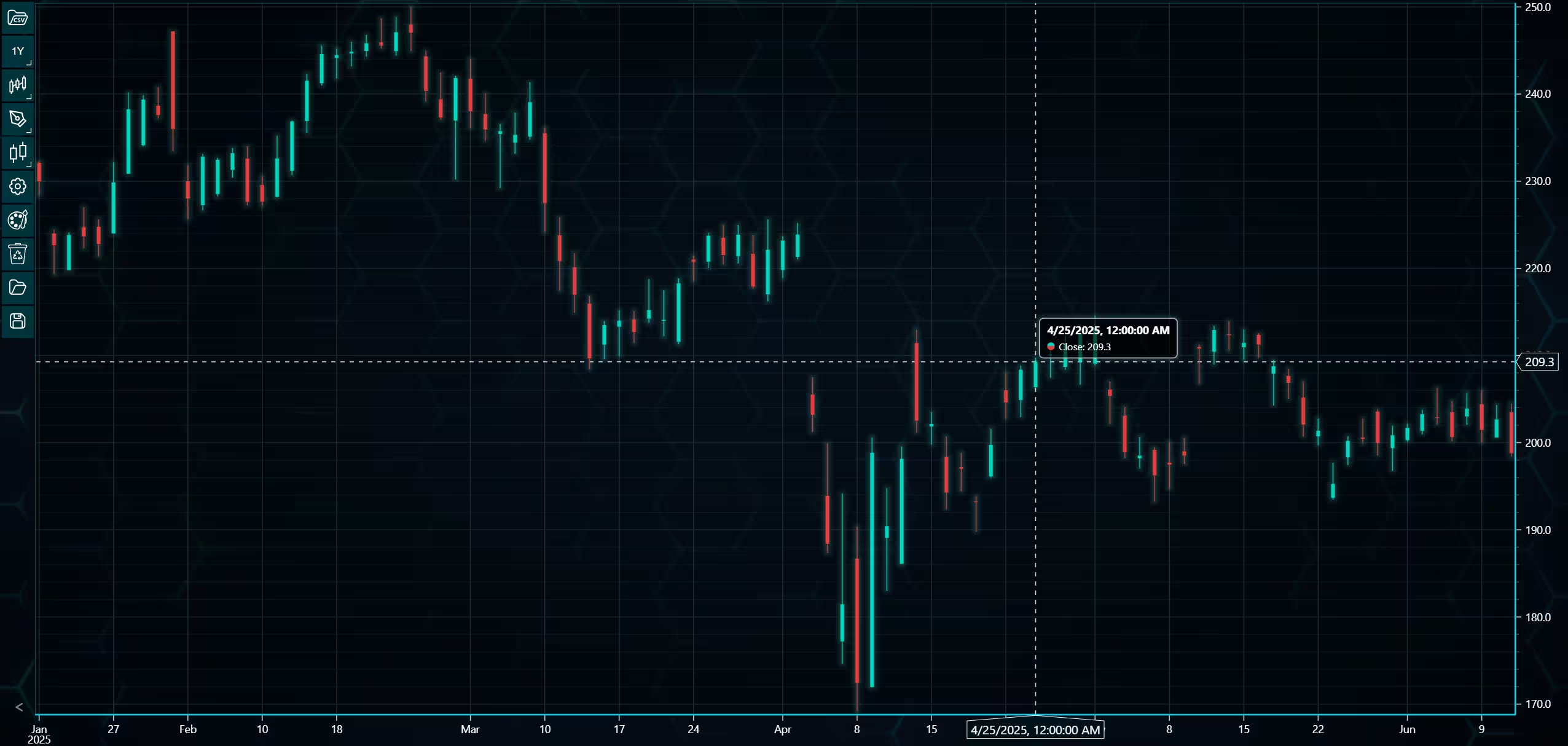
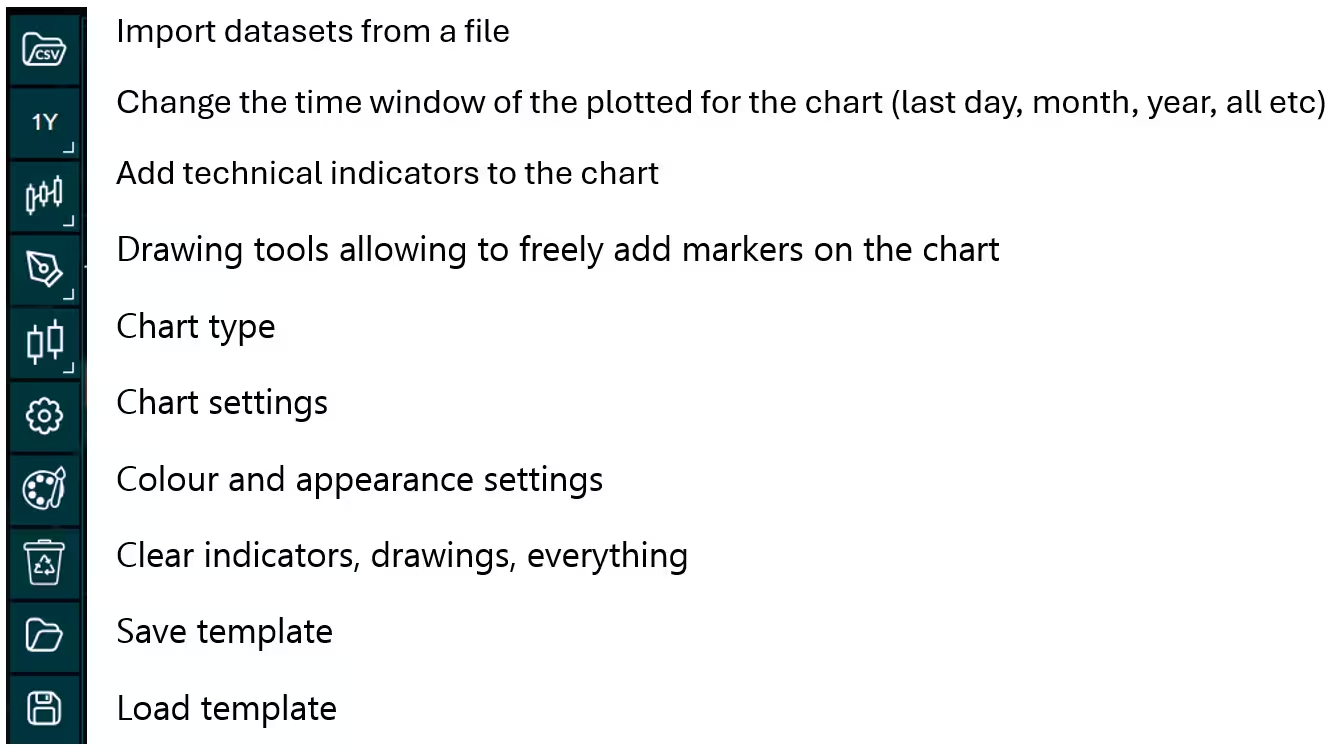
Above is the PT user interface with stock data charted using the default candlestick chart. On the top left are controls used to customize the chart and work with datasets. Here is the explanation for all the UI controls:
Charting features
These are chart types of Python trader provides out of the box.
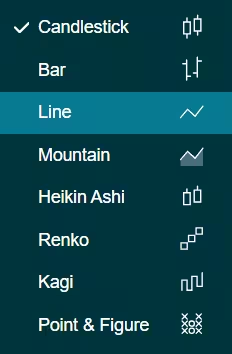
Chart types can be changed with the the UI or with the set_price_chart_type(chart_type) command. Available ones are ‘CandleStick’, ‘Bar’, ‘Line’, ‘Mountain’, ‘HeikinAshi’, ‘Renko’, ‘Kagi’, and ‘PointAndFigure’. For example, a mountain creating a mountain chart using the following methods:
trader.set_price_chart_type('Mountain')
trader.add_data_array(data)
trader.open()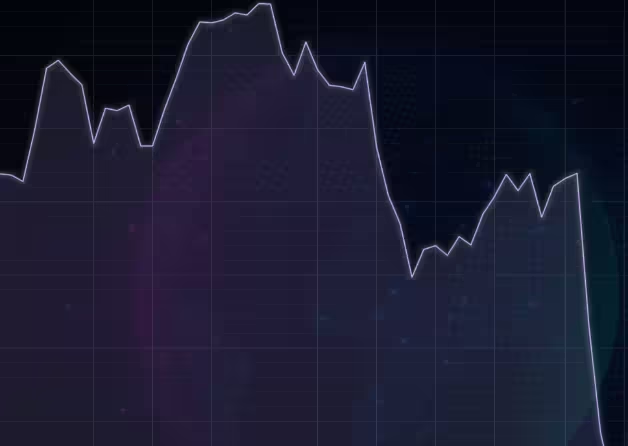
Chart visuals can be customized using the Python trader UI. Below are available settings for chart and indicator colours, background colour/image etc.
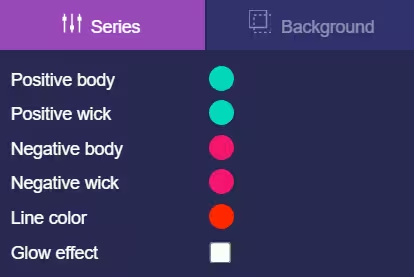
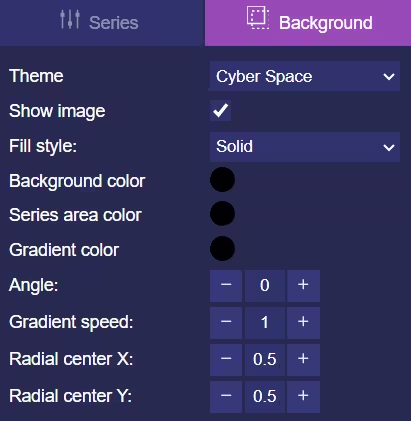
Default chart colours.
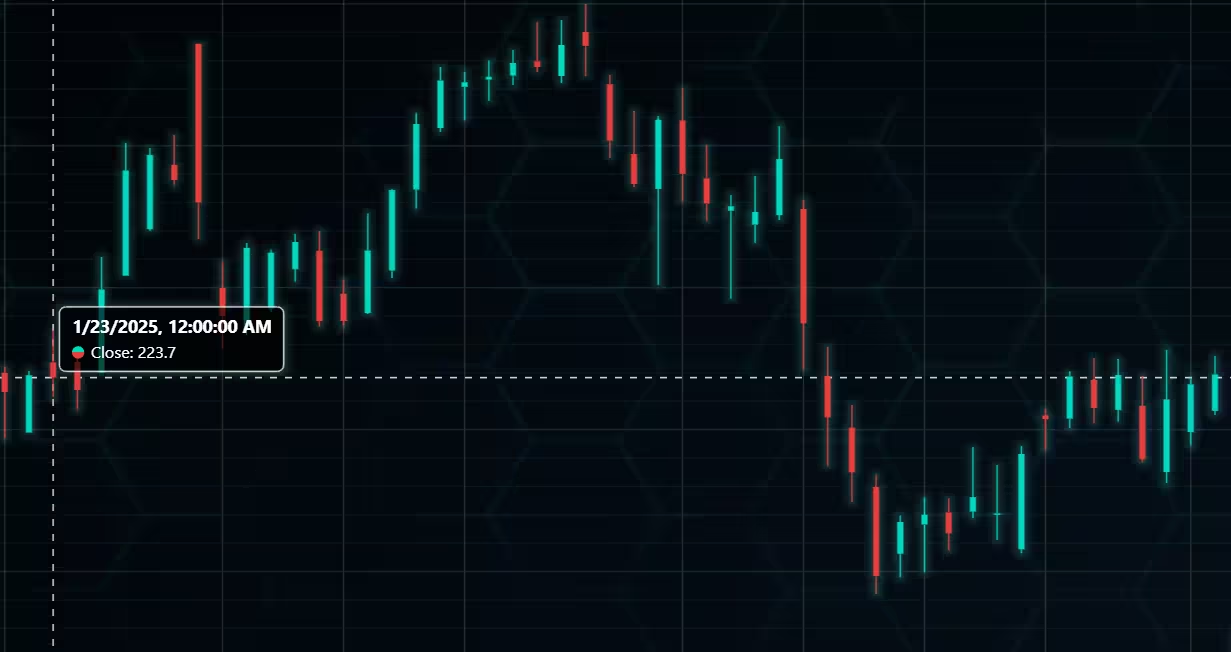
Background and indicator colours changed
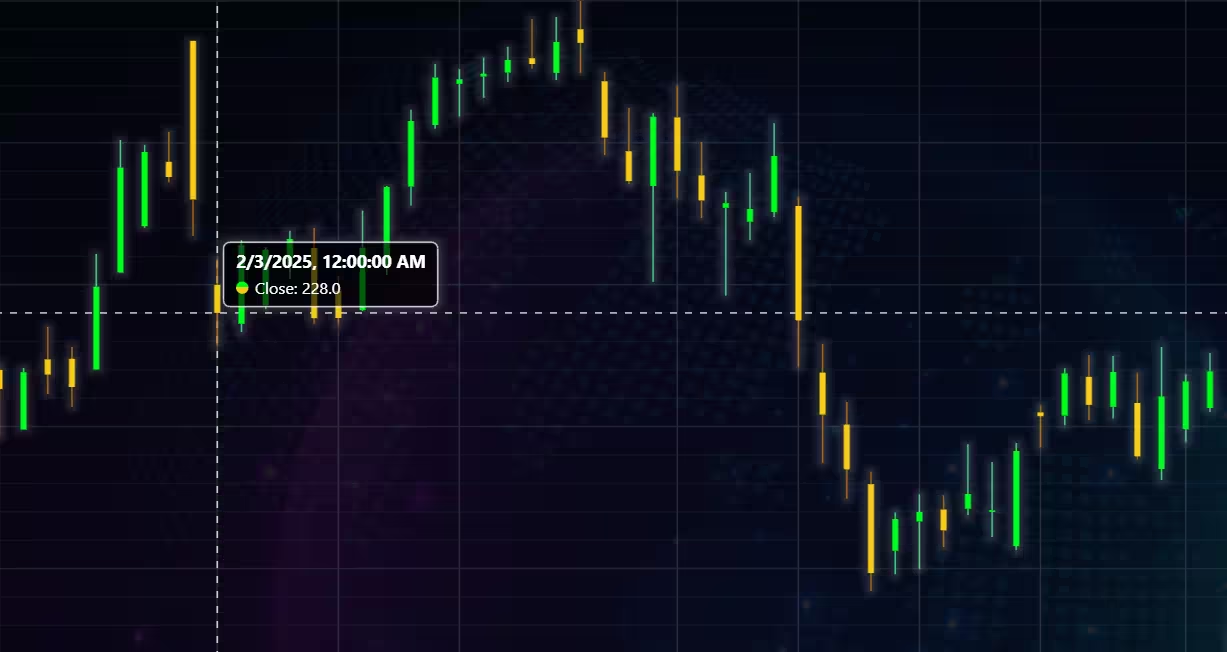
Chart customization
Customisation can also be done with code, using the built-in methods. The code below changes the background image and the chart colours to the ones seen in the right image. But why use code for customisation, since working with UI is easier?
trader.set_color_theme('cyberSpace')
# Changing the indicator colours for the candlesticks
trader.set_positive_body_color('#0fdf0c')
trader.set_positive_wick_color('#33d7a0')
trader.set_negative_body_color("#f3eb16")
trader.set_negative_wick_color('#b85900')
When the customization is applied on code level there’s no need to change any settings or load a template. Meaning you won’t have to make the changes every time when opening a chart. Python trader supports the use of templates for customization, and these files can be loaded in with code.
However, you still need to manually select the file, and in case you want to share the chart the template file would also need to be shared. When the changes are done in code, only it needs to be shared to get the same results.
Technical indicators
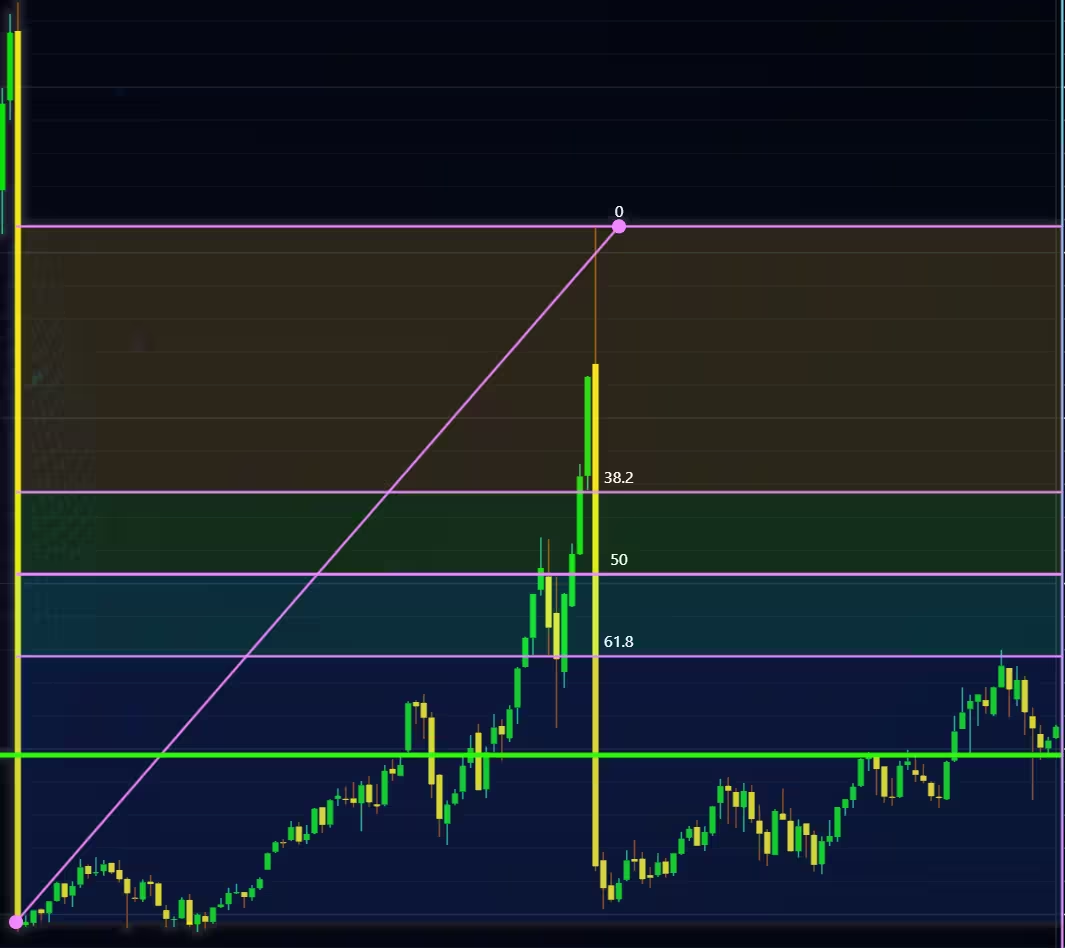
Python trader supports over 100 technical indicators. These include ones such as Relative Strength Index (RSI), Bollinger bands, Moving averages (SMA, EMA etc), Oscillators for money flow and price, Fibonacci retracements, as well as statistical ones like Standard deviation. Technical indicators can be added to a chart easily with the trader UI, their properties (period count, standard dev) can also be changed the same way.
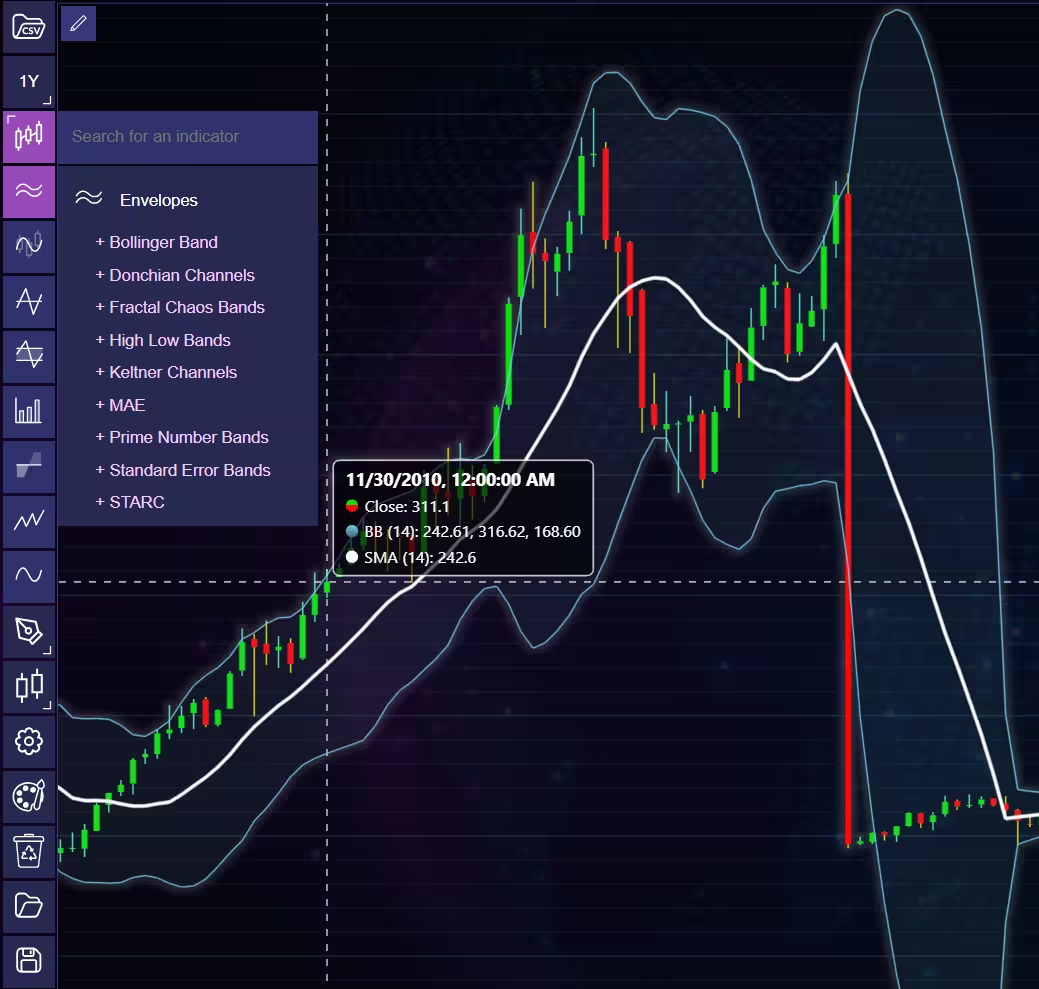
These indicators can also be added and customized via code.
trader.add_simple_moving_average(period_count=14)
trader.add_bollinger_band(period_count=14)
Indicators such as the Fibonacci patterns can be added with the built-in draw tools. Other markers can also be added this way. To see all the indicators, refer to the documentation.
Setting Up Python Environment
The stock data is stored in .csv files. These files will be worked with using Pandas and Python’s os library. Retrieve the file names from the folder they are stored in using the listdir method. I recommend providing the full file path, as sometimes I’ve run into errors if I’ve only given the relative path.
Note: The api_key refers to Alphavantage’s stock API. This API can provide stock data; however, in this case, it’s only used to retrieve company names. Thus, it’s not mandatory, and if you don’t have a key (they provide both free and premium licenses), you may simply skip this part.
from lightningchart_trader import TAChart
import pandas as pd
import os
import requests
import time
license_key_path = "Python-Trader_License_key.txt"
# Load the license key and initializing Python trader
license_key = open(license_key_path).read()
api_key_path = "API-key.txt"
# Load the license key
api_key = open(api_key_path).read()
filepath = 'data/project-9/'
company_names = []
# Get file names
csv_list = os.listdir(filepath)
print(csv_list)
# Trader instance initialization
trader = TAChart(license_key)
Get the company names by extracting the ticker from the file name. Alphavantage provides a ticker search API, which allows you to retrieve company data based on a ticker.
The company info is provided in dictionaries, and the name can be accessed with the key ‘2. Name’. This method relies on the files being named after the ticker, and requires Alpha Vantage’s API key (they provide a free license). However, as this part isn’t necessary for the analysis, it can be skipped. You can set the chart titles manually later, or use some other approach.
# Using Alphavantages ticker search api get the names of companies analyzed.
for stock in csv_list:
    stock_ticker = stock.replace('.csv','')
    api_url = f'https://www.alphavantage.co/query?function=SYMBOL_SEARCH&keywords={stock_ticker}&apikey={api_key}'
    request = requests.get(api_url).json()
    print(request)
    stock_name = request['bestMatches'][0]['2. name']
    company_names.append(stock_name)
Open the charts
# Index used to access individual files in the csv_list
# Note the index value might vary if the files are in different order, compared to the example
file_index = 0
use_adjusted = False
stock_dataframe = pd.read_csv(filepath + csv_list[file_index])
# Python trader requires the fields Open,Low,High,Close to function properly. The fields name are case sensitive.
# If adjusted close value is wanted drop the 'Close' column and rename 'Adj Close' column to 'Close'.
if use_adjusted:
    stock_dataframe = stock_dataframe.drop(columns= 'Close')
    stock_dataframe = stock_dataframe.rename(columns={'Adj Close': 'Close'})
# Add a volume indicator
trader.add_volume()
trader.set_color_theme('darkGold')
trader.set_data(stock_dataframe)
trader.set_chart_title(company_names[file_index])
trader.open()
NASDAQ Stock Market Data Visualization
We will now build the NASDAQ stock market data visualizations.
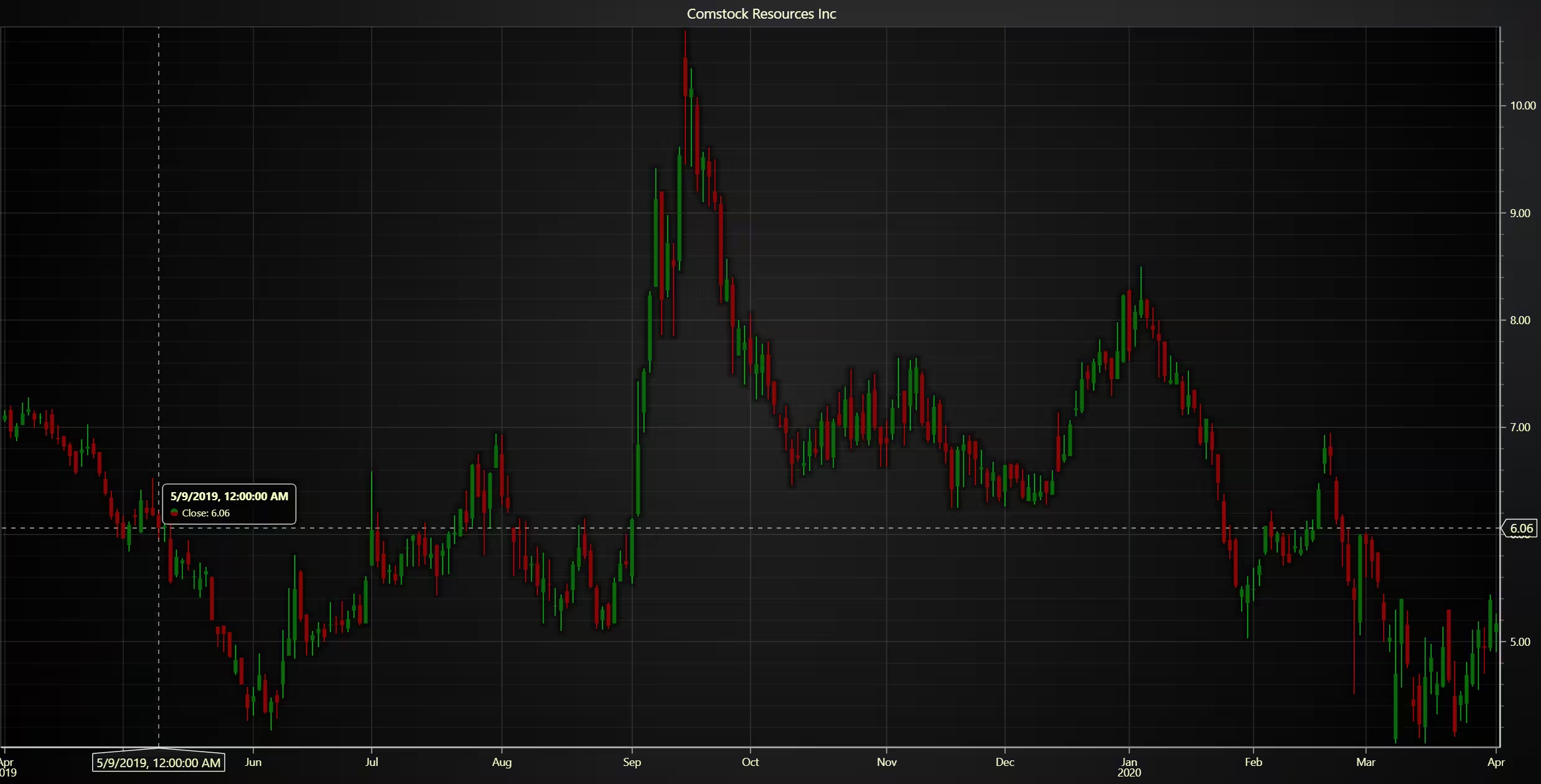
Comstock Resources Inc.
We will create a candlestick chart with a daily timeframe. A simple candlestick chart. The wick and body colours can be customised using either the Python API or with the GUI.
from lightningchart_trader import TAChart
import pandas as pd
import os
import requests
import time
license_key_path = "Python-Trader_License_key.txt"
# Load the license key and initializing Python trader
license_key = open(license_key_path).read()
api_key_path = "API-key.txt"
# Load the license key
api_key = open(api_key_path).read()
filepath = 'data/project-9/'
company_names = []
# Get file names
csv_list = os.listdir(filepath)
print(csv_list)
# Trader instance initialization
trader = TAChart(license_key)
# Using Alphavantages ticker search api get the names of companies analyzed.
for stock in csv_list:
    stock_ticker = stock.replace('.csv','')
    api_url = f'https://www.alphavantage.co/query?function=SYMBOL_SEARCH&keywords={stock_ticker}&apikey={api_key}'
    request = requests.get(api_url).json()
    print(request)
    stock_name = request['bestMatches'][0]['2. name']
    company_names.append(stock_name)

# Index used to access individual files in the csv_list
# Note the index value might vary if the files are in different order, compared to the example
file_index = 2
stock_dataframe = pd.read_csv(filepath + csv_list[file_index])
# Python trader requires the fields Open,Low,High,Close to function properly. The fields name are case sensitive.
# Add a volume indicator
trader.add_volume()
trader.change_time_range(3)
trader.set_color_theme('darkGold')
trader.set_data(stock_dataframe)
trader.set_chart_title(company_names[file_index])
trader.open()
First Hawaiian INC.
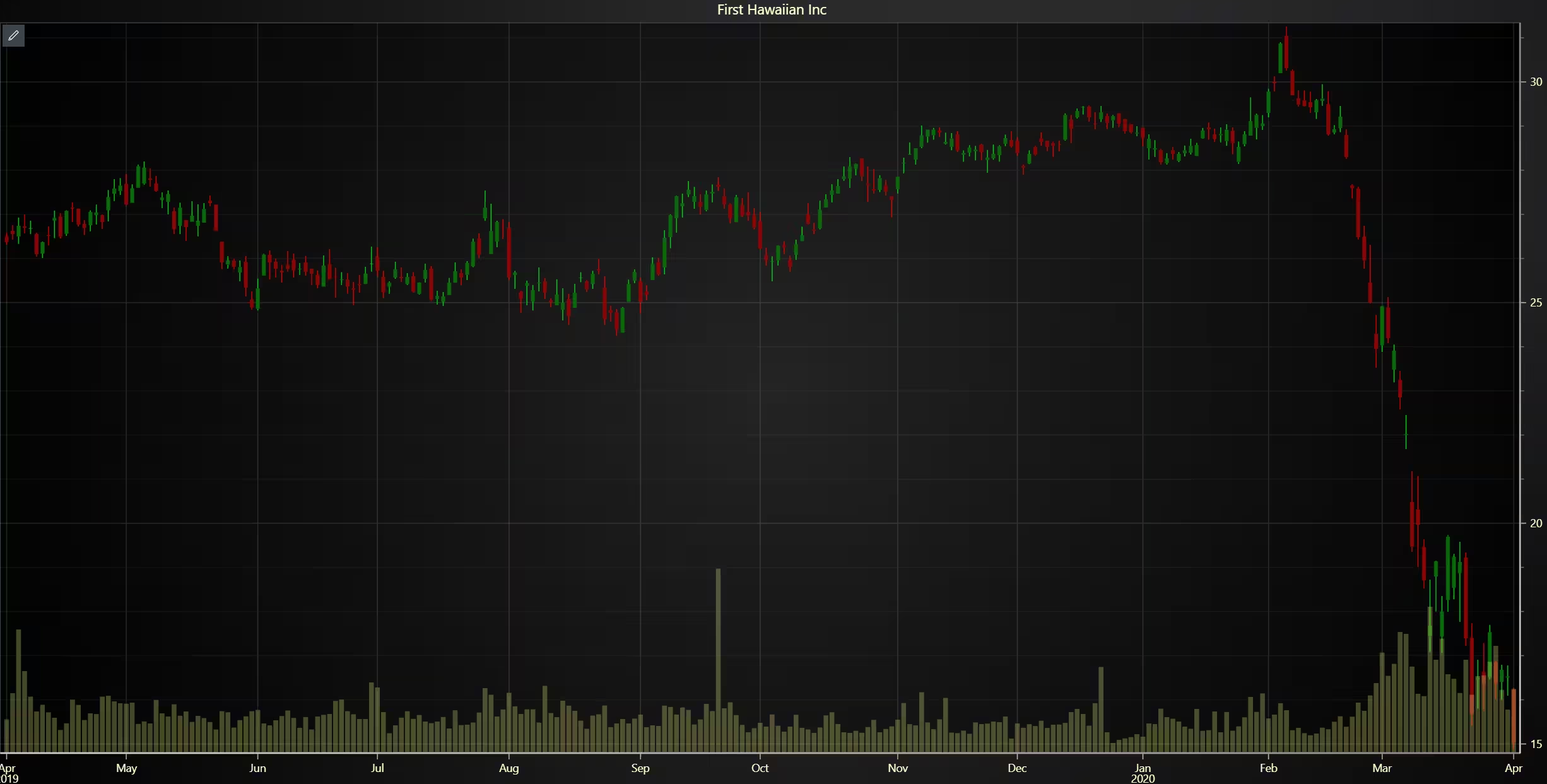
A bar chart and a trade volume indicator. Analysis showing that volatility increases and the price trend changes (sideways -> down) correlate with increased volume.
from lightningchart_trader import TAChart
import pandas as pd
import os
import requests
license_key_path = "Python-Trader_License_key.txt"
# Load the license key and initializing Python trader
license_key = open(license_key_path).read()
api_key_path = "API-key.txt"
# Load the license key
api_key = open(api_key_path).read()
filepath = 'data/project-9/'
company_names = []
# Get file names
csv_list = os.listdir(filepath)
print(csv_list)
# Trader instance initialization
trader = TAChart(license_key)
# Using Alphavantages ticker search api get the names of companies analyzed.
for stock in csv_list:
    stock_ticker = stock.replace('.csv','')
    api_url = f'https://www.alphavantage.co/query?function=SYMBOL_SEARCH&keywords={stock_ticker}&apikey={api_key}'
    request = requests.get(api_url).json()
    print(request)
    stock_name = request['bestMatches'][0]['2. name']
    company_names.append(stock_name)

# Index used to access individual files in the csv_list
# Note the index value might vary if the files are in different order, compared to the example
file_index = 2
stock_dataframe = pd.read_csv(filepath + csv_list[file_index])
# Python trader requires the fields Open,Low,High,Close to function properly. The fields name are case sensitive.
# Add a volume indicator
trader.add_volume()
trader.change_time_range(3)
trader.set_color_theme('darkGold')
trader.set_data(stock_dataframe)
trader.set_chart_title(company_names[file_index])
trader.open()
Dashboard
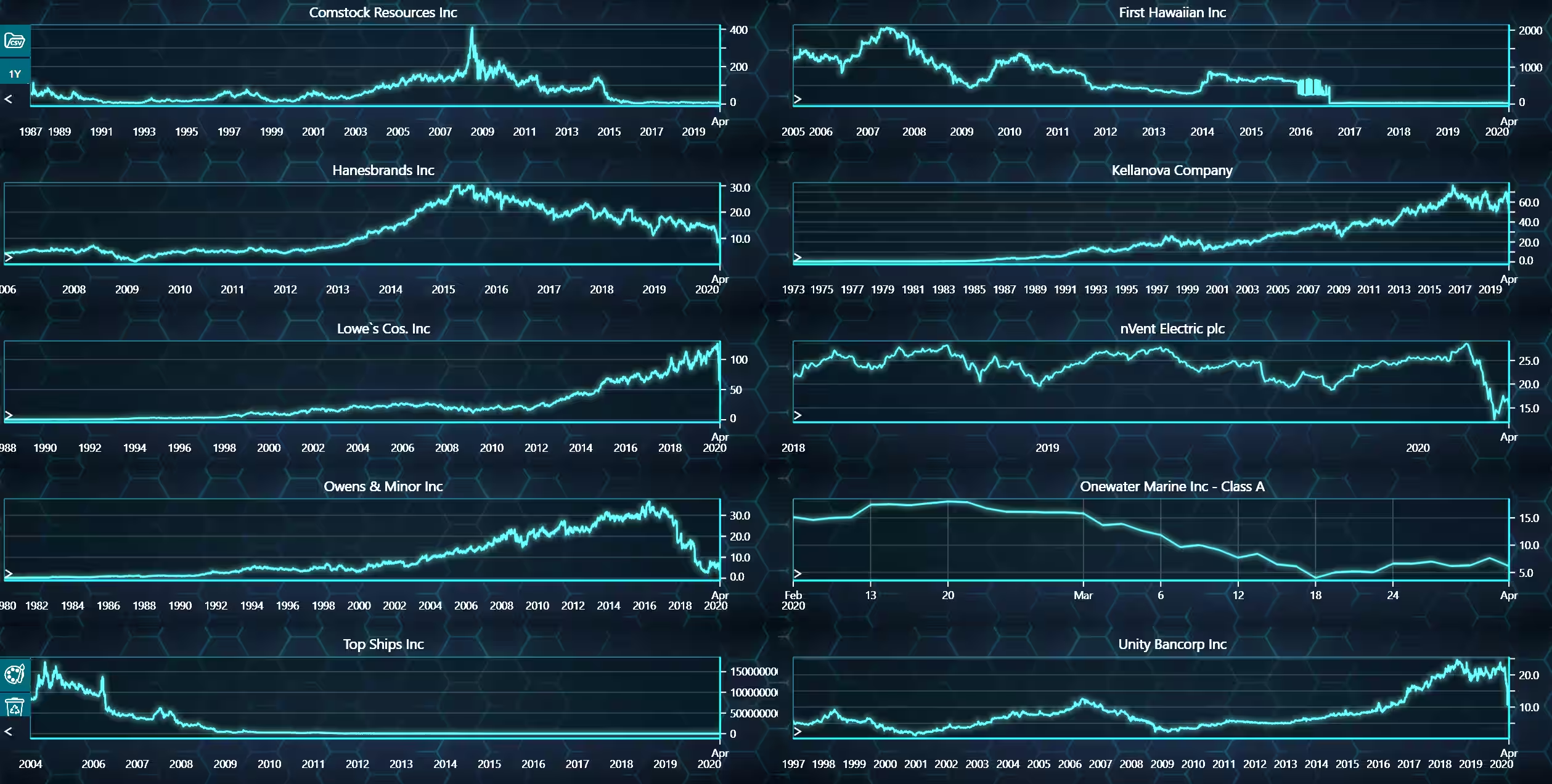
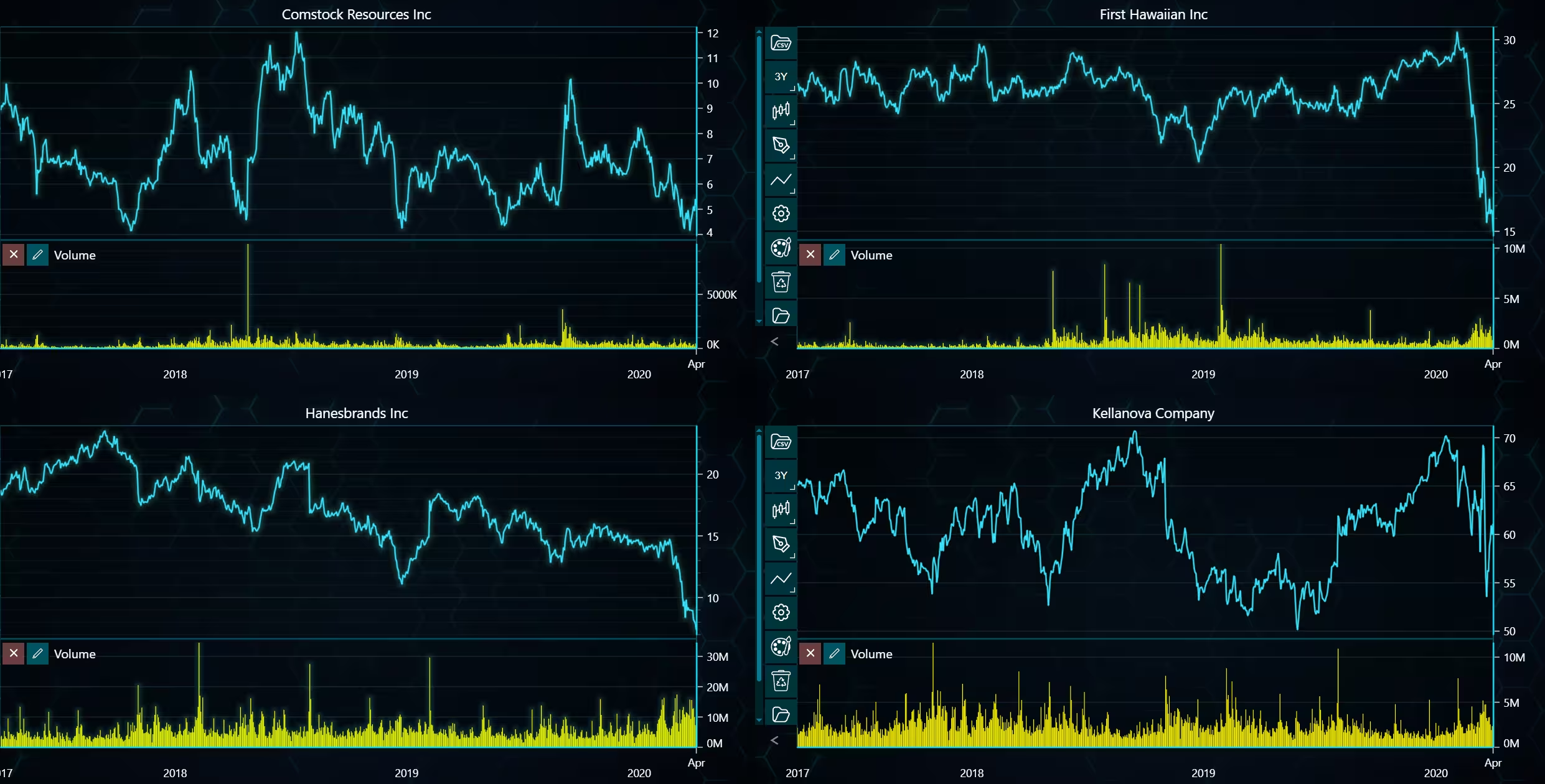
The dashboard presents multiple Line charts with several stocks of WIP. Dashboard needs to be initialized before the second loop. Additionally, two variables to index the row and column positions are needed.
from lightningchart_trader import TAChart
import pandas as pd
import os
import requests
license_key_path = "Python-Trader_License_key.txt"
# license key for python trader and the stock API
license_key = open(license_key_path).read()
api_key_path = "API-key.txt"
api_key = open(api_key_path).read()
filepath = 'data/project-9/'
company_names = []
# Get file names
csv_list = os.listdir(filepath)
# Trader instance initialization
trader = TAChart(license_key)
# Using Alphavantages ticker search api get the names of companies analyzed.
for stock in csv_list:
    stock_ticker = stock.replace('.csv','')
    api_url = f'https://www.alphavantage.co/query?function=SYMBOL_SEARCH&keywords={stock_ticker}&apikey={api_key}'
    request = requests.get(api_url).json()
    stock_name = request['bestMatches'][0]['2. name']
    company_names.append(stock_name)

# Create a dashboard with two columns and 5 rows. The row and column index determine the charts position wihtin the dashboard.
dashboard = trader.create_dashboard(5, 2)
row_index = 0
column_index = 0
use_adjusted = False
# Loop used to import data to the trader.
for name, company in zip(company_names, csv_list):
    stock_dataframe = pd.read_csv(filepath + company)
    if use_adjusted:
        stock_dataframe = stock_dataframe.drop(columns= 'Close')
        stock_dataframe = stock_dataframe.rename(columns={'Adj Close': 'Close'})
    # Insert a chart to the dashboard and set the dataframe as the data source
    newchart = dashboard.add_chart('Line', row_index, column_index, title=name).set_data(stock_dataframe)
    newchart.add_volume()
    # Increment the index and column number where the chart should be positioned.
    if column_index == 1:
        column_index = 0
        row_index += 1
    elif column_index == 0:
        column_index += 1
    print(f'Loading {name}...')
trader.open()
Hanesbrands Inc.
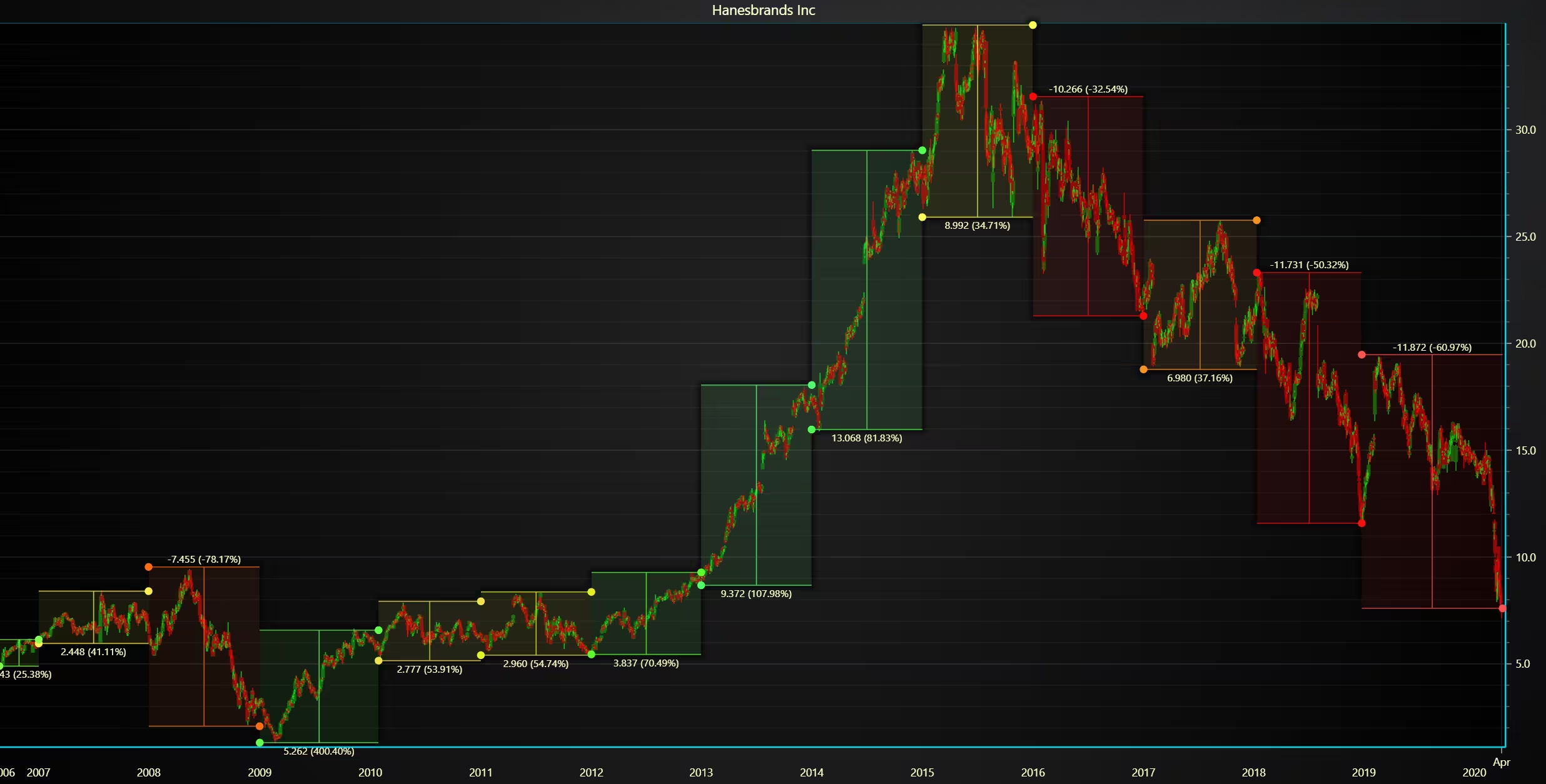
Box Plot of Daily Price Ranges (High-Low) per Year
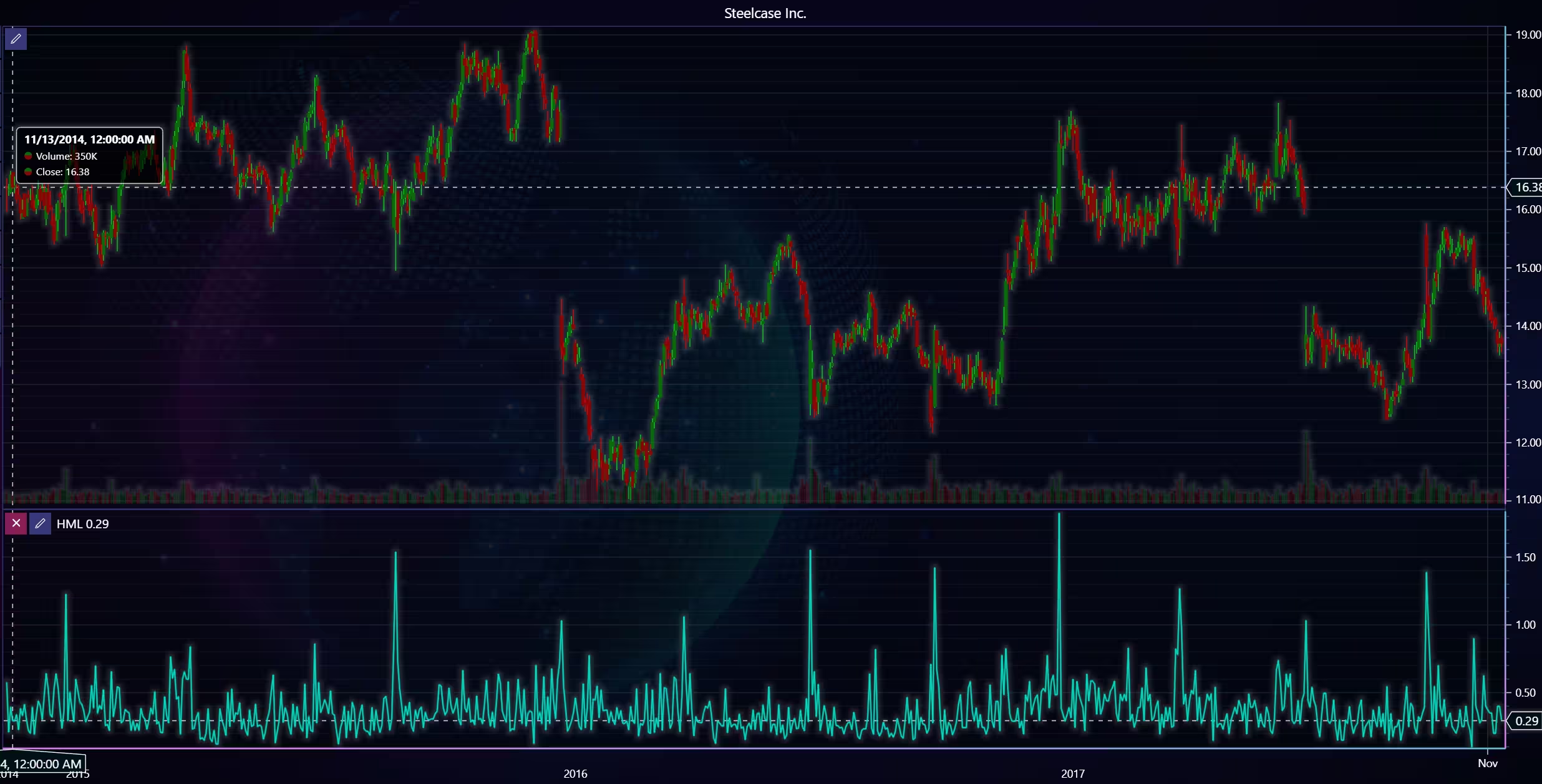
There seems to be less of a correlation between volume and high and low prices than the previous stock.
Analysis
Short analysis of the data for the stocks used. The stocks in question are Comstock Resources Inc., First Hawaiian Inc., Hanesbrands Inc., and Kellanova Company.
How do Close prices and Volume trends vary over time for selected NASDAQ stocks?
The stocks experience moderate volatility in volume, as well as having occasional larger spikes every now and then. Comstock had a massive spike, and volume for First Hawaiian increased in mid-2018.
Is there a correlation between Volume and High or Low prices for specific stocks?
There doesn’t appear to be any strong correlations between volume and high/low prices. Although trade volume is noticeably higher during large, sudden price movements.
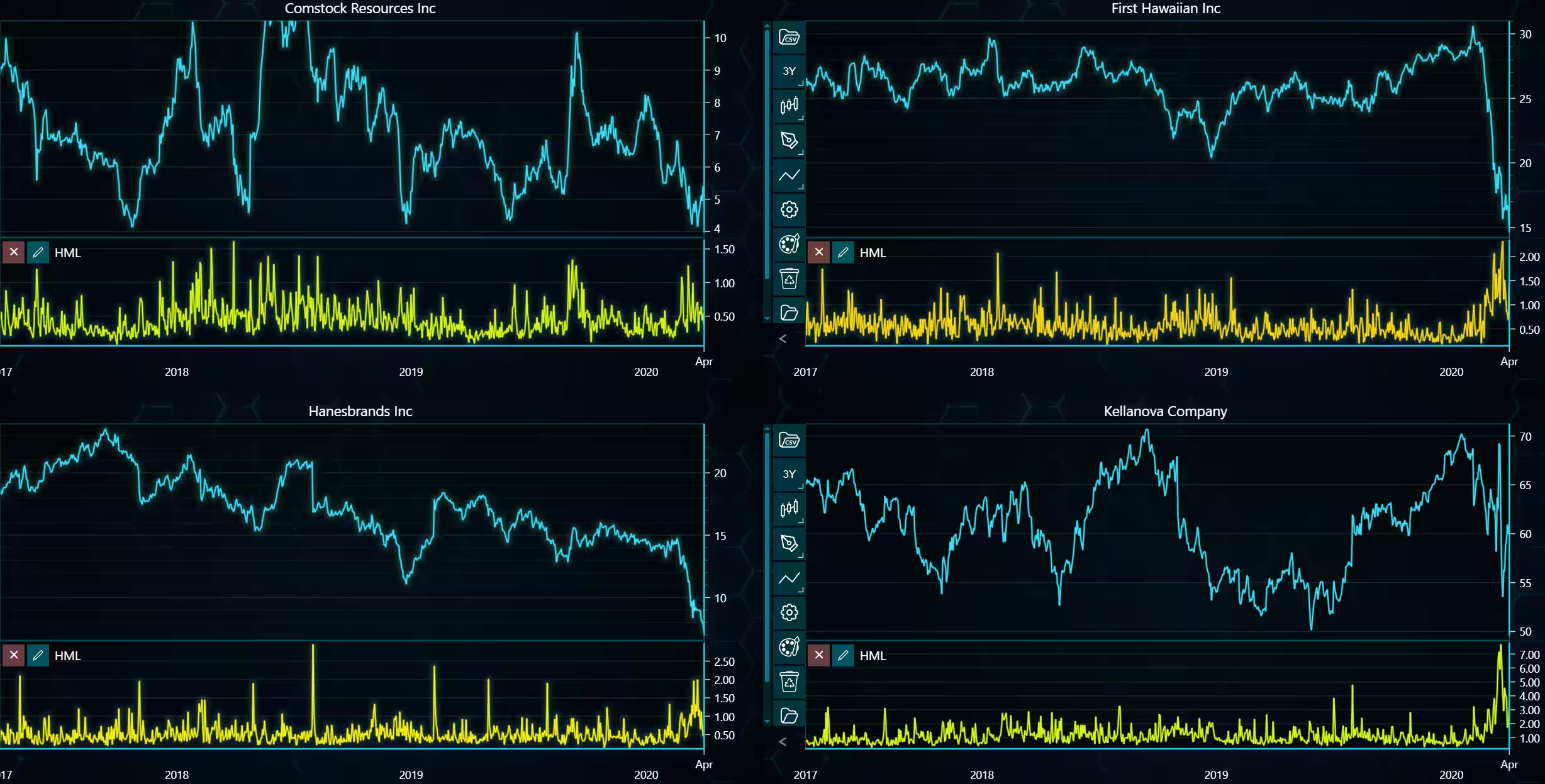
What is the daily price range (High – Low) distribution for different stocks or ETFs?
High/low range analysis using the high-minus-low indicator.
Conclusion
The stock data has been imported from a CSV file to the Python Trader, with some extra API calls to get the stock name. The Pandas library was used to process the data, and the request library was used in the API call. Otherwise, all the charting was done within Python Trader, and this was a rather simple demonstration, not utilizing most of its features.
Continue learning with LightningChart
Ionic Capacitor
Learn how to use Ionic Capacitor for data visualization and build a mobile charting application with Angular & LightningChart JS
Create a JavaScript Pie Chart with NodeJS, TypeScript & LightningChart
Written by a human | Updated on April 10th, 2025JavaScript Pie Chart with NodeJS & TypeScript Today, we are going to do a short tutorial on how to generate a pie chart using Node JS, TypeScript, and LigningCharts JS. To see how to get LightningChart JS for...
Real-time data visualization with WebSockets
Written by a human | Updated on April 10th, 2025WebSockets Data Visualization in Real-Time These days it is ever increasingly common that people require web solutions for their applications and services. Data visualization is not an exception to this, as...



If you have any questions, feel free to contact us!
©LightningChart Ltd 2025. All rights reserved.