








How to visualize time series data for stock trading using the LightningChart Python Trader
Tutorial
Written by a Human
Learn how to visualize time series data for creating stock trading data analysis Python applications using LightningChart Python Trader library.
Mikael Virtanen
Data Science Python Developer


Introduction
This article is a demonstration of the charting features included in LightningChart’s Python trader (PT) library. Additionally included is a simple example of a pipeline where real-world data, acquired from Alpha Vantage’s stock API, is visualised using the library.
The API – Alpha Vantage
The Alpha Vantage API provides free access to several (but not all) of their APIs with a limit of 25 calls per day. This includes data regarding stocks, options, forex and crypto from several exchanges, with historical data covering the last 20 years. This demonstration will focus on their stock API exclusively. Both adjusted and unadjusted data are available via the API.
There is a 15-minute delay in the stock data for the free and cheapest subscriptions, thus putting one at a disadvantage if wanting to develop real-time trading software. Additionally, the 25 calls per day limit can prove to be a bottleneck when testing the functionality of the API. The premium subscriptions start at $50 / month (75 API calls per minute).
The API returns a JSON string that can be easily worked with several programming languages, such as Python, C#, .NET, and NodeJS. Python will be used in the examples.
The PT requires the following values for a data point: Open, High, Low, Close and a date (chronologically), with volume as an optional value. Luckily, all of these are provided by the API. These values tell you the following.
Open: Stock price when the stock exchange opened, High: Stock’s highest price during a time period (such as a trading day), Low: Stock’s lowest price during a period, Close: Stock’s price when the exchange closed. The stock price can differ between the closing price and the next day’s opening price, due to after-hours trading.
These variables form the foundation for stock analysis. Since by using these metrics one can spot patterns in stock prices as well as volatility, and then mperform ore complex technical analysis on these.
LightningChart Python Trader
LightningChart’s Python trader (PT) provides extensive charting solutions with a high degree of customizability through its easy-to-use UI and built-in functionalities. Since the library is built for Python, it’s also possible to use other Python libraries if necessary.
As with all Lightningchart products, Performance has been a high priority when developing the library, even when working with large amounts of data, thus removing possible bottlenecks in this area.
Overview of the UI
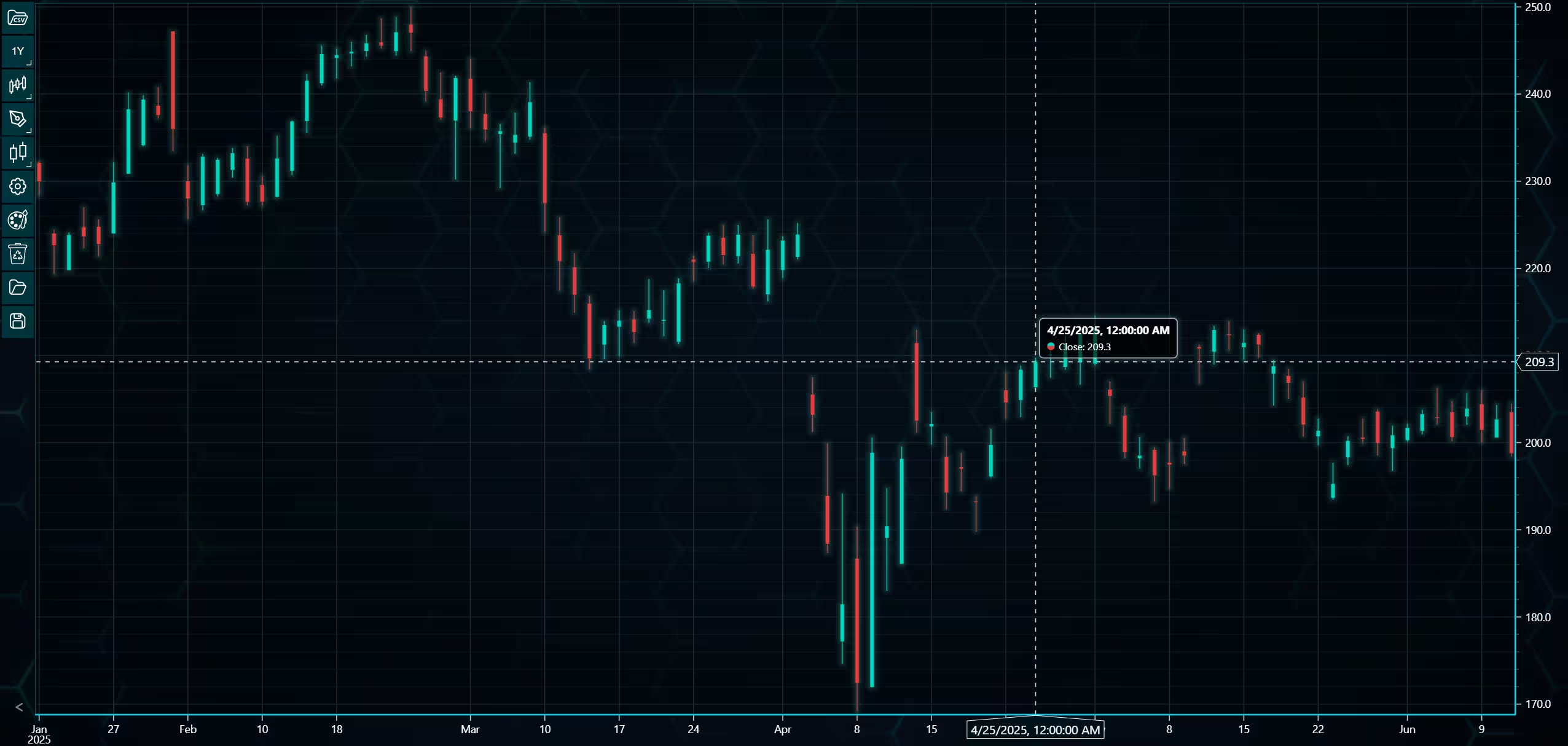
Above is the PT user interface with stock data charted using the default candlestick chart. On the top left are controls used to customize the chart and work with datasets. Here is the explanation for all the UI controls:
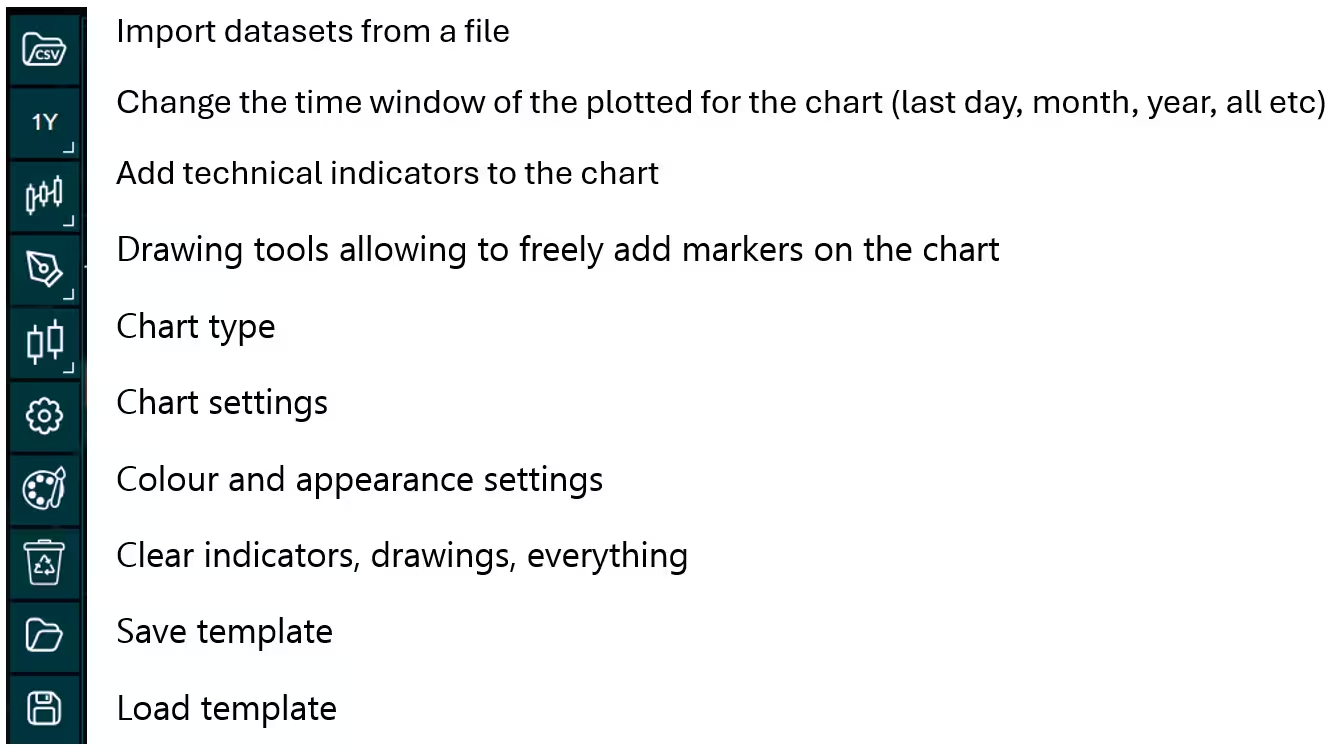
Charting features
These are chart types of Python trader provides out of the box.
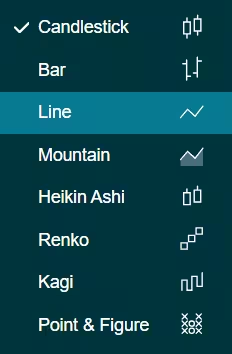
Chart types can be changed with the the UI or with the set_price_chart_type(chart_type) command. Available ones are ‘CandleStick’, ‘Bar’, ‘Line’, ‘Mountain’, ‘HeikinAshi’, ‘Renko’, ‘Kagi’, and ‘PointAndFigure’. For example, a mountain creating a mountain chart using the following methods:
trader.set_price_chart_type('Mountain')
trader.add_data_array(data)
trader.open()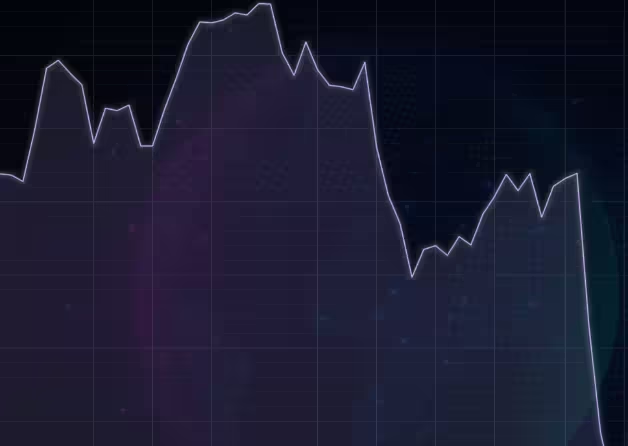
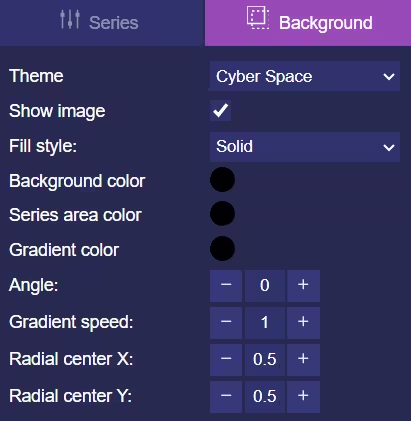
Chart visuals can be customized using the Python trader UI. Below are available settings for chart and indicator colours, background colour/image etc.
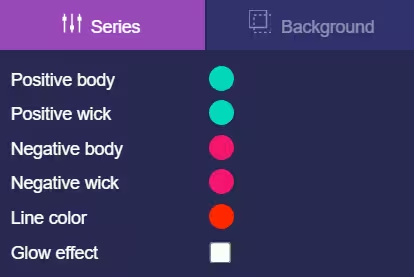
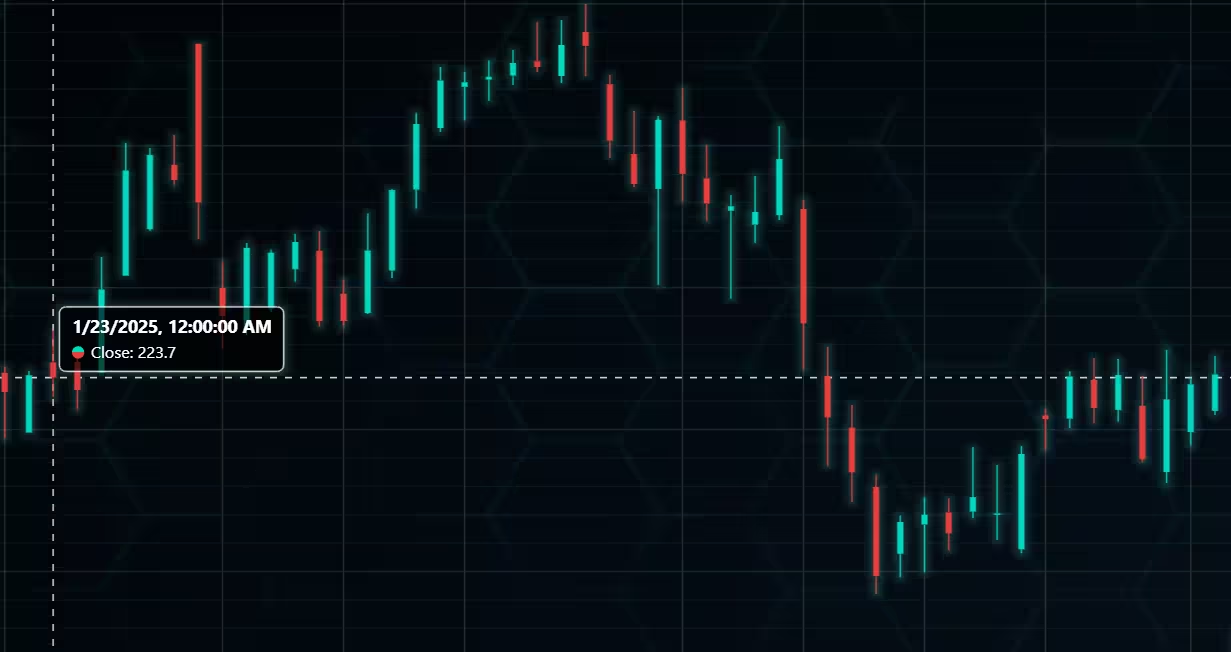
Default chart colours.
Background and indicator colours changed
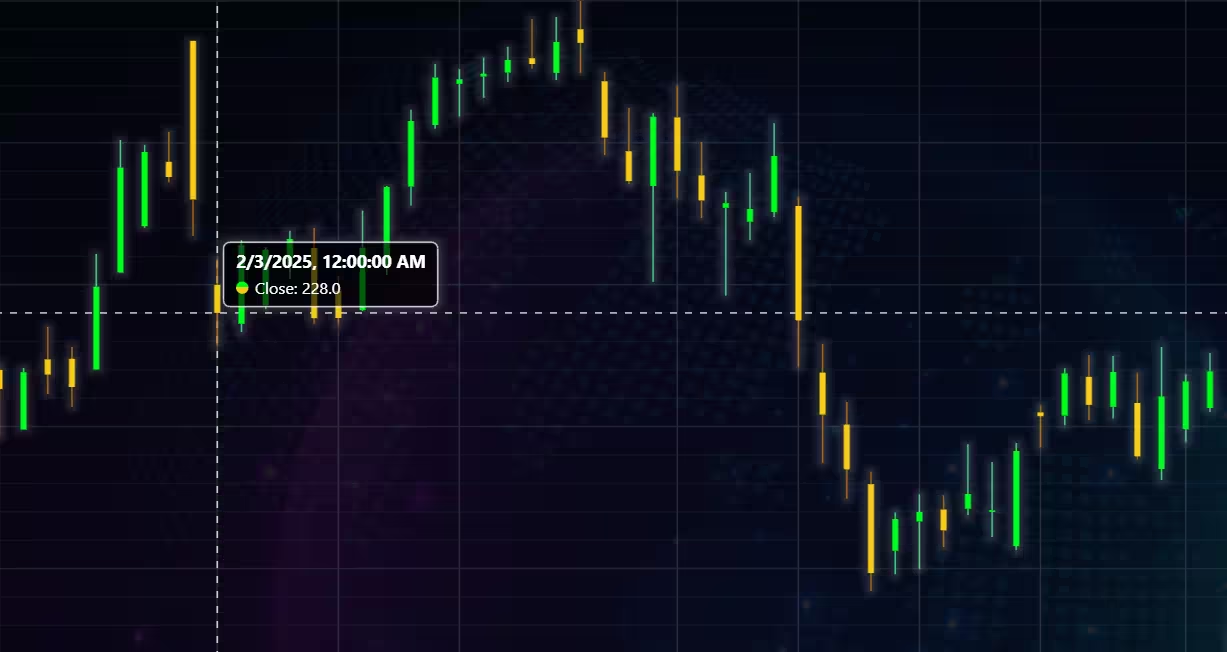
Chart customization
Customisation can also be done with code, using the built-in methods. The code below changes the background image and the chart colours to the ones seen in the right image. But why use code for customisation, since working with UI is easier?
trader.set_color_theme('cyberSpace')
# Changing the indicator colours for the candlesticks
trader.set_positive_body_color('#0fdf0c')
trader.set_positive_wick_color('#33d7a0')
trader.set_negative_body_color("#f3eb16")
trader.set_negative_wick_color('#b85900')
When the customization is applied on code level there’s no need to change any settings or load a template. Meaning you won’t have to make the changes every time when opening a chart. Python trader supports the use of templates for customization, and these files can be loaded in with code.
However, you still need to manually select the file, and in case you want to share the chart the template file would also need to be shared. When the changes are done in code, only it needs to be shared to get the same results.
Technical indicators
Python trader supports over 100 technical indicators. These include ones such as Relative Strength Index (RSI), Bollinger bands, Moving averages (SMA, EMA etc), Oscillators for money flow and price, Fibonacci retracements, as well as statistical ones like Standard deviation. Technical indicators can be added to a chart easily with the trader UI, their properties (period count, standard dev) can also be changed the same way.
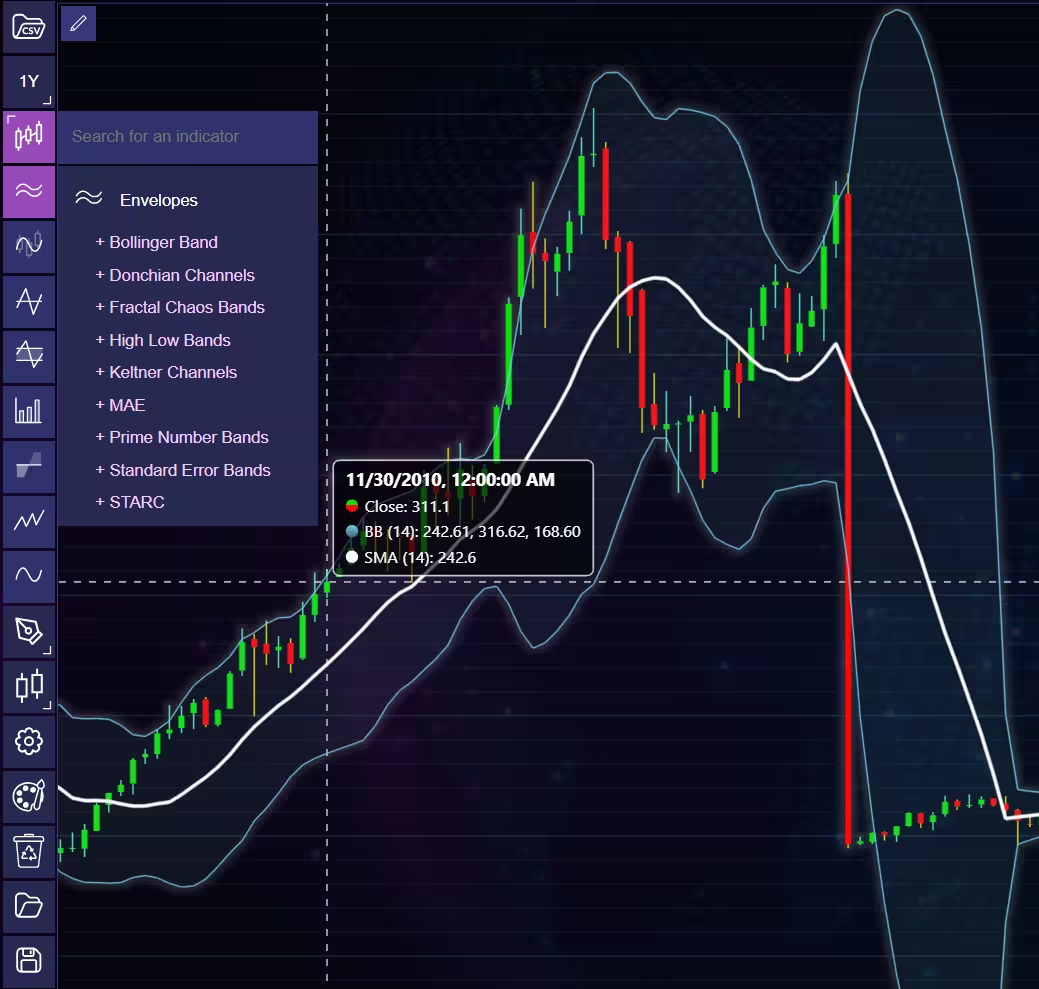
These indicators can also be added and customized via code.
trader.add_simple_moving_average(period_count=14)
trader.add_bollinger_band(period_count=14)
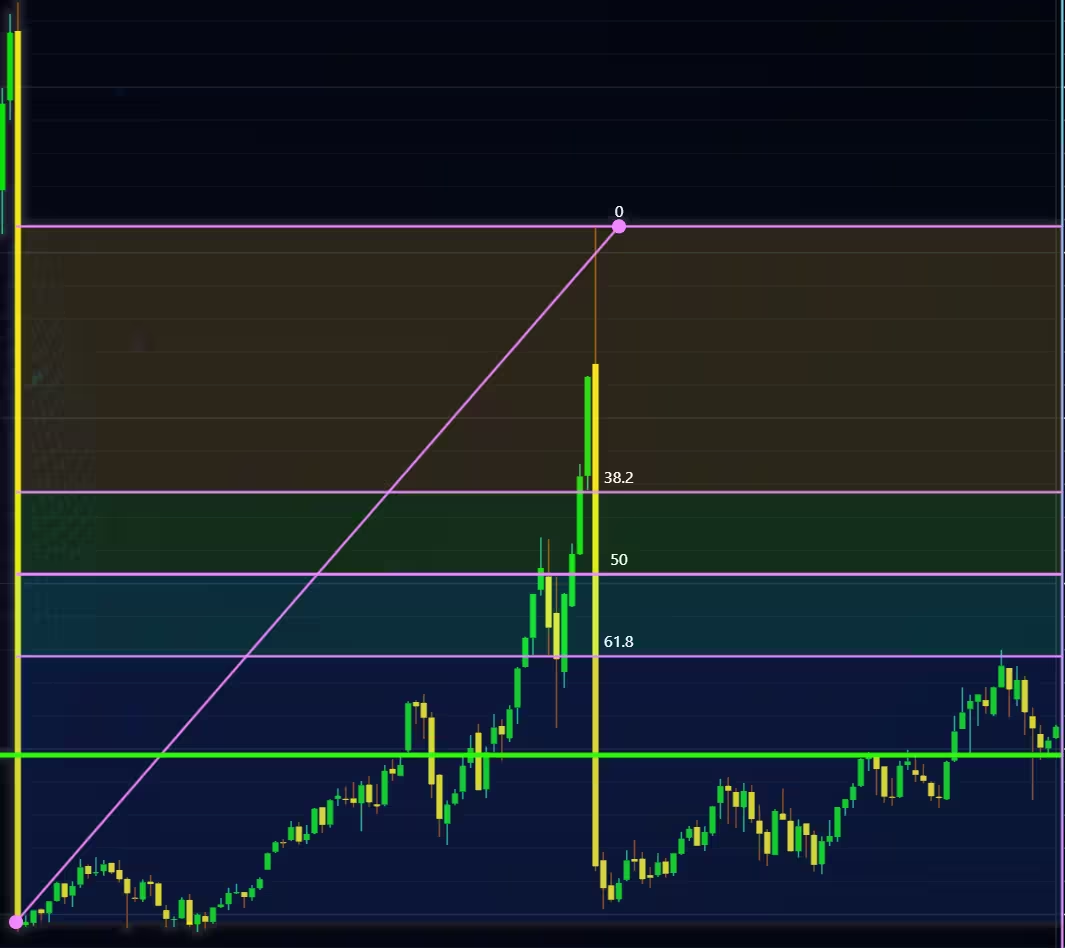
Indicators such as the Fibonacci patterns can be added with the built-in draw tools. Other markers can also be added this way. To see all the indicators, refer to the documentation.
Setting Up Python Environment
import requests
from lightningchart_trader import TAChart
license_key_path = "Python-Trader_License_key.txt"
# Load the license key and initializing Python trader
license_key = open(license_key_path).read()
trader = TAChart(license_key)
# api_name is the APi you wish to use for data eg: TIME_SERIES_DAILY. 'ticker' is the ticker specific stock eg: AAPL
# key is your Alphavantage API key
# https://www.alphavantage.co/query?function=api_name&symbol=ticker&apikey=key
api_key_path = "API-key.txt"
# Load the license key
key = open(api_key_path).read()
trader = TAChart(license_key)
# List for adding data to the chart
data = []
API request and data processing
def getData(ticker, api_name):
    "Get data from Alphavantages API and modify it to form that can be used by Python Trader"

    # Getting the stock data from the API
    url = f'https://www.alphavantage.co/query?function={api_name}&symbol={ticker}&apikey={key}'
    api_request = requests.get(url)
    api_dict = api_request.json()
    # The API returns two dictionaries, one for metadata and one for the stock data itself
    keys = list(api_dict.keys())
    # Get the second dictionary key (stock data) and store it in a variable
    keys = keys[1]
    # Formatting the API data for the Trader
    for date, ohlc_dict in api_dict[keys].items():
        # Convert OHLC values to float and and add them to the data list as a dictionary
        data.append({'open': float(ohlc_dict['1. open']),
                     'high': float(ohlc_dict['2. high']),
                     'low': float(ohlc_dict['3. low']),
                     'close': float(ohlc_dict['4. close']),
                     'date':date})
    # Use the list of dictionaries as a data source for the chart
    trader.set_data(data)
    # Get data regarding this particular ticker symbol using the ticker search API
    ticker_search = f'https://www.alphavantage.co/query?function=SYMBOL_SEARCH&keywords={ticker}+&apikey={key}'
    ticker_info = requests.get(ticker_search)
    ticker_info = ticker_info.json()
    # Get the company name from the top search result fot he chart title
    ticker_name = ticker_info['bestMatches'][0]['2. name']
    trader.set_chart_title(ticker_name +' stock data')
Visualizing Time Series Stock Data
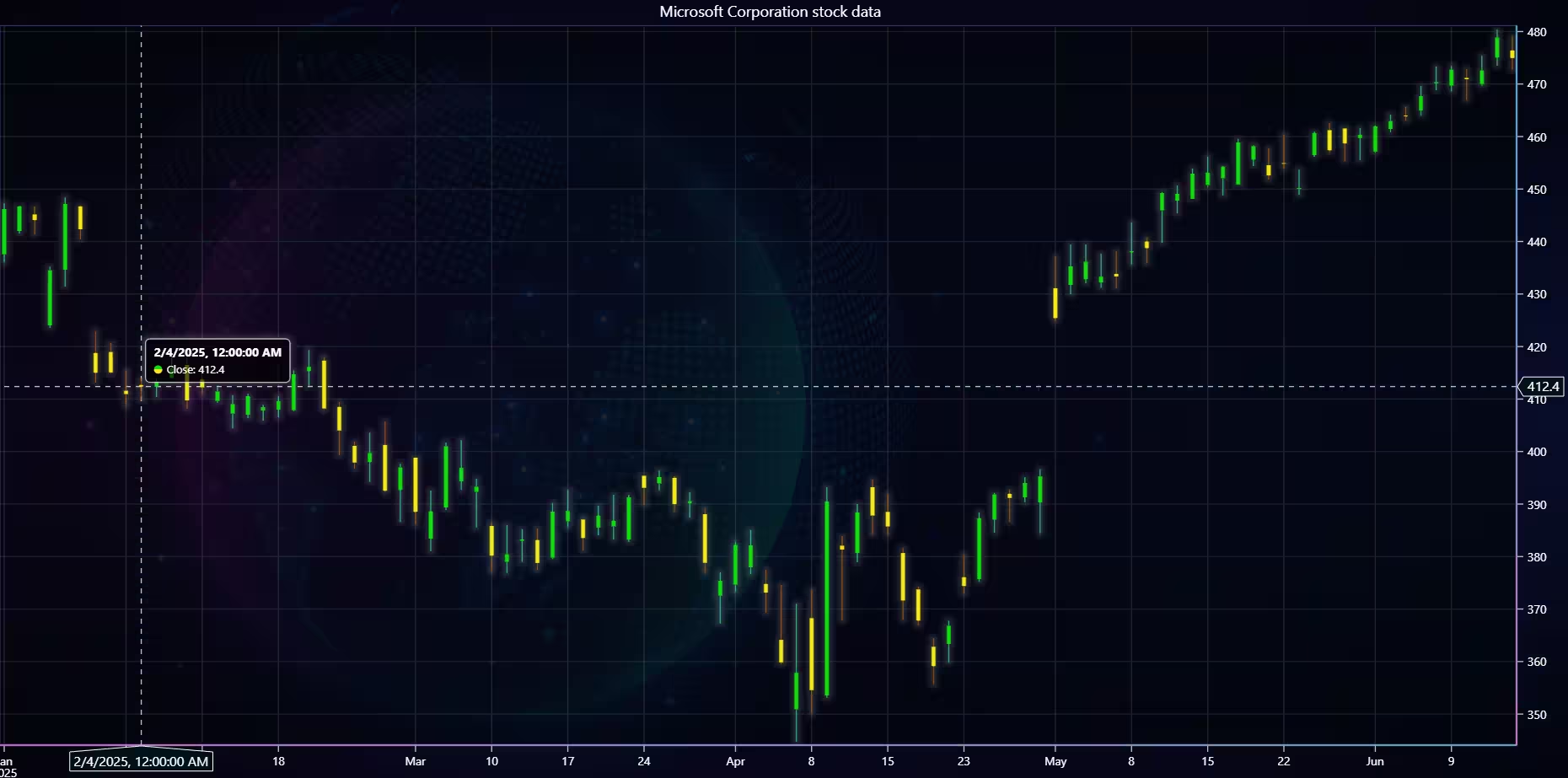
Microsoft Candlestick Chart
A standard candlestick chart, a base for technical analysis and a great way to gauge short-term price movement and volatility. It’s possible to customise the colours of both the body and the wicks/shadows.
def chart1():
    """Candle stick chart example"""

    getData(ticker='MSFT', api_name='TIME_SERIES_DAILY')
    # Optinal customization
    trader.set_color_theme('cyberSpace')
    trader.set_price_chart_type('CandleStick')

    trader.set_positive_body_color('#0fdf0c')
    trader.set_positive_wick_color('#33d7a0')
    trader.set_negative_body_color("#f3eb16")
    trader.set_negative_wick_color('#b85900')
    # Open the chart
    trader.open()
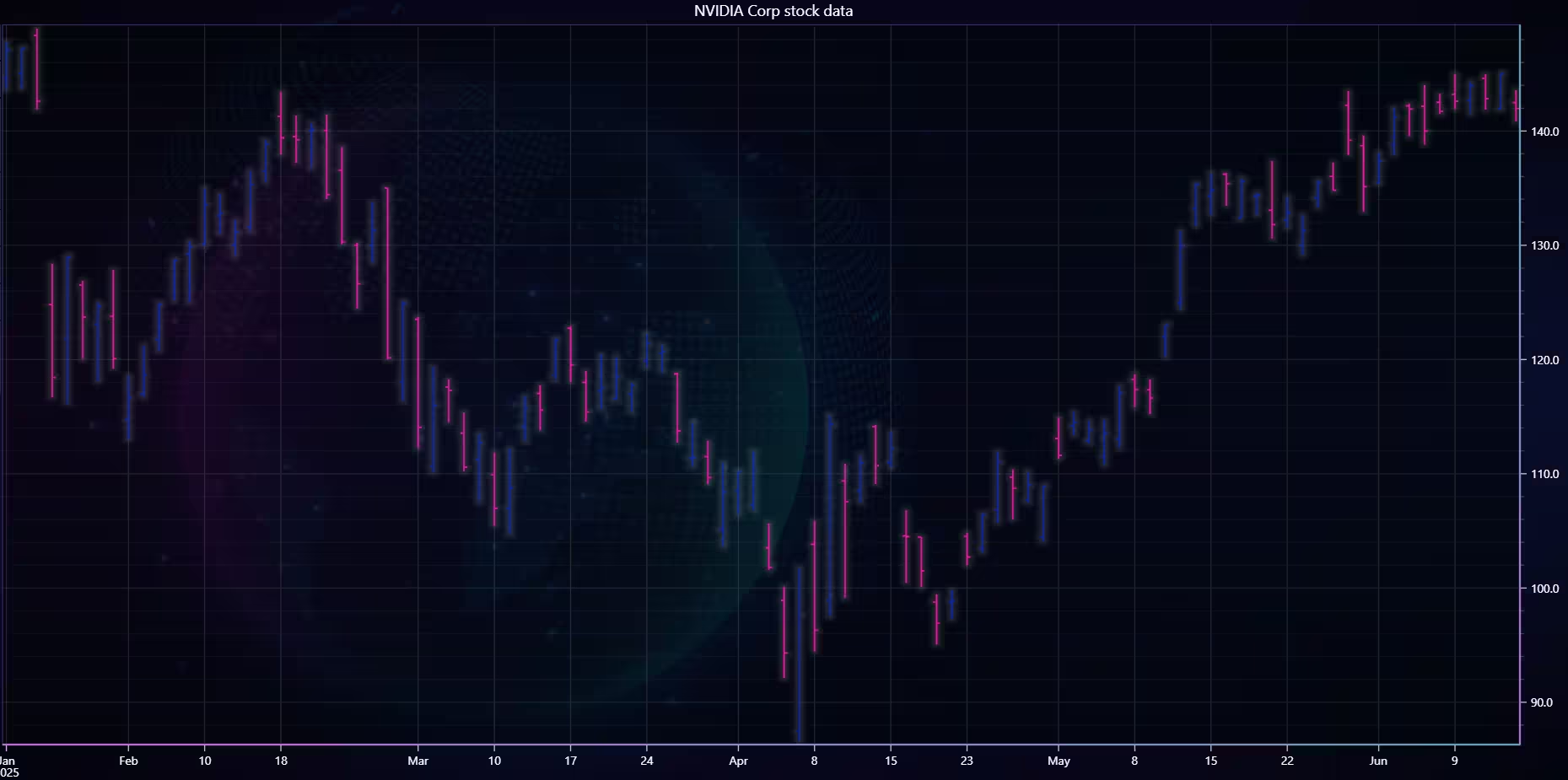
Nvidia Bar chart
A bar chart, similar in usage to a candlestick chart. A bar chart (as well as a candlestick one) allows you to visualize the Open, High, Low, and Close prices of a stock. Bar charts can also be customized via Python Trader just like the candlestick one. In fact, the methods for this are the same for both. So, changing between these charts is very easy.
def chart2():
    """Bar chart example"""

    getData(ticker='NVDA', api_name='TIME_SERIES_DAILY')
    trader.set_color_theme('cyberSpace')
    trader.set_price_chart_type('Bar')

    trader.set_positive_body_color("#0C28B6")
    trader.set_positive_wick_color('#8724EB')
    trader.set_negative_body_color("#F316A2")
    trader.set_negative_wick_color('#882555')
    trader.open()
Tesla Mountain Chart
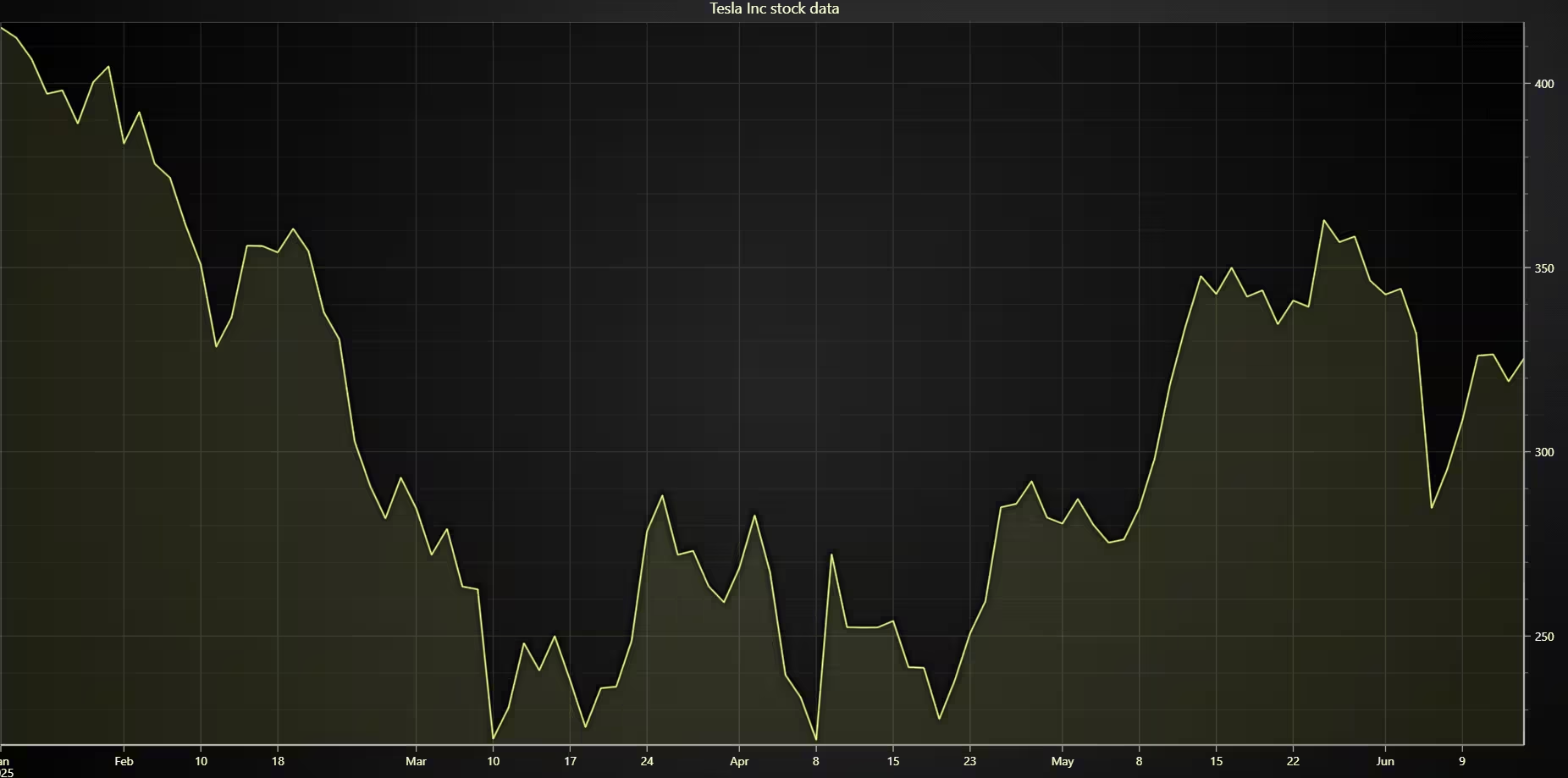
A mountain chart is another traditional chart for visualizing data. While not as detailed as the previous ones, it allows one to get a quick overview of price directions (among other things). If a quick overview is wanted, the Mountain chart is a great choice. For example, looking at price changes over a long period, and then using more detailed tools to investigate any interesting periods.
def chart3():
    """Mountain chart example"""

    getData(ticker='TSLA', api_name='TIME_SERIES_DAILY')
    trader.set_color_theme('darkGold')
    trader.set_price_chart_type('Mountain')
    trader.open()
Game Stop Line chart
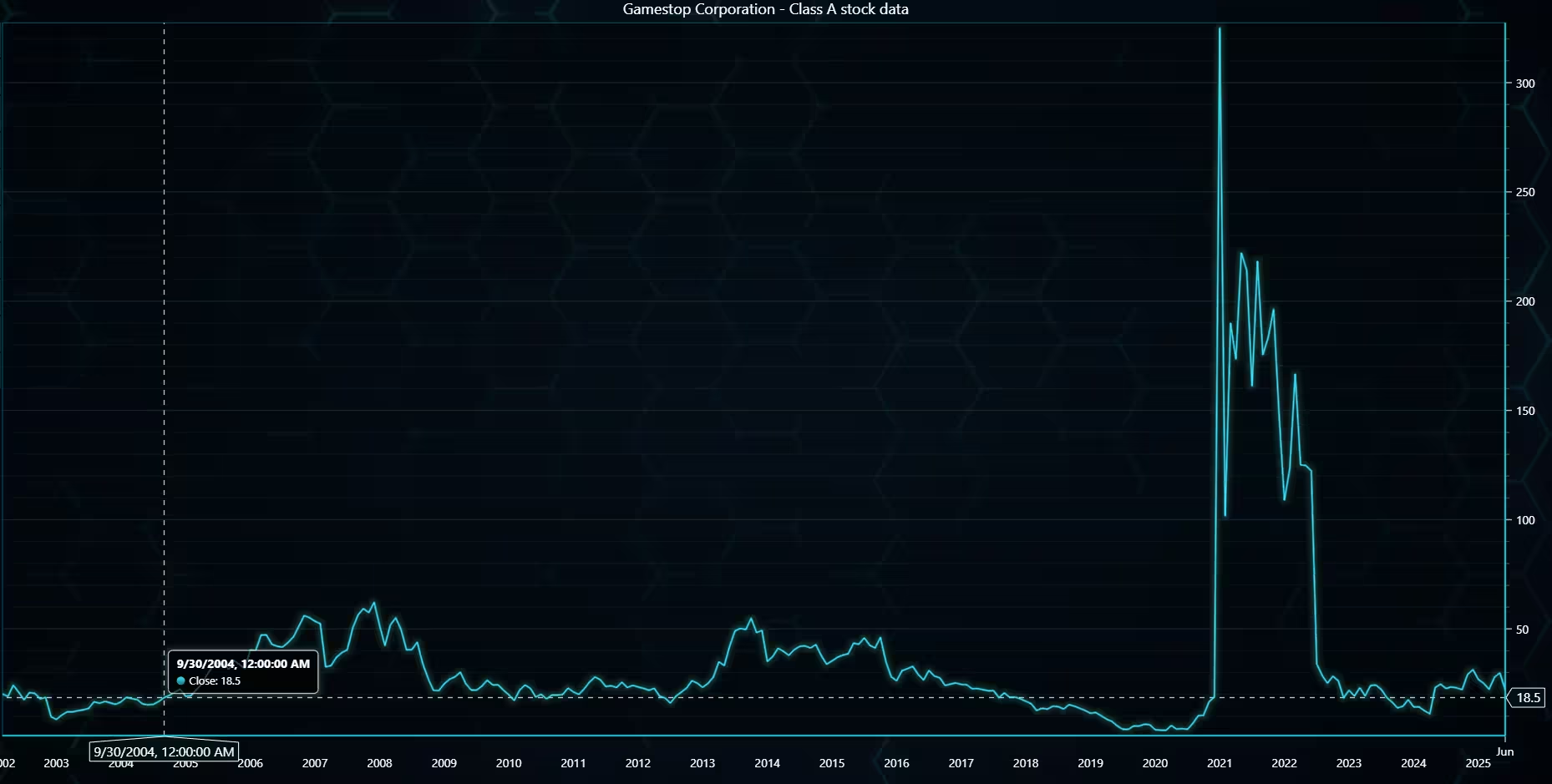
A line provides the same functionality as a mountain chart, without the coloured area. A great tool when wanting to quickly visualise something, and details aren’t a concern. Note that in this dataset, the monthly series is used instead of the daily one.
def chart4():
    """Line chart example with added technical indicators"""

    getData('GME', api_name='TIME_SERIES_MONTHLY')
    trader.set_color_theme('turquoiseHexagon')
    # add the technical indicators standart deviation, HVI and HML
    trader.add_standard_deviation(period_count=20)
    trader.add_historical_volatility_index()
    trader.add_high_minus_low()
    trader.set_price_chart_type('Mountain')
    # Open the chart
    trader.open()
Heikin Ashi chart
def chart5():
    """Example of a Heikin Ashi chart"""

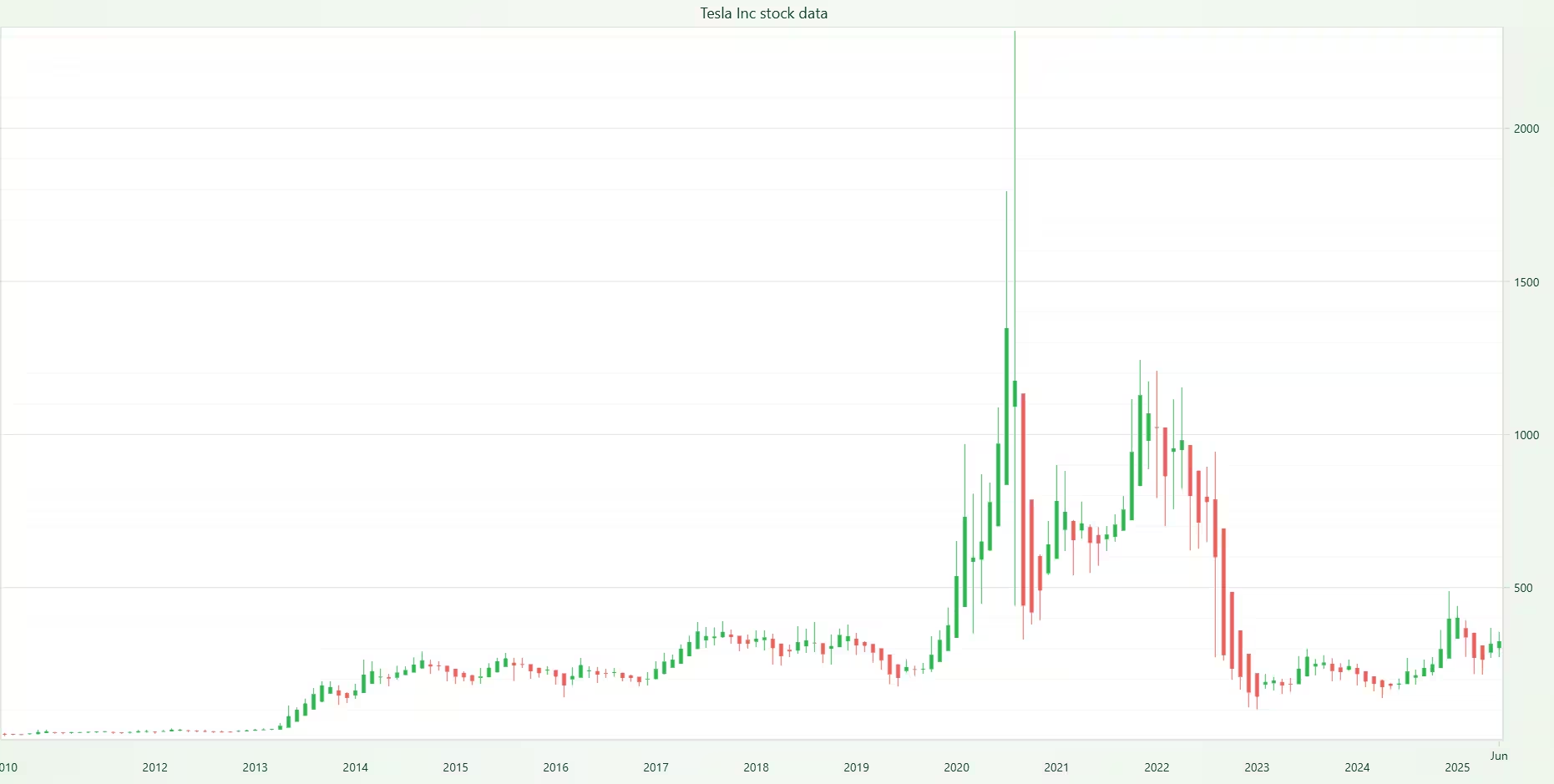
    getData('TSLA', api_name='TIME_SERIES_MONTHLY')
    trader.set_color_theme('lightNature')
    trader.set_price_chart_type('HeikinAshi')
    trader.open()
Renko chart
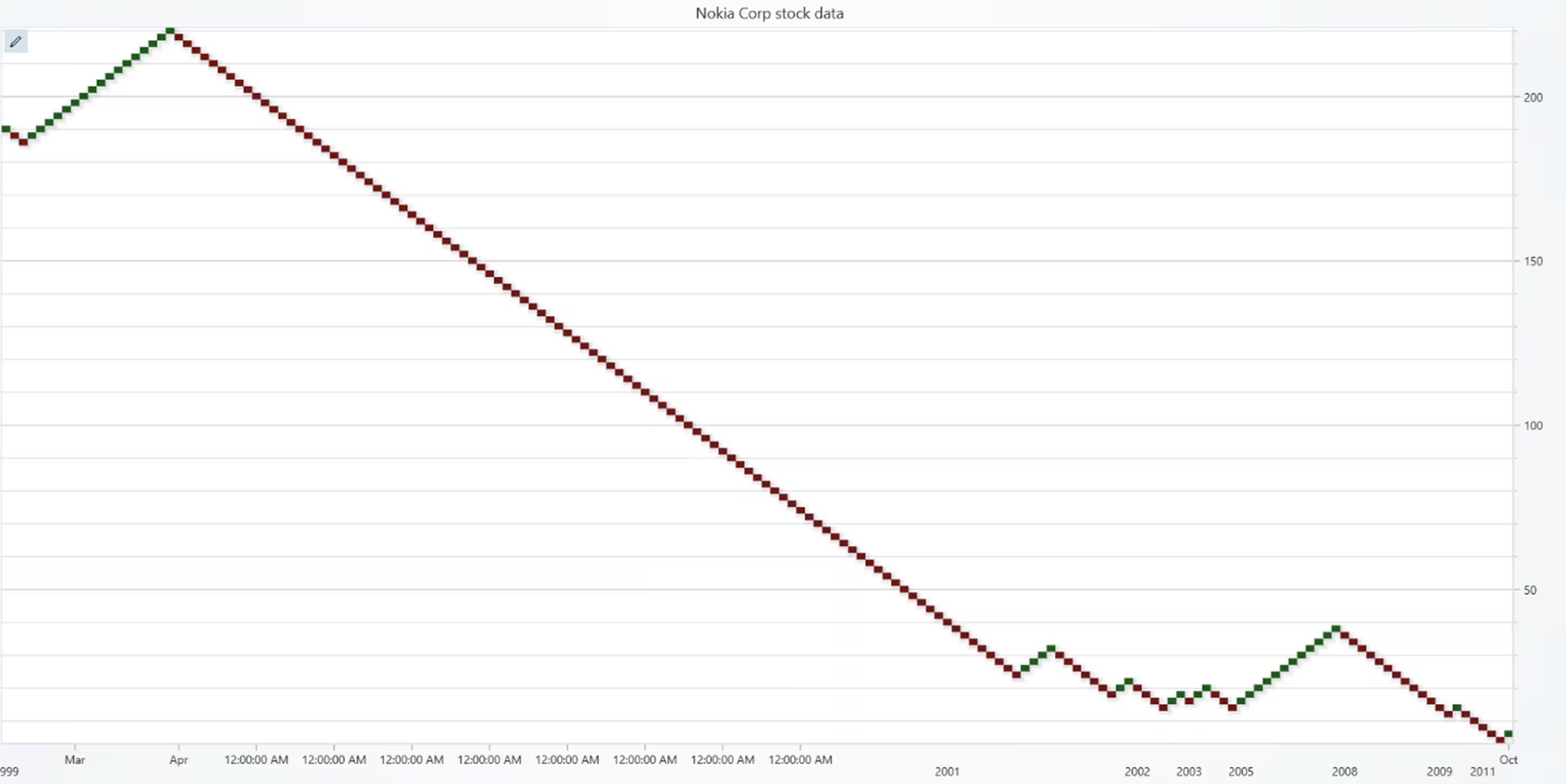
Renko charts are a special kind of chart originating from Japan. Instead of focusing on plotting the price movements over a period of time, they focus purely on price movements. They accomplish this by adding a new ”brick” to the plot when the price movement goes over a predefined threshold. Time can still be plotted with them; however, as new markings are only added when the price moves, it might not appear linear. As seen in the chart above.
def chart6():
    """Example of a renko chart"""

    getData('NOK', api_name='TIME_SERIES_MONTHLY')
    trader.set_color_theme('light')
    trader.set_positive_body_color("#1d5a1c")
    trader.set_negative_body_color("#6a1717")
    trader.set_price_chart_type('Renko')
    trader.open()
Kagi chart
A kagi chart is used to show changes in price direction. The direction changes only when the price drops or rises by a certain, predefined amount. The line in the Kagi chart varies in thickness depending on whether the overall price trend is upwards or downwards. A thick line indicates bullish sentiment, while a thinner line indicates bearish sentiment.
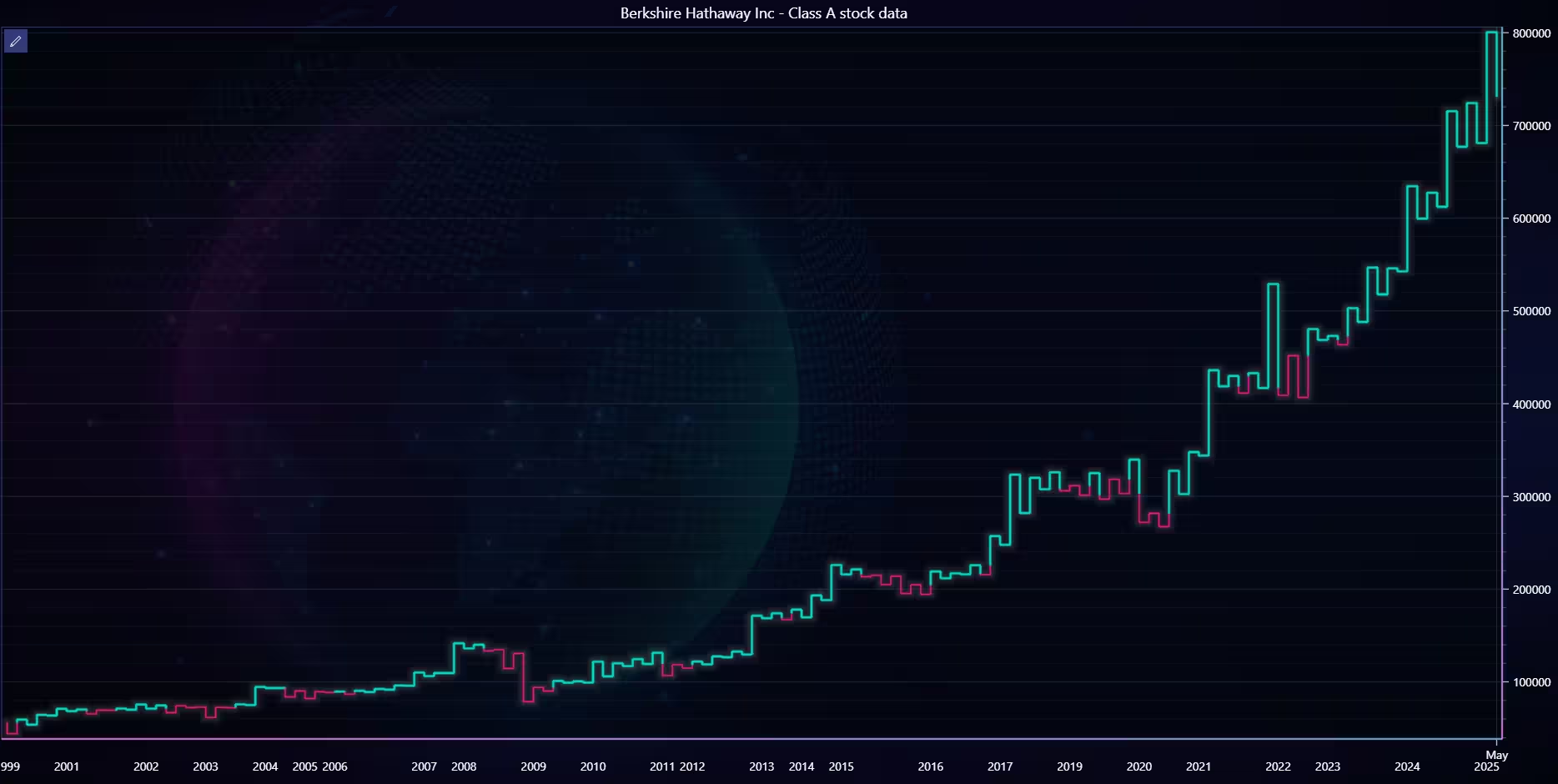
def chart7():
    """Example of a Kagi chart"""

    getData('BRK-A', api_name='TIME_SERIES_MONTHLY')
    trader.set_color_theme('cyberSpace')
    trader.set_price_chart_type('Kagi')
    kagi = trader.get_kagi_instance()
    kagi.set_thick_line_color("#11e787")
    kagi.set_thin_line_color("#31553b")
    trader.open()
Point And Figure Chart
In point and figure charts, price increases are marked by X, and prices fall by O. A symbol is added to the latest column when the price falls or rises by a certain amount (depending on the column). A new column of opposing type is created when the price movement reverses by a set amount. A column is never followed by a column of the same type. The column doesn’t represent a fixed time, and could represent price movement over a day, week, month, etc.
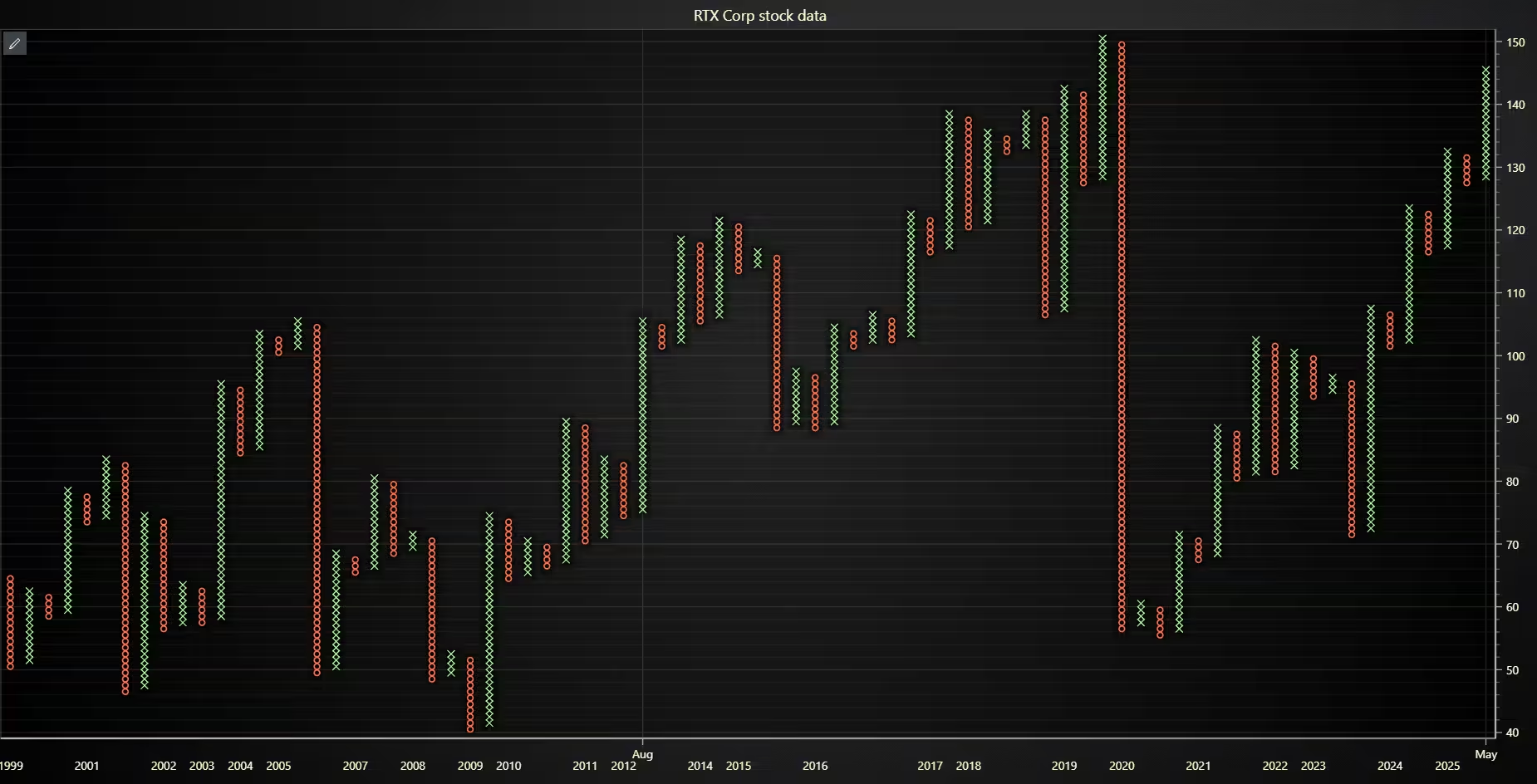
def chart8():
    """Example of a point and figure chart"""

    getData('RTX', api_name='TIME_SERIES_MONTHLY')
    trader.set_color_theme('darkGold')
    trader.set_price_chart_type('PointAndFigure')
    trader.open()
Conclusion
LightningChart Python Trader provides extensive charting capabilities. Featuring numerous charts for different needs, as well as pre-built indicators for technical analysis. Picking the right tools for the job is very important, especially when it comes to financial markets. The Python Trader library provides these tools and enables one to easily utilize them to perform high-level analysis of the financial markets and visualize time series data for stock market trading.
Continue learning with LightningChart

EEG Chart
Written by a human | Updated on April 10th, 2025EEG Chart The human brain is one of the most complex and fascinating structures in the world. Scientists have been studying the brain for years to better understand how it works and to find ways to diagnose and...

Best WPF Charting Library
Written by a human | Updated on April 10th, 2025What is the best WPF charting library? WPF (Windows Presentation Foundation) is a graphical subsystem in .NET for building Windows desktop applications. It provides rich graphical capabilities, allowing developers...
Choosing the right XY line series
LightningChart .NET features 10 different line series. Read more about their characteristics and functionalities and choose the best for your app.



If you have any questions, feel free to contact us!
©LightningChart Ltd 2025. All rights reserved.