





Government Bond Yields Analysis with LightningChart Python Trader
Tutorial
Written by a Human
Create a bold yield analysis application using LightningChart Python Trader line charts, Kagi charts, mountain charts, dashboards, and more.
Mikael Virtanen
Data Science Python Developer


Introduction
This article is a data visualization demonstration on how to create a bond yield analysis using LightningChartPython trader. The data has been sourced from a Kaggle dataset and requires a fair bit of preprocessing before visualization. For this process, the Python library Pandas will be used.
Kaggle dataset
The data for this article was sourced from a Kaggle dataset created by Alex Orekhov. The dataset provides two CSV files, prices.csv and yields.csv. Both will be used during the process.
Plotted variables
LightningChart Python Trader requires Open, High, Low, Close (O, H, L, C) values to work as well as a date. These values refer to the stock’s Highest and Lowest prices during the trading day, as well as what the price was at market open and close. Volume value is not required for the trader to work, but is needed for certain indicators.
LightningChart Python Trader can read and process the data automatically if the fields (or in this case columns) are labelled correctly. In this case, two problems are encountered in this regard. Firstly, the dataset does not contain all the OHLC values, but a simple price value. This can be overcome by simply using that value in all the fields. Additionally, the fields need to be relabelled. The time column also requires some work, as right now it’s not easily readable by a human.
Libraries used
LightningChart Python trader
LightningChart Python Trader must be installed unless it is already available in your environment. You can install it using the following command
pip install lightningchart_trader- Pandas: Pandas also needs to be installed before it can be imported into the project.
- OS Library: Python’s built-in OS library will be used briefly. It comes preinstalled with Python, so no additional setup is required
LightningChart Python Trader
LightningChart’s Python Trader (PT) provides extensive charting solutions with a high degree of customizability through its easy-to-use UI and built-in functionalities. Since the library is built for Python, it’s also possible to use other Python libraries if necessary. As with all Lightningchart products, Performance has been a high priority when developing the library, even when working with large amounts of data, thus removing possible bottlenecks in this area.
Overview of the UI
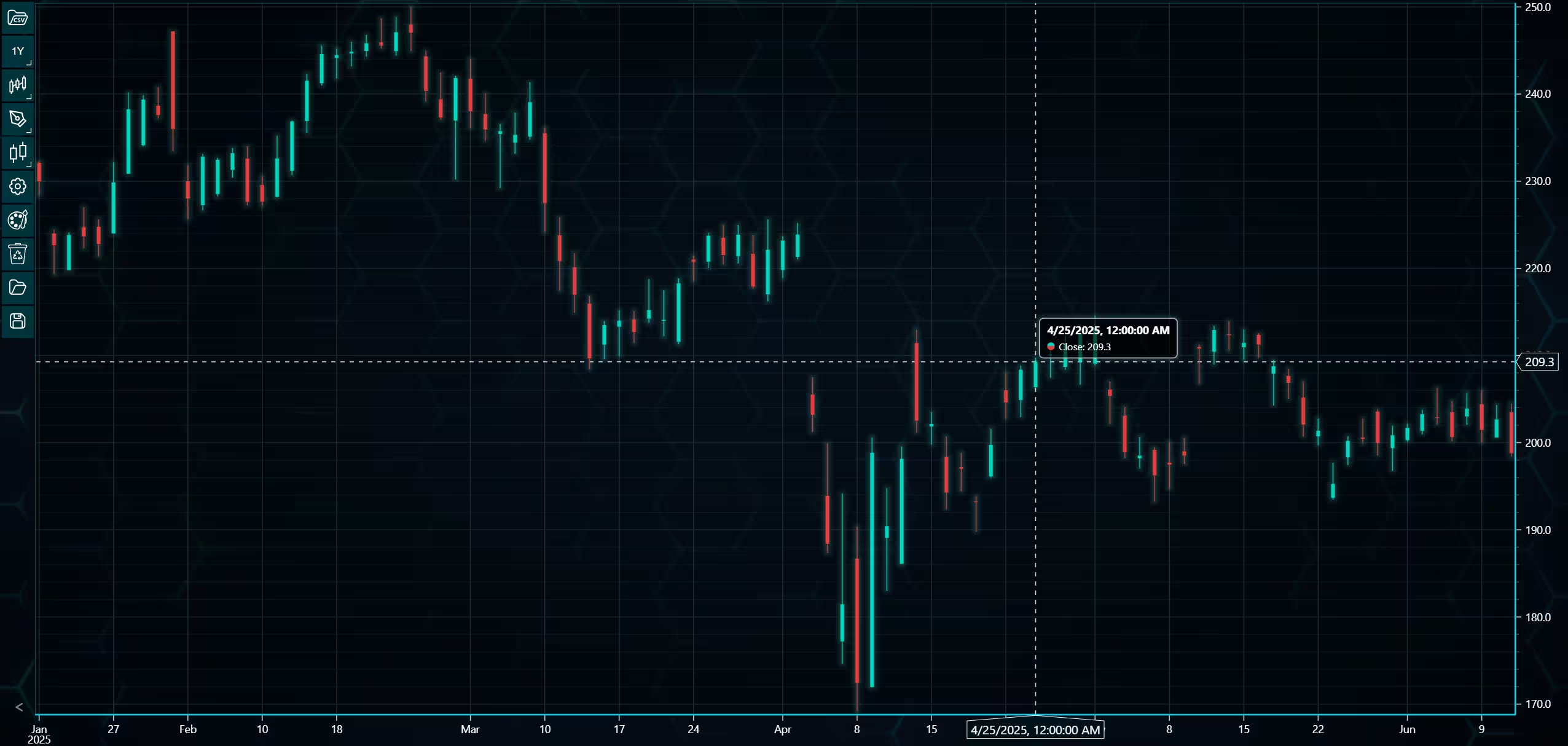
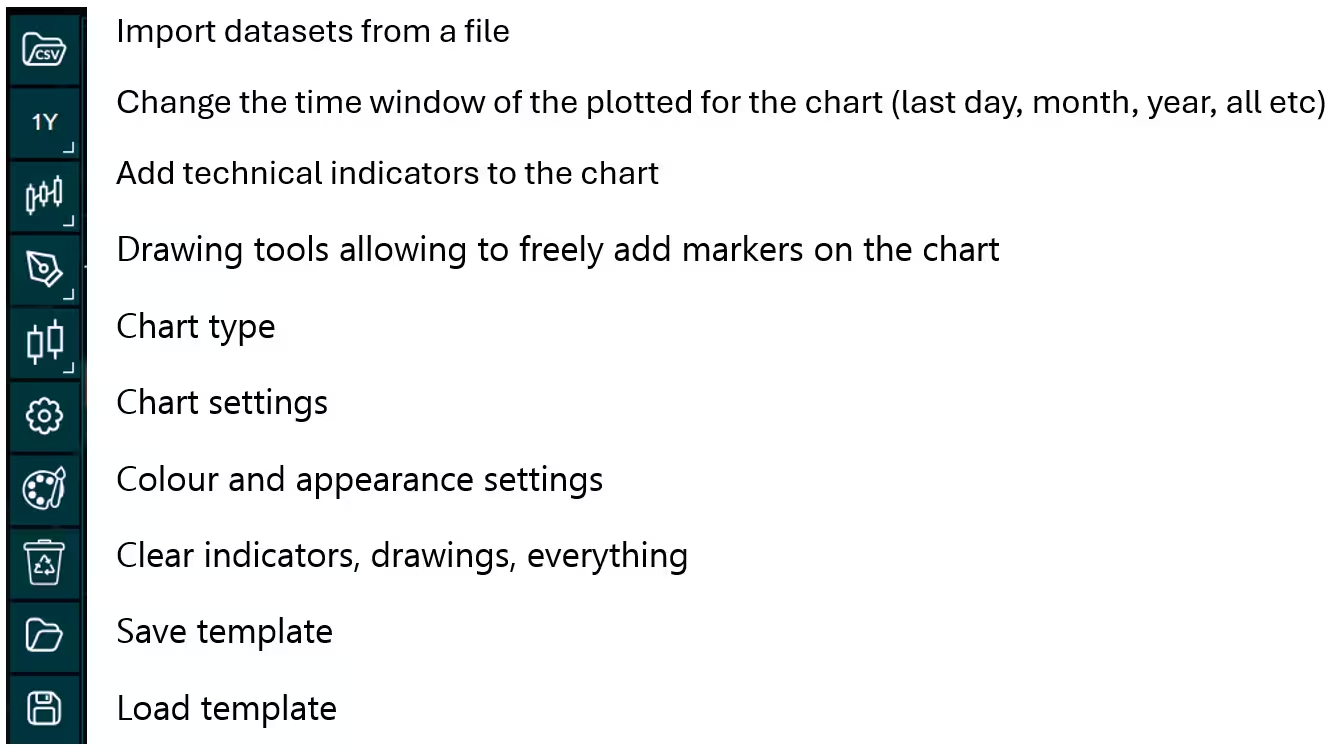
Above is the PT user interface with stock data charted using the default candlestick chart. On the top left are controls used to customize the chart and work with datasets. Here is the explanation for all the UI controls:
Charting features
These are chart types of Python trader provides out of the box.
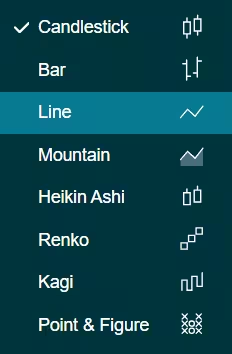
Chart types can be changed with the the UI or with the set_price_chart_type(chart_type) command. Available ones are ‘CandleStick’, ‘Bar’, ‘Line’, ‘Mountain’, ‘HeikinAshi’, ‘Renko’, ‘Kagi’, and ‘PointAndFigure’. For example, a mountain creating a mountain chart using the following methods:
trader.set_price_chart_type('Mountain')
trader.add_data_array(data)
trader.open()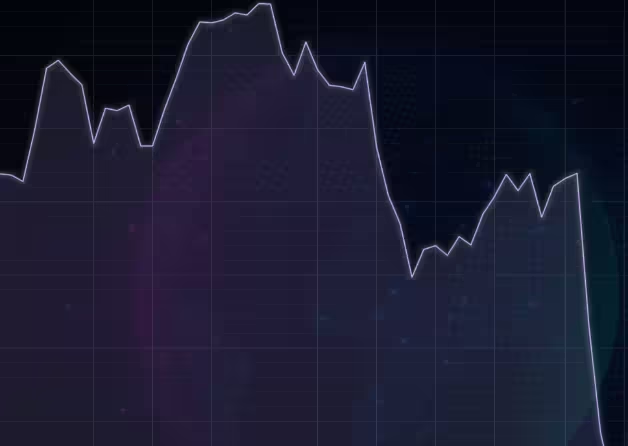
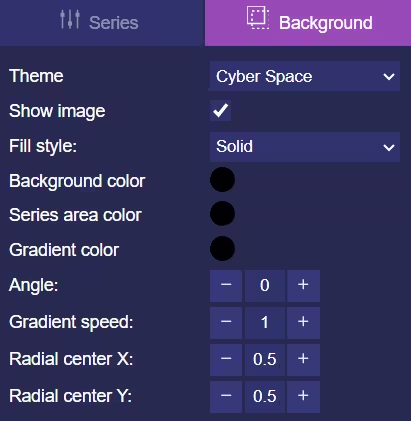
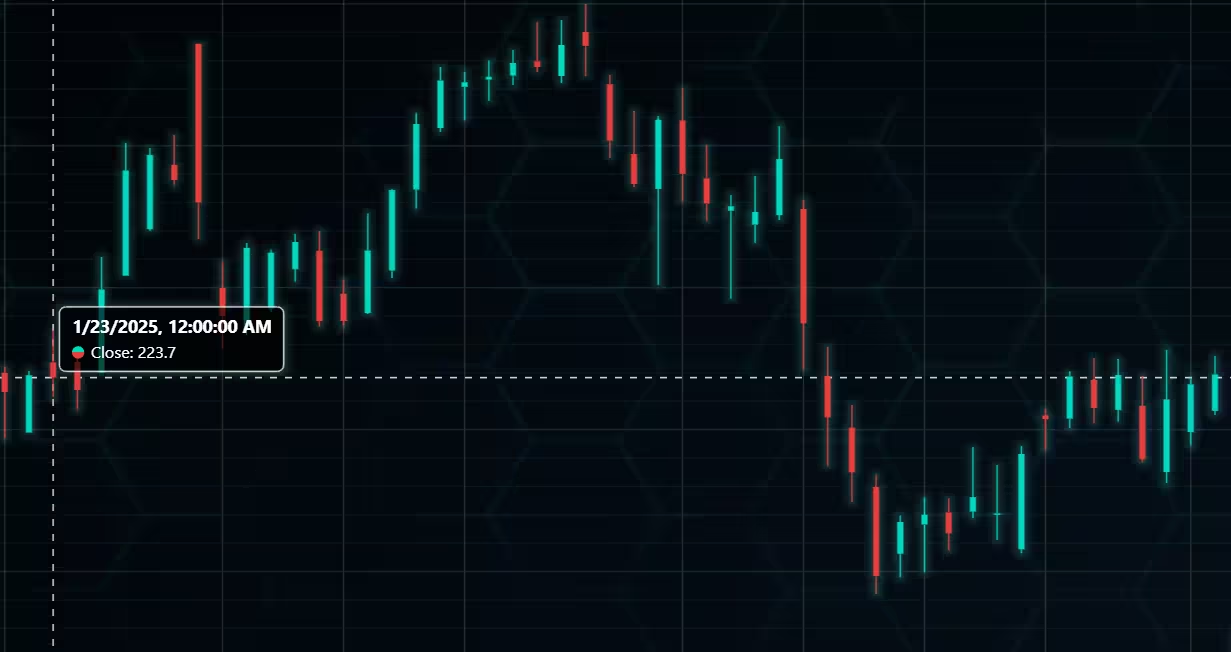
Chart visuals can be customized using the Python trader UI. Below are available settings for chart and indicator colours, background colour/image etc.
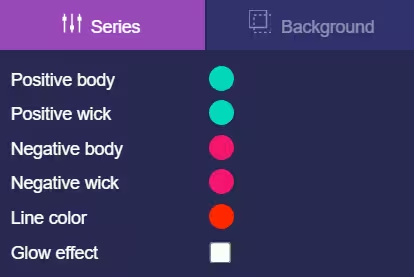
Default chart colours.
Background and indicator colours changed
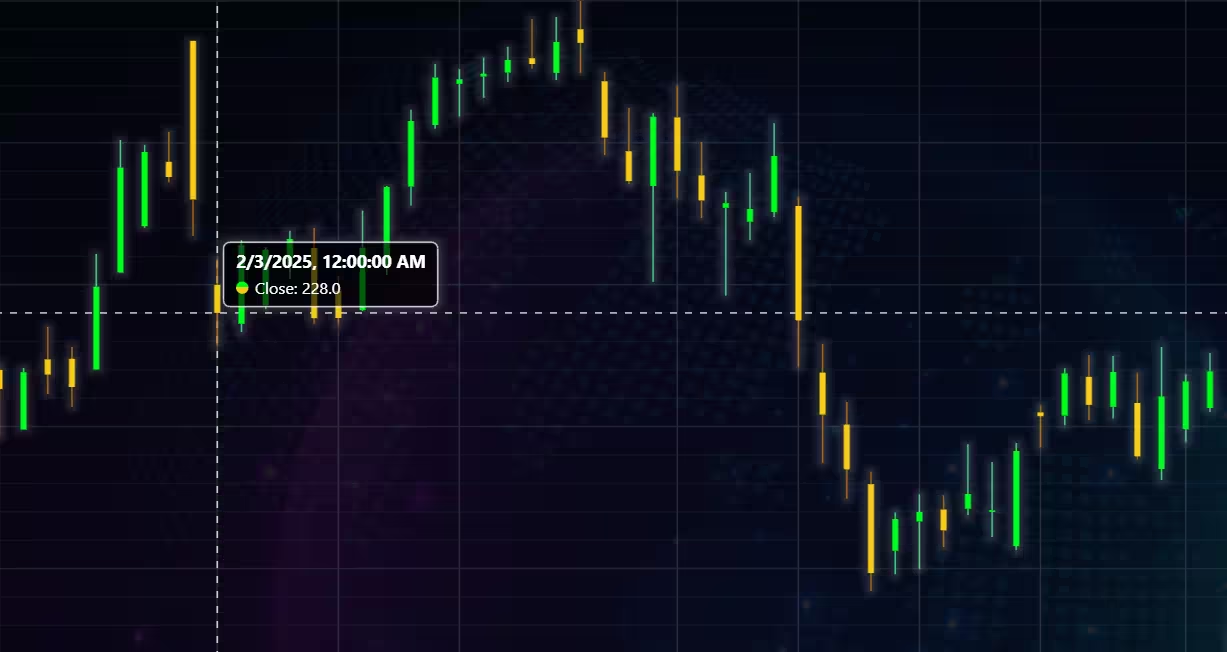
Chart customization
Customisation can also be done with code, using the built-in methods. The code below changes the background image and the chart colours to the ones seen in the right image. But why use code for customisation, since working with UI is easier?
trader.set_color_theme('cyberSpace')
# Changing the indicator colours for the candlesticks
trader.set_positive_body_color('#0fdf0c')
trader.set_positive_wick_color('#33d7a0')
trader.set_negative_body_color("#f3eb16")
trader.set_negative_wick_color('#b85900')
When the customization is applied on code level there’s no need to change any settings or load a template. Meaning you won’t have to make the changes every time when opening a chart. Python trader supports the use of templates for customization, and these files can be loaded in with code.
However, you still need to manually select the file, and in case you want to share the chart the template file would also need to be shared. When the changes are done in code, only it needs to be shared to get the same results.
Technical indicators
Python trader supports over 100 technical indicators. These include ones such as Relative Strength Index (RSI), Bollinger bands, Moving averages (SMA, EMA etc), Oscillators for money flow and price, Fibonacci retracements, as well as statistical ones like Standard deviation. Technical indicators can be added to a chart easily with the trader UI, their properties (period count, standard dev) can also be changed the same way.
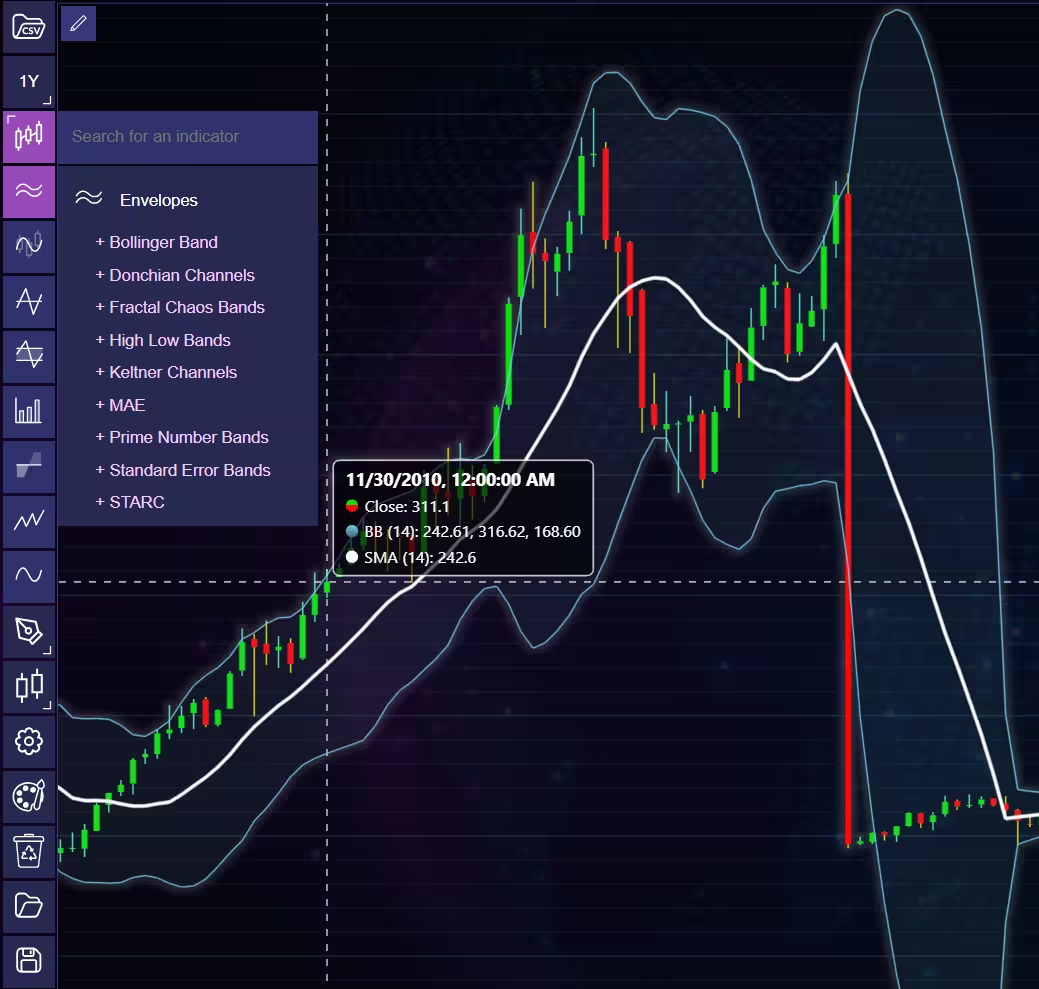
These indicators can also be added and customized via code.
trader.add_simple_moving_average(period_count=14)
trader.add_bollinger_band(period_count=14)
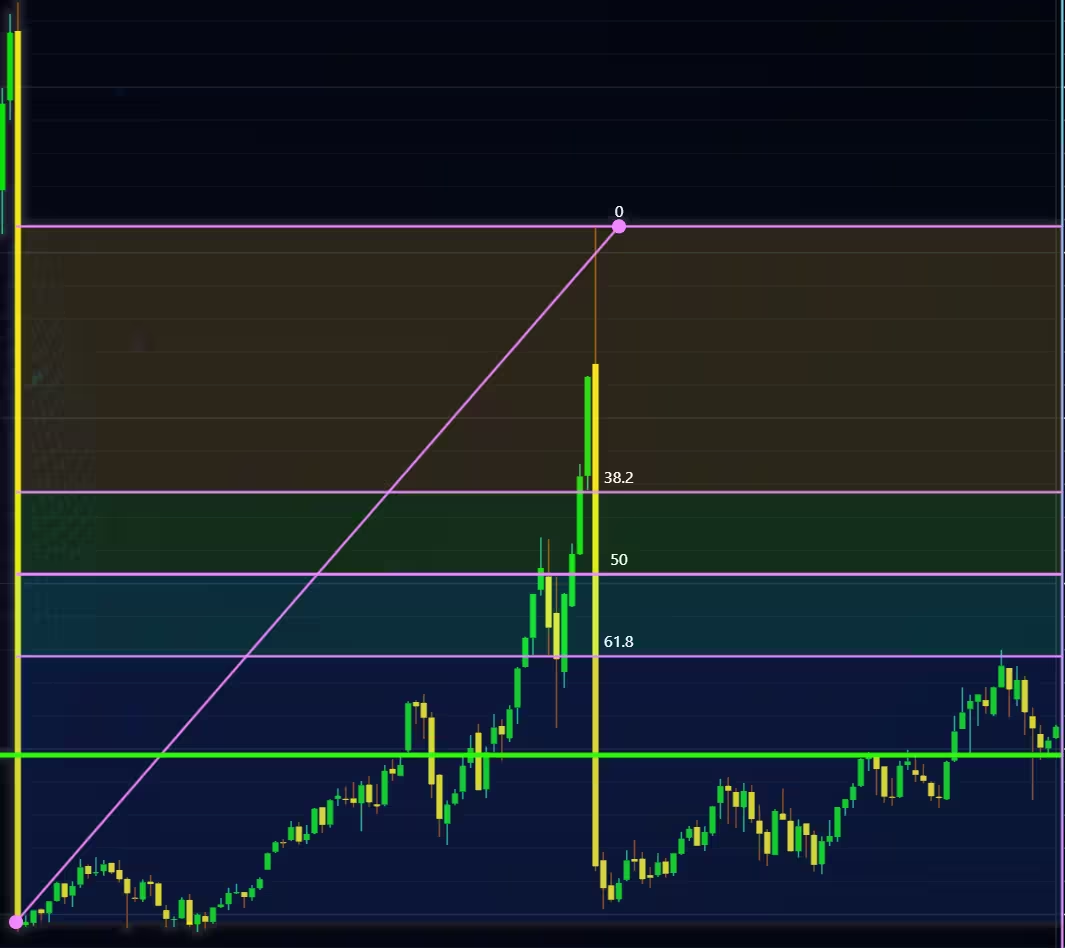
Indicators such as the Fibonacci patterns can be added with the built-in draw tools. Other markers can also be added this way. To see all the indicators, refer to the documentation.
Setting Up Python Environment
This code snippet imports the necessary libraries and creates a new trader instance, which remains unchanged across charts.
from lightningchart_trader import TAChart
import pandas as pd
import os
license_key_path = "Python-Trader_License_key.txt"

# license key for python trader and the stock API
license_key = open(license_key_path).read()
chart = TAChart(license_key)
path_to_csv = 'data/'

# All file names in the filepath
csv_list = os.listdir(path_to_csv)
Preprocessing
As stated earlier, LightningChart Python Trader requires all the OHLC values and a date to display data (at the time of writing, at least). We can work around this by formatting the price data to include the price data in the appropriate fields for the bond yield analysis. Additionally, the time column needs to be converted from a UNIX timestamp into date format (yyyy-mm-dd).
The preprocessing function takes three parameters: a country label (eg, US, GB). This label needs to be the prefix of the bonds you wish to visualize. The bond_term is the specific column name that is used for the visualization. Finally, a source_df, which is the data source. This is either the .csv file that has the price or yield data. These change per chart basis and are passed from the chart functions themself.
Firstly, create a new data frame with only the columns of the specified country. Then copy the time column in the new data frame. Next, using the datetime module, convert the time stamps from UNIX time to a more readable one.
Create a dictionary with the OHLC and date values and insert the price value to each one (except for the date). Finally, append the dictionary to a list, repeat for each row in the data frame until you have a list of dictionaries that can be used by the trader.
def preprocess(bond_term, country, source_df):
    "Perfrom any needed preprocessing to the data"

    # Only include bond data from that specific country
    filtered_df = source_df.filter(like=country, axis='columns')

    # Insert the time column into the new dataframe, with the filtered country columns
    filtered_df.insert(0, 'time', source_df['time'])

    # Change the time format from unix timestamp (ms) in to a readable date format (yyyy-mm-dd)
    date_list = [datetime.fromtimestamp(date/1000).strftime('%Y-%m-%d')
                 for date in filtered_df['time']]

    # Use the price column for all the OHLC value fields.
    value_list = filtered_df[bond_term].to_list()
    # Insert the ohlc values and date in to dictionary then append that dictionary into a list to be used as a data source
    return [{'open': val, 'high': val, 'low': val, 'close': val, 'date': date}
            for val, date in zip(value_list, date_list)]
Bond Yield Analysis & Visualizations
Finally, the visualization itself. When generating the charts, call the appropriate function. Remember to include the preprocessing function.
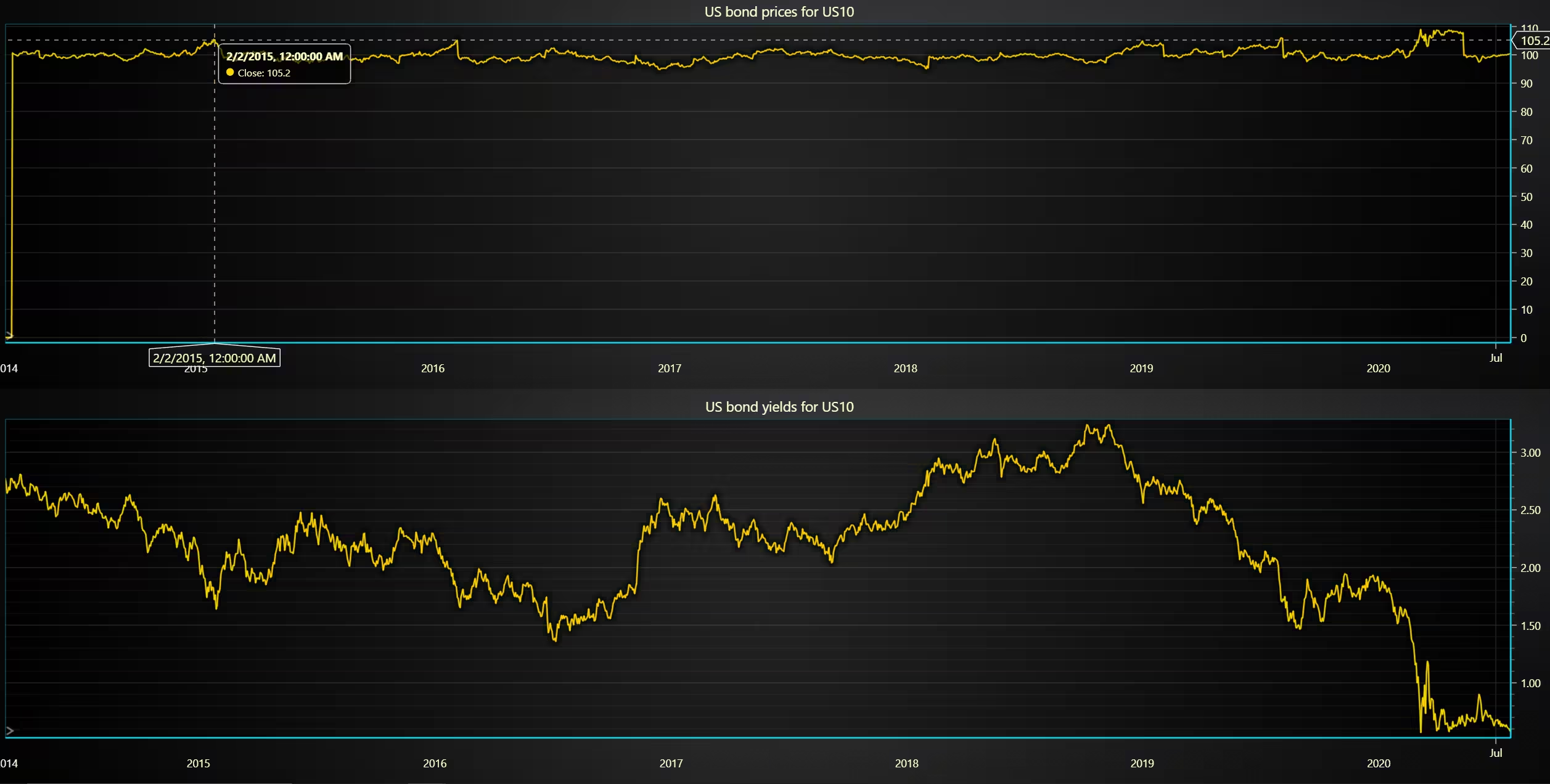
US 10-year bond yield and price over time
A line chart illustrating the development of 10-year term bond prices and yields.
def chart1():
    # Create dashboard, with x row(s) and x column(s)
    new_dashboard = chart.create_dashboard(2, 1)
    # Indexes used to postiion charts to the dashboard
    row_index = 0
    column_index = 0
    # Country and their respective bonds used for dashboard
    countries = ['US']
    bond_term = ['US10']
    price_df = pd.read_csv(path_to_csv + csv_list[0])
    yields_df = pd.read_csv(path_to_csv + csv_list[1])
    bond_index = 0
    for country in countries:
        # Create a chart for bond prices and increment column index
        chart_list = preprocess(bond_term=bond_term[bond_index], country=country, source_df=price_df)
        dashboard_chart = new_dashboard.add_chart('Line', row_index, column_index).set_data(chart_list)
        dashboard_chart.set_chart_title(f"Bond prices for {bond_term[bond_index]}")
        row_index += 1
        # Another one for bond yields
        chart_list = preprocess(bond_term=bond_term[bond_index], country=country, source_df=yields_df)
        dashboard_chart = new_dashboard.add_chart('Line', row_index, column_index).set_data(chart_list)
        dashboard_chart.set_chart_title(f"Bond yields for {bond_term[bond_index]}")
        dashboard_chart.set_color_theme('darkGold')
    chart.open()
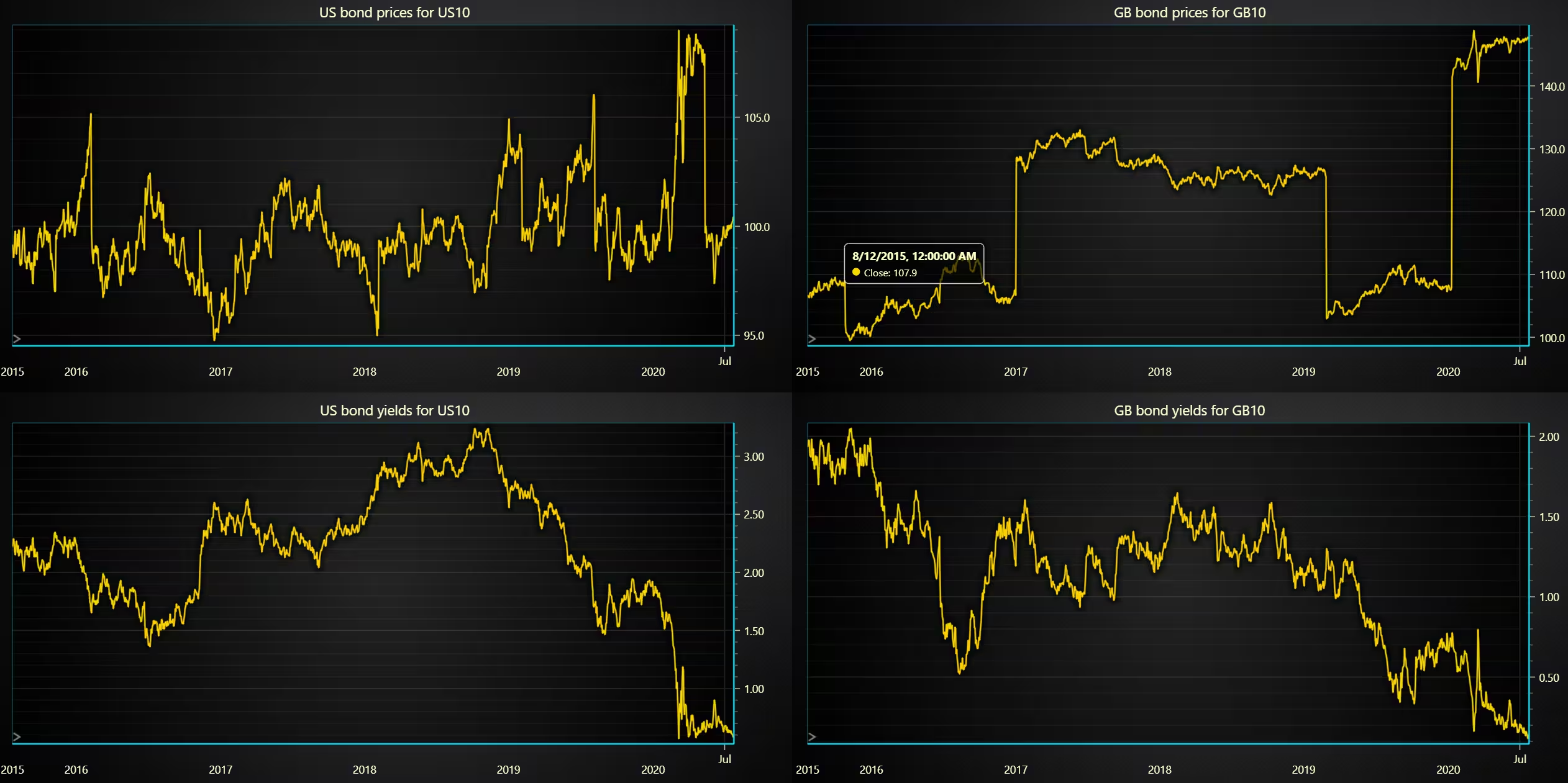
Bond price and yield comparison between the US and the UK
Comparison of US and GB 10-year bond prices and yields.
def chart2():
    # Create dashboard, with x row(s) and x column(s)
    new_dashboard = chart.create_dashboard(2, 2)
    # Indexes used to postiion charts to the dashboard
    row_index = 0
    column_index = 0
    # Country and their respective bonds used for dashboard
    countries = ['US', 'GB']
    bond_term = ['US10', 'GB10']
    price_df = pd.read_csv(path_to_csv + csv_list[0])
    yields_df = pd.read_csv(path_to_csv + csv_list[1])
    bond_index = 0
    for country in countries:
        # Create a chart for bond prices and increment column index
        chart_list = preprocess(bond_term=bond_term[bond_index], country=country, source_df=price_df)
        dashboard_chart = new_dashboard.add_chart('Line', row_index, column_index).set_data(chart_list)
        dashboard_chart.set_chart_title(f"Bond prices for {bond_term[bond_index]}")
        column_index += 1
        # Another one for bond yields
        chart_list = preprocess(bond_term=bond_term[bond_index], country=country, source_df=yields_df)
        dashboard_chart = new_dashboard.add_chart('Line', row_index, column_index).set_data(chart_list)
        dashboard_chart.set_chart_title(f"Bond yields for {bond_term[bond_index]}")
        # Reset column index and increment row and bond indexes
        column_index = 0
        row_index += 1
        bond_index += 1
        dashboard_chart.set_color_theme('darkGold')
    chart.open()
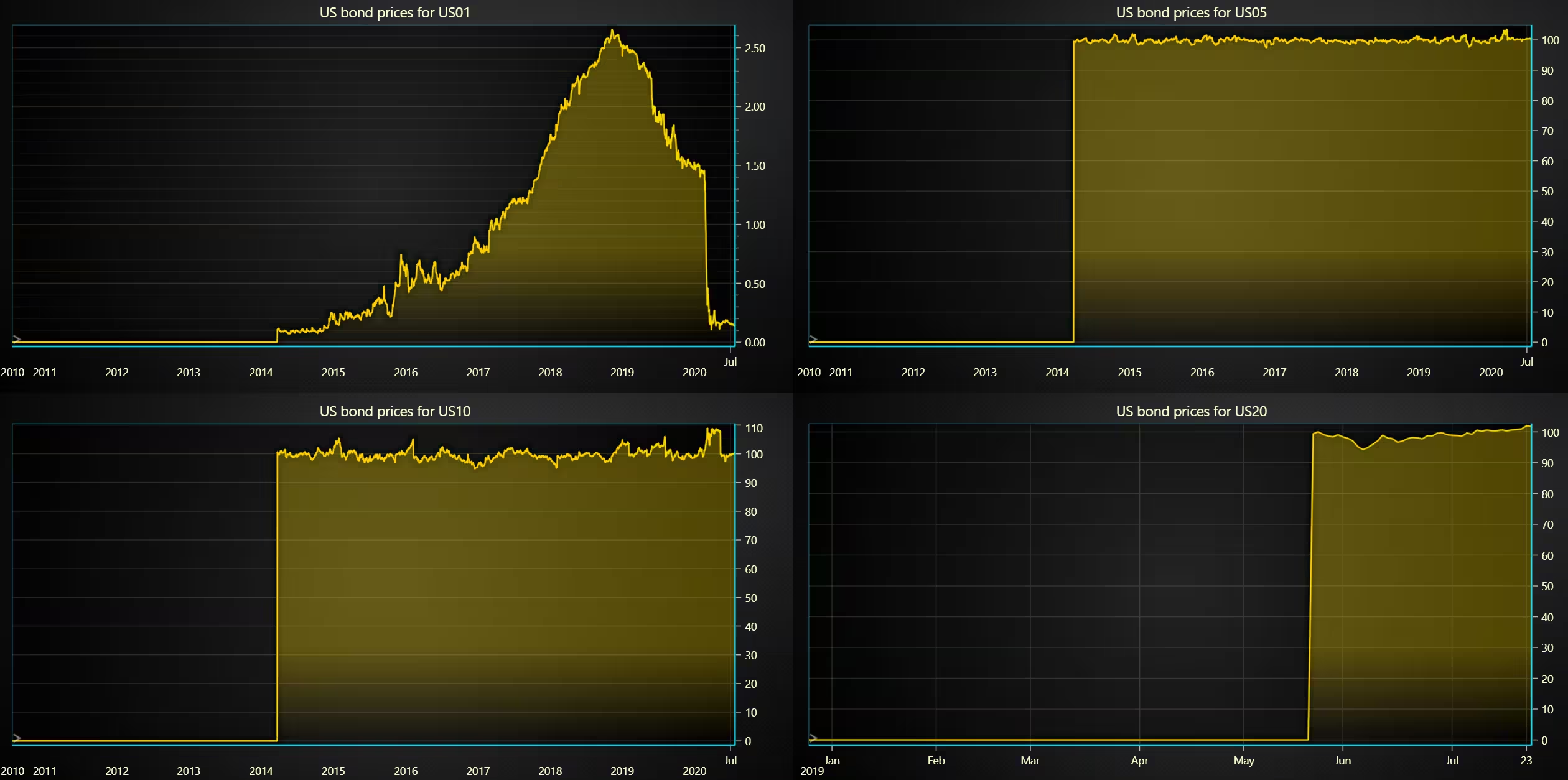
Comparison of prices and yields for several bond term lengths
Bond price comparisons
Bond yield comparisons
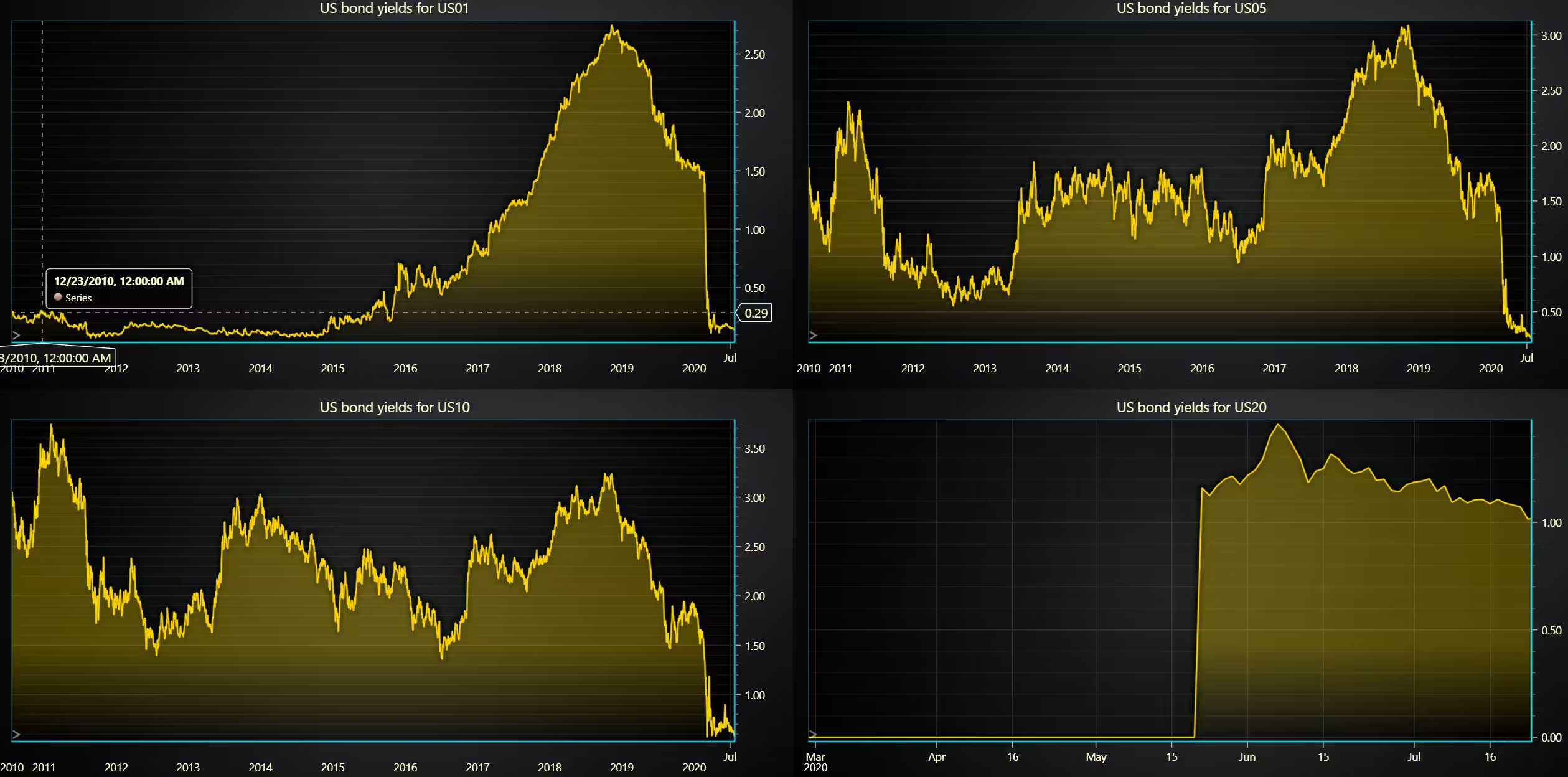
Note, you have to change the csv_list[1] index depending on whether you are charting yields or prices.
    # Create dashboard, with x row(s) and x column(s)
    new_dashboard = chart.create_dashboard(2, 2)
    row_index = 0
    column_index = 0
    # Country used for dashboard
    country = 'US'
    # Bond terms from the selected country
    bond_term = ['US01', 'US05', 'US10', 'US20',]
    # Source either prices.csv [0] or yields.csv [1]
    source_df = pd.read_csv(path_to_csv + csv_list[1])
    for bond_term in bond_term:
        chart_list = preprocess(bond_term, country, source_df)
        dashboard_chart = new_dashboard.add_chart('Line', row_index, column_index).set_data(chart_list)
        dashboard_chart.set_chart_title(f"{country} bond yields for {bond_term}")
        # Position the charts to the dashboard
        column_index += 1
        if column_index >= 2:
            column_index = 0
            row_index += 1

        dashboard_chart.set_color_theme('darkGold')
    chart.open()
Kagi chart for comparing trend reversals
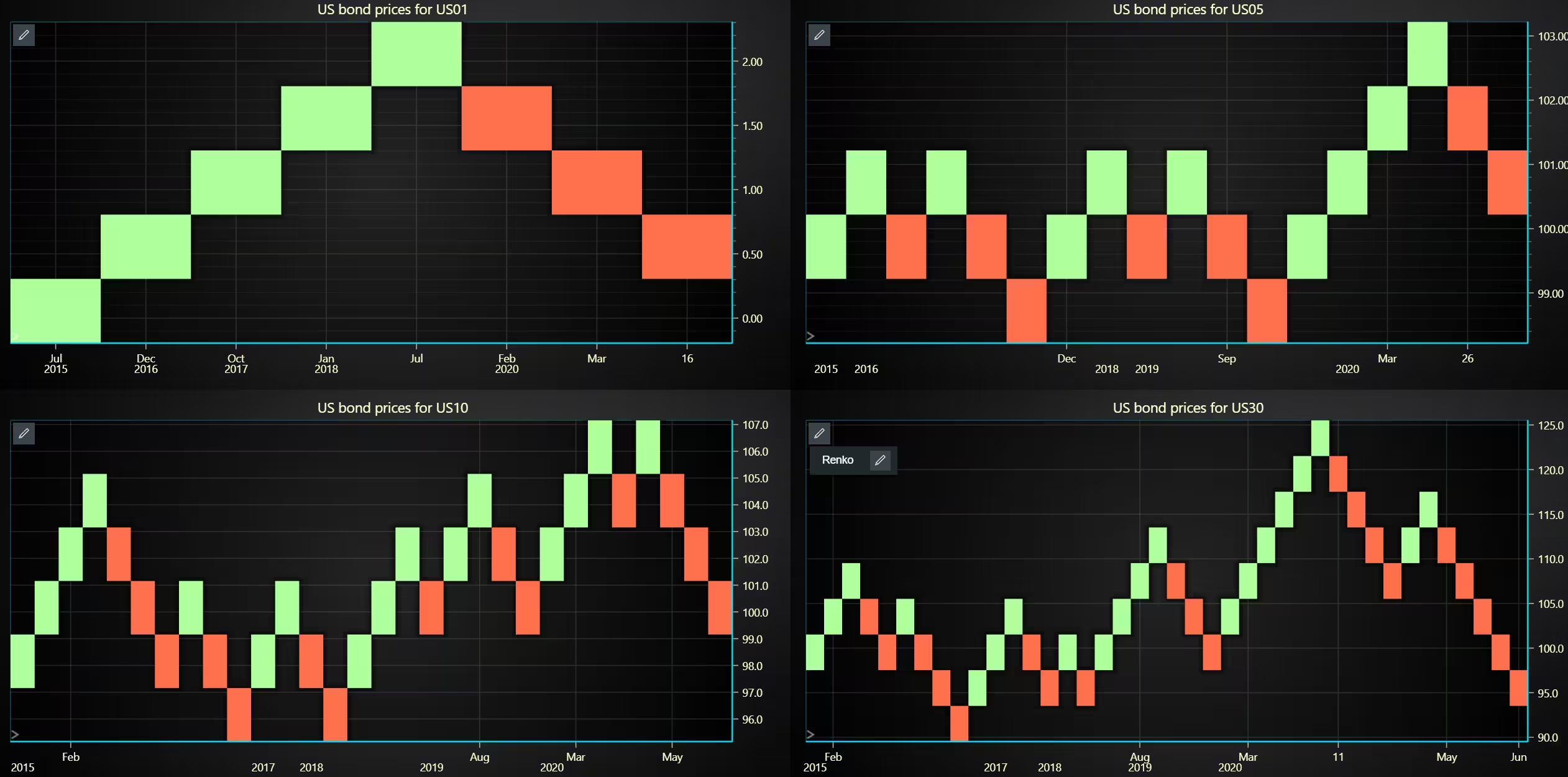
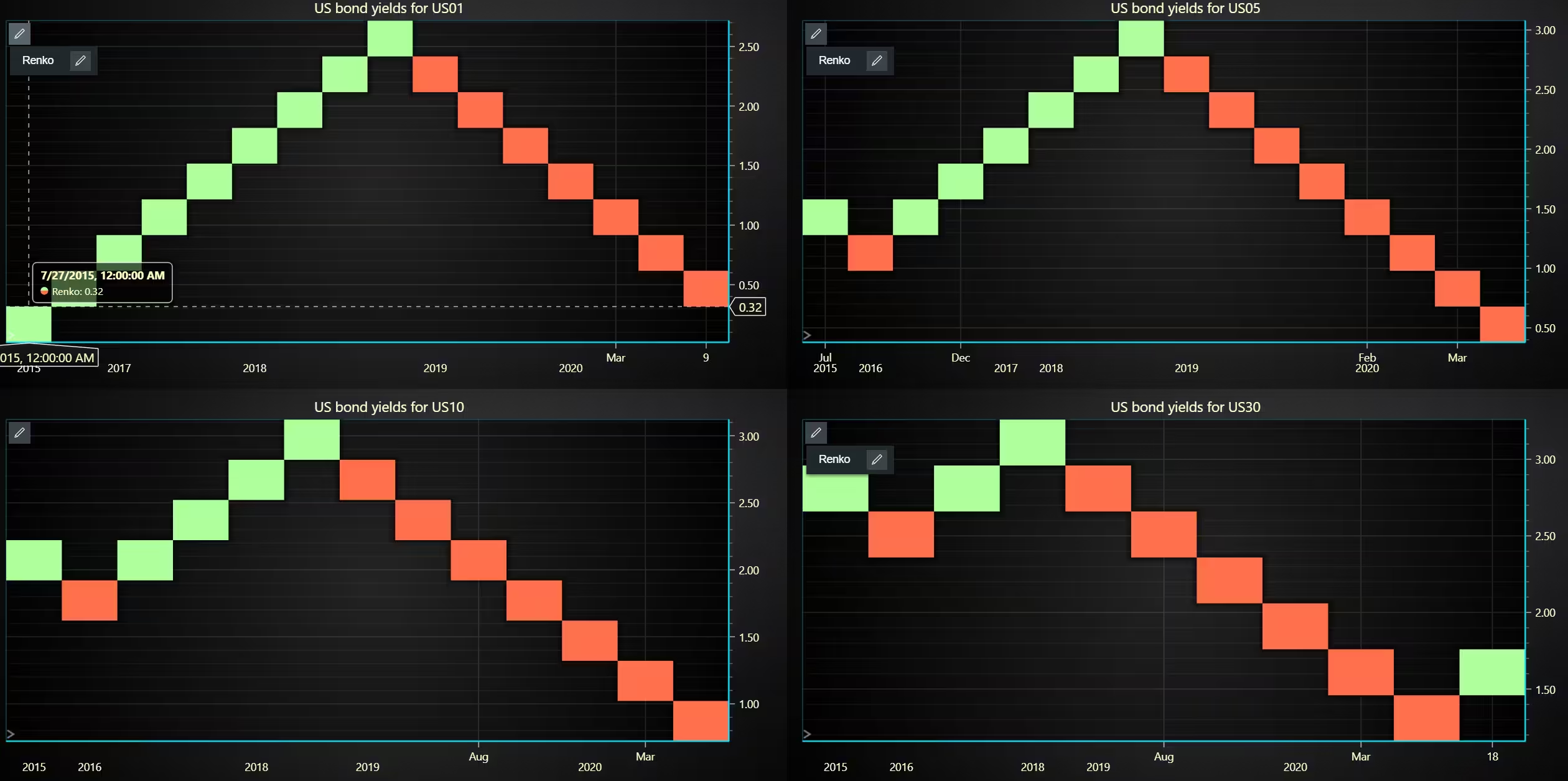
Note, you have to change the csv_list[1] index depending on whether you are charting yields or prices.
def chart4():
    # Create dashboard, with x row(s) and x column(s)
    new_dashboard = chart.create_dashboard(2, 2)
    row_index = 0
    column_index = 0
    # Country used for dashboard
    country = 'US'
    # Bond terms from the selected country
    bond_term = ['US01', 'US05', 'US10', 'US20',]
    # Source either prices.csv [0] or yields.csv [1]
    source_df = pd.read_csv(path_to_csv + csv_list[1])
    for bond_term in bond_term:
        chart_list = preprocess(bond_term, country, source_df)
        dashboard_chart = new_dashboard.add_chart('Renko', row_index, column_index).set_data(chart_list)
        dashboard_chart.set_chart_title(f"{country} bond yields for {bond_term}")
        # Position the charts to the dashboard
        column_index += 1
        if column_index >= 2:
            column_index = 0
            row_index += 1

        dashboard_chart.set_color_theme('darkGold')
    chart.open()
Conclusion
The data has been preprocessed and imported into LightningChart Python Trader. While some of the limits can initially be troublesome, since the trader is built for Python, other Python libraries can be used during the process. Such as Pandas, which makes data manipulation extremely easy.
Continue learning with LightningChart
7 Best FusionCharts Alternatives in 2026: Faster, Cheaper, More Capable
FusionCharts has been in enterprise JavaScript charting since the early 2000s and built a genuinely broad product, 90+ chart types, over 1,000 interactive maps, multi-language support that most competitors don't come close to matching, and a track record with over...
Best DevExpress Charts Alternative in 2026: GPU Performance for Web and Desktop
DevExpress is one of the most comprehensive UI component suites in the .NET and web ecosystem. WinForms, WPF, ASP.NET, Blazor, JavaScript it covers the full Microsoft-aligned development stack with grids, schedulers, form components, reporting, and charting all...
Best Chart.js Alternatives in 2026: When You’ve Outgrown the Basics
Chart.js is the correct answer for a lot of chart projects. MIT license with no commercial restrictions, ~14KB gzipped, documentation that is genuinely among the best in the ecosystem, 65,000+ GitHub stars, and the largest community of any JavaScript chart library by...



If you have any questions, feel free to contact us!
©LightningChart Ltd 2025. All rights reserved.