





Create a JavaScript World Map with Zooming
Tutorial
Written by a Human
Learn how to create a high-performance world map with UI zooming features using LightningChart JS charting library.
Omar Urbano
Software Engineer

Introduction
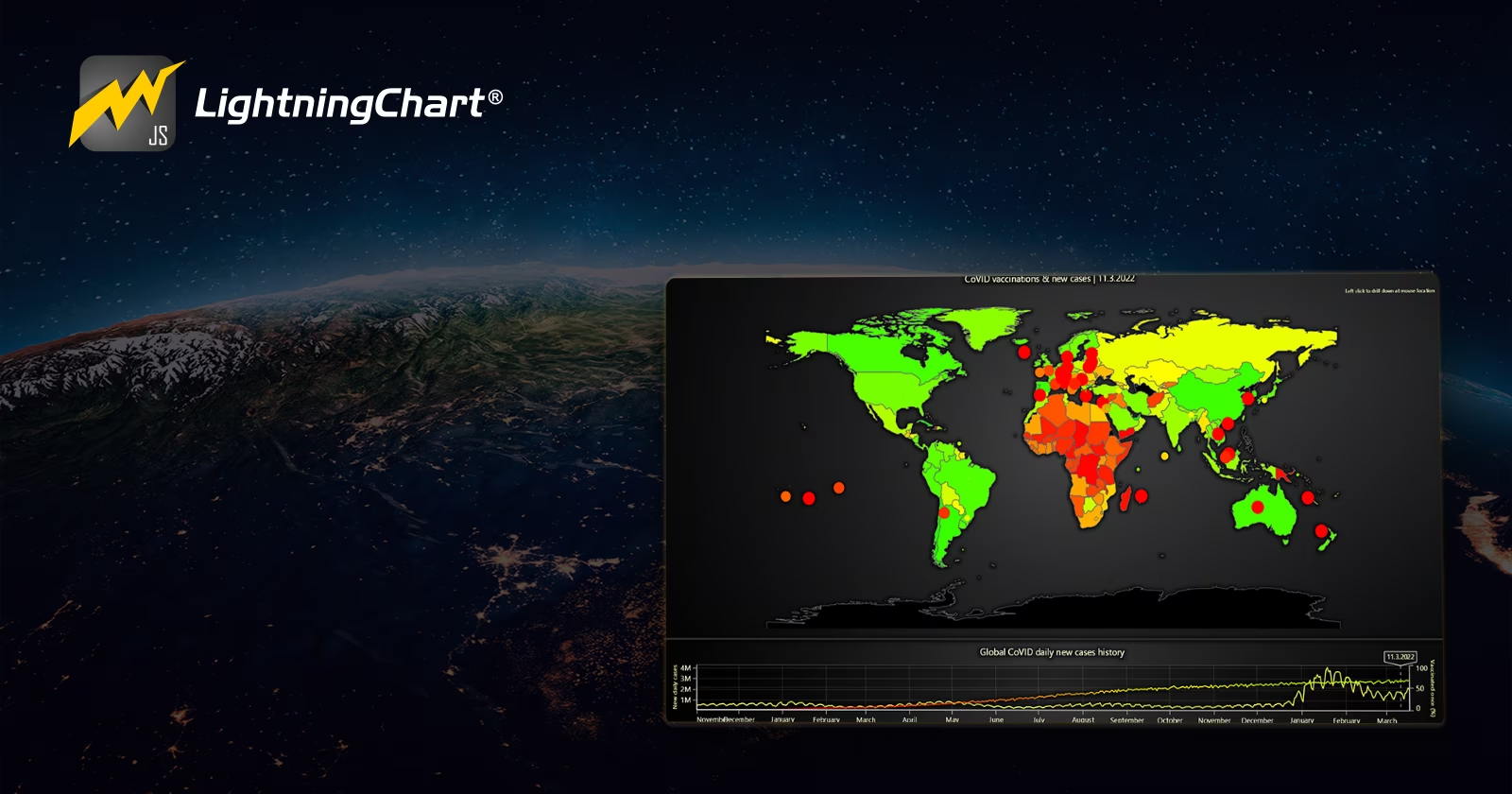
Once again, we will be working with TypeScript, but this time, it will be a much more complex and impressive chart. I highly recommend you take a complete look at the project. I also suggest downloading it so you can experiment with it. In this chart, we will use various tools that LC JS offers in its latest version. We will make use of a two-dimensional map, which will work alongside other line charts. The case study will focus on counting COVID cases by country worldwide.
As we progress, you will discover new functionalities and if needed, you can interact with and edit the JavaScript world map interactive example online. Now, before we start with the code, let’s look at each of the chart’s components and functionalities.
World Map
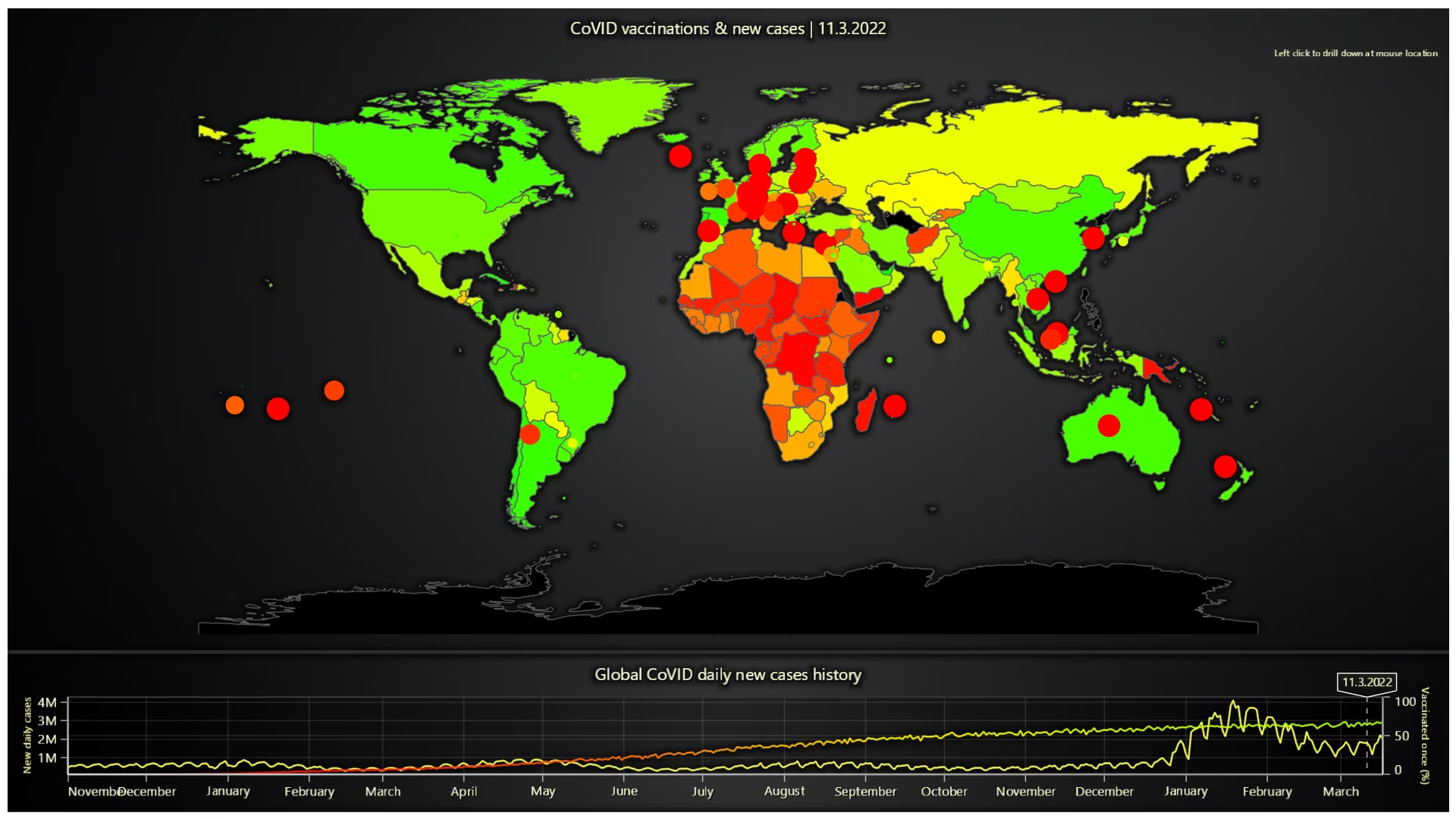
The world map will be a 2D image, allowing us to navigate between continents and countries, displaying a popup with lines corresponding to the categories: “Vaccinations,” “New Cases,” “Hospitalized,” and “Severe Cases.”
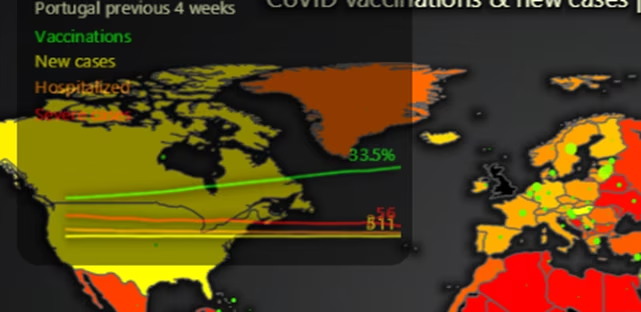
Depending on the position of our cursor, the data will correspond to the highlighted area.
Map Timeline Chart

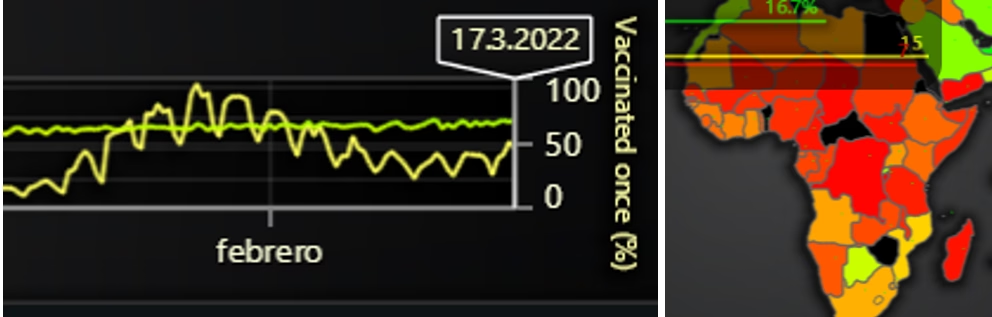
This XY chart will allow us to query data from the year 2020 to 2022. The top date label will enable us to update the world map by dragging within the timeline. Depending on the selected period, the map will change color in relation to the severity of COVID cases and their levels of spread. By the end of 2022, a much more stable and safer scenario can be observed in the West, although, unfortunately, the African continent continued to be in a complicated situation.
Region-Continent view
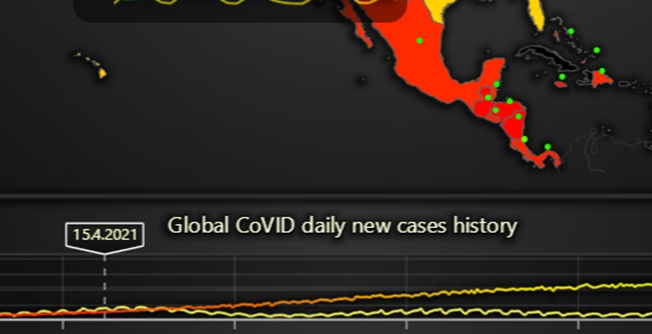
The world map has other very useful functions. If we click on a continent (for example, Africa), or on a region of the American continent (such as North America), it will show us that region in a focused view.
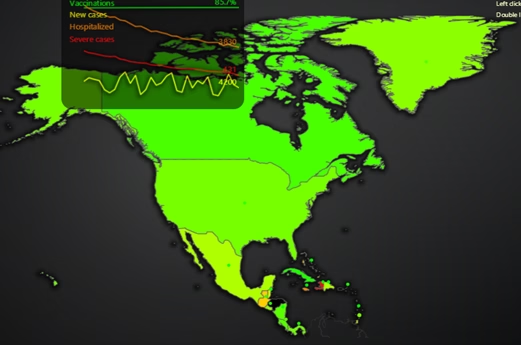
This will allow us to have a more precise visualization of a zone we wish to study. The timeline will continue to function regardless of the focused region.
XY Country Data Visualization
Once inside the focused view, we can select a specific country. These will allow us to visualize all the data of grouped points in 4-line charts. This functionality is the detailed view of the popup I mentioned at the beginning. In this way, we will be able to analyze the data with greater detail and precision.
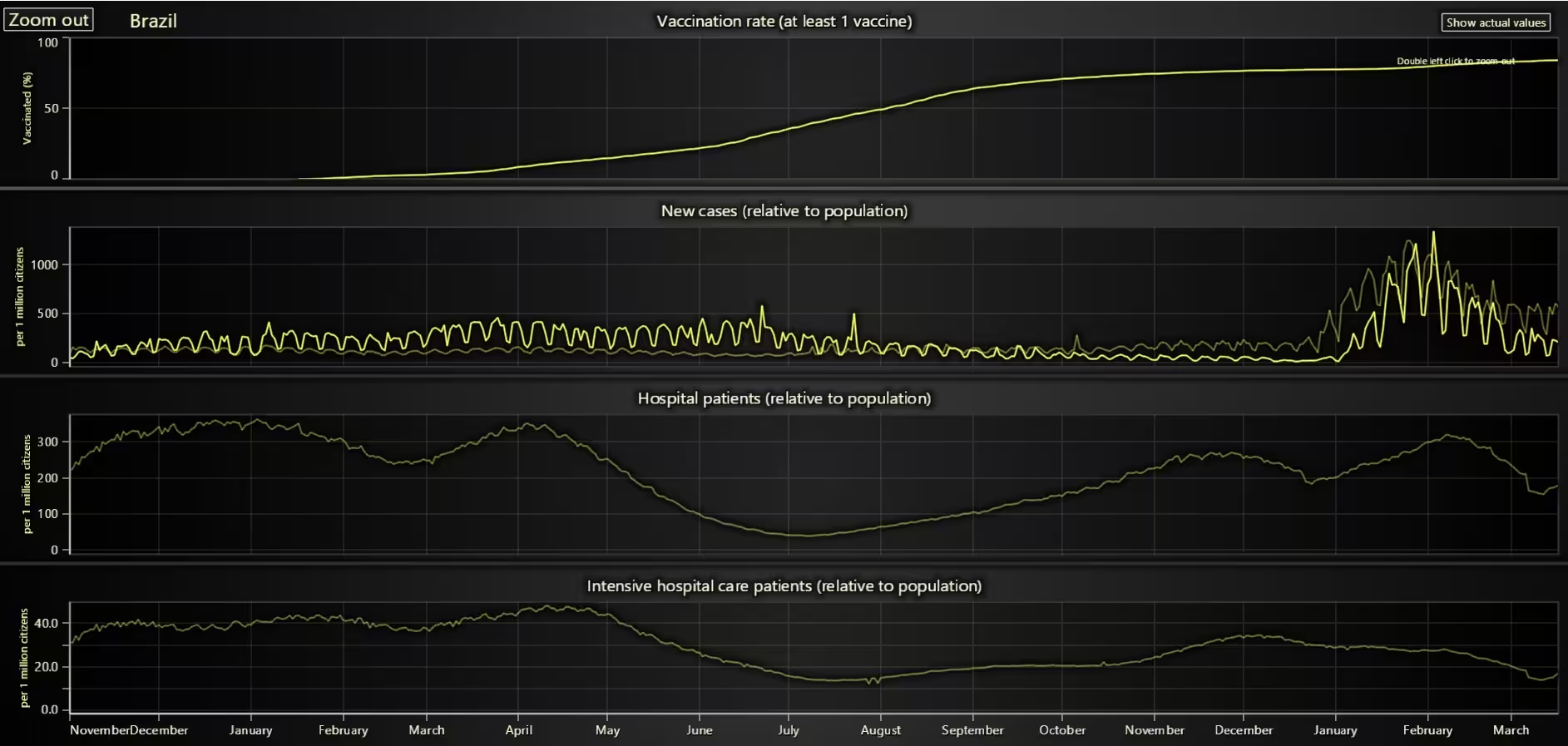
The “Zoom out” option will allow us to return to the “map” view, while the “Show actual values” button will display the series with the actual values. Now that we’ve explained our chart, I think we can proceed with the code explanation. The code is quite extensive, so I’ll try to be brief with the lines of customization or configuration.
Let’s get started!
Project Overview
To follow this JavaScript world map with zooming project, download the ZIP file with all the necessary resources.
 Download the project to follow the tutorial
Template Setup
1. Download the template provided to follow the tutorial.
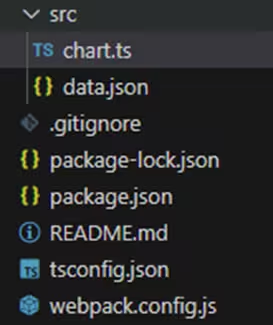
2. After downloading the template, you’ll see a file tree like this:
3. Open a new terminal and run the npm install command
4. It is important to keep the configuration in the tsconfig.json file. This configuration will help you to import JSON files as data objects.
Getting Started
We recommend you use and update to the most recent versions of LightningChart JS and XYData. This is because some LightningChart JS tools do not exist in previous versions. In the project’s package.json file you can find the LightningChart JS dependencies:
"dependencies": {
"@lightningchart/lcjs": "^7.0.3",
}
1. Importing libraries
We will start by importing the necessary libraries to create our chart.
const lcjs = require('@lightningchart/lcjs')
const {
    AxisScrollStrategies,
    AxisTickStrategies,
    emptyTick,
    AutoCursorModes,
    FormattingFunctions,
    LUT,
    lightningChart,
    UIElementBuilders,
    UILayoutBuilders,
2. Add license key (free)
Once the LightningChart JS libraries are installed, we will import them into our chart.ts file. Note you will need a trial license, which is free.
let license = undefined
try {
    license = 'xxxxxxxxxxxxx'
} catch (e) {}
Chart.ts
This code sets up the dashboard using the lightningChart library, with 4 rows and 1 column, applying a dark gold theme.
const dashboardRows = 4
// NOTE: Using `Dashboard` is no longer recommended for new applications. Find latest recommendations here: https://lightningchart.com/js-charts/docs/basic-topics/grouping-charts/
const dashboard = lightningChart({license:license}).Dashboard({
    numberOfColumns: 1,
    numberOfRows: dashboardRows,
    theme: Themes.darkGold,
})
const theme = dashboard.getTheme()
The dashboardRows variable specifies how many rows to use in the layout.
dashboard: Creates a dashboard with specific settings, including the number of columns, rows, and the chosen theme.theme: Retrieves the current theme applied to the dashboard.
let showRelativeValuesState = true The variableshowRelativeValuesState controls whether relative values are shown in the country view (in this case, for drill-down purposes).
Two LUTs (Look-Up Tables) are created:
lutNewCasesPerMillion: Defines color steps for new COVID-19 cases per million people, with values ranging from negative to 1000, applying a color palette that transitions from bad to good as cases increase.
let showRelativeValuesState = true
const lutNewCasesPerMillion = new LUT({
    interpolate: true,
    steps: [
        { value: -1, color: ColorRGBA(0, 0, 0) },
        { value: -0.1, color: ColorRGBA(0, 0, 0) },
        ...regularColorSteps(0, 1000, theme.examples.badGoodColorPalette.reverse()),
    ],
})
2. utPeopleVaccinatedPerHundred: Like the first LUT, but for vaccination rates per hundred people, with color transitions based on vaccination coverage.
const lutPeopleVaccinatedPerHundred = new LUT({
    interpolate: true,
    steps: [
        { value: -1, color: ColorRGBA(0, 0, 0) },
        { value: -0.1, color: ColorRGBA(0, 0, 0) },
        ...regularColorSteps(0, 100, theme.examples.badGoodColorPalette.reverse()),
    ],
})
highValueThresholds
The highValueThresholds stores specific thresholds for different health metrics, like new cases, hospitalizations, and ICU patients per million, presumably to flag or highlight high-risk regions or data points.
const highValueThresholds = {
    new_cases_per_million: 1000,
    hosp_patients_per_million: 100,
    icu_patients_per_million: 50,
}
drillDownRoutes
We need to define a drillDownRoutes object, which specifies different regions of the world (North America, South America, Europe, Africa, and Asia) for drill-down functionality. Each region is associated with a mapType and its boundary (a rectangular area defined by bottom-left and top-right coordinates). These coordinates are represented as x and y values, indicating the relative position on a map or visualization.
- mapType: Specifies the region to display on the map.
- boundary: Defines the visible area for each region, with
bottomLeftandtopRightcoordinates to create a rectangular boundary.
const drillDownRoutes = {
    World: [
        {
            mapType: 'NorthAmerica',
            boundary: {
                bottomLeft: { x: 0.04, y: 0.52 },
                topRight: { x: 0.44, y: 0.93 },
            },
        },
        {
            mapType: 'SouthAmerica',
            boundary: {
                bottomLeft: { x: 0.16, y: 0.14 },
                topRight: { x: 0.45, y: 0.5 },
            },
        },
Setting map interactions
The following configuration creates a small interactive tip on the dashboard that tells users how to interact with the map or visualization: left-click to drill down and double left-click to zoom out.
const drillDownTip = dashboard
    .addUIElement(UILayoutBuilders.Column, dashboard.coordsRelative)
    .setOrigin(UIOrigins.RightTop)
    .setBackground((background) => background.setFillStyle(emptyFill).setStrokeStyle(emptyLine))
const drillDownTipIn = drillDownTip
    .addElement(UIElementBuilders.TextBox)
    .setTextFont((font) => font.setSize(10))
    .setText('Left click to drill down at mouse location')
const drillDownTipOut = drillDownTip
    .addElement(UIElementBuilders.TextBox)
    .setTextFont((font) => font.setSize(10))
.setText('Double left click to zoom out') The following block of code ensures that the drill-down tip and zoom-out button are repositioned dynamically based on the dashboard’s new size whenever the window is resized, maintaining their placement relative to the edges of the container.
dashboard.addEventListener('resize', (event) => {
    const dbBounds = dashboard.engine.container.getBoundingClientRect()
    drillDownTip.setPosition({ x: dbBounds.width - 8, y: dbBounds.height - 40 })
    drillDownOutButton.setPosition({ x: 8, y: dbBounds.height - 8 })
})
COVID-19 Calculations
This code-block calculates the total number of new COVID-19 cases by date for different countries.
- It loops through each country in
covidData, and for each country’s data, it sums the new cases per date. - The totals are stored in
newCasesHistoryDataMap, where the key is the date, and the value is the accumulated new cases. - It checks each country’s data for
new_casesand updates the total for that date accordingly.
;(async () => {
    let totalCasesTimelineView
    const newCasesHistoryDataTimeStart = new Date(2020, 10, 1).getTime()
    const activateTotalCasesTimelineView = () => {
        console.time('calculate new cases history')
        const newCasesHistoryDataMap = new Map()
        const vaccinatedHistoryDataMap = new Map()
        for (const countryCode of Object.keys(covidData)) {
            const countryCovidData = covidData[countryCode]
            for (let i = 0; i < countryCovidData.data.length; i += 1) {
                const sample = countryCovidData.data[i]
                const newCases = sample.new_cases
                if (newCases !== undefined) {
                    const curSum = newCasesHistoryDataMap.get(sample.date)
                    if (curSum) {
                        newCasesHistoryDataMap.set(sample.date, curSum + newCases)
                    } else {
                        newCasesHistoryDataMap.set(sample.date, newCases)
                    }
                }
            }
Tracking daily vaccination trends
The following part helps track daily vaccination trends across countries.
- It finds vaccination data for each country (
countryVaccinationData) by matchingiso_code. - It loops through the vaccination data and checks
people_vaccinated_per_hundred. - If the value exists, it updates
vaccinatedHistoryDataMap:
If the date already exists, it increments the count and adds the value to the sum.
Otherwise, it initializes the date with a count of 1 and the given value.
const countryVaccinationData = vaccinationData.find((item) => item.iso_code === countryCode
for (let i = 0; i < countryVaccinationData.data.length; i += 1) {
                const sample = countryVaccinationData.data[i]
                const peopleVaccinatedPerHundred = sample.people_vaccinated_per_hundred
                if (peopleVaccinatedPerHundred !== undefined) {
                    const cur = vaccinatedHistoryDataMap.get(sample.date)
                    if (cur) {
                        cur.count += 1
                        cur.sum += peopleVaccinatedPerHundred
                    } else {
                        vaccinatedHistoryDataMap.set(sample.date, { count: 1, sum: peopleVaccinatedPerHundred })
                    }
                }
            }
        }
New cases and vaccination data
This code processes and prepares new cases and vaccination data for visualization:newCasesHistoryDataXY: Converts newCasesHistoryDataMap into an array of { x, y } objects, where:
- x is the timestamp (converted from ISO date).
- y is the new cases count for that date.
It filters data to only include dates after newCasesHistoryDataTimeStart and sorts the data chronologically.
vaccinatedPerHundredHistoryDataXY: Performs a similar process but for the vaccination data, where:
- y is the average percentage of vaccinated people (sum/count).
const newCasesHistoryDataXY = Array.from(newCasesHistoryDataMap.entries())
            .map(([dateIso, newCases]) => ({
                x: ISODateToTime(dateIso),
                y: newCases,
            }))
            .filter((point) => point.x >= newCasesHistoryDataTimeStart)
            .sort((a, b) => a.x - b.x)
        const vaccinatedPerHundredHistoryDataXY = Array.from(vaccinatedHistoryDataMap.entries())
            .map(([dateIso, value]) => ({
                x: ISODateToTime(dateIso),
                y: value.sum / value.count,
            }))
            .filter((point) => point.x >= newCasesHistoryDataTimeStart)
            .sort((a, b) => a.x - b.x)
        newCasesHistoryDataMap.clear()
        vaccinatedHistoryDataMap.clear()
Timeline Chart
This code creates the timeline chart on the dashboard to display the history of daily new COVID-19 cases globally. The chart is placed in row 1, column 0 of the dashboard and is titled “Global CoVID daily new cases history”. User interactions, such as zooming and panning, are disabled to keep the view static. To enhance readability, a secondary X-axis is added at the top of the chart (timeLineHighlighterAxis), but it remains invisible since ticks and the axis stroke are removed.
A custom tick marker (timeLineHighlighter) is added to this axis, which acts as a floating tooltip, displaying the date in the Finnish locale (“fin”) when hovering over the chart. ThesynchronizeAxisIntervals function ensures that both the main X-axis and the highlighter axis stay aligned, maintaining consistency in the time scale. Overall, this setup provides a clear visualization of COVID-19 trends while allowing users to hover and see specific dates.
const timelineChart = dashboard
            .createChartXY({
                columnIndex: 0,
                rowIndex: 1,
            })
            .setTitle('Global CoVID daily new cases history')
            .setCursorMode(undefined)
            .setUserInteractions(undefined)
        const timeLineHighlighterAxis = timelineChart
            .addAxisX({ opposite: true })
            .setTickStrategy(AxisTickStrategies.Empty)
            .setStrokeStyle(emptyLine)
        const timeLineHighlighter = timeLineHighlighterAxis
            .addCustomTick(UIElementBuilders.PointableTextBox)
            .setAllocatesAxisSpace(false)
            .setTextFormatter((time) => new Date(time).toLocaleDateString('fin', {}))
        synchronizeAxisIntervals(timelineChart.getDefaultAxisX(), timeLineHighlighterAxis)
This code adds two data series to the timeline chart: one for daily new COVID-19 cases and another for vaccination rates.
First, it adds a line area series to display the new daily cases usingnewCasesHistoryDataXY. The data follows a progressive X pattern, meaning time increases from left to right. The area fill is set to emptyFill (transparent), and the data is appended using. appendJSON(newCasesHistoryDataXY). The Y-axis is labeled “New daily cases”, formatted numerically with unit conversions, and set to not auto-fit when new data arrives.
Next, a secondary Y-axis (axisVaccinated) is added on the right side (opposite: true). This axis represents the percentage of people vaccinated at least once, ranging from 0 to 100. Another line area series is then added for the vaccination data (vaccinatedPerHundredHistoryDataXY), using the same progressive X pattern but mapped to the newly created vaccination Y-axis. The stroke style is customized with a palette-based color gradient
(lutPeopleVaccinatedPerHundred), where colors change based on vaccination percentage.
This setup visually correlates new daily cases and vaccination rates, allowing users to observe trends over time.
timelineChart.addPointLineAreaSeries({ dataPattern: 'ProgressiveX' }).setAreaFillStyle(emptyFill).appendJSON(newCasesHistoryDataXY)
        timelineChart
            .getDefaultAxisY()
            .setTitle('New daily cases')
            .setTitleFont((font) => font.setSize(12))
            .setTickStrategy(AxisTickStrategies.Numeric, (ticks) => ticks.setFormattingFunction(FormattingFunctions.NumericUnits))
            .fit(false)
        const axisVaccinated = timelineChart
            .addAxisY({ opposite: true })
            .setTitle('Vaccinated once (%)')
            .setTitleFont((font) => font.setSize(12))
            .setInterval({ start: 0, end: 100 })
        timelineChart
            .addPointLineAreaSeries({ dataPattern: 'ProgressiveX', yAxis: axisVaccinated })
            .setAreaFillStyle(emptyFill)
            .appendJSON(vaccinatedPerHundredHistoryDataXY)
            .setStrokeStyle(
                new SolidLine({
                    thickness: 2,
                    fillStyle: new PalettedFill({
                        lookUpProperty: 'y',
                        lut: lutPeopleVaccinatedPerHundred,
                    }),
                }),
            )
This code finalizes the timeline chart setup by configuring the X-axis, adding interactivity, and defining the totalCasesTimelineView object. First, the X-axis is set to use DateTime formatting, ensuring time-based data is displayed correctly. The .fit(false) setting prevents automatic resizing when new data is added. Then, interactivity is added to the timeLineHighlighter (the floating tooltip marker).
- When the user hovers over it (
pointerenter), the mouse cursor changes to a horizontal style, and it returns to default onpointerleave. - When the user clicks (
pointerdown), event listeners allow dragging the marker:
handleMove updates the marker position along the X-axis, ensuring it stays within valid time limits (newCasesHistoryDataTimeStart to tMax). If totalCasesTimelineView.onChange is defined, it triggers a callback when the marker moves. handleUp removes the event listeners when the user releases the mouse. Finally, totalCasesTimelineView is defined as an object storing references to the timelineChart, timeLineHighlighter, and functions for interaction:
onChange: A placeholder function that can be customized to respond to marker changes.deactivate(): Disposes of the chart and clears the reference to free memory.
The function then returns totalCasesTimelineView, making the timeline chart available for further use.
timelineChart.getDefaultAxisX().setTickStrategy(AxisTickStrategies.DateTime).fit(false)
        timeLineHighlighter.addEventListener('pointerenter', (event) => {
            timelineChart.engine.setMouseStyle(MouseStyles.Horizontal)
        })
        timeLineHighlighter.addEventListener('pointerleave', (event) => {
            timelineChart.engine.setMouseStyle(MouseStyles.Default)
        })
        timeLineHighlighter.addEventListener('pointerdown', (event) => {
            const handleMove = (event) => {
                const locationAxis = timelineChart.translateCoordinate(event, timelineChart.coordsAxis)
                const displayTimeNew = Math.min(Math.max(locationAxis.x, newCasesHistoryDataTimeStart), tMax)
                timeLineHighlighter.setValue(displayTimeNew)
                if (totalCasesTimelineView.onChange) {
                    totalCasesTimelineView.onChange(displayTimeNew)
                }
            }
            const handleUp = (event) => {
                document.body.removeEventListener('pointermove', handleMove)
                document.body.removeEventListener('pointerup', handleUp)
            }
            document.body.addEventListener('pointermove', handleMove)
            document.body.addEventListener('pointerup', handleUp)
        })
        console.timeEnd('calculate new cases history')
        totalCasesTimelineView = {
            chart: timelineChart,
            highlighter: timeLineHighlighter,
            onChange: () => {},
            deactivate: () => {
                timelineChart.dispose()
                totalCasesTimelineView = undefined
            },
        }
        return totalCasesTimelineView
Map View
The following code sets up a map view to visualize COVID-19 data. It creates a map chart based on the selected mapType (e.g., World, Europe), adds a hidden XY chart to synchronize map zoom and pan with data, and applies a color gradient based on vaccination rates. It adjusts the dashboard layout to show the map and timeline, displays drill-down controls, and synchronizes map boundaries with chart axes. The function is designed to provide an interactive and data-driven map experience.
let activeDisplayedTime = new Date(2022, 2, 11)
    let tMax = ISODateToTime(covidData['FIN'].data[covidData['FIN'].data.length - 1].date)
    let tLastMapViewChange = 0
    const activateMapView = async (mapType) => {
        tLastMapViewChange = window.performance.now()
        totalCasesTimelineView = totalCasesTimelineView || activateTotalCasesTimelineView()
        // Drill down available
        drillDownTipIn.setVisible(true)
        if (mapType !== 'World') {
            // Return view available
            drillDownTipOut.setVisible(true)
            drillDownOutButton.setVisible(true)
        } else {
            drillDownTipOut.setVisible(false)
            drillDownOutButton.setVisible(false)
        }
        dashboard.setRowHeight(0, 4).setRowHeight(1, 1)
        for (let i = 2; i < dashboardRows; i += 1) {
            dashboard.setRowHeight(i, 0)
        }
        const mapChart = dashboard
            .createMapChart({
                columnIndex: 0,
                rowIndex: 0,
                type: mapType,
            })
            .setCursorMode(undefined)
            .setPointerEvents(false)
            .setPadding({ top: 40 })
Scatter Plot
This code adds a scatter plot to a map, where each point represents a country. The points show COVID-19 data: the size of each point is based on new cases per million people, and the color is determined by the vaccination rate. The setDisplayTime function updates the map for a specific date, fetching the relevant data (new cases and vaccination rates) for each country. If both data points are available, the function adds the point to the scatter plot with a size proportional to new cases and color reflecting vaccination coverage.
The map’s title and timeline are also updated to reflect the selected date. The points on the scatter plot allow visualizing how vaccination rates relate to the spread of new cases over time.
const scatterSeries = mapChartXY
            .addPointLineAreaSeries({ dataPattern: null, sizes: true, lookupValues: true, ids: true })
            .setStrokeStyle(emptyLine)
            .setPointFillStyle(new PalettedFill({ lut: lutNewCasesPerMillion }))
            .setPointerEvents(false)
        let regions = []
        const setDisplayTime = (time, updateTimeLineBand = false) => {
            activeDisplayedTime = time
            const timeNumber = time.getTime()
            const timeIso = dateToIsoString(time)
            mapChart.setTitle(`CoVID vaccinations & new cases | ${time.toLocaleDateString('fin', {})}`)
            scatterSeries.clear()
            let iRegion = 0
            regions = []
            mapChart.invalidateRegionValues((region, prev) => {
                const countryCode = region.ISO_A3
                const countryCovidData = covidData[countryCode]
                const countryVaccinationData = vaccinationData.find((item) => item.iso_code === countryCode)
                const countryInformation = countriesData.find((item) => item.cca3 === countryCode)
                if (countryCovidData && countryVaccinationData && countryInformation) {
                    const covidSample = countryCovidData.data.find((sample) => sample.date === timeIso)
                    const smoothedNewCasesPerMillion = covidSample && covidSample.new_cases_smoothed_per_million
                    let peopleVaccinatedPerHundred
                    for (let i = countryVaccinationData.data.length - 1; i >= 0; i -= 1) {
                        const vaccinationSample = countryVaccinationData.data[i]
                        if (vaccinationSample.people_vaccinated_per_hundred !== undefined) {
                            const sampleDateTime = ISODateToTime(vaccinationSample.date)
                            if (sampleDateTime <= timeNumber) {
                                peopleVaccinatedPerHundred = vaccinationSample.people_vaccinated_per_hundred
                                break
Interactive chart overlay
This code creates an interactive chart overlay that updates based on changes in the time range. It tracks changes to a timeline (totalCasesTimelineView.onChange) and updates the chart every 1/60th of a second, ensuring smooth transitions when the time range changes. It also adds a chart overlay with a custom cursor, which is placed in a container. The overlay contains additional UI elements, including a title, and creates chart series with customized labels, colors, and value display.
The chart is designed to show specific COVID-19 data and update in real-time as the user interacts with the timeline. The overlay uses the chart’s UIElementBuilders to add text and series to the chart, with colors and formatting defined in the theme.
let shouldUpdateTimeRange
        totalCasesTimelineView.onChange = (value) => {
            shouldUpdateTimeRange = new Date(value)
        }
        const intervalUpdateTimeRange = setInterval(() => {
            if (shouldUpdateTimeRange) {
                setDisplayTime(shouldUpdateTimeRange)
                shouldUpdateTimeRange = undefined
            }
        }, 1000 / 60)
        const container = document.getElementById('chart-container') || document.body
        const containerOverlayCursor = document.createElement('div')
        container.append(containerOverlayCursor)
        const chartOverlayCursor = lightningChart()
            .ChartXY({
                container: containerOverlayCursor,
                theme,
            })
            .setTitle('')
            .setPadding({ left: 0, bottom: 0, right: 0, top: 14 })
            .setUserInteractions(undefined)
            .setBackgroundFillStyle(theme.cursorResultTableFillStyle)
        chartOverlayCursor
            .setBackgroundFillStyle(emptyFill)
            .setBackgroundStrokeStyle(emptyLine)
            .setSeriesBackgroundFillStyle(emptyFill)
            .setSeriesBackgroundStrokeStyle(emptyLine)
        chartOverlayCursor.engine.setBackgroundFillStyle(emptyFill)
        chartOverlayCursor.getDefaultAxisY().dispose()
        chartOverlayCursor.getDefaultAxisX().setAnimationScroll(false)
        const chartOverlayUi = chartOverlayCursor
            .addUIElement(UILayoutBuilders.Column)
            .setPosition({ x: 0, y: 100 })
            .setOrigin(UIOrigins.LeftTop)
            .setBackground((background) => background.setStrokeStyle(emptyLine).setFillStyle(emptyFill))
        const ChartOverlayItem = (text) => chartOverlayUi.addElement(UIElementBuilders.TextBox).setText(text)
        const chartOverlayTitle = ChartOverlayItem('')
Chart custom overlay
This code is for setting up a custom overlay on a chart, displaying various COVID-related data (vaccination rates, new cases, hospitalization rates, and ICU cases) in an interactive manner. It defines four different chart series (people_vaccinated_per_hundred, new_cases_per_million, hosp_patients_per_million, icu_patients_per_million), each representing a different metric in the overlay, with color codes and formatting functions. The overlay’s container
(containerOverlayCursor) is styled with a transparent background, a border, rounded corners, and positioned absolutely on the screen, with a smooth transition effect for its position and opacity.
The container is initially hidden, with its opacity set to 0.0, but it can be made visible depending on user interactions. The event listener attached to mapChart waits for the chart to be ready, and once the map is ready, it sets a target position (in this case, for Italy) on the chart overlay. Additionally, the chart axes are styled with an empty tick strategy and no pointer events, ensuring that the overlay operates independently of the chart’s regular interactions.
This setup is part of a more extensive interactive dashboard that tracks and displays global COVID data over time, with the ability to hover and focus on specific countries to view detailed statistics in the overlay.
const chartOverlaySeries = {
            people_vaccinated_per_hundred: ChartOverlaySeries(
                'rgb(0, 255, 0)',
                'Vaccinations',
                100,
                (sample) =>
                    sample.people_vaccinated_per_hundred !== undefined ? `${sample.people_vaccinated_per_hundred.toFixed(1)}%` : undefined,
                vaccinationData,
            ),
            new_cases_per_million: ChartOverlaySeries(
                'rgb(255, 255, 0)',
                'New cases',
                highValueThresholds.new_cases_per_million,
                (sample) => (sample.new_cases !== undefined ? String(sample.new_cases) : undefined),
                covidData,
            ),
const overlayCursorWidth = 280
const overlayCursorHeight = 200
containerOverlayCursor.style.position = 'absolute'
containerOverlayCursor.style.top = '0px'
containerOverlayCursor.style.backgroundColor = 'rgba(0,0,0,0.7)'
containerOverlayCursor.style.border = 'solid 8px transparent'
containerOverlayCursor.style.borderRadius = '16px'
containerOverlayCursor.style.width = `${overlayCursorWidth}px`
containerOverlayCursor.style.height = `${overlayCursorHeight}px`
containerOverlayCursor.style.transition = 'left 0.2s, top 0.2s, opacity 0.5s'
containerOverlayCursor.style.opacity = '0.0'
containerOverlayCursor.style.pointerEvents = 'none'
chartOverlayCursor.forEachAxis((axis) =>
axis.setTickStrategy(AxisTickStrategies.Empty).setStrokeStyle(emptyLine).setPointerEvents(false),
)
let cursorTarget
let cursorActiveCountry
let cursorLastPointedCountry Map chart interactivity
This code provides interactivity for a map chart, where the cursor moves over countries and shows real-time COVID-19 and vaccination data for the hovered country.
1. Pointer Movement: When the pointer moves over the map, it finds the nearest country and updates the target country data (cursorTarget).
2. Pointer Leave: When the pointer leaves, the target country data is cleared.
3. Gursor Update: A custom cursor’s position is updated every frame to follow the hovered country, showing a detailed overlay with COVID-19 and vaccination data for the last 30 days.
4. Chart Update: The chart displays historical data for the selected country, with real-time updates to the values and labels.
It provides a dynamic, interactive map where hovering over countries displays their COVID-19 statistics and vaccination progress.
mapChartXY.seriesBackground.addEventListener('pointermove', (event) => {
            const nearest = scatterSeries.solveNearest(event)
            const region = regions[nearest?.id]
            if (nearest && region) {
                cursorTarget = { countryCode: region.ISO_A3, ...nearest }
                cursorLastPointedCountry = cursorTarget.countryCode
            }
        })
        mapChartXY.seriesBackground.addEventListener('pointerleave', (event) => {
            cursorActiveCountry = undefined
            cursorTarget = undefined
        })
        const intervalUpdateCursor = setInterval(() => {
            if (cursorTarget && cursorTarget.countryCode !== cursorActiveCountry) {
                const locationWebpage = mapChartXY.translateCoordinate(cursorTarget, mapChartXY.coordsAxis, mapChartXY.coordsClient)
                const containerBounds = container.getBoundingClientRect()
                containerOverlayCursor.style.left = `${Math.max(
                    locationWebpage.clientX - (overlayCursorWidth + 10 + containerBounds.left),
                    10,
                )}px`
                containerOverlayCursor.style.top = `${Math.max(
                    locationWebpage.clientY - (overlayCursorHeight + 10 + containerBounds.top),
                    10,
                )}px`
                containerOverlayCursor.style.opacity = '1.0'
                chartOverlayCursor.engine.layout()
                const showTimeHistoryDays = 30
                const countryCovidData = covidData[cursorTarget.countryCode]
                const countryVaccinationData = vaccinationData.find((item) => item.iso_code === cursorTarget.countryCode)
                const countryInformation = countriesData.find((item) => item.cca3 === cursorTarget.countryCode)
                chartOverlayTitle.setText(`${countryInformation.name.common} previous 4 weeks`)
                const checkISODateInRange = createISODateRangeMatcher(
                    new Date(activeDisplayedTime.getTime() - showTimeHistoryDays * 24 * 60 * 60 * 1000),
                    activeDisplayedTime,
                )
Map chart user interactions
This code manages user interactions with a map chart by providing drill-down functionality and handling chart disposal:
1. Mouse Click Detection: The function detectMouseClicks listens for clicks on the map. It prevents interactions if the time between map view changes is too short. If a click occurs within defined regions (drill-down boundaries), it triggers a map zoom-in to a more detailed view of that region. If no region is selected, it drills down to the nearest country based on the last pointed country.
2. Drill-Down Handling: When the user clicks on the drillDownOutButton (available when not viewing the “World” map), it zooms the map out to the global view.
3. Disposing Chart: The disposeChart function clears intervals, disposes of the map and associated chart objects (mapChart, mapChartXY, chartOverlayCursor), removes the overlay cursor, and removes event listeners like the one for the drill-down button. The disposeChart function is called when navigating to a new map view to ensure proper cleanup of resources and avoid memory leaks.
4. Time-Based Control: There are time-based checks (using window.performance.now()) to ensure that rapid, multiple clicks don’t trigger unnecessary changes or interactions.
For example, it waits 750ms between clicks before performing any drill-down operation and ensures a 2000ms delay before returning to the world map view when in a smaller region.
detectMouseClicks(
            mapChartXY.seriesBackground,
            (e) => {
                if (window.performance.now() - tLastMapViewChange < 750) {
                    return
                }
                // Attempt drill down at mouse location.
                const locationRelative = mapChartXY.translateCoordinate(e, mapChartXY.coordsRelative)
                const chartSize = mapChartXY.getSizePixels()
                const locationPercentage = { x: locationRelative.x / chartSize.x, y: locationRelative.y / chartSize.y }
                const routes = drillDownRoutes[mapType] || []
                // Attempt to drill down to a smaller map view.
                for (const route of routes) {
                    if (
                        locationPercentage.x >= route.boundary.bottomLeft.x &&
                        locationPercentage.x <= route.boundary.topRight.x &&
                        locationPercentage.y >= route.boundary.bottomLeft.y &&
                        locationPercentage.y <= route.boundary.topRight.y
                    ) {
                        disposeChart()
                        activateMapView(route.mapType)
                        return
                    }
                }
                // Drill down to nearest country
                if (cursorLastPointedCountry) {
                    disposeChart()
                    activateCountryView(cursorLastPointedCountry, mapType, showRelativeValuesState)
                }
            },
            (e) => {
                if (window.performance.now() - tLastMapViewChange > 2000 && mapType !== 'World') {
                    disposeChart()
                    activateMapView('World')
                }
activateCountryView
The function activateCountryView manages the display and interaction for a detailed country-specific view within a COVID-19 dashboard. Here’s a breakdown of its functionality:
1. Deactivate Previous View: If a total cases timeline view (totalCasesTimelineView) exists, it is deactivated. Various UI elements (drillDownTipIn, drillDownTipOut, drillDownOutButton) are updated for navigation.
const activateCountryView = (countryCode, returnView, showRelativeValues) => {
        if (totalCasesTimelineView) {
            totalCasesTimelineView.deactivate()
        }
        drillDownTipIn.setVisible(false)
        drillDownTipOut.setVisible(true)
        drillDownOutButton.setVisible(true)
        const countryCovidData = covidData[countryCode]
        const countryVaccinationData = vaccinationData.find((item) => item.iso_code === countryCode)
        const countryInformation = countriesData.find((item) => item.cca3 === countryCode)
const marginLeft = 80 It retrieves COVID-19 data (countryCovidData), vaccination data (countryVaccinationData), and general country information (countryInformation) based on the country code (countryCode).
Trends Definition
const trends = [
            Trend(
                'people_vaccinated_per_hundred',
                countryVaccinationData,
                'Vaccination rate (at least 1 vaccine)',
                'Vaccinated (%)',
                100,
                (value) => `${value.toFixed(1)}% received at least 1 vaccine`,
A function Trend is defined to simplify the creation of trend data for various COVID-19-related metrics, such as:
- Vaccination rate (people_vaccinated_per_hundred).
- New cases (new_cases_per_million or new_cases based on relative values).
- Hospital patients (hosp_patients_per_million or hosp_patients).
- Intensive care unit (ICU) patients (icu_patients_per_million or icu_patients).
Chart Creation for Each Trend
].map((trend, iTrend, _trends) => {
            const chart = dashboard
                .createChartXY({
                    columnIndex: 0,
                    rowIndex: iTrend,
                })
                .setTitle(trend.title)
                .setPadding({ left: 0 })
            if (iTrend === 0) {
                const dashboardTitle = chart
                    .addUIElement(UIElementBuilders.TextBox, chart.coordsRelative)
                    .setText(`${countryInformation.name.common}`)
                    .setTextFont((font) => font.setSize(22))
                    .setBackground((background) => background.setFillStyle(emptyFill).setStrokeStyle(emptyLine))
                chart.addEventListener('layoutchange', (event) => {
                    dashboardTitle.setOrigin(UIOrigins.LeftTop).setPosition({ x: 140, y: event.chartHeight - 10 })
                })
                // Add selector for displaying relative / actual values.
                const selector = chart
                    .addUIElement(UIElementBuilders.TextBox)
                    .setPosition({ x: 100, y: 100 })
                    .setOrigin(UIOrigins.RightTop)
                    .setMargin({ top: 14, right: 24 })
                    .setDraggingMode(UIDraggingModes.notDraggable)
                selector.addEventListener('pointerenter', () => chart.engine.setMouseStyle(MouseStyles.Point))
                selector.addEventListener('pointerleave', () => chart.engine.setMouseStyle(MouseStyles.Default))
                const setState = (displayRelative) => {
                    if (displayRelative !== showRelativeValuesState) {
                        showRelativeValuesState = displayRelative
                        // Reload view
                        disposeChart()
                        activateCountryView(countryCode, returnView, displayRelative)
                    }
                    selector.setText(displayRelative ? 'Show actual values' : 'Show relative values')
For each trend, a chart is created using dashboard.createChartXY, with customized settings for title, padding, and axes.The first trend (vaccination rate) includes a UI element that displays the country’s name and a selector for toggling between relative and actual values. When the selector is clicked, it toggles the showRelativeValuesState and reloads the chart view accordingly by calling disposeChart and activateCountryView.
Handling Axis and Data Display
const axisX = chart.getDefaultAxisX().setAnimationScroll(false)
            if (iTrend < _trends.length - 1) {
                axisX
                    .setPointerEvents(false)
                    .setThickness(0)
                    .setStrokeStyle(emptyLine)
                    .setTickStrategy(AxisTickStrategies.DateTime, (ticks) =>
                        ticks
                            .setGreatTickStyle(emptyTick)
                            .setMajorTickStyle((major) => major.setLabelFillStyle(transparentFill).setTickStyle(emptyLine))
                            .setMinorTickStyle((minor) => minor.setLabelFillStyle(transparentFill).setTickStyle(emptyLine)),
                    )
            } else {
                axisX.setTickStrategy(AxisTickStrategies.DateTime)
            }
            const axisY = chart
                .getDefaultAxisY()
                .setTitle(trend.titleY || '')
                .setTitleFont((font) => font.setSize(12))
                .setThickness({ min: marginLeft })
            if (trend.maxY !== undefined) {
                axisY.setInterval({ start: 0, end: trend.maxY, stopAxisAfter: false }).setScrollStrategy(AxisScrollStrategies.expansion)
            }
The X-axis is set to not show tick marks for all trends except the last one, which displays time-based data. The Y-axis is configured to display appropriate titles and limits, particularly for trends that have a maximum Y value (like vaccination rate, new cases, etc.).
1. Layout and UI Elements: The UI elements, including trend titles, axis configurations, and value selectors, are dynamically adjusted based on the chart’s size and the selected country. The trend charts are displayed in a vertical layout (as specified by rowIndex and columnIndex in createChartXY).
2. Selector for Relative/Actual Values: A selector UI element allows users to toggle between relative and actual values for certain trends. When toggled, the function setState reloads the view with the updated display setting.
COVID-19 Trend Charts
The following code generates COVID-19 trend charts for a selected country, displaying metrics like vaccination rate, new cases, and hospitalizations.
const series = chart
                .addPointLineAreaSeries({
                    dataPattern: 'ProgressiveX',
                })
                .setAreaFillStyle(emptyFill)
                .setName(`${countryInformation.name.common}`)
            const dataXY = trend.dataSet.data
                .map((sample) => ({
                    x: ISODateToTime(sample.date),
                    y: sample[trend.property],
                }))
                .filter((point) => point.y !== undefined && point.x >= newCasesHistoryDataTimeStart)
            series.appendJSON(dataXY)
            const averageData = averagesData && averagesData[trend.property]
            let seriesAverage
            if (averageData) {
                seriesAverage = chart
                    .addPointLineAreaSeries({
                        dataPattern: 'ProgressiveX',
                    })
                    .setAreaFillStyle(emptyFill)
                    .setName('Global average')
                    .appendJSON(averageData)
                const styleNormal = series.getStrokeStyle()
                seriesAverage.setStrokeStyle(styleNormal.setFillStyle(styleNormal.getFillStyle().setA(100)))
            }
The charts include features like:
- Data Mapping: Transforms data into chart series.
- Global Averages: Adds a global average line if data is available.
const averageData = averagesData && averagesData[trend.property]
            let seriesAverage
            if (averageData) {
                seriesAverage = chart
                    .addPointLineAreaSeries({
                        dataPattern: 'ProgressiveX',
                    })
                    .setAreaFillStyle(emptyFill)
                    .setName('Global average')
                    .appendJSON(averageData)
                const styleNormal = series.getStrokeStyle()
seriesAverage.setStrokeStyle(styleNormal.setFillStyle(styleNormal.getFillStyle().setA(100)))
} - Axis Synchronization: Ensures consistent X-axis across charts.
synchronizeAxisIntervals(...trends.map((trend) => trend.chart.getDefaultAxisX())) - Layout Adjustment: Dynamically sets row heights in the dashboard.
synchronizeAxisIntervals(...trends.map((trend) => trend.chart.getDefaultAxisX()))
        for (let i = 0; i < dashboardRows; i += 1) {
            dashboard.setRowHeight(i, i < trends.length ? 1 : 0)
} - Back Navigation: Allows returning to the previous view with a “Back” button.
drillDownOutButton.addEventListener('click', returnPreviousView)
        let disposeChart = () => {
            trends.forEach((trend) => {
                trend.chart.dispose()
            })
            drillDownOutButton.removeEventListener('click', returnPreviousView)
            disposeChart = undefined
        }
tLastMapViewChange = window.performance.now() - Click Handling: Detects mouse clicks for potential interactions (currently empty handlers).
- Resource Management: Properly disposes of charts and event listeners when navigating away.
let averagesData
    console.time('calculate global averages')
    averagesData = {
        new_cases_per_million: [],
        hosp_patients_per_million: [],
        icu_patients_per_million: [],
    }
    for (const key of Object.keys(averagesData)) {
        const dataMap = new Map()
        for (const countryCode of Object.keys(covidData)) {
            const countryData = covidData[countryCode]
            if (!countryData) {
                continue
            }
            for (let i = 0; i < countryData.data.length; i += 1) {
                const sample = countryData.data[i]
                const curValue = sample[key]
                if (curValue !== undefined) {
                    const cur = dataMap.get(sample.date)
                    if (cur) {
                        cur.count += 1
                        cur.sum += curValue
                    } else {
                        dataMap.set(sample.date, { count: 1, sum: curValue })
                    }
                }
            }
        }
Performance optimizations prevent rapid view changes by tracking timestamps of interactions.
Utility functions
The following code corresponds to utility functions: createISODateRangeMatcher(dateStart, dateEnd) and it creates a function that checks if an ISO date is within a given range. It converts the start and end dates into numeric values (based on years, months, and days) and then compares the target date to this range.
ISODateToTime(isoString): Converts an ISO 8601 date string into a JavaScript Date object and returns its timestamp (in milliseconds).function ISODateToTime(isoString){
const y = Number(isoString.substring(0, 4))
const m = Number(isoString.substring(5, 7)) - 1
const d = Number(isoString.substring(8, 10))
return new Date(y, m, d).getTime()
} dateToIsoString(date): Converts a JavaScript Date object into an ISO 8601 string (YYYY-MM-DD).function dateToIsoString(date){
return `${date.getFullYear()}-${integerToFixedLengthString(date.getMonth() + 1, 2)}-${integerToFixedLengthString(date.getDate(), 2)}`
} integerToFixedLengthString(num, len): Pads a number to ensure it has the specified length (e.g., “05” for 5 if len is 2).function integerToFixedLengthString(num, len){
let str = String(num)
while (str.length < len) {
str = `0${str}`
}
return str
}5. detectMouseClicks(interactable, handleSingleClick, handleDoubleClick): This detects single and double-click events. If a single click is detected, it waits for 200ms to distinguish from a double-click, then calls handleSingleClick. If a double-click occurs, handleDoubleClick is triggered.
function detectMouseClicks(interactable, handleSingleClick, handleDoubleClick){
    let tLastDoubleClick = 0
    interactable.addEventListener('click', (e) => {
        setTimeout(() => {
            if (window.performance.now() - tLastDoubleClick >= 500) {
                handleSingleClick(e)
            }
        }, 200)
    })
    interactable.addEventListener('dblclick', (e) => {
        tLastDoubleClick = window.performance.now()
        handleDoubleClick(e)
    })
}
6. clampNumber(num, min, max): Clamps a number within a specified range by returning the value that falls within the provided min and max bounds.
const clampNumber = (num, min, max) => Math.min(Math.max(num, min), max) Initializing the chart
Run the npm start command in the terminal to visualize the chart in a local server.
Conclusion
Thank you so much for reading this far.
Phew! This article was quite long, but it serves as great practice for combining and using various tools in the LightningChart library. I must confess that I significantly reduced much of the explanation; otherwise, this article would be very long and tedious. But it tries to simplify the purpose of each code block into a general idea. In this project, we can see the great processing power that LightningChart JS offers, generating a complex analysis object without sacrificing performance and dynamism. LightningChart JS offers a powerful and efficient way to create interactive, data-rich visualizations with minimal overhead.
By leveraging its easy-to-use API, you can focus on generating high-performance, real-time charts without worrying about complex configurations. Functions like `createISODateRangeMatcher`, `ISODateToTime`, and mouse click event listeners help streamline the process of managing large data sets and interactive features. The ability to seamlessly work with real-time data, as demonstrated in the code, enables seamless updates, whether monitoring trends or providing drill-down capabilities. The library simplifies much of the complexity, allowing us to quickly implement sophisticated visualizations while ensuring high performance.
Thank you very much for your attention.
Goodbye!
Continue learning with LightningChart
![[Tutorial] How to embed interactive charts in PowerPoint presentations](https://lightningchart.com/wp-content/uploads/2022/12/Interactive-Charts-in-PowerPoint-feature-image.jpg)
[Tutorial] How to embed interactive charts in PowerPoint presentations
Written by a human | Updated on April 9th, 2025Embed interactive charts in PowerPoint presentations Embedding charts within PowerPoint presentations has always been possible but perhaps one of the most ignored possibilities is actually embedding web applications...
Motorsports Analytics
Updated on April 10th, 2025 | Written by human Motorsports Analytics Large companies in the motorsports industry are collecting huge volumes of real-time data coming from different sources on and off the pitch during racing competitions. These data are both...
High-Performance Charting Controls for Fintech App Development
Written by a human | Updated on April 10th, 2025Charting Controls for Fintech Apps Money makes the world go round and as such, tracking and controlling financial transactions and information are some of the most important activities to do for any...



If you have any questions, feel free to contact us!
©LightningChart Ltd 2025. All rights reserved.