








Creating a Spline Chart Example with LightningChart JS
Tutorial
Written by a Human
Learn how to create a spline chart example to build a high-performance charting application using LightningChart JS library.
Omar Urbano
Software Engineer

Introduction
In this article, we’ll create a Spline chart example using the LightningChart JS library. We’ll also review some theory to understand the purpose, advantages, and disadvantages of this chart type. Keep in mind that you’ll need to get the latest version of LC JS, and you’ll also need a trial account, which will allow you to visualize the implementation of your chart. You can also interact with the chart right from your browser.
What is a spline chart, and how does it differ from a traditional line chart?
A Spline Chart is a type of line chart where the data points are connected using smooth curves instead of straight segments. These curves are generated using mathematical interpolation algorithms (such as B-Splines or Catmull-Rom splines), which ensure a smoother transition between points. In contrast, a traditional Line Chart connects each pair of points with straight lines, which can result in sharp breaks in the visualization, especially when the data has abrupt variations.
Main differences compared to a traditional line chart:
- Curve smoothness
- Line Chart connects points with straight segments.
- Spline Chart generates smooth curves that eliminate harsh angles.
- Visual readability
- Line Chart is more faithful to the exact value of each point.
- Spline Chart provides a more aesthetic and fluid representation, ideal for showing trends.
The Line Chart is better when it’s important to show exact values and sudden changes. The Spline Chart is more useful for showing overall trends or series that benefit from a more natural appearance (such as scientific data, climate data, or sensor readings).
When should you use a spline chart to visualize time-series or continuous data?
Spline charts are used when you want to show a smoother, more fluid trend in your data. Unlike a straight line that connects points directly, a spline rounds the edges and gives a more natural feel. Some situations where it makes sense:
- Continuous data over time, like temperature, heart rate, or daily sales. The curve helps to see the overall trend more clearly.
- When aesthetics matter, for example, in a client presentation or a dashboard. The curve looks cleaner and easier to follow.
- If there’s noise or small fluctuations, the spline softens them, making the changes more readable.
Splines are less suitable if you need to show exact values or sudden changes (like stock prices or sensor readings that spike). Also, avoid using splines when you don’t want to give the impression that there’s data “between the points” that doesn’t exist.
What are the key components of an effective spline chart?
When we talk about the key components of a spline chart, we’re really referring to all the parts that make the chart not only look good but also communicate the data clearly. First, there are the axes. The horizontal axis (X) usually represents time or a category, while the vertical axis (Y) shows the value being measured. Next come the original data points. These are the “true marks,” the actual values collected from a table or database.
The spline curve itself is another essential component: it’s the smooth line that connects all the points. The key is to make it fluid without distorting reality. Too much smoothing can make it look like the data changes more slowly than it does, while smoothing too little makes it resemble a traditional line chart. Another detail that’s often overlooked is color. Well-chosen colors can clearly separate one series from another or highlight an important trend. If you have multiple spline lines on the same chart, using different colors and line styles (solid, dashed, etc.) makes comparisons much easier.
Legends and labels are also crucial. A good legend explains what each curve represents, while labels (whether static or appearing on hover) help read specific values without cluttering the chart with numbers. Finally, navigation controls like zoom, filters, or hover highlighting make the chart much more useful. A static curve isn’t the same as being able to zoom into a specific section and uncover hidden details.
How can spline charts improve trend analysis and data-driven decision-making?
Spline charts are very useful when we want to better understand trends in the data. Unlike a normal line chart, which can show very sharp jumps between points, a spline smooths the curve and makes everything look more continuous.
This makes it easier to notice whether something is going up, down, or staying stable without so much “visual noise.” For example, if you look at monthly sales of a product, straight lines can make the ups and downs look too drastic. With a spline, the curve appears smoother, allowing you to see the overall behavior without being distracted by small spikes or drops.
This is also very practical for decision-making. When the chart is clearer, it’s easier to detect if a strategy is working or not and decide on the next steps. Additionally, if you need to show the results to someone who isn’t a data expert, like a client or manager, the spline is usually more intuitive and pleasant to read, because the smooth curve is easy to understand immediately.
What are common use cases for spline charts in industries like finance, healthcare, and manufacturing?
Spline charts have applications in many areas because they help reveal trends more clearly. In finance, for example, they are often used to analyze stock behavior or the overall market. Since prices constantly rise and fall, a spline helps smooth out these fluctuations and better show the true direction of the investment.
In healthcare, Splines are also very useful. Imagine a doctor monitoring a patient’s vital signs over time—heart rate, blood pressure, glucose levels. A spline chart can show the evolution of these measurements continuously, without momentary spikes confusing the interpretation. This helps specialists detect patterns or risks more easily.
In manufacturing, they are helpful for process control. For example, if a production line measures temperature, machine vibration, or product quality over time, a spline chart makes small variations easier to understand, helping to see whether the system is stable or if adjustments are needed. Wherever there are continuous data and a need to identify real trends without being distracted by every small up and down, spline charts are a great tool.
Project Overview
This code is an example of a real-time line chart using LightningChart JS, designed to show how power consumption (in kW) changes over time. The X-axis is configured to handle dates and times, allowing you to see data progressively and track its evolution in real time. The data series is drawn as a spline curve, smoothing the line and making it easier to identify the overall trend in consumption without being distracted by sudden changes.
The data is generated continuously using a random simulator, giving the feeling of a live, interactive monitor that constantly updates the curve. In short, this example shows how you can visualize and follow a continuous variable in real time in a clear and visually appealing way.
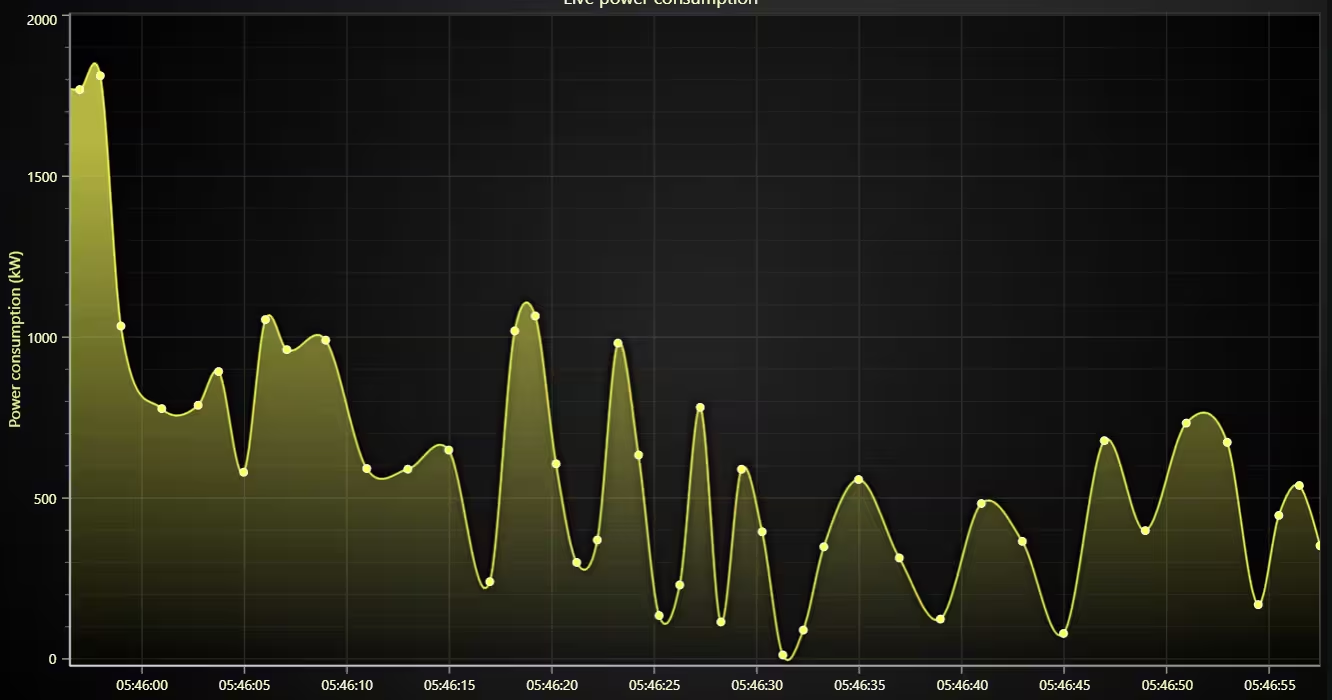
 Spline Chart Example
Template Setup
1. Download the template provided to follow the tutorial.
2. After downloading the template, you’ll see a file tree like this:
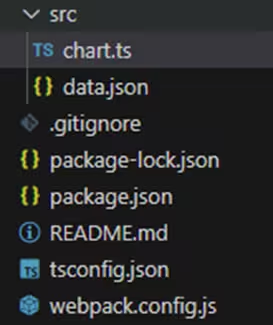
3. Open a new terminal and run the npm install command
4. It is important to keep the configuration in the tsconfig.json file. This configuration will help you to import JSON files as data objects.
Getting Started
We recommend you use and update to the most recent versions of LightningChart JS and XYData. This is because some LightningChart JS tools do not exist in previous versions. In the project’s package.json file you can find the LightningChart JS dependencies:
"dependencies": {
    "@lightningchart/lcjs": "^8.0.1",
    "@lightningchart/xydata": "^1.6.1"
}
1. Importing classes
We will start by importing the necessary classes to create our chart.
// Import LightningChartJS
const lcjs = require('@lightningchart/lcjs')

// Import xydata
const xydata = require('@lightningchart/xydata')

// Extract required parts from LightningChartJS.
const { lightningChart, AxisTickStrategies, AxisScrollStrategies, PointShape, SolidFill, ColorHEX, Themes } = lcjs
const { createProgressiveRandomGenerator } = xydata
2. Add license key (free)
Once the LightningChart JS libraries are installed, we will import them into our chart.ts file. Note you will need a trial license, which is free.
let license = undefined
try {
    license = 'xxxxxxxxxxxxx'
} catch (e) {}Chart.ts
Here, we set a starting point for the DateTime X axis. dateOrigin marks the “zero” of our time axes, and dateOriginTime converts it into milliseconds, which we will use to calculate the relative time for each data point that comes in.
// Decide on an origin for DateTime axis.
const dateOrigin = new Date()
const dateOriginTime = dateOrigin.getTime()
Here we create the main chart object, specifying that it’s an XY chart. The legend is hidden for simplicity, and we apply the darkGold theme for styling. This sets up the canvas where all points and lines will be drawn.
const chart = lightningChart({license:license}).ChartXY({
    legend: { visible: false },
    theme: Themes.darkGold,
})
This block configures the X axis as a DateTime axis. We assign the tick strategy to display dates and set our origin. The chart is set to show a rolling 61-second window, meaning new data pushes older data out of view. The scrolling strategy is enabled, so the axis moves smoothly as new points arrive.
chart
    .setTitle('Live power consumption')
    // Modify the default X Axis to use DateTime TickStrategy, and set the origin for the DateTime Axis.
    .getDefaultAxisX()
    .setTickStrategy(AxisTickStrategies.DateTime, (tickStrategy) => tickStrategy.setDateOrigin(dateOrigin))
    // Progressive DateTime view of 61 seconds.
    .setDefaultInterval((state) => ({ end: state.dataMax, start: (state.dataMax ?? 0) - 61 * 1000, stopAxisAfter: false }))
    .setScrollStrategy(AxisScrollStrategies.scrolling)
Here we configure the Y-axis, which represents power consumption in kilowatts. We set a range from 0 to 500 kW and allow the axis to expand if needed. This ensures the chart adapts if a value exceeds the initial range.
chart.axisY
    .setTitle('Power consumption')
    .setUnits('kW')
    .setInterval({ start: 0, end: 500, stopAxisAfter: false })
    .setScrollStrategy(AxisScrollStrategies.expansion)
This block creates the data series. The PointLineAreaSeries connects points with a line and optionally fills the area below. We set the X pattern to ‘progressive’ because data flows over time. The spline preprocessing smooths the curve, so trends are easier to see.
const series = chart
    .addPointLineAreaSeries({
        schema: {
            x: { pattern: 'progressive' },
            y: { pattern: null },
        },
    })
    .setCurvePreprocessing({ type: 'spline' })
    .setName('Power consumption')
Finally, this block streams simulated data into the chart. We generate random points progressively, one by one every second, and repeat indefinitely. Each point gets an X value based on the current time minus the origin, and a Y value scaled up. The points are appended to the spline series, giving the effect of a live, interactive chart updating in real time.
// Stream some random data.
createProgressiveRandomGenerator()
    .setNumberOfPoints(10000)
    .generate()
    .setStreamBatchSize(1)
    .setStreamInterval(1000)
    .setStreamRepeat(true)
    .toStream()
    .forEach((point) => {
        point.x = Date.now() - dateOriginTime
        point.y = point.y * 2000
        series.appendSample(point)
    })
npm start
In the terminal, write the command npm start to visualize the chart in your local server; enter, and you’ll see a response with http://localhost:8080/, where the chart will be stored and ready to be visualized.
Conclusion
Thank you for making it this far. I hope this spline chart example will be helpful for your next project. Spline charts are a powerful tool for visualizing trends and patterns in continuous data or time series because they smooth out fluctuations and make it easier to identify overall behaviors without being distracted by individual data points.
The interactive example we saw with LightningChart JS demonstrates how a real-time spline chart can be implemented very easily. Thanks to LightningChart JS, there’s no need to worry about low-level logic like drawing lines, handling real-time updates, or optimizing rendering. You simply define the chart, configure the axes, create a data series, and enable spline smoothing with just a few lines of code.
Additionally, the library manages the GPU and data streaming internally, allowing you to work with thousands of points efficiently without sacrificing performance. This makes LightningChart JS an ideal choice for anyone needing to create interactive, clear, and high-performance charts without hassle, allowing developers to focus on interpreting and communicating data rather than dealing with the graphical infrastructure.
Continue learning with LightningChart
Choosing the right XY line series
LightningChart .NET features 10 different line series. Read more about their characteristics and functionalities and choose the best for your app.

JavaScript Refreshing Spectrum Chart
Written by a human | Updated on April 10th, 2025JavaScript Refreshing Spectrum Chart Hello again, this time I bring a quick but helpful tutorial on how to create a JavaScript refreshing spectrum chart. A spectrum chart is commonly used in reading and plotting...
Horizontal Bar Chart of Russia-Ukraine War Weaponry Data
Written by a human | Updated on April 10th, 2025 JavaScript Horizontal Bar Chart In this article, we aim to respectfully create a JavaScript horizontal bar chart that simulates the weaponry usage on recent war conflicts. While the data have been taken from Kaggle and...



If you have any questions, feel free to contact us!
©LightningChart Ltd 2025. All rights reserved.