








Creating a real-time parallel coordinate chart with LightningChart JS
Tutorial
Written by a Human
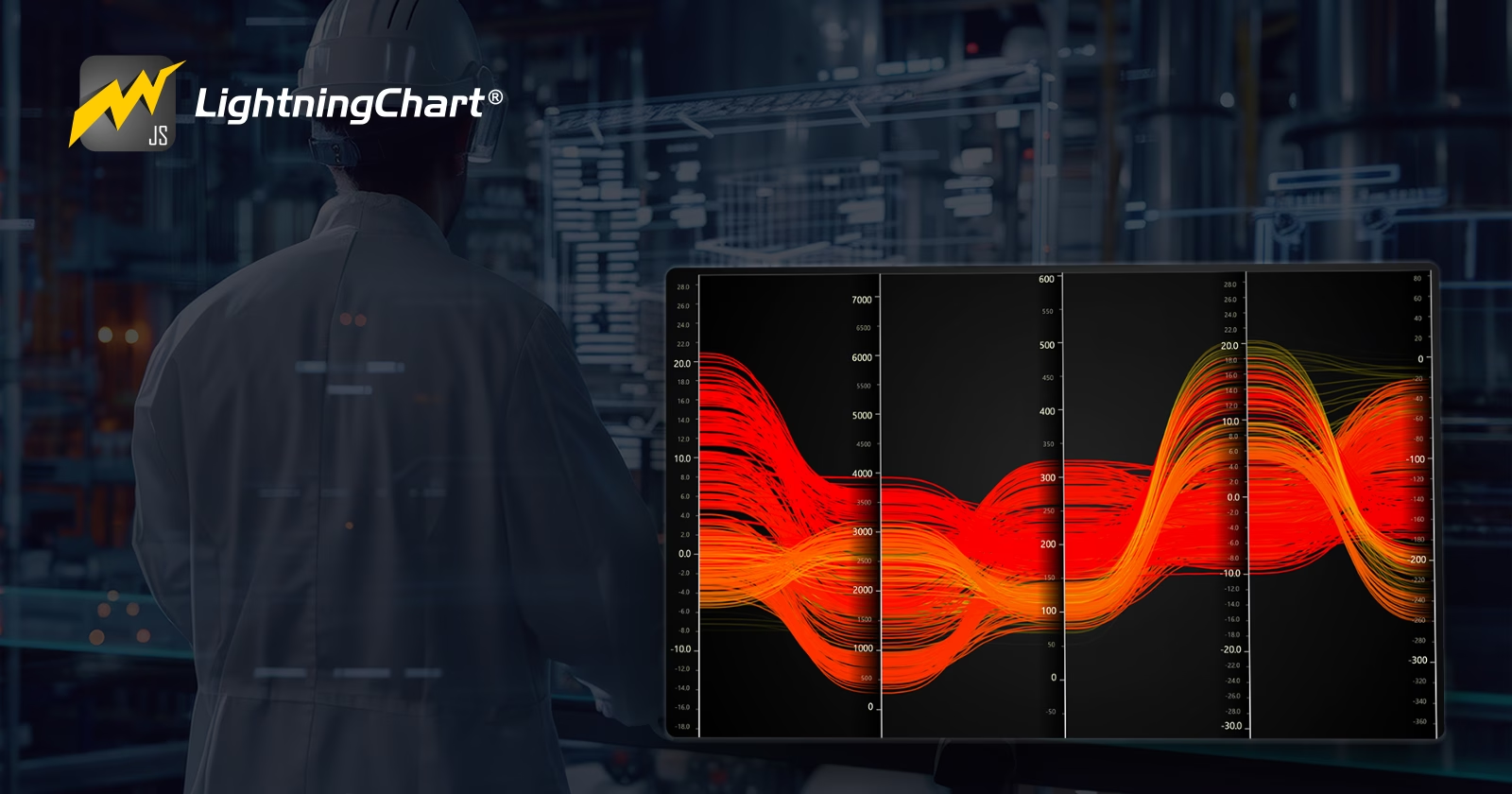
Tutorial on how to create a real-time parallel coordinate chart application for visualizing variable dimensional data.
Omar Urbano
Software Engineer

Introduction
In this article, we will work again with LightningChart JS and real-time parallel coordinate charts. I recommend you check the installation section, although you will also be able to download the project attached to this article. Let’s get started!
What is a real-time parallel coordinate chart?
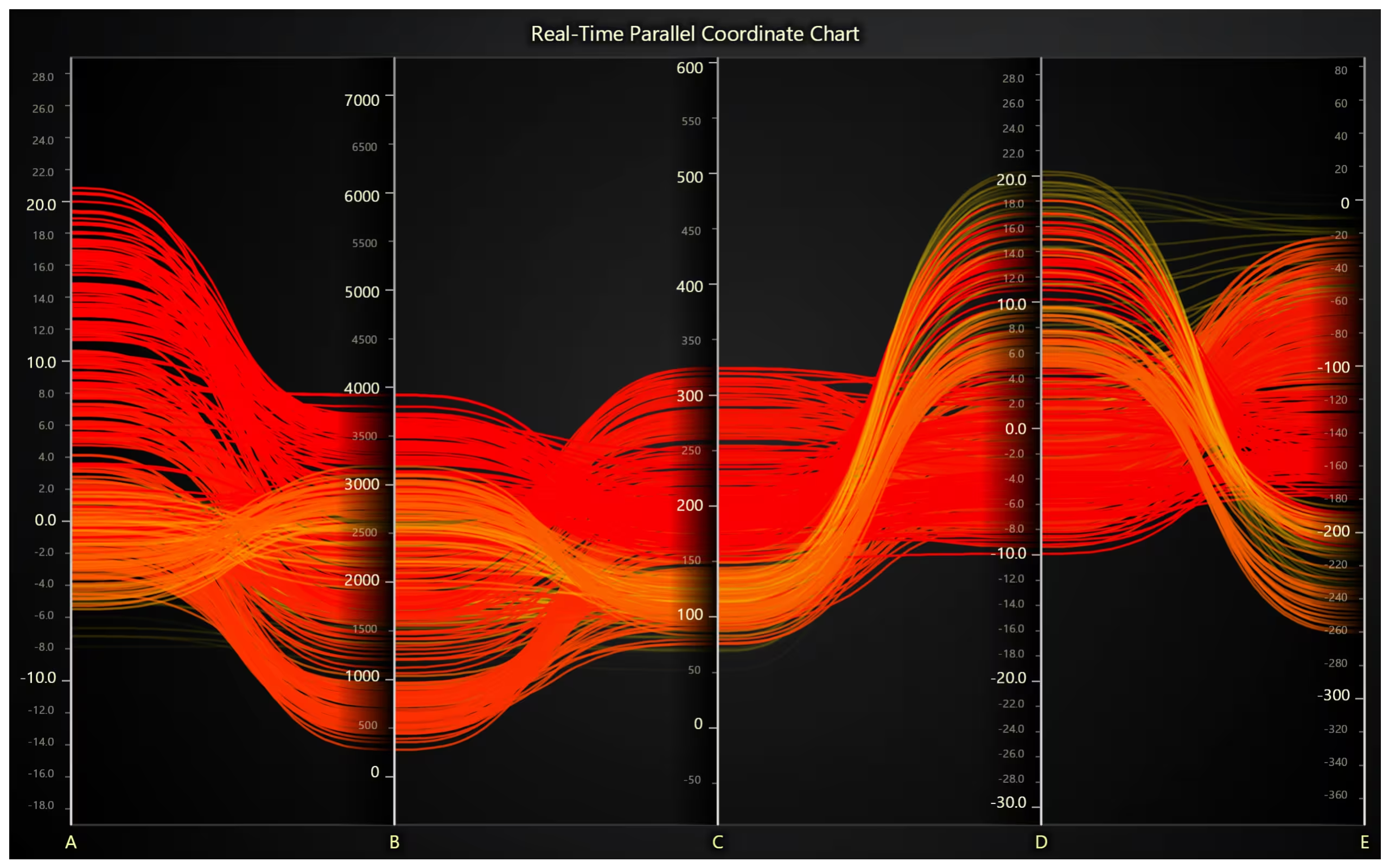
A real-time parallel coordinate chart is a variation of a parallel coordinate chart, but with the ability to update in real-time. This type of chart is used to visualize multidimensional data, where each dimension is represented by a vertical axis, and the lines represent instances or data points that are connected through those axes.
In a traditional parallel coordinate chart, each axis represents a different feature or variable of a dataset, and each line shows the values of a data point across those dimensions. In a real-time parallel chart, the data is dynamically updated while the chart is being viewed.
This is useful for monitoring systems or processes in real-time, such as sensors, live data streams, or continuous event analysis. For example, it could be used in a situation where multiple variables (like temperature, pressure, speed, etc.) are being constantly monitored, and the values of these variables are updated in real-time, allowing you to quickly spot trends, patterns, or anomalies as the data changes.
How does the real-time parallel coordinate chart work?
Parallel axes: Each axis in the chart represents a different variable or dimension of the data. For example, if you’re monitoring the performance of several devices, you might have axes for temperature, speed, energy consumption, etc.
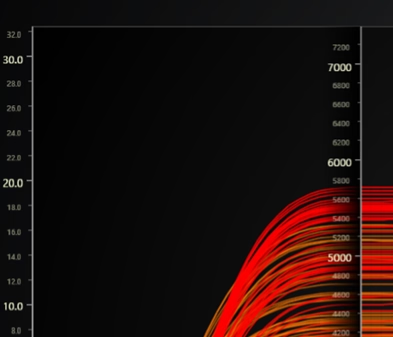
Data lines: Each data point is represented as a line that connects the values of the different variables across the corresponding axes. For example, if you have three devices, you will see three lines, each representing the characteristics (such as temperature, voltage, etc.) of a device.
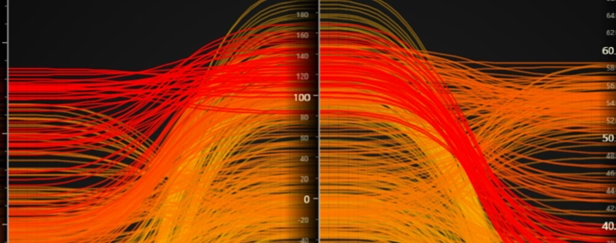
Real-time updates: In a real-time chart, the lines are constantly updated as new data comes in or the values of the variables change. This is crucial when monitoring a live system, such as an industrial process or network traffic.
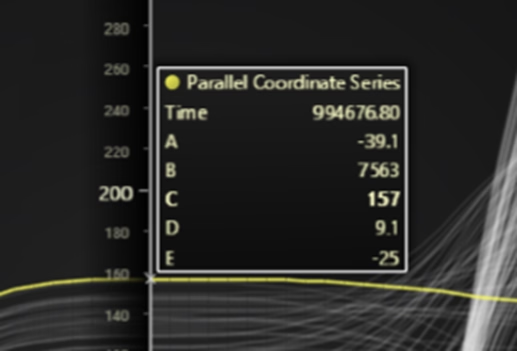
Interactivity: Often, these charts allow real-time interaction. Users can click on certain areas or lines to investigate the data further or even filter specific information to identify patterns or issues.
Use Cases
In industries like manufacturing, energy, or telecommunications, they can be used to monitor machines or processes in real-time. For instance, if you are monitoring temperature, pressure, speed, etc., in a system, the chart allows you to quickly identify if something is out of place.
Another example would be in environments where data is collected from multiple sensors (such as in cars, smart cities, or IoT environments), real-time parallel coordinate charts can help visualize the interrelationships between multiple variables as they evolve over time.
In the field of computing, they are used to display network traffic, latencies, bandwidths, etc., in real-time, helping to detect anomalies such as unusual spikes or potential cyberattacks. In financial markets, these charts can show the behavior of multiple assets, like stocks, bonds, and currencies, helping traders make quick decisions based on the analysis of several variables simultaneously.
Advantages of parallel coordinate charts
- Visualization of multiple dimensions: You can see how multiple variables interrelate simultaneously.
- Pattern and anomaly detection: Real-time updates help quickly identify changes in data behavior.
- Interactivity: Users can dynamically explore the data, which is useful in analyzing large volumes of information.
Project Overview
To follow this parallel coordinate project, download the ZIP file with all the necessary resources.
 Download the project to follow the tutorial
Template Setup
1. Download the template provided to follow the tutorial.
2. After downloading the template, you’ll see a file tree like this:
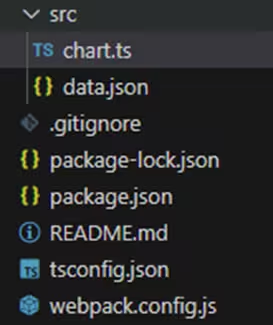
3. Open a new terminal and run the npm install command
4. It is important to keep the configuration in the tsconfig.json file. This configuration will help you to import JSON files as data objects.
Getting Started
We recommend you use and update to the most recent versions of LightningChart JS and XYData. This is because some LightningChart JS tools do not exist in previous versions. In the project’s package.json file you can find the LightningChart JS dependencies:
"dependencies": {
"@arction/lcjs": "^5.2.0",
"@arction/xydata": "^1.4.0",
"@lightningchart/lcjs": "^6.1.2",
"@lightningchart/xydata": "^1.4.0"
}
1. Importing libraries
We will start by importing the necessary libraries to create our chart.
const lcjs = require('@lightningchart/lcjs')

const { lightningchart, Tehems, AxisScrollStrategies, LUT, regularColorSteps } = lcjs
2. Add license key (free)
Once the LightningChart JS libraries are installed, we will import them into our chart.ts file. Note you will need a trial license, which is free.
let license = undefined
try {
    license = 'xxxxxxxxxxxxx'
} catch (e) {}
CreateChart
The first part of the code initializes a lightningChart instance and configures a Parallel Coordinate Chart using various properties.
const chart = lightningChart({license: license})
    .ParallelCoordinateChart({
        theme: Themes.darkGold,
    })
    .setTitle('Real-Time Parallel Coordinate Chart')
    .setAxes(['Time', 'A', 'B', 'C', 'D', 'E'])
    .setSpline(true)
    .forEachAxis((axis) => axis.setScrollStrategy(AxisScrollStrategies.fittingStepped))
// Time axis is only used for dynamic coloring.
chart.getAxis('Time').setVisible(false)
The chart is configured with a dark gold theme, and a title, “Real-Time Parallel Coordinate Chart,” is set for display. The axes are defined as “Time”, “A”, “B”, “C”, “D”, and “E”.
The chart also has spline rendering enabled to smooth the data curves, and it applies a scroll strategy on each axis to ensure the data fits within view as it changes dynamically.
Random Data Generator Function
const RandomDataGenerator = (start, mul) => {
    let prev = start
    return () => {
        const y = prev + (Math.random() * 2 - 1) * mul
        prev = y
        return y
    }
}
The RandomDataGenerator function is defined and generates random data points. It takes two parameters: start (the initial value) and mul (a multiplier to determine the variance).
The function maintains a prev variable that tracks the last value generated, and the next value is computed based on a random fluctuation within a defined range. This function is used to generate random data for the axes “A”, “B”, “C”, “D”, and “E”.
Instantiate Random Data Generators
Five instances of the RandomDataGenerator function are created for each of the axes (“A”, “B”, “C”, “D”, “E”) to simulate real-time changing data. Each axis has different initial values and multipliers, ensuring unique random data generation. These are named Y0, Y1, Y2, Y3, and Y4.
const Y0 = RandomDataGenerator(0, 2)
const Y1 = RandomDataGenerator(1000, 200)
const Y2 = RandomDataGenerator(100, 20)
const Y3 = RandomDataGenerator(10, 2)
const Y4 = RandomDataGenerator(80, 10)
Data Generation Loop with Interval
let tLastCleanup = -10000
setInterval(() => {
    const tNow = performance.now()
    const y0 = Y0()
    const y1 = Y1()
    const y2 = Y2()
    const y3 = Y3()
    const y4 = Y4()
    chart.addSeries({ automaticColorIndex: 0 }).setData({
        Time: tNow,
        A: y0,
        B: y1,
        C: y2,
        D: y3,
        E: y4,
    })
An interval function is set up with setInterval() to run every 50 milliseconds. Inside the function, new data points are generated for each axis by calling the respective RandomDataGenerator instances.
The generated data, along with the current time (tNow), is added to the chart using chart.addSeries(). This simulates real-time data streaming into the chart, where the data for each axis is continuously updated.
Data Cleanup and Series Removal
// Manual data cleaning, batched for better performance.
    if (tNow - tLastCleanup >= 5_000) {
        // Remove series that are older than 1 minute
        const series = chart.getSeries().slice()
        series.forEach((s) => {
            const data = s.getData()
            const timestamp = data && data.Time
            if (timestamp && tNow - timestamp >= 60_000) s.dispose()
        })
The code includes a cleanup mechanism that runs every 5 seconds. The cleanup checks for series older than one minute (60,000 milliseconds) and removes them from the chart to maintain performance. The tLastCleanup variable tracks the last cleanup time, and the current time is compared with the time of the series data points to decide whether they should be disposed of.
Dynamic Coloring Based on Data Age
// Manual data cleaning, batched for better performance.
    if (tNow - tLastCleanup >= 5_000) {
        // Remove series that are older than 1 minute
        const series = chart.getSeries().slice()
        series.forEach((s) => {
            const data = s.getData()
            const timestamp = data && data.Time
            if (timestamp && tNow - timestamp >= 60_000) s.dispose()
        })
        // Color series dynamically based on how new the data points are
        chart.setLUT({
            axis: chart.getAxis('Time'),
            lut: new LUT({
                interpolate: true,
                steps: regularColorSteps(tNow - 60_000, tNow, chart.getTheme().examples.intensityColorPalette).map((step, i, steps) => ({
                    ...step,
                    color: step.color.setA(255 * (i / (steps.length - 1))),
                })),
            }),
        })
        tLastCleanup = tNow
    }
}, 50)
After cleaning the old series, the code sets up dynamic coloring based on the age of the data points. A Look-Up Table (LUT) is used to interpolate colors, which visually represents how new or old the data points are. The color intensity is adjusted based on how recently the data was generated, creating a visual gradient effect over time. This LUT is applied to the “Time” axis, ensuring the chart reflects the age of data visually.
Initializing the chart
Run the npm start command in the terminal to visualize the chart in a local server.
Conclusion
On this occasion, I would like to conclude with some important points in the development of charts with LC JS. The code presents an optimized implementation to handle real-time data, especially when it grows rapidly. One of the main strategies is the periodic removal of old series, ensuring that only the most recent data is kept in the chart, eliminating the overhead of processing outdated information. Data cleaning is performed efficiently through timestamp checks and a 5-second interval for cleaning, which maintains system performance even with large volumes of data.
Efficient Data Updates
Data updates in the chart occur every 50 milliseconds, using functions like setInterval() to simulate a real-time data stream. However, the code optimizes this update by avoiding unnecessary recalculations or updates of data that haven’t changed, improving efficiency and ensuring a smooth experience without overloading the browser or server.
Advantages of LightningChart JS in Real-Time Visualization Development
- Exceptional performance: The library is designed to handle large amounts of data efficiently without sacrificing rendering speed. This is crucial in applications that require fast updates and complex charts.
- Advanced interactivity: It provides easy-to-integrate tools to make interactive charts, allowing users to explore data in depth intuitively.
- Visual flexibility: Through customizable themes and the ability to dynamically apply colors, like in the case of color interpolation, LightningChart JS offers a wide range of options to tailor the visualization to the style and specific needs of the project.
If you need to develop complex and powerful visualizations for your applications, consider LightningChart JS. Thanks, bye!
Continue learning with LightningChart
Create a JavaScript Pie Chart with NodeJS, TypeScript & LightningChart
Written by a human | Updated on April 10th, 2025JavaScript Pie Chart with NodeJS & TypeScript Today, we are going to do a short tutorial on how to generate a pie chart using Node JS, TypeScript, and LigningCharts JS. To see how to get LightningChart JS for...
Real-time data visualization with WebSockets
Written by a human | Updated on April 10th, 2025WebSockets Data Visualization in Real-Time These days it is ever increasingly common that people require web solutions for their applications and services. Data visualization is not an exception to this, as...
Why Performance Matters in Data Visualization?
Written by a human | Updated on April 10th, 2025Performance in Data VisualizationI was doing a Google search a couple of days ago and particularly, I wanted to know what are the options for developers who need to visualize large amounts of data points within...