








JavaScript Create a multi-chart canvas with LightningChart JS
Tutorial
Written by a Human
Learn how to create a freeform multi-chart canvas dashboard with LightningChart JS with free control over draw order and positioning.
Omar Urbano
Software Engineer

Introduction
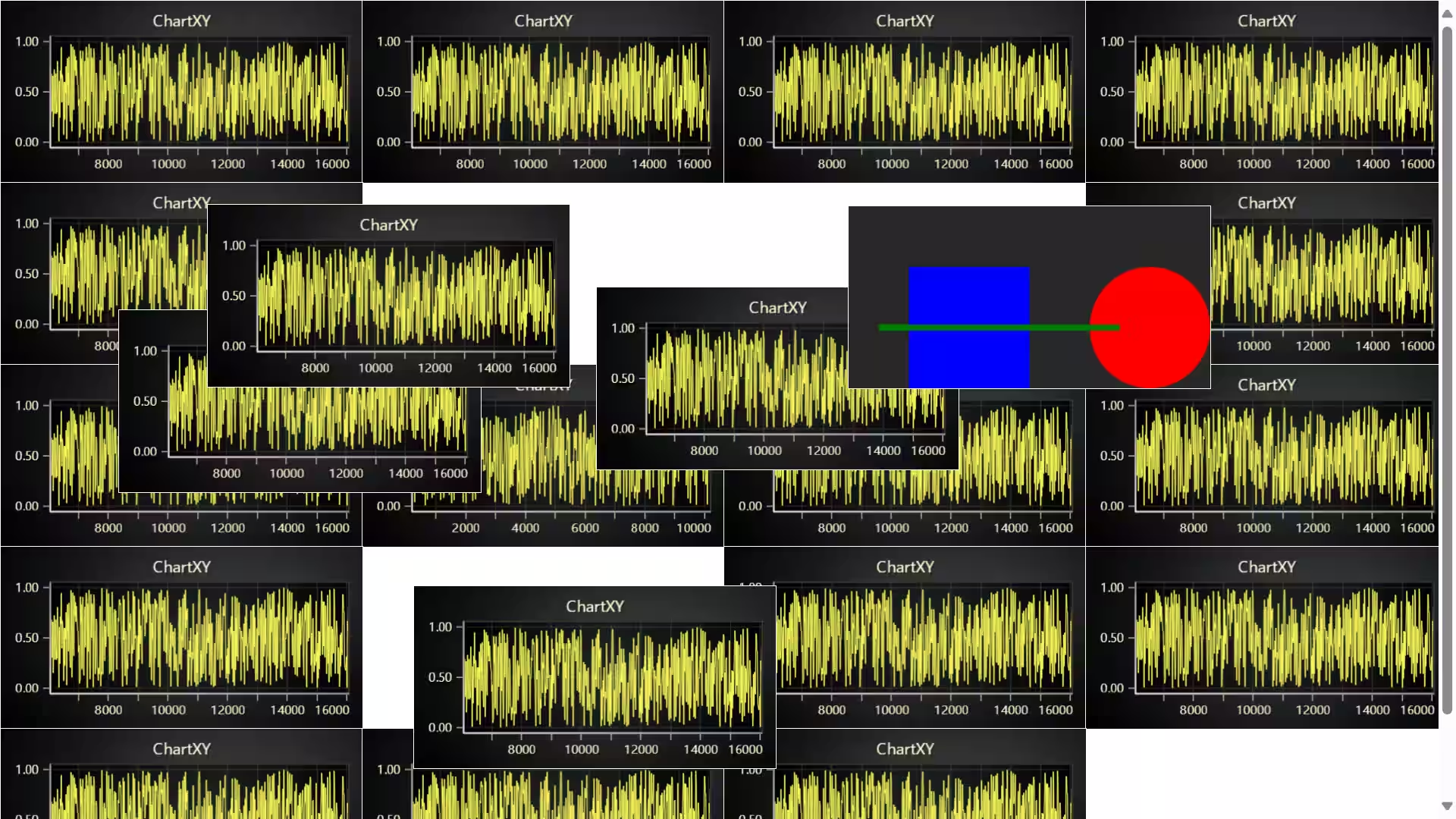
We are back with a new TypeScript article. Welcome to this new article! Although brief, as we won’t be covering theory, our goal is to demonstrate how to create a dashboard with multiple charts, where you can work with all of them and organize them as you prefer. LightningChart JS allows you to display many charts on a single page, giving you full control to move, resize, and overlay them as you wish. Additionally, you can define the drawing order, so they align exactly as needed, even in combination with other HTML elements.
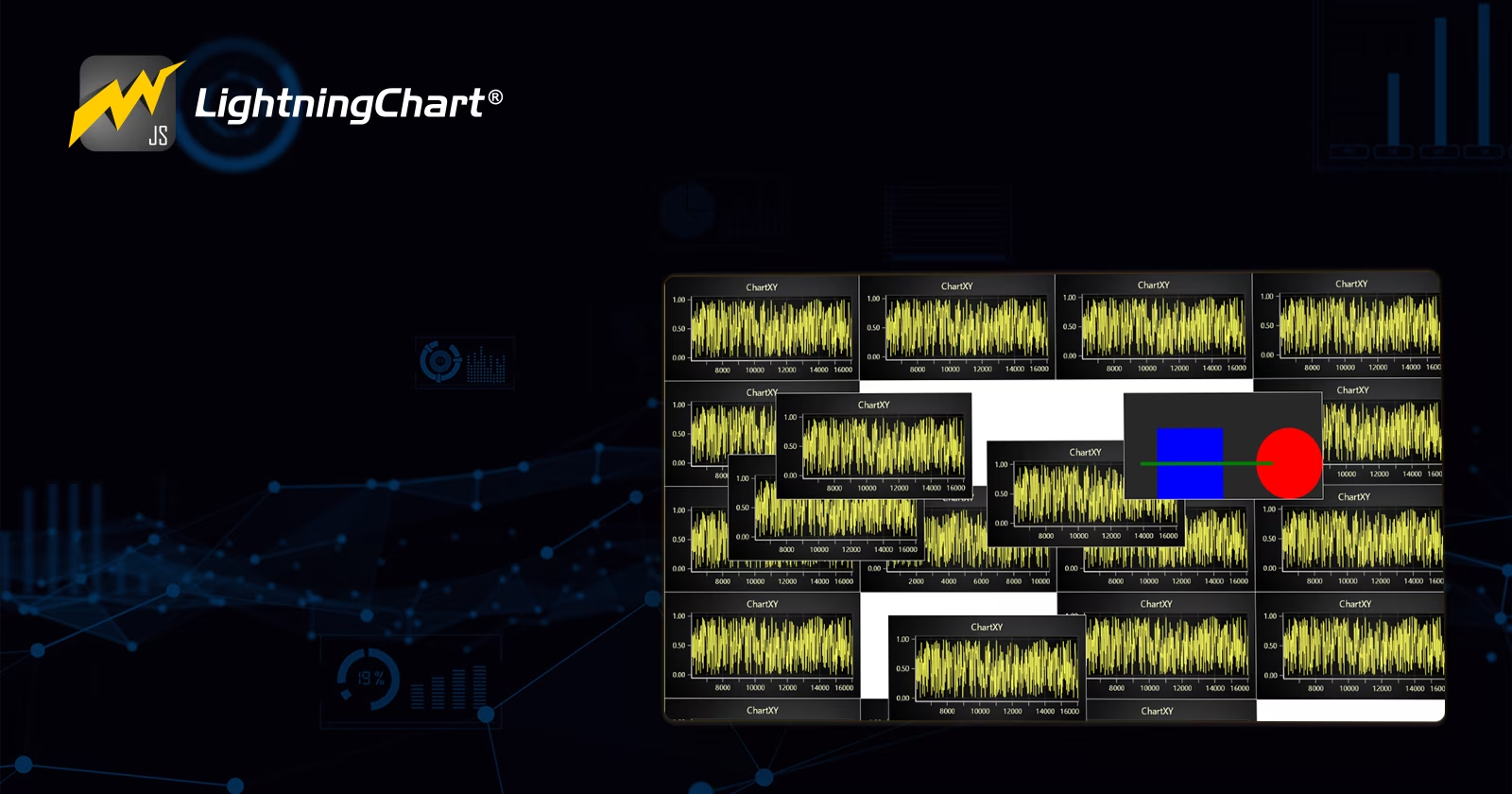
In this case, we have placed 20 charts distributed across the screen and added an extra HTML canvas to make it more interesting. You can scroll using the scroll bar, and if you want to reorganize the charts, simply drag them with the mouse.Meanwhile, all charts continue receiving real-time data, working smoothly with scrolling, zooming, and cursor interactions. With that said, let’s get started!
Project Overview
To follow this JavaScript multi-chart canvas project, download the ZIP file with all the necessary resources.
 Download the project to follow the tutorial
Template Setup
1. Download the template provided to follow the tutorial.
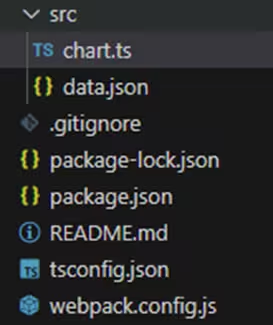
2. After downloading the template, you’ll see a file tree like this:
3. Open a new terminal and run the npm install command
4. It is important to keep the configuration in the tsconfig.json file. This configuration will help you to import JSON files as data objects.
Getting Started
We recommend you use and update to the most recent versions of LightningChart JS and XYData. This is because some LightningChart JS tools do not exist in previous versions. In the project’s package.json file you can find the LightningChart JS dependencies:
"dependencies": {
"@lightningchart/lcjs": "^7.0.2",
}
1. Importing classes
We will start by importing the necessary classes to create our chart.
import {AxisScrollStrategies, emptyFill, lightningChart, isImageFill, SolidFill, ColorRGBA, Themes} from "@lightningchart/lcjs";
2. Add license key (free)
Once the LightningChart JS libraries are installed, we will import them into our chart.ts file. Note you will need a trial license, which is free.
let license = undefined
try {
    license = 'xxxxxxxxxxxxx'
} catch (e) {}
Creating the chart
The code dynamically creates resizable and draggable windows in a web page. Each window can either display a LightningChart or a simple Canvas drawing. It also updates LightningChart with real-time data. Below is a step-by-step explanation of the code.
Step 1: Setting Up the Container
This code tries to find an element with the ID ‘chart’. If the element doesn’t exist, it defaults to document.body.
const exampleContainer = document.getElementById('chart') || document.body
if (exampleContainer === document.body) {
    exampleContainer.style.width = '100vw'
    exampleContainer.style.height = 'max(100vh, 100%)'
    exampleContainer.style.margin = '0px'
}
exampleContainer.style.overflowX = 'hidden' Ifdocument.body is used, it applies full-screen styles:
- Width: 100vw which is 100% of the viewport width
- Height: max (100vh, 100%) or whichever is larger between the viewport height or 100% of the parent element
- It removes margins and finally, it hides the horizontal scrolling
Step 2: Initializing LightningChart
This code initializes an instance of LightningChart, a high-performance JavaScript charting library, and requires a valid license parameter to enable usage.
const lc = lightningChart({license:license}) Step 3: Creating Windows (Charts or Canvas)
This code Creates a <div> element (a window). It adds it towindowsContainer which is either document.body or the chart element.
const windowsContainer = exampleContainer
const windows = []
const createWindow = (type) => {
    const container = document.createElement('div')
    windowsContainer.append(container)
    container.style.position = 'absolute'
    container.style.boxSizing = 'content-box'
    container.style.width = `${windowsContainer.getBoundingClientRect().width / 4}px`
    container.style.left = `${(windows.length % 4) * (windowsContainer.getBoundingClientRect().width / 4)}px`
    container.style.height = '200px'
    container.style.top = `${Math.floor(windows.length / 4) * 200}px`
The code styles the window position to absolute which allows free movement of each of the charts. It divides the container into 4 columns (each window is ¼ the width) and sets height to 200px. The windows positions are in a grid-like pattern, as follows:
- Horizontally =
(windows.length % 4) * (width / 4) - Vertically =
Math.floor(windows.length / 4) * 200.
Step 4: Adding LightningChart or Canvas Graphics
switch (type) {
        case 'lightningchart': {
            const chart = lc
                .ChartXY({
                    container,
                    theme: Themes.darkGold,
                })
                .setCursorMode('show-nearest')
                .setTitleEffect(false)
                .setSeriesBackgroundEffect(false)
If type === 'lightningchart', creates a new XY chart and uses the Dark Gold Theme. To disable the effects use the setTitleEffect(false) andsetSeriesBackgroundEffect(false)). You can also add an X-axis scrolling strategy in a progressive mode.
Step 5: Adding Canvas Drawing
case 'other':
        default: {
            const canvas = document.createElement('canvas')
            container.append(canvas)
            canvas.style.width = '100%'
            canvas.style.height = '100%'
            const ctx = canvas.getContext('2d')
            ctx.fillStyle = 'blue'
            ctx.fillRect(50, 50, 100, 100)
            ctx.beginPath()
            ctx.arc(250, 100, 50, 0, Math.PI * 2)
            ctx.fillStyle = 'red'
            ctx.fill()
            ctx.closePath()
            ctx.beginPath()
            ctx.moveTo(25, 100)
            ctx.lineTo(225, 100)
            ctx.strokeStyle = 'green'
            ctx.lineWidth = 5
            ctx.stroke()
            ctx.closePath()
            windows.push({ type: 'other', container })
            break
        }
If type === 'other'creates an HTML <canvas>, draws a blue rectangle, red circle, and green line. It also stores the window object in windows.
Step 6: Making Windows Draggable
container.addEventListener('pointerdown', (eventDown) => {
        if (eventDown.defaultPrevented) return
        container.style.pointerEvents = 'none'
        windows.forEach((window) => window.type === 'lightningchart' && window.chart.setCursorMode(undefined))
        // Lift window to top draw order by placing it as last DOM child
        windowsContainer.append(container)
        let prevEvent = eventDown
        const handleMove = (eventMove) => {
            const delta = {
                x: eventMove.clientX - prevEvent.clientX,
                y: eventMove.clientY - prevEvent.clientY,
            }
            container.style.left = `${Number.parseFloat(container.style.left.replace('px', '')) + delta.x}px`
            container.style.top = `${Number.parseFloat(container.style.top.replace('px', '')) + delta.y}px`
            prevEvent = eventMove
        }
        const handleUp = (eventUp) => {
            container.style.pointerEvents = 'unset'
            windows.forEach((window) => window.type === 'lightningchart' && window.chart.setCursorMode('show-nearest'))
            window.removeEventListener('pointermove', handleMove)
            window.removeEventListener('pointerup', handleUp)
        }
        window.addEventListener('pointermove', handleMove)
        window.addEventListener('pointerup', handleUp)
}) - This code adds an event listener for
pointerdownwhen the user clicks the window, moves the window to the top by setting it as the last DOM child, tracks mouse movement viapointermoveto update the window’s position (left, top), and stops tracking once the pointer is released (pointerup).
Step 7: Generating Windows and Real-time Data Update
This code creates 20 LightningChart windows and one Canvas window.
for (let i = 0; i < 20; i += 1) {
    createWindow('lightningchart')
}
createWindow('other')
Step 8: Updating LightningChart JS with Real-Time Data
This code generates new data points, where x represents time and y is a random value, and updates each LightningChart window every 16 milliseconds to maintain a refresh rate of approximately 60 frames per second.
setInterval(() => {
    const p = { x: performance.now(), y: Math.random() }
    windows.forEach((window) => {
        if (window.type !== 'lightningchart') return
        if (window.series) {
            window.series.appendSample(p)
        } else if (window.pointSeriesList) {
            const series = window.pointSeriesList[Math.round(Math.random() * (window.pointSeriesList.length - 1))]
            series.appendSample(p)
        }
    })
}, 1000 / 60)
Initializing the chart
Run the npm start command in the terminal to visualize the chart in a local server.
Conclusion
This project is a great example of how LightningChart can be used to create fast, interactive, and real-time data visualizations. The code efficiently handles multiple charts at once, ensuring smooth performance even with continuous data updates.
Why LightningChart JS?
- Blazing Fast – Designed for real-time data, it keeps charts responsive and lag-free.
- Customizable & Interactive – Supports different themes, cursor modes, and dynamic resizing.
- Handles Large Datasets – Easily processes thousands of data points without slowing down.
With its high-performance rendering and easy scalability, LightningChart is perfect for applications like financial analytics, scientific research, and industrial monitoring. This setup seems not to be complex, but also delivers the speed and flexibility needed for demanding real-time data applications. Thanks for your attention.
Continue learning with LightningChart
React Charting Performance
Here's a scenario that plays out across development teams every few months. Someone builds a React dashboard, picks Recharts or Victory because they're popular, the devs love them, and the first demo looks great. Then the dataset gets bigger. Or the data starts...
Javascript Charting Library comparison 2026
Every year someone publishes a listicle of JavaScript charting libraries. They screenshot a demo, note the GitHub stars, paste in the npm install command, and call it a day. Then you follow their recommendation, get six months into your project, and discover that your...
Visualizing 10 Million Data Points in the Browser (2026): The Technical Deep-Dive
Ten Million Data Points in the Browser: How WebGL Makes Mass Datasets Interactive Ten million data points. That number used to mean a database problem, not a front-end problem. Now research teams want to explore it interactively in a browser. Trading desks want...



If you have any questions, feel free to contact us!
©LightningChart Ltd 2025. All rights reserved.