








Create a JavaScript Dashed Line Chart with LightningChart JS
Tutorial
Written by a Human
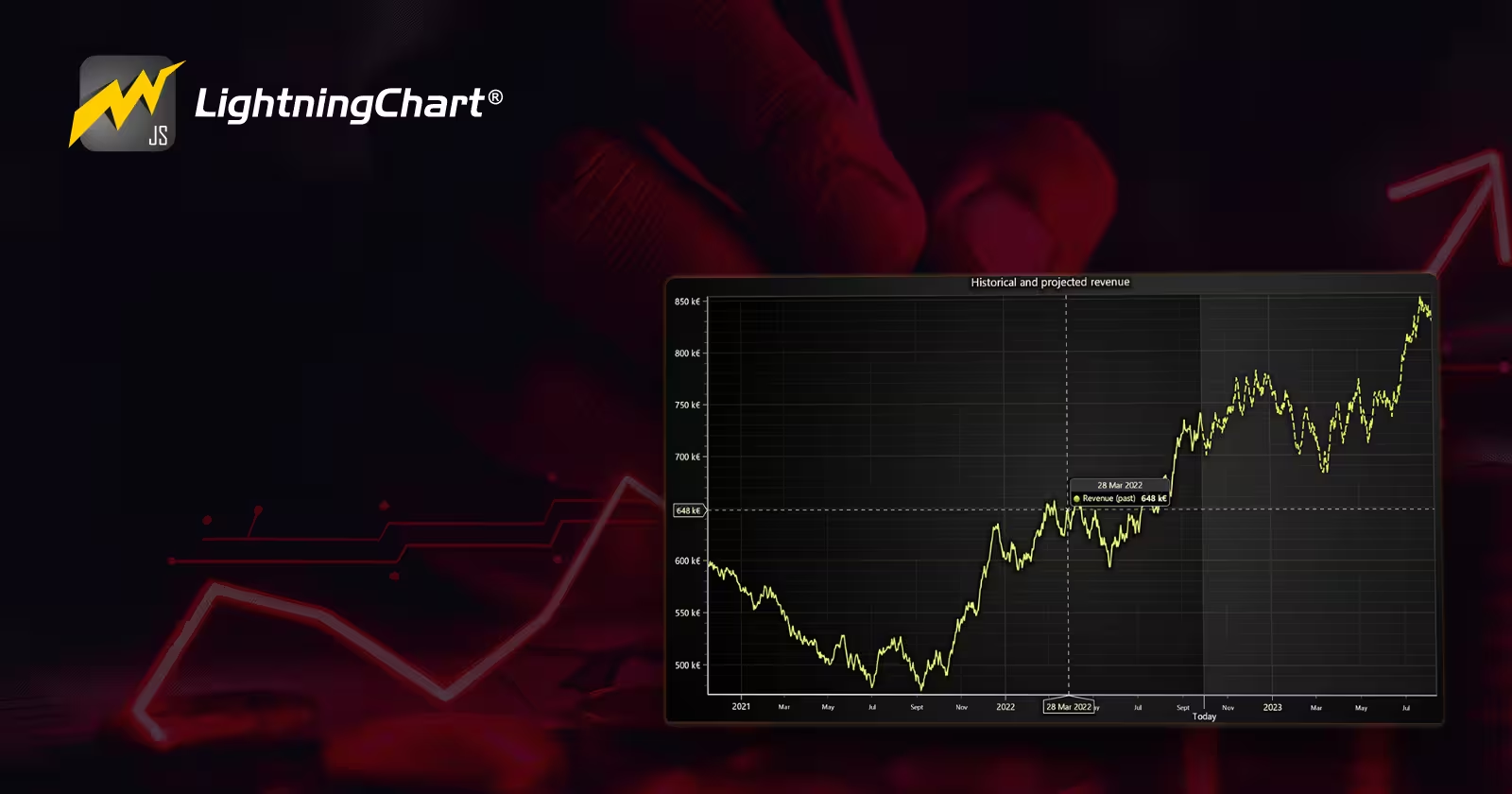
Learn how to create a JS dashed line chart for visualizing historical and projected revenue using LightningChart JS.
Omar Urbano
Software Engineer

Introduction
I’m Omar, and this month we are back with LC JS, using the latest version of this library. To start off this month, we will create a Dashed Line Chart. This will be a quick exercise, but it remains one of the most widely used and important charts in data analysis, making it a great practice if you are just starting with dataset visualization.
A Dashed Line Chart is a type of line chart where some or all the lines are represented with dashed strokes instead of solid lines. This chart is a variation of standard line charts and is used to represent data more clearly when multiple series are involved or to distinguish different types of information (such as actual vs. projected values).
It is commonly used for:
- Distinguishing different data series within the same chart.
- Displaying projected or estimated data separately from actual data.
- Highlighting patterns or trends without overcrowding the visualization.
- Visual Comparisons: Solid and dashed lines can be used to compare historical data with future forecasts.
- Highlighting Segments: It can indicate trend changes or emphasize specific data intervals.
- Differentiating Categories: Useful when visualizing multiple datasets in the same chart.
- Goal Indicators: A dashed line can represent a target or threshold.
Well, now that we’ve covered this brief introduction, let’s get started!
Project Overview
To follow this JavaScript multi-chart canvas project, download the ZIP file with all the necessary resources.
 Dashed Line Chart project (.ZIP)
Template Setup
1. Download the template provided to follow the tutorial.
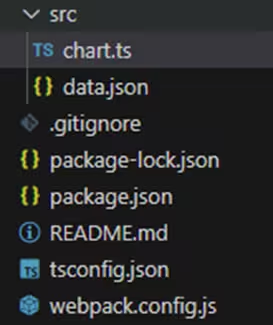
2. After downloading the template, you’ll see a file tree like this:
3. Open a new terminal and run the npm install command
4. It is important to keep the configuration in the tsconfig.json file. This configuration will help you to import JSON files as data objects.
Getting Started
We recommend you use and update to the most recent versions of LightningChart JS and XYData. This is because some LightningChart JS tools do not exist in previous versions. In the project’s package.json file you can find the LightningChart JS dependencies:
"dependencies": {
"@lightningchart/lcjs": "^7.0.2",
}
1. Importing classes
We will start by importing the necessary classes to create our chart.
import {AxisScrollStrategies, emptyFill, lightningChart, isImageFill, SolidFill, ColorRGBA, Themes} from "@lightningchart/lcjs";
2. Add license key (free)
Once the LightningChart JS libraries are installed, we will import them into our chart.ts file. Note you will need a trial license, which is free.
let license = undefined
try {
    license = 'xxxxxxxxxxxxx'
} catch (e) {}Chart.ts
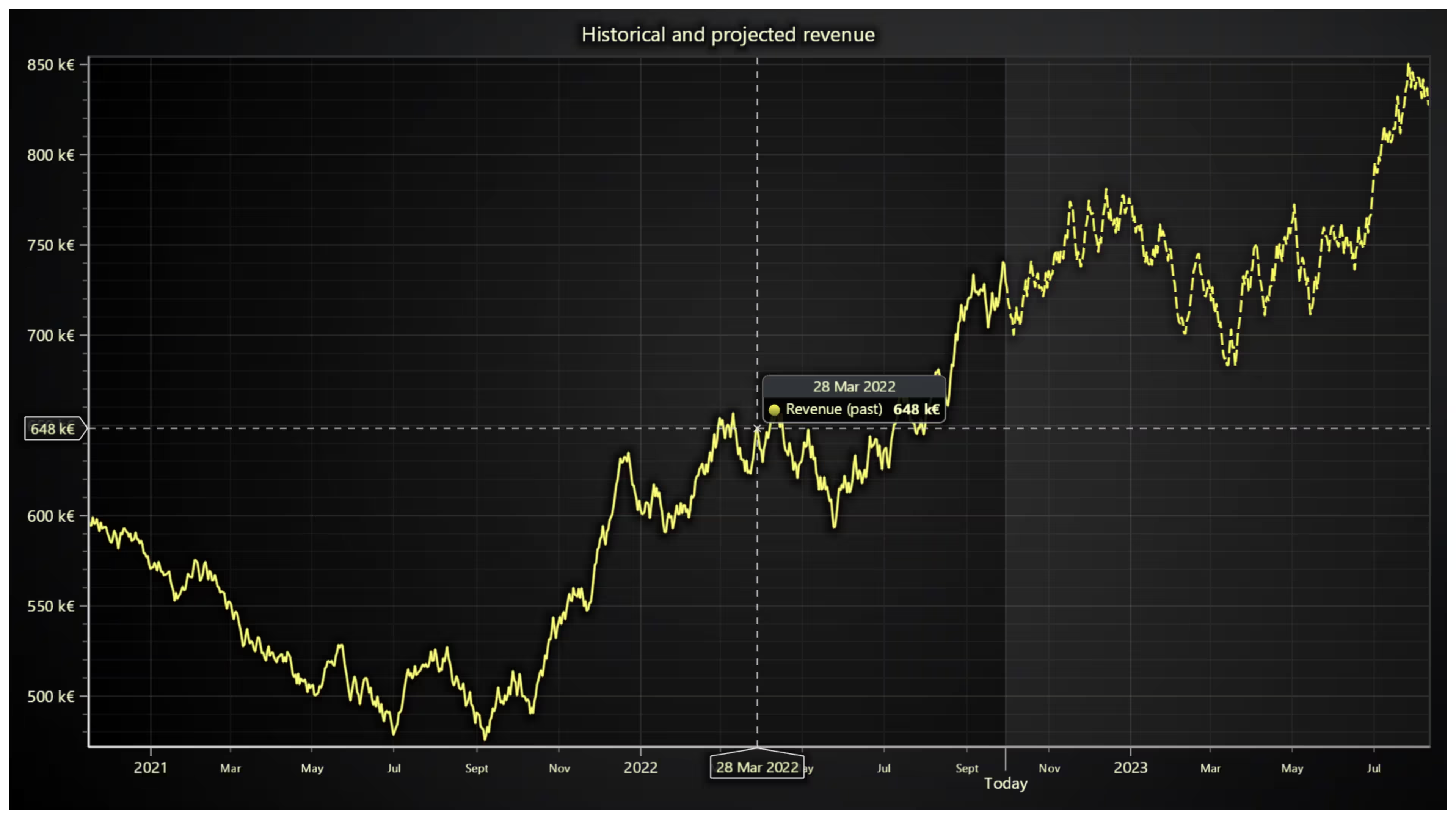
This code effectively visualizes financial trends, with a solid line for past revenue and a dashed line for projected revenue. It also highlights the projection period and ensures the chart remains clean, readable, and user-friendly. Now let’s review step by step the code and what it does.
import revenueData from './revenue.json'; const lcjs = require('@lightningchart/lcjs')
const { lightningChart, Themes, emptyFill, AxisTickStrategies, emptyLine, DashedLine, StipplePat • The code first imports revenue data from a JSON file. This data will be used to plot the past and projected revenue trends.
• Next, it imports the lcjs (LightningChart JS) library, which is used to create high-performance charts.
• From lcjs, it extracts useful components like Themes (to apply color themes), DashedLine (to style projected trends), and AxisTickStrategies (to customize how axis values appear).
Creating the Chart with a Dark Theme
const chart = lightningChart({license:license})
    .ChartXY({
        theme: Themes.darkGold,
    })
    .setTitle('Historical and projected revenue')
• This block initializes a new XY chart (meaning it has both X and Y axes).
• It applies to the dark gold theme, giving the chart a sleek look.
• Finally, it sets a title: “Historical and projected revenue,” clearly communicating the chart’s purpose.
Configuring the X and Y Axes
const axisX = chart
    .getDefaultAxisX()
    // Configure DateTime X ticks.
    .setTickStrategy(AxisTickStrategies.DateTime, (ticks) =>
        // Show month, day and year in cursor result table
        ticks.setCursorFormatter((timestamp) =>
            new Date(timestamp).toLocaleDateString(undefined, { month: 'short', day: '2-digit', year: 'numeric' })
        ),
    )
• This part customizes the X-axis, which represents time.
• It sets the axis to use DateTime ticks, meaning it will display dates instead of plain numbers.
• The cursor format ensures that when you hover over a point, it will show a readable date like “Mar 15, 2025” instead of an unreadable timestamp.
const axisY = chart
    .getDefaultAxisY()
    // Configure Y axis formatting as "100 k€"
    .setTickStrategy(AxisTickStrategies.Numeric, (ticks) => ticks.setFormattingFunction((euros) => `${(euros / 1000).toFixed(0)} k€`));
• The Y-axis represents revenue in euros (€).
• Instead of showing raw numbers, it converts them into a “thousand” format.
• For example, 100,000 euros will be displayed as 100 k€ to keep things clean and readable.
Splitting the Data into Past and Projected Revenue
const tNow = 1664456233537
const dataPast = revenueData.filter((p) => p.x <= tNow)
const dataProjection = revenueData.filter((p) => p.x > tNow)
dataProjection.unshift(dataPast[dataPast.Length - 1])
• The variable tNow is a timestamp representing the current date.
• The dataset is then split into two parts:
• dataPast contains all data points up to tNow (historical revenue).
• dataProjection contains all future data points (predicted revenue).
• To ensure a smooth transition between past and projected data, the last historical data point is added at the beginning of dataProjection. This prevents an abrupt jump in the graph.
Creating the Line Series for Past and Projected Revenue
const seriesPast = chart
    .addPointLineAreaSeries({ dataPattern: 'ProgressiveX', automaticColorIndex: 0 })
    .appendJSON(dataPast)
    .setName('Revenue (past)')
.setAreaFillStyle(emptyFill)- This adds a solid line series for past revenue.
- The ProgressiveX pattern means the data points increase in time.
- The emptyFill ensures there’s no shaded area under the line, keeping it as a simple line.
const seriesProjection = chart
    .addPointLineAreaSeries({ dataPattern: 'ProgressiveX', automaticColorIndex: 0 })
    .appendJSON(dataProjection)
    .setStrokeStyle(
        (stroke) =>
            new DashedLine({
                thickness: stroke.getThickness(),
                fillStyle: stroke.getFillStyle(),
                pattern: StipplePatterns.Dashed,
                patternScale: 4,
            }),
    )
    .setName('Revenue (projected)')
.setAreaFillStyle(emptyFill)- This adds a dashed line for the projected revenue.
- The dashed stroke style helps visually differentiate projections from actual past data.
- The patternScale: 4 makes the dashes larger and easier to distinguish.
Highlighting the Projection Period and Adding a “Today” Marker
axisX
    .addBand()
    .setValueStart(dataProjection[0].x)
    .setValueEnd(dataProjection[dataProjection.length - 1].x)
    .setStrokeStyle(emptyLine)
    .setPointerEvents(false)
    .setEffect(false)
• This shades the projection period on the X-axis, visually separating past and future data.
• emptyLine makes sure the band itself has no border.
• setPointerEvents(false) ensures the shaded area doesn’t interfere with mouse interactions.
axisX
    .addCustomTick()
    .setValue(dataProjection[0].x)
    .setTickLength(20)
    .setTextFormatter(() => 'Today')
• This adds a custom tick mark labeled “Today” at the point where projections begin.
• This makes it clear where past data ends and future projections begin.
Initializing the chart
Run the npm start command in the terminal to visualize the chart in a local server.
Conclusion
This chart excellently visualizes revenue trends, making it easier for us to view historical data and future projections in a clear and structured manner. To achieve this, it is essential to control an X-axis based on dates with a precise format and a Y-axis that display values in thousands of euros (k€).
A key advantage of this approach is the smooth transition between past and projected data, ensuring that the last historical data point aligns with the expected trend.The solid line for past revenue and the dashed line for projections make it visually intuitive. Additionally, the “Today” marker and the subtle highlight of the projection period help users quickly understand when future data begins.
The more structured implementation provided by LC JS allows us to create a powerful, responsive, and highly accurate analytical chart. Although LC JS is not like a conventional JavaScript or jQuery chart, its implementation offers a better-structured, easy-to-maintain, and well-modularized scheme.I hope this article has been very helpful.
Thank you, bye!
Continue learning with LightningChart
The LightningChart JS Agent Skill: Give Any AI Coding Agent Accurate Charting Knowledge in 60 Seconds
An agent skill is a folder of instructions your AI coding tool picks up automatically. This one teaches any compatible agent how to use LightningChart JS correctly, before it writes a single line of chart code. Agent skills are a relatively new concept and the...
Why AI Coding Agents Get Data Visualization Wrong, and What to Do About It
AI coding assistants are getting good at most parts of application development. Data visualization is one of the areas where they still have a consistent, predictable failure mode. This article explains the mechanics of why it happens and the practical fix. I spent a...
Andrews’ Pitchfork in Technical Analysis
Andrews' Pitchfork is one of the most respected technical analysis tools used by traders to identify potential support and resistance levels, trend direction, and future price paths. Developed by Dr. Alan H. Andrews, the indicator is based on the principle that prices...



If you have any questions, feel free to contact us!
©LightningChart Ltd 2025. All rights reserved.