





Creating a 3D Scatter Chart with LightningChart JS
Tutorial
Written by a Human
Create a 3D scatter chart application in JavaScript with LightningChart and visualize 3D data in your next app development project.
Omar Urbano
Software Engineer

Introduction
Welcome to another new article about LightningChart and Node.js. In this article, we will talk about the scatter chart and its implementation in the latest version of the LightningChart JS library. Before diving into the practical part, I recommend looking at the theory first. This will help you understand this type of chart, its importance, how to interpret it, and how you can use it in your next project.
Keep in mind that you’ll need to get the latest version of LC JS, and you’ll also need a trial account, which will allow you to visualize the implementation of your chart. You can also interact with the chart right from your browser. You can also interact with the chart right from your browser.
What is a 3D scatter chart and when should you use one?
A 3D scatter plot is a visual representation where each point marks the position of a data item in three-dimensional space. Unlike the classic 2D scatter plot (which places data along an X and a Y axis), a third coordinate (Z) is added here. Each point reflects the value of an observation across three different variables simultaneously. In practice, this allows us to see patterns, clusters, and trends that would remain hidden in two dimensions.
For example, if we wanted to analyze product sales, we could plot the quantity sold (Y-axis) against the price (X-axis) in 2D. But if we also add the month of sale or the geographic region as a third axis, we get a much richer perspective and we can see how multiple variables influence outcomes together. That said, it’s not always a good idea to use 3D “just because it looks cooler.”
A 3D scatter plot works best in specific scenarios, for example, when you need to represent three numerical variables at the same time. Example: temperature (X), humidity (Y), and wind speed (Z) in meteorology.
To make complex 2D data easier to read. If the data in 2D looks confusing or without a clear pattern, adding a third dimension can reveal clusters or trends. In exploratory data analysis. Data scientists often use it as a first tool to “get a feel” for their data before applying more complex models.
When you want to identify clusters or natural groupings. In machine learning, 3D scatter plots help visualize how data clusters after dimensionality reduction. That said, there are a few things to watch out for. For instance, a 3D chart can become confusing if there are too many points, if the axes are poorly scaled, or if the viewing angle is unclear.
In such cases, a well-made 2D chart (or even multiple 2D charts in parallel) can often be much more effective.
What are the key components of a well-designed 3D scatter chart?
A 3D scatter plot isn’t just “placing dots in space.” To communicate something (and not end up as a confusing decoration), there are several key elements to consider:
- Axes (X, Y, Z): clearly labeled, with proper units and scales.
- Data points: precise positions, with smart use of color, size, and transparency to show more variables without cluttering.
- Legend: explains the meaning of colors, shapes, or sizes used.
- Perspective: choose a clear viewing angle, or better yet, allow rotation to explore the data.
- Supporting elements: grid, scales, and title to give context.
- Simplicity: less is more; too many 3D embellishments often reduce clarity.
An effective 3D scatter plot balances clarity, context, and simplicity so that the third dimension adds value rather than just aesthetic appeal.
How can a 3D scatter chart help visualize relationships between three variables?
The great advantage of a 3D scatter plot is that it allows you to see how three variables interact at the same time, something a 2D chart can’t fully show.
- Spatial positioning. Each point is placed in three-dimensional space according to its values on the X, Y, and Z axes. This helps identify patterns or trends that only appear when considering all three dimensions together.
- Detection of groups and correlations. It’s easier to see if the data forms clusters or follows a common trajectory when viewed across three axes instead of two.
- Richer comparison. By looking at the point cloud from different angles, relationships that might appear “flat” or irrelevant in 2D become visible.
- Exploration of complex phenomena. In fields like data science, meteorology, or biology, results often depend on more than two factors; 3D scatter plots provide the first way to explore these dependencies.
What are common mistakes to avoid when designing a 3D scatter chart?
Although 3D scatter plots are powerful, if used poorly they can confuse more than they clarify. Here are the most common mistakes to avoid:
- Using 3D just for aesthetics. If two dimensions already explain the relationship well, adding a third will only make the chart harder to read.
- Poorly scaled axes. If the axes don’t use proportional scales, points get distorted, and patterns may appear different from reality.
- Overloading with too many points. A dense 3D cloud can turn into an unreadable block. In such cases, it’s better to use filters, transparency, or sampling.
- Colors and sizes without explanation. Using color, shape, or point size without a clear legend leaves the reader lost.
- Unclear fixed angle. In a static chart, a poor viewing angle can hide important relationships. In an interactive chart, not allowing rotation limits analysis.
- Ignoring context. A chart without a title, units, or explanation becomes decoration with no analytical value.
Project Overview
This project is basically an example of how to create a 3D scatter plot using the LightningChartJS library. The idea is to display a cloud of points in space across three axes (X, Y, Z) and play a bit with styles so that certain points stand out more than others.
Instead of using real data, the example generates information with a “water drop simulator” (createWaterDropDataGenerator). This generator produces a matrix of values, and from that, many points are placed on the chart:
- The maximum values for each coordinate are marked with large spheres.
- The rest of the values are distributed as smaller cubes to give a sense of volume.
In the end, you get a 3D chart with two-point series representing “the highest” and “everything else,” along with a counter showing the total number of points rendered. The project helps understand how to create an interactive 3D chart, add different point series, and visualize artificially generated data in a clear and appealing way. To follow this project, download the ZIP file with all the necessary resources.
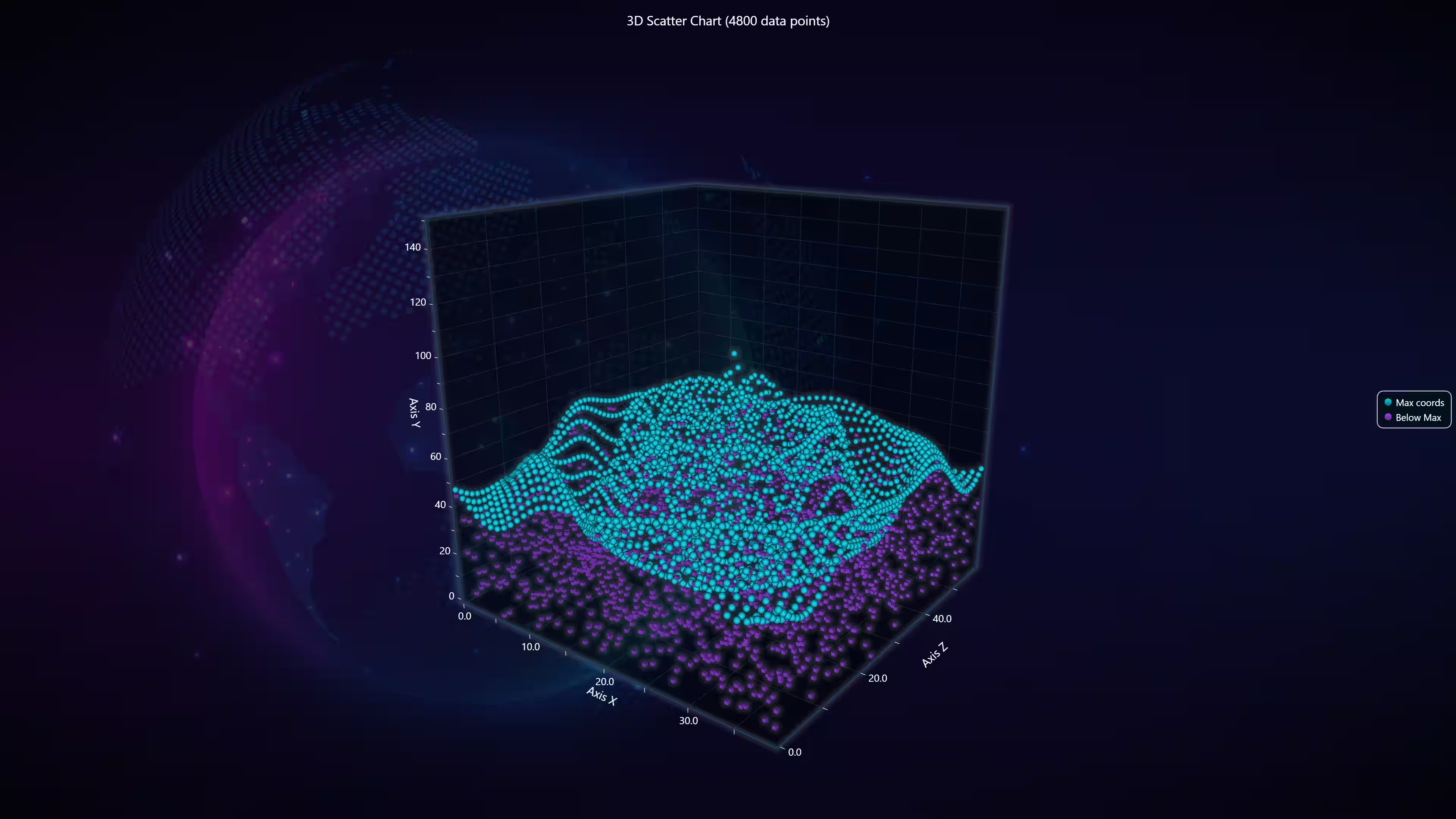
 3D Scatter Plot
Template Setup
1. Download the template provided to follow the tutorial.
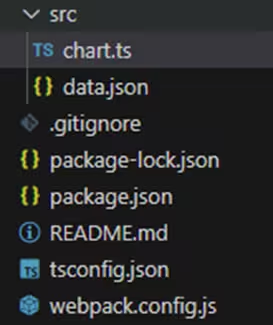
2. After downloading the template, you’ll see a file tree like this:
3. Open a new terminal and run the npm install command
4. It is important to keep the configuration in the tsconfig.json file. This configuration will help you to import JSON files as data objects.
Getting Started
We recommend you use and update to the most recent versions of LightningChart JS and XYData. This is because some LightningChart JS tools do not exist in previous versions. In the project’s package.json file you can find the LightningChart JS dependencies:
"dependencies": {
    "@lightningchart/lcjs": "^8.0.1",
    "@lightningchart/xydata": "^1.6.1"
}
1. Importing classes
We will start by importing the necessary classes to create our chart.
// Extract required parts from LightningChartJS.
const { lightningChart, SolidFill, ColorRGBA, PointStyle3D, Themes } = lcjs

// Extract required parts from xyData.
const { createWaterDropDataGenerator } = xydata
2. Add license key (free)
Once the LightningChart JS libraries are installed, we will import them into our chart.ts file. Note you will need a trial license, which is free.
let license = undefined
try {
    license = 'xxxxxxxxxxxxx'
} catch (e) {}Chart.ts
This is where the 3D chart gets created. It uses LightningChart JS, applies a dark theme, and sets an initial title. Think of this as the “canvas” where everything else will be drawn.
const chart3D = lightningChart({license:license})
    .Chart3D({
        theme: Themes.darkGold,
    })
    .setTitle('3D Scatter Chart')
Here the axes are labeled. Instead of staying generic, X, Y, and Z get titles so it’s clearer what each dimension represents.
// Set Axis titles
chart3D.getDefaultAxisX().setTitle('Axis X')
chart3D.getDefaultAxisY().setTitle('Axis Y')
chart3D.getDefaultAxisZ().setTitle('Axis Z')
This block creates the first point series, designed to mark the maximum values (highest Y points). They’re styled as larger spheres, so they stand out in the scatter cloud.
const pointSeriesMaxCoords = chart3D.addPointSeries().setName('Max coords')
pointSeriesMaxCoords.setPointStyle(
    new PointStyle3D.Triangulated({
        fillStyle: pointSeriesMaxCoords.getPointStyle().getFillStyle(),
        size: 10,
        shape: 'sphere',
    }),
)
Here comes the second series. This one holds all the “normal” points (anything below the maximums). They’re drawn as smaller cubes, so they look different from the highlighted ones.
const pointSeriesOtherCoords = chart3D.addPointSeries({ automaticColorIndex: 2 }).setName('Below Max')
pointSeriesOtherCoords.setPointStyle(
    new PointStyle3D.Triangulated({
        fillStyle: pointSeriesOtherCoords.getPointStyle().getFillStyle(),
        size: 5,
        shape: 'cube',
    }),
)
This is where the data gets generated. It uses the WaterDropDataGenerator, which produces a numeric matrix like a “wave surface”. That matrix becomes the source for thousands of points to be scattered in 3D.
let totalPointsAmount = 0
const rows = 40
const columns = 60
createWaterDropDataGenerator()
    .setRows(rows)
    .setColumns(columns)
    .generate()
    .then((data) => {
This double loop goes through the matrix. For each (row, column), it creates random Y values between 0 and the cell’s max.
- The random values go into the Below Max series (small cubes).
- The single maximum goes into the Max coords series (big spheres).
That’s how the scatter cloud is built including many small points plus highlighted peaks.
// 'data' is a number Matrix number[][], that can be read as data[row][column].
        for (let row = 0; row < rows; row++) {
            for (let column = 0; column < columns; column++) {
                const value = data[row][column]
                // Generate 'value' amount of points along this XZ coordinate,
                // with the Y coordinate range based on 'value'.
                const pointsAmount = Math.ceil(value / 100)
                const yMin = 0
                const yMax = value
                for (let iPoint = 0; iPoint < pointsAmount; iPoint++) {
                    const y = yMin + Math.random() * (yMax - yMin)
                    pointSeriesOtherCoords.add({ x: row, z: column, y })
                    totalPointsAmount++
                }
                pointSeriesMaxCoords.add({ x: row, z: column, y: yMax })
                totalPointsAmount++
            }
        }
Finally, the chart title is updated to include how many points were rendered, and the Y-axis is set to a fixed range (0–150), with a smooth animation.
chart3D.setTitle(chart3D.getTitle() + ` (${totalPointsAmount} data points)`)
        // Set explicit Y Axis interval.
        chart3D.getDefaultAxisY().setInterval({ start: 0, end: 150, animate: 2000 })
npm start
In the terminal, write the command npm start to visualize the chart in your local server; enter, and you’ll see a response with http://localhost:8080/, where the chart will be stored and ready to be visualized.
Conclusion
Thank you for making it this far. I hope this article will be helpful for your next project. This implementation demonstrates how LightningChart makes creating a 3D scatter plot much easier compared to building it from scratch.
Instead of handling low-level logic (like shaders, meshes, or raw WebGL), you just create the chart, define the axes, and add point series with a few lines of configuration. Plus, the library includes useful features like themes, point styles (spheres, cubes, etc.), and data generators for testing.
In terms of performance, LightningChart is optimized on top of WebGL and designed for real-time visualization, so it can handle millions of points without issues. In this code, even though thousands of random points are generated, rendering remains efficient because the library manages GPU resources internally.
This makes it an ideal choice for applications that require interactive and dense 3D charts without worrying too much about complex optimizations. Thank you for your support, and don’t hesitate to contact us with any questions or comments.
Continue learning with LightningChart
Best D3.js Alternatives in 2026: Less Code, More Performance, Same Power
D3.js is the most starred data visualization library in existence 109,000+ GitHub stars and for justifiable reasons. It provides the building blocks to construct any visualization imaginable: data binding, SVG path generation, scale functions, geographic projections,...

Best ApexCharts Alternatives in 2026: Scale Beyond SVG, Add Real 3D
ApexCharts earned its position through a set of genuine strengths executed consistently well: MIT license, the best default visual aesthetics among free JavaScript chart libraries, official and actively maintained React, Vue, and Angular component wrappers, clean...

Best amCharts Alternatives in 2026: No Watermark, Faster, Real 3D
amCharts 5 wins on visual aesthetics. The default chart transitions are among the smoothest in the JavaScript charting space, the animation quality is a genuine differentiator, and the chart type range Gantt charts, flowcharts, geographic maps, financial OHLC, Sankey...



If you have any questions, feel free to contact us!
©LightningChart Ltd 2025. All rights reserved.