








JavaScript static 3D mesh model with LightningChart JS
Tutorial
Written by a Human
Learn how to visualize data in a custom 3D mesh model at high-performance using LightningChart JS.
Omar Urbano
Software Engineer

Introduction
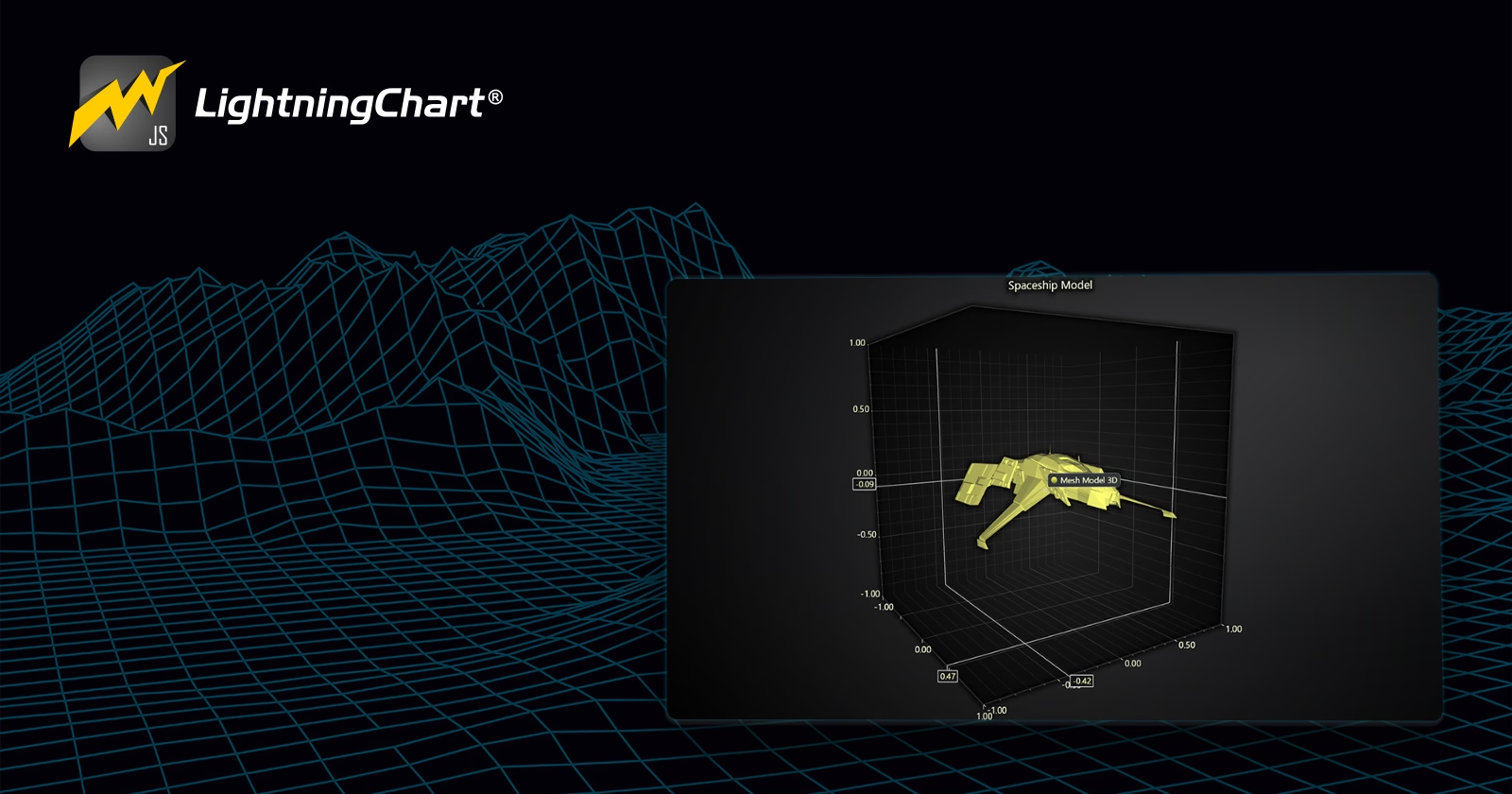
Welcome to this short exercise. This short article will focus on how to display a 3D file within a mesh model. We will use the LC JS library to load this object. Although the explanation is brief, there are very important key points that we must configure to access our data set. The project will be developed in Node JS, so it will be useful for measurement work with 3D images.
Let’s get started!
Project Overview
To follow this 3D mesh model data visualization project, download the ZIP file with all the necessary resources.
 Download the project to follow the tutorial
Template Setup
1. Download the template provided to follow the tutorial.
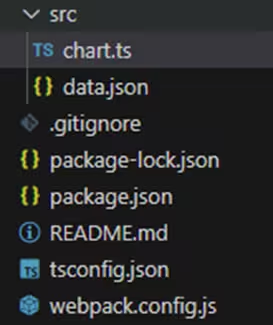
2. After downloading the template, you’ll see a file tree like this:
3. Open a new terminal and run the npm install command
4. It is important to keep the configuration in the tsconfig.json file. This configuration will help you to import JSON files as data objects.
Getting Started
We recommend you use and update to the most recent versions of LightningChart JS and XYData. This is because some LightningChart JS tools do not exist in previous versions. In the project’s package.json file you can find the LightningChart JS dependencies:
"dependencies": {
"@lightningchart/lcjs": "^7.0.2",
}
1. Importing libraries
We will start by importing the necessary libraries to create our chart.
import {
    AxisScrollStrategies,
    emptyFill,
    lightningChart,
    isImageFill,
    SolidFill,
    SolidLine,
    PalettedFill,
    LUT,
    ColorHEX,
    ColorRGBA,
    DashedLine,
    emptyLine,
    transparentFill,
    PointShape,
    AxisTickStrategies,
    Themes
} from "@lightningchart/lcjs";
2. Add license key (free)
Once the LightningChart JS libraries are installed, we will import them into our chart.ts file. Note you will need a trial license, which is free.
let license = undefined
try {
    license = 'xxxxxxxxxxxxx'
} catch (e) {}
WebPack Configuration
In the Webpack configuration file we have, access to static files (such as images, .obj files, fonts, etc.) is handled through the devServer option under the static property.
devServer: {
        static: {
            directory: path.join(__dirname, 'assets'),
            publicPath: '/assets',
        },
        compress: true,
        port: 8080,
    },
devServer Configuration
The Webpack Dev Server (webpack-dev-server) allows you to serve static files directly from a specific folder, which is useful during development. The devServer configuration in our Webpack file is set as follows:
- static.directory
Defines the folder where Webpack will look for static files to serve. Value:path.join(__dirname, 'assets')– This indicates that the static files are located in the assets folder at the root of the project.
- static.publicPath
Defines the base URL from which static files will be served. This affects how files are accessible in the browser. Value: ‘/assets’ – This means that all static files within the assets folder will be accessible through the /assets path in the browser.
- compress
Enables compression of served files to reduce the size of resources transmitted. Value: true – This ensures that Webpack will compress files before sending them to the browser, improving performance during development.
- port
Defines the port on which Webpack will serve the app in the development server. Value: 8080 – The development server will run at http://localhost:8080 .
Accessing Static Files
Thanks to this configuration, files inside the assets folder are served as static files in your app. For example, if you have a 3D model file water_ship.obj in the assets folder, it can be accessed from “http://localhost:8080/assets/water_ship.obj”
This means that if you need to load an .obj file in your JavaScript code, you can make use of fetch.
fetch('http://localhost:8080/assets/water_ship.obj') This code will make a fetch request to “http://localhost:8080/assets/water_ship.obj ”, which is handled by Webpack, thanks to the devServer configuration.
- Static files in the assets folder are served via the /assets path in the browser.
- The Webpack Dev Server (webpack-dev-server) handles this static file delivery during development without needing to set up an additional static server.
This setup is ideal for development, as it allows you to easily access static files while working with Webpack, without having to manually configure a static server.
Chart.ts
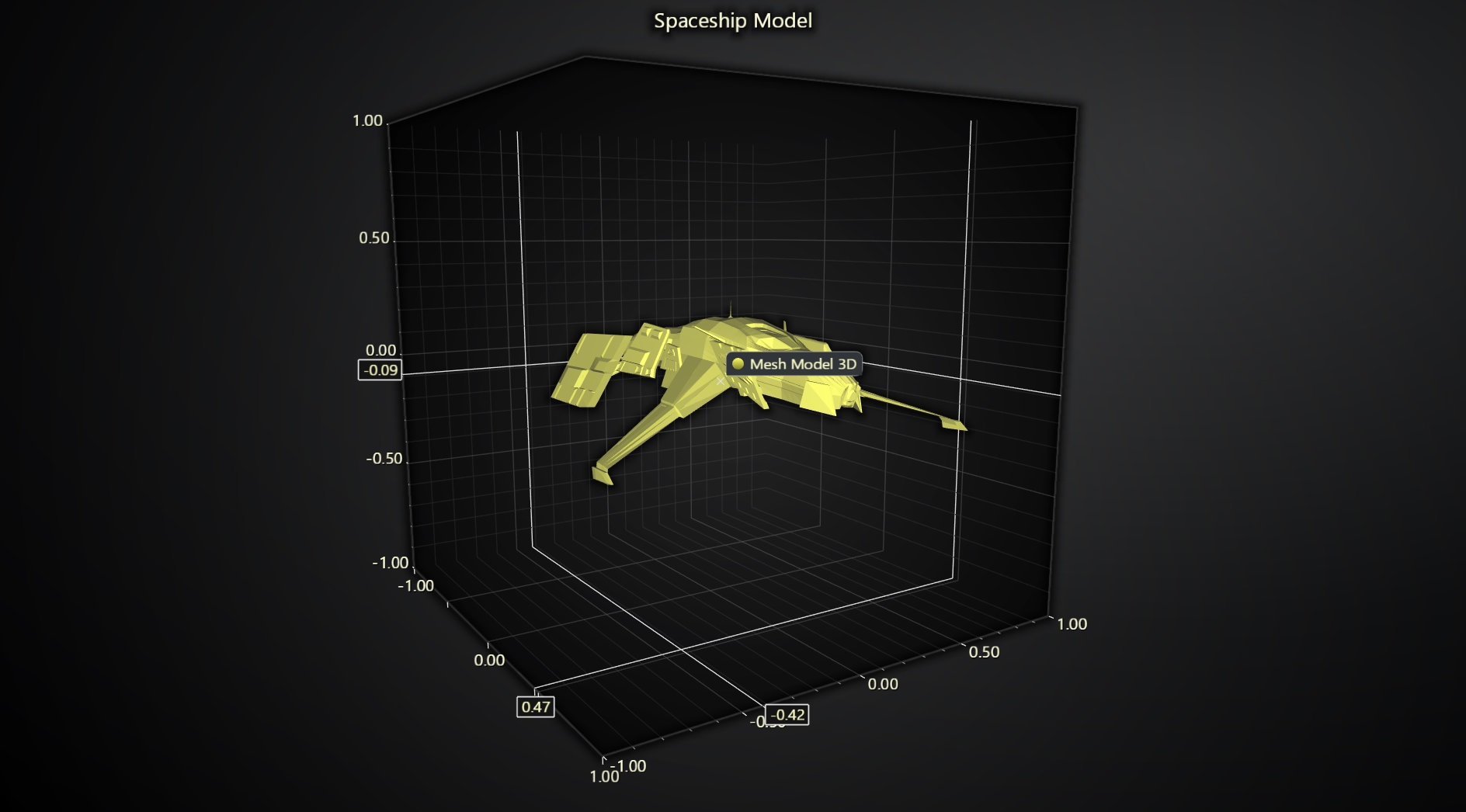
This code is used to create a 3D chart using the LightningChart library and load a 3D model (.obj file) from a server to display on the chart.
Create a 3D Chart with LightningChart
const chart3D = lightningChart({ license: license })
    .Chart3D({
        theme: Themes.darkGold,
    })
.setTitle('Spaceship Model'); Chart3D()
This method creates a 3D chart object. It accepts an object containing configuration settings.
Inside the object
- theme:
Themes.darkGoldsets the theme of the chart to a predefined theme calleddarkGold. The chart will be styled using this theme. setTitle(‘Spaceship Model')This method sets the title of the chart to “Spaceship Model”. The title will be displayed at the top of the chart.
Fetch the 3D Model (OBJ file)
fetch('http://localhost:8080/assets/water_ship.obj')
    .then((response) => response.text())
    .then((data) => {
        const meshModel = chart3D.addMeshModel()
            .setScale(0.06)
            .setModelRotationEuler({ x: 0, y: 0, z: 0 })
            .setModelFromObj(data);
    });
Fetch(‘http://localhost:8080/assets/water_ship.obj’)
This makes an HTTP GET request to fetch the water_ship.obj file located on the server at “http://localhost:8080/assets/water_ship.obj ”. The .obj file is a 3D model file format that contains the model’s geometry.
Moreover, .then((response) => response.text()) handles the response from the fetch request. It converts the raw response into text (since .obj files are text-based).
then((data) => {...})
Once the .obj file data has been fetched and converted to text, it is passed to the callback function. The data variable contains the text representation of the 3D model.
chart3D.addMeshModel()
This method adds a new mesh model to the 3D chart. A “mesh model” refers to the 3D object that will be rendered on the chart.
.setScale(0.06)
This sets the scale of the 3D model to 0.06. It makes the model 6% of its original size to fit better within the 3D chart.
.setModelRotationEuler({ x: 0, y: 0, z: 0 })
This sets the rotation of the model in 3D space using Euler angles. In this case, the model is set to have no rotation (x: 0, y: 0, z: 0).
.setModelFromObj(data)
This method takes the 3D model data (data) in .obj format and sets it as the model for the mesh. The data variable contains the contents of the .obj file, which will be used to generate the 3D model on the chart.
Initializing the chart
Run the npm start command in the terminal to visualize the chart in a local server.
Conclusion
Creating a mesh model with an .obj file using LightningChart JS is surprisingly simple, especially when integrated with a Webpack for managing resources in your project. Here are 3 important points I would like to highlight:
1. Setting Up the Environment: With a Webpack, all the complexity of managing and serving your project’s assets, like .obj files, is handled efficiently. By configuring Webpack to serve static assets from a specific folder (like assets), you ensure that the 3D model can easily be fetched and used within your application.
2. Creating the 3D Chart: LightningChart makes it easy to create a 3D chart, and adding a 3D mesh model is straightforward. With just a few lines of code, you can initialize the chart, choose a theme, and set a title for your visualization.
3. Loading the Model: Once you have your 3D chart set up, you simply fetch the .obj file (which contains your 3D model’s data) and load it into the chart. Thanks to LightningChart’s API, applying the model’s scale, rotation, and other settings is as simple as calling a few methods.
This allows you to easily manipulate the appearance of your 3D model on the fly. I hope this article will help you to learn more about webpack configuration. I had a lot of trouble trying to access the obj file, until I finally remembered how to configure my webpack file.
Thanks, and goodbye!
Continue learning with LightningChart
Nbody Simulation Data Visualization
Written by a human | Updated on April 9th, 2025N-body Simulation Nbody simulation is maybe one of the most advanced data visualization types out there. The truth is that we’re not talking anymore about visualizing traditional data with a business focus and it...
Data Visualization Components for React Applications
Written by a human | Updated on April 9th, 2025React Data Visualization Components React is one of the most popular front-end development frameworks on the web in the year 2022. It is a free and open-source front-end JS library that is used to build interactive...

What Is LiDAR Data Visualization?
LiDAR Data Visualization The LiDAR method conveys another yet complex level of data visualization as it is widely used in demanding industries that require plotting, e.g., topographic or cartography 3D data. But the use of LiDAR goes further as it is also used...



If you have any questions, feel free to contact us!
©LightningChart Ltd 2025. All rights reserved.