








Credit Card Fraud Detection Application Using LightningChart Python
Tutorial
Written by a Human
Learn how to develop a credit card fraud detection analysis using LightningChart Python for advanced data visualization.
Mikael Virtanen
Data Science Python Developer

Introduction
This article is a short demonstration of LightningChart Python’s charting features. The library will be used to visualize a dataset focused on credit card fraud. This dataset is somewhat complicated and contains many variables that aren’t labelled clearly, due to privacy and confidentiality concerns. The dataset will be visualized mainly using Line and Scatter plots to better find meaningful patterns in it. It should be noted that the article focuses more on demonstrating charting features, not on studying/analysing the data.
Dataset
The dataset is a collection of credit card transactions made in September 2013 over a period of two days. The dataset contains both fraudulent and legitimate ones. Overall, the dataset has a sample size of 284,807, with 492 of them being fraudulent. The dataset has a total of 31 variables; of these, 28 have been transformed with principal component analysis (PCA), more on these in a moment. The remaining 3 are Time, Amount, and Class.
- Time measures the number of seconds between the first transaction and the one being compared.
- Amount is the transaction size.
- The class is a value of either 1 or 0. 1 is a fraudulent transaction, and 0 is a legitimate one.
The remaining 28 are labelled V1, V2… V28, and no further details are provided about them. This is due to privacy/confidentiality-related reasons; no info is provided about the PCA process either.
Libraries used
- LightningChart Python
- Pandas
Pandas will be used to import data. This is done by reading the dataset values and importing them into a data frame, which can easily be worked with before visualization. Pandas might be preinstalled with the Python standard library. If this is not the case, simply run the following command in the terminal. Python also needs to be installed.
pip install pandas
pip install lightningchart
Setting Up Python Environment
The data set is downloaded as a .csv file. It’s then imported using the Python os library before being preprocessed and visualized.
# Library imports, lightningchart and pandas might need to be installed first
import lightningchart as lc
from lightningchart import ChartXY
from lightningchart import PolarChart
import pandas as pd
import os

license_key = 'LightningChart Python license'
# File path to where the dataset is located, os.listdir lists all the files from the directory.
filepath = 'C:/Users/Mikae\Desktop/Internship Mikael Virtanen/Projects/PytTrader_project11-Mikael.V/Code/data/'
rates_csv = os.listdir(filepath)
ccFraud_dataframe = pd.read_csv(filepath + rates_csv[0])
lc.set_license(license_key)
The variable rates_csv is a list of files that are in the directory (their names to be specific). Assuming only the credit card dataset is there, it would be the first item in the list. Using the file path and the file names, it can be converted into a data frame with Pandas. A direct path can be given, thus simplifying the process, but if multiple files are used, this method is superior. The data will be stored in the ccFraud_dataframe variable. It’s a Pandas data frame that is easy to work with. Finally, initialize LightningChart with the license key.
The next step is to create a few new data frames with different properties. These will be used to create the different charts. ccFraud_named contains only the non-transformed variables. ccFraud_PCA contains only the transformed ones (columns 2 to 28). The other ones are simply filtered to contain only fraudulent (Class 1) or legit (Class 0) transactions. More information about the functions and methods used can be found in the library’s documentation.
ccFraud_named    = ccFraud_dataframe[['Time', 'Amount', 'Class']]
ccFraud_PCA      = ccFraud_dataframe.iloc[:, 1:29]
ccFraud_PCA_true = ccFraud_dataframe[ccFraud_dataframe.Class == 1].iloc[:, 1:29]

ccFraud_false = ccFraud_named[ccFraud_named.Class == 0].head(492)
ccFraud_true = ccFraud_named[ccFraud_named.Class == 1]
Credit Card Fraud Detection Analysis
We will now start creating the credit card fraud detection visualizations.
Line and scatter plot
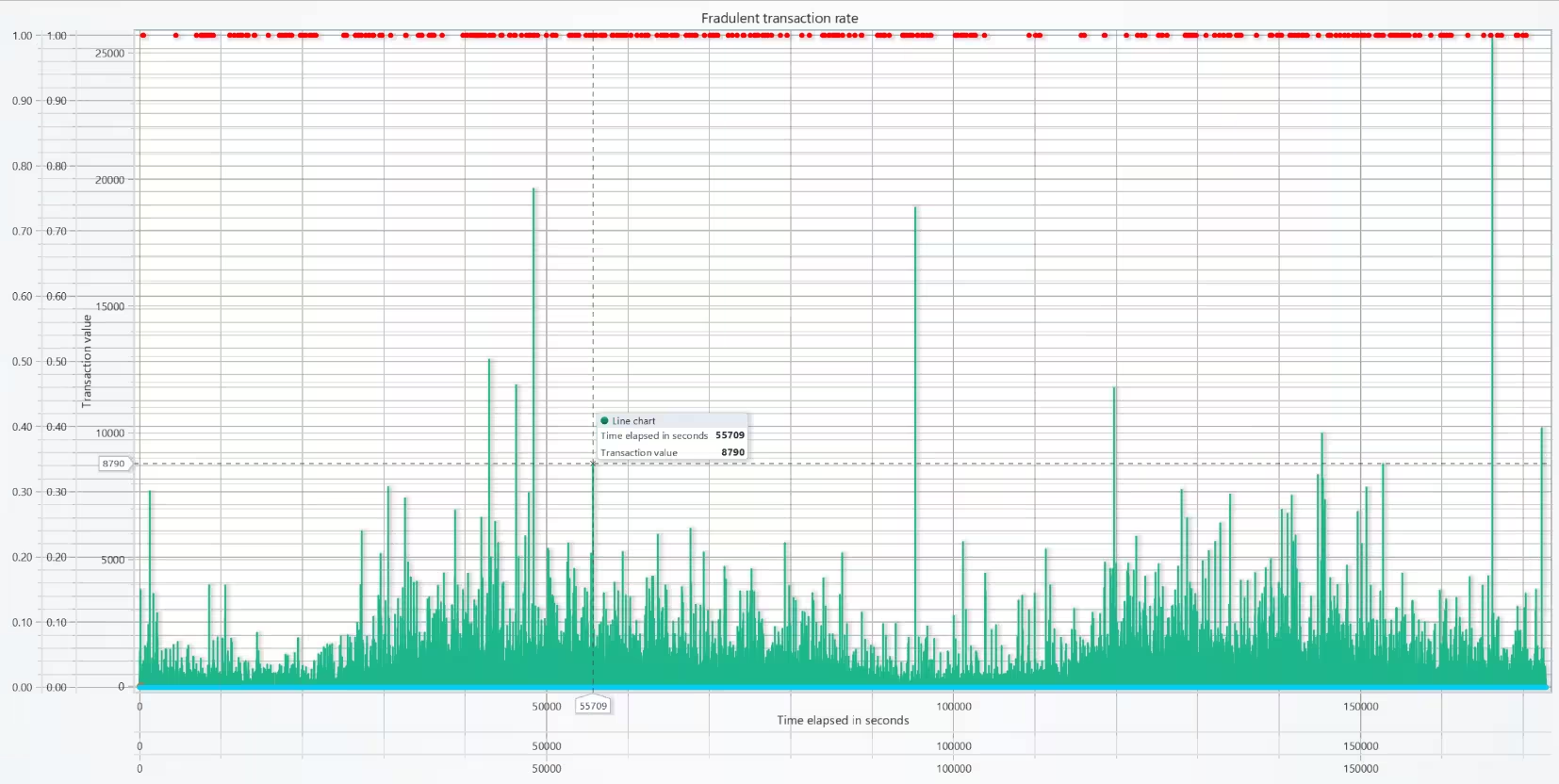
In this chart, one can visualize transaction sizes and whether they were fraudulent over the time horizon. The line chart shows transaction sizes, with the x-axis representing the time passed since the first transaction in seconds and the y-axis showing the amount. This makes it possible to see how transaction values change over time.
The scatter plot marks whether the transaction was fraudulent or not. Since most of the samples in the dataset are legitimate, with fewer than 1% being fraudulent, plotting them as a blue line at the very bottom is not particularly important. The red scatter plot at the top marks when a fraudulent transaction has occurred. From this, one can observe whether there are any correlations between transaction amounts and fraud.
The x-axis is the same for both the line and scatter plots, but the scatter plot uses a separate y-axis. This setup makes it easier to zoom in on the variables while keeping both plots visible, and it allows the use of custom color values, since the scatter only needs 1 and 0.
This combination of line and scatter plots provides a clear way to visualize patterns in transaction behavior and supports the process of credit card fraud detection by making anomalies easier to identify.
class CreateXYChart(ChartXY):
    """Create charts, inherits properties from the lightning chart library"""

    def set_date_axis(self):
        """Disposses the default x axis and creates a new one that uses the date-time format"""

        x_axis = self.add_x_axis()
        x_axis.set_tick_strategy('DateTime')
        self.get_default_x_axis().dispose()


    def create_line_chart(self, rate_df, name):
        """Creates a new line chart"""

        x_plot = rate_df['Time']
        y_plot = (rate_df['Amount'])
        new_series = self.add_line_series()
        dx_axis = self.get_default_x_axis()
        dy_axis = self.get_default_y_axis()
        dx_axis.set_title('Time elapsed in seconds')
        dy_axis.set_title('Transaction value')
        new_series.set_name(name)
        new_series.add(x_plot,y_plot)


    def create_scatter_chart(self, rate_df, title_name):
        """Create scatter chart that visualizes when fraudulent transactions occured over the time frame"""

        x_plot = rate_df['Time']
        y_plot = rate_df['Class']
        # Add a new y-axis to the chart for better viewing of the scatter pot
        newy_axis = self.add_y_axis()
        column_series = self.add_point_series(y_axis=newy_axis)
        column_series.set_name(title_name)
        column_series.add(x_plot,y_plot)
        column_series.set_palette_point_coloring(
                steps=[
                {'value': 1, 'color': '#FF0000'},
                {'value': 0, 'color': "#07CDF4"},
            ],
            look_up_property='y',
            interpolate=True,
        )


    def create_scatter_chart2(self, rate_df, title_name, colors):
        """Scatter chart for visualizing the different PCA variables"""

        x_plot = ccFraud_dataframe['Time']
        y_plot = rate_df
        column_series = self.add_point_series()
        column_series.set_name(title_name)
        column_series.add(x_plot,y_plot)
        self.set_cursor_mode('show-nearest')
        # set point colors with a list
        column_series.set_point_color((colors))


fraud_chart = CreateXYChart(title ='Fradulent transaction rate')
fraud_chart.create_line_chart(ccFraud_named, 'Line chart')
fraud_chart.create_scatter_chart(ccFraud_dataframe, 'fraud or not')
fraud_chart.open()
Scatter plot with the transformed variables
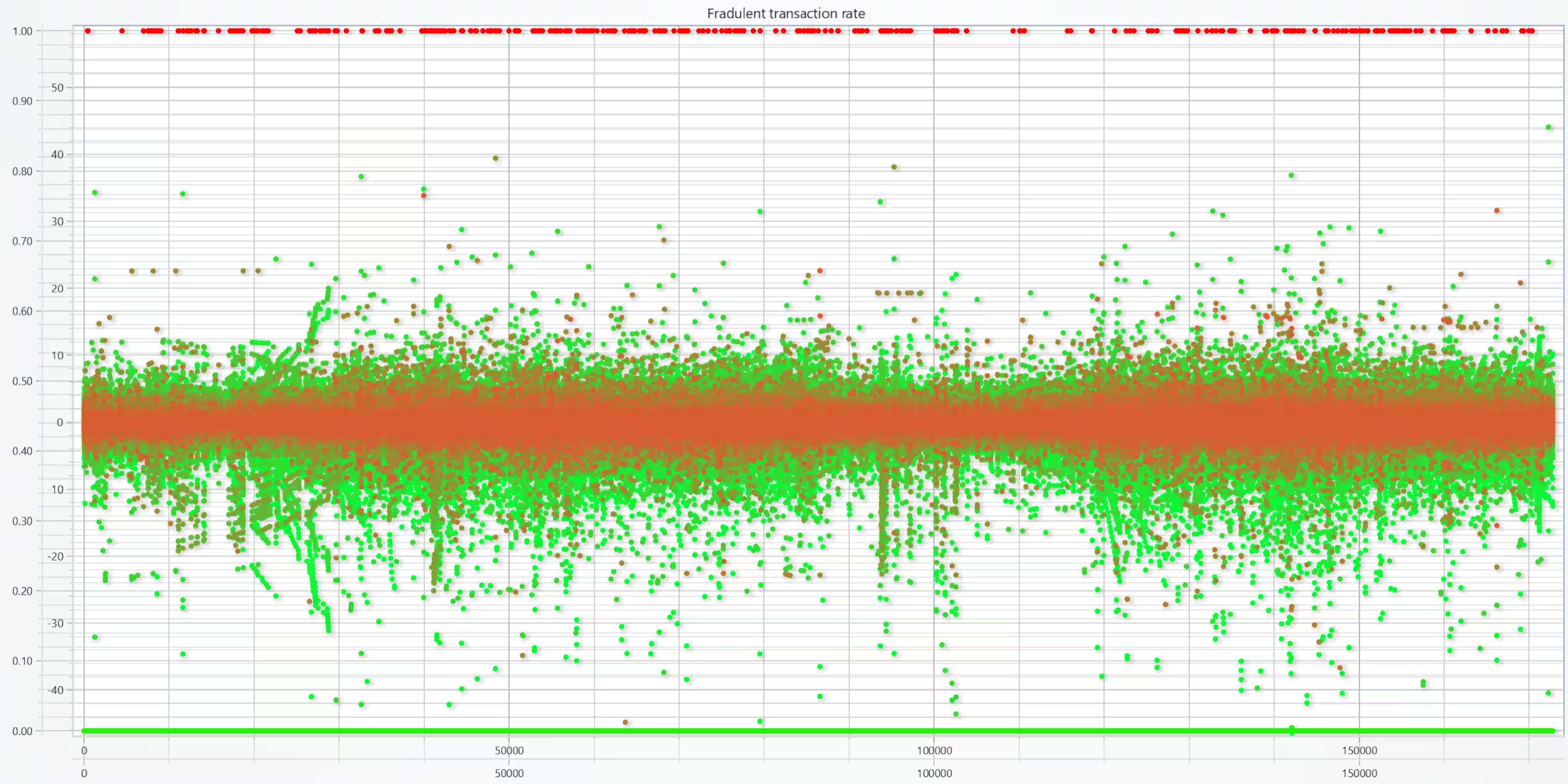
This scatter plot does not include the “named” variables, but instead ones transformed through PCA (v1,v2…v28). While the exact nature of them is not known, thus making it hard to come to any certain conclusion about what to make of them. This chart also has the scatter plot used with the line chart, so one can better spot any patterns when fraud has occurred.
All samples belonging to a specific variable have the same colour. The earlier variables have a green colour, and the colour becomes increasingly redder as more variables are plotted. Thus, it can be observed that earlier variables have much more variance in their values, whilst later ones have values of circa -5 to 5. With this in mind, it might be possible to interpret what the values were originally before transformation.
This is the same chart, but the data used has been filtered to only include samples that are classified as fraudulent. There are some interesting patterns that can be observed, and that there appears to be more variance in data compared to legit transactions. This might just appear to be due to the in balances in the dataset and would have to be verified with statistical analysis.
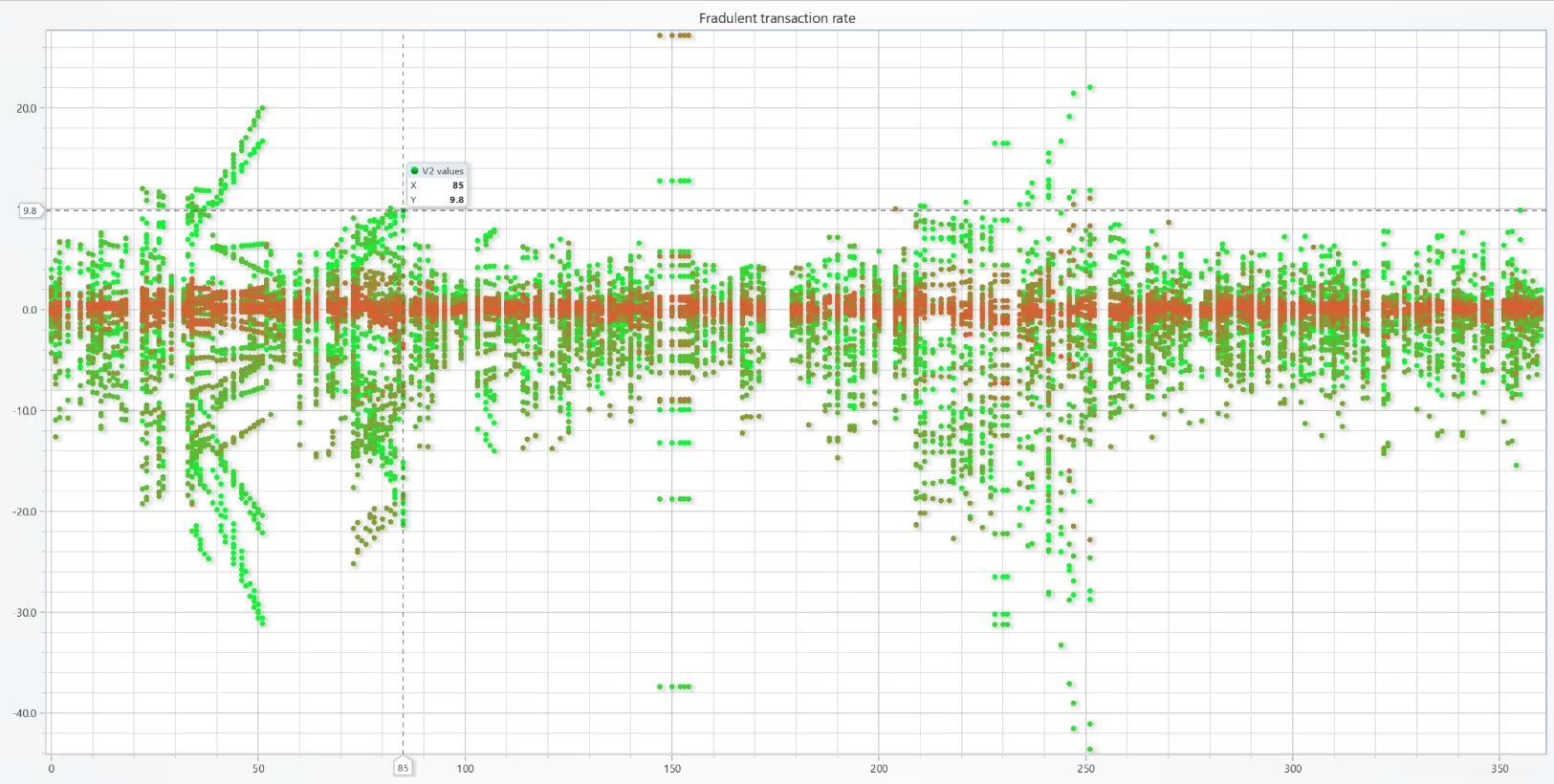
This is the same chart, but the data used has been filtered to only include samples that are classified as fraudulent. Some interesting patterns can be observed, and there appears to be more variance in the data compared to legit transactions. This might just appear to be due to the in imbalances in the dataset and would have to be verified with statistical analysis.
fraud_chart = CreateXYChart(title ='Fradulent transaction rate')
ccFraud_PCA_chart = ccFraud_PCA_true
def generate_scatter():
        """ Generate a scatter plot for the PCA variables"""

        # List passed to the individual charts to set the colors
        colorlist = [0,255,50]
        red = 0
        green = 255
        for column in ccFraud_PCA_chart:
            fraud_chart.create_scatter_chart2(ccFraud_PCA_chart[column], f'{column} values', colorlist)
            # Modify the red and green values after for every new plot
            # Slightly changing the chart more red over time
            red += 8
            green -= 6
            # Change values in the list, done this way due to simply passing variables themself in the list wouldn't work
            colorlist[0] = red
            colorlist[1] = green
generate_scatter()
fraud_chart.open()
Fraud dataset PCA variables visualized using a Polar chart heatmap
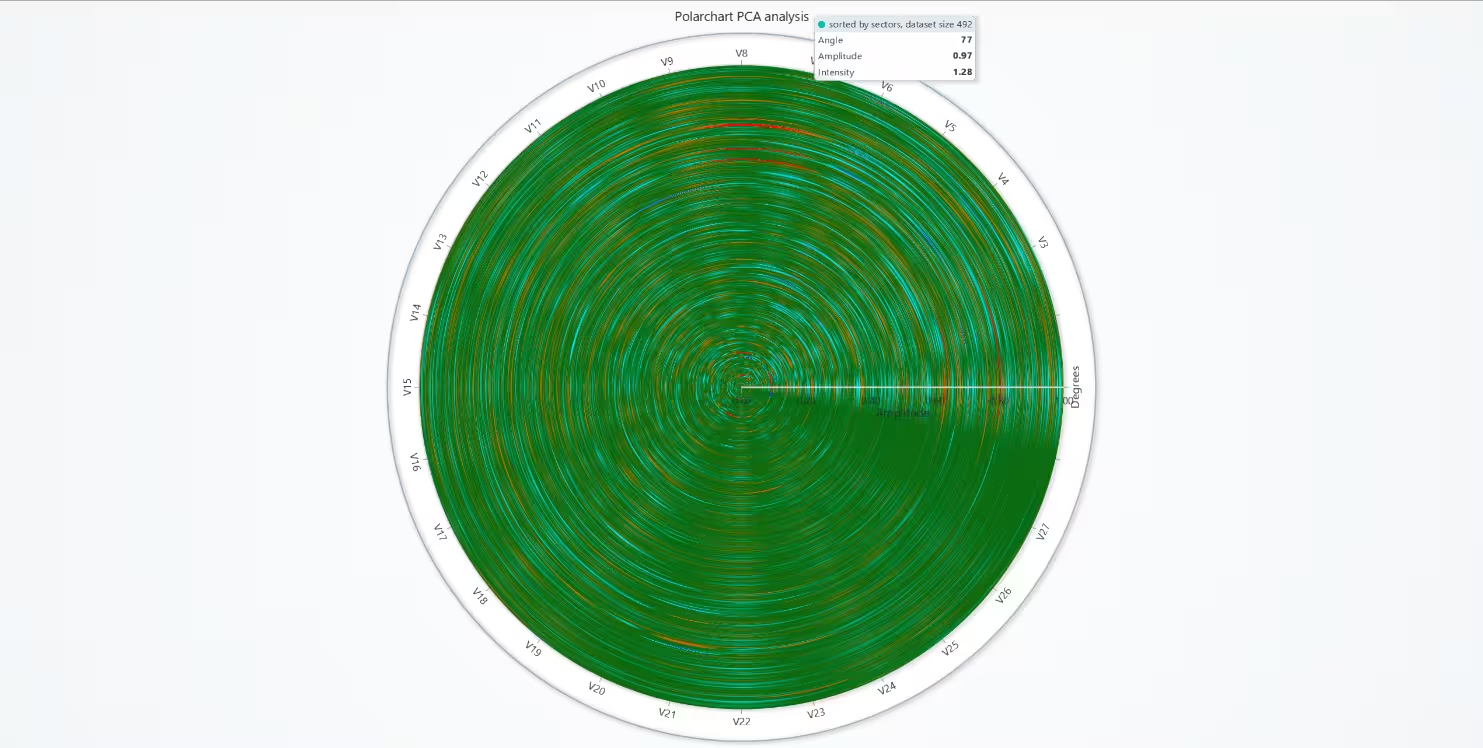
Finally, there is an analysis of the PCA variables using a heatmap in a polar chart. There are mainly two types of charts used here: one sorted by sectors and another sorted by annuli. The chart sorted by annuli (Figure 1) formats the data from each variable into rings, making it possible to see how values distribute across circular layers. When sorted by sectors (Figure 2), the variables are placed next to each other, with the data aligned between the edge of the chart and the centre in a straight line.
This approach provides a different perspective on the PCA-transformed variables, which are otherwise difficult to interpret directly. By applying heatmaps in polar charts, patterns and anomalies become easier to spot, offering another way to visualize complex datasets in the context of credit card fraud detection.
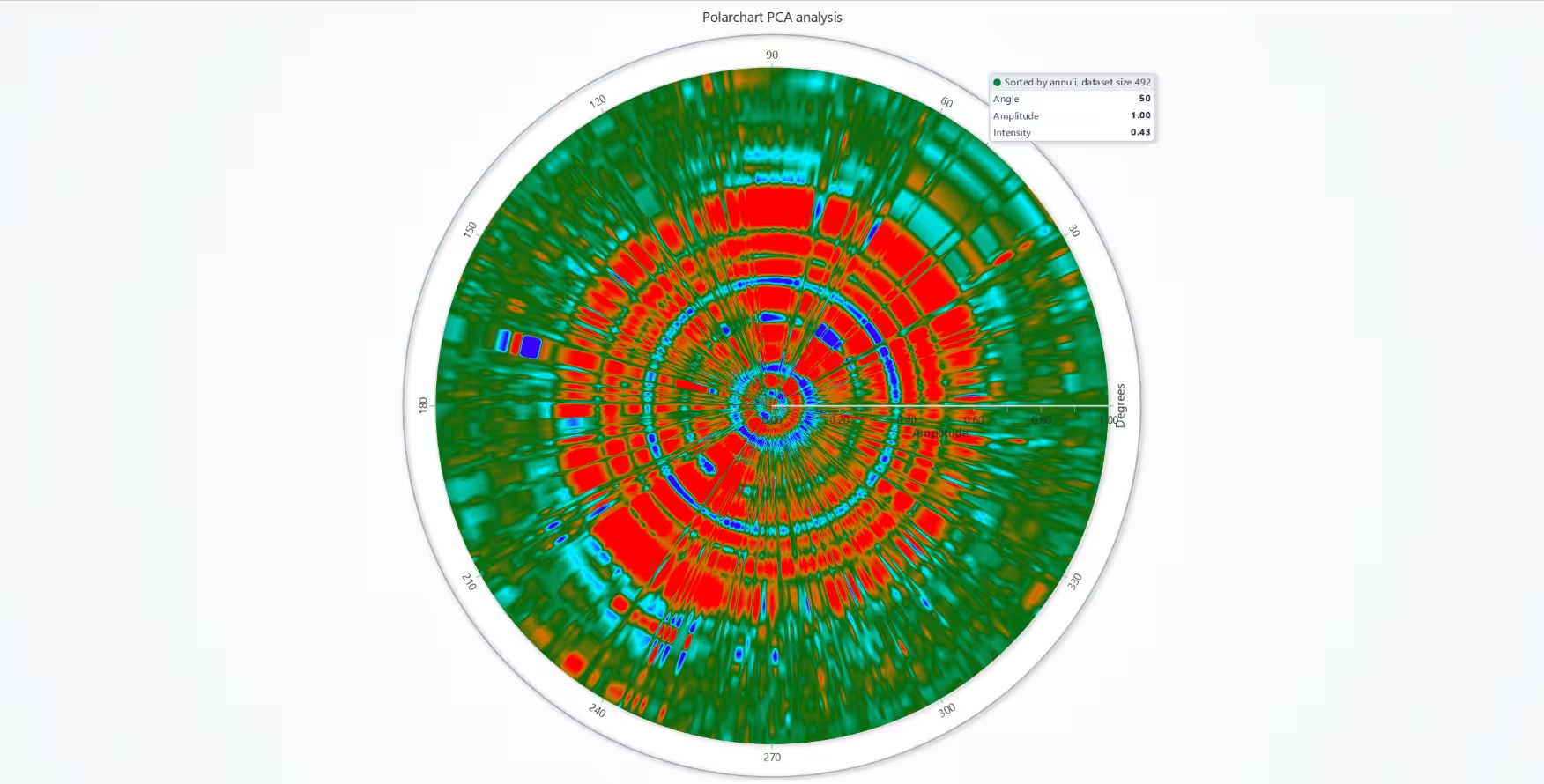
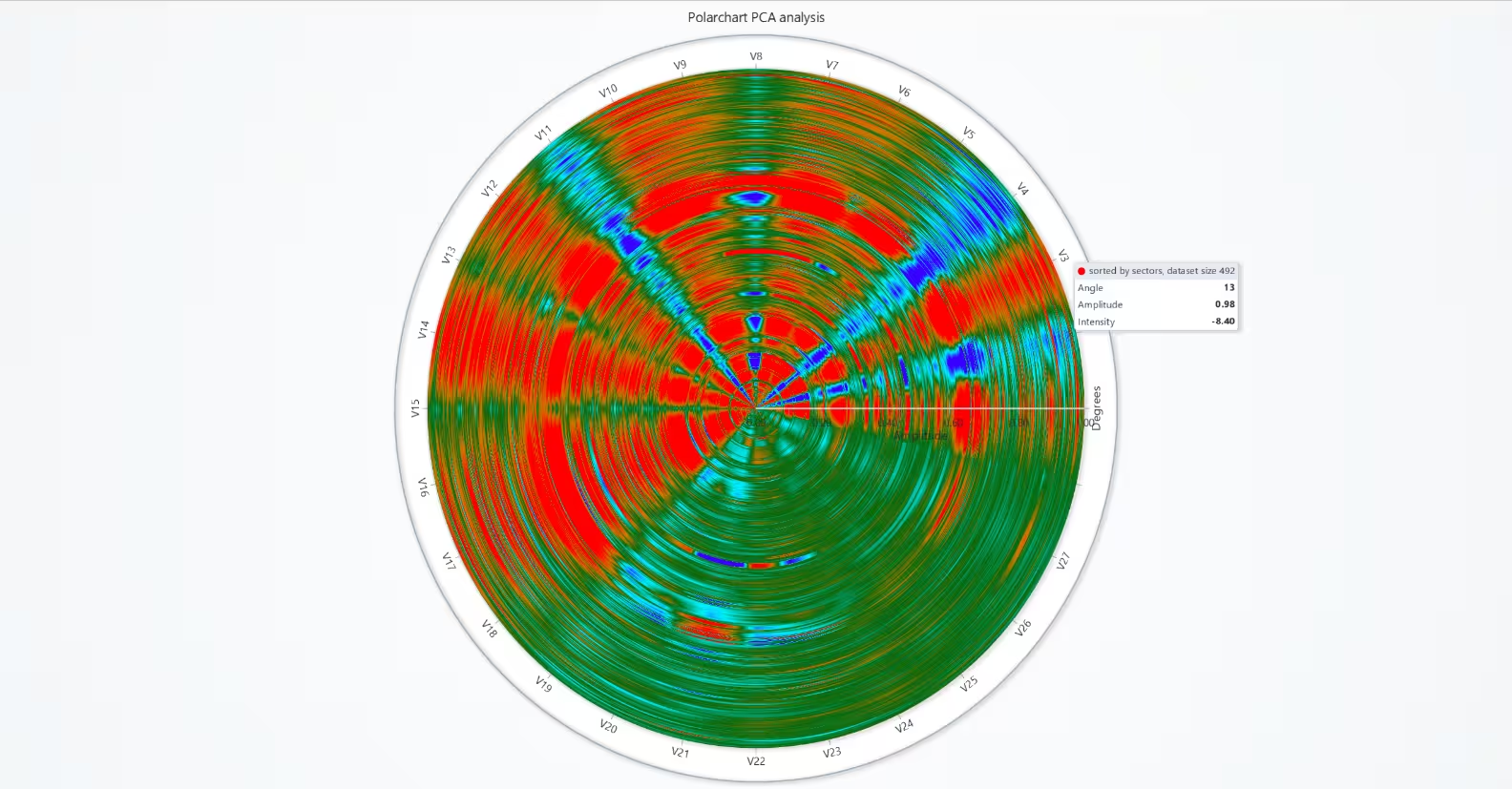
Fraud dataset PCA variables visualized using a Polar chart heatmap
Finally, there is an analysis of the PCA variables using a heatmap in a polar chart. There are mainly two types of charts used here: one sorted by sectors and another sorted by annuli. The chart sorted by annuli (Figure 1) formats the data from each variable into rings, making it possible to see how values distribute across circular layers. When sorted by sectors (Figure 2), the variables are placed next to each other, with the data aligned between the edge of the chart and the centre in a straight line.
This approach provides a different perspective on the PCA-transformed variables, which are otherwise difficult to interpret directly. By applying heatmaps in polar charts, patterns and anomalies become easier to spot, offering another way to visualize complex datasets in the context of credit card fraud detection.
new_heatmap.set_palette_coloring(
            steps=[
                {'value': 5, 'color': "#3700FF"},
                {'value': 2, 'color': "#00F2FF"},
                {'value': 0, 'color': "#08690FFF"},
                {'value': -2, 'color': "#CE7900"},
                {'value': -5, 'color': "#FF0000"},
            ],
            look_up_property='value',
            interpolate=True
        )
The colours become redder the lower the value is, and bluer the higher it is. At 0, the value is green. The heatmap assigns the values based on what value(s) are most common in that area of the map. When trying to review the whole dataset with a heatmap, things get a bit problematic.
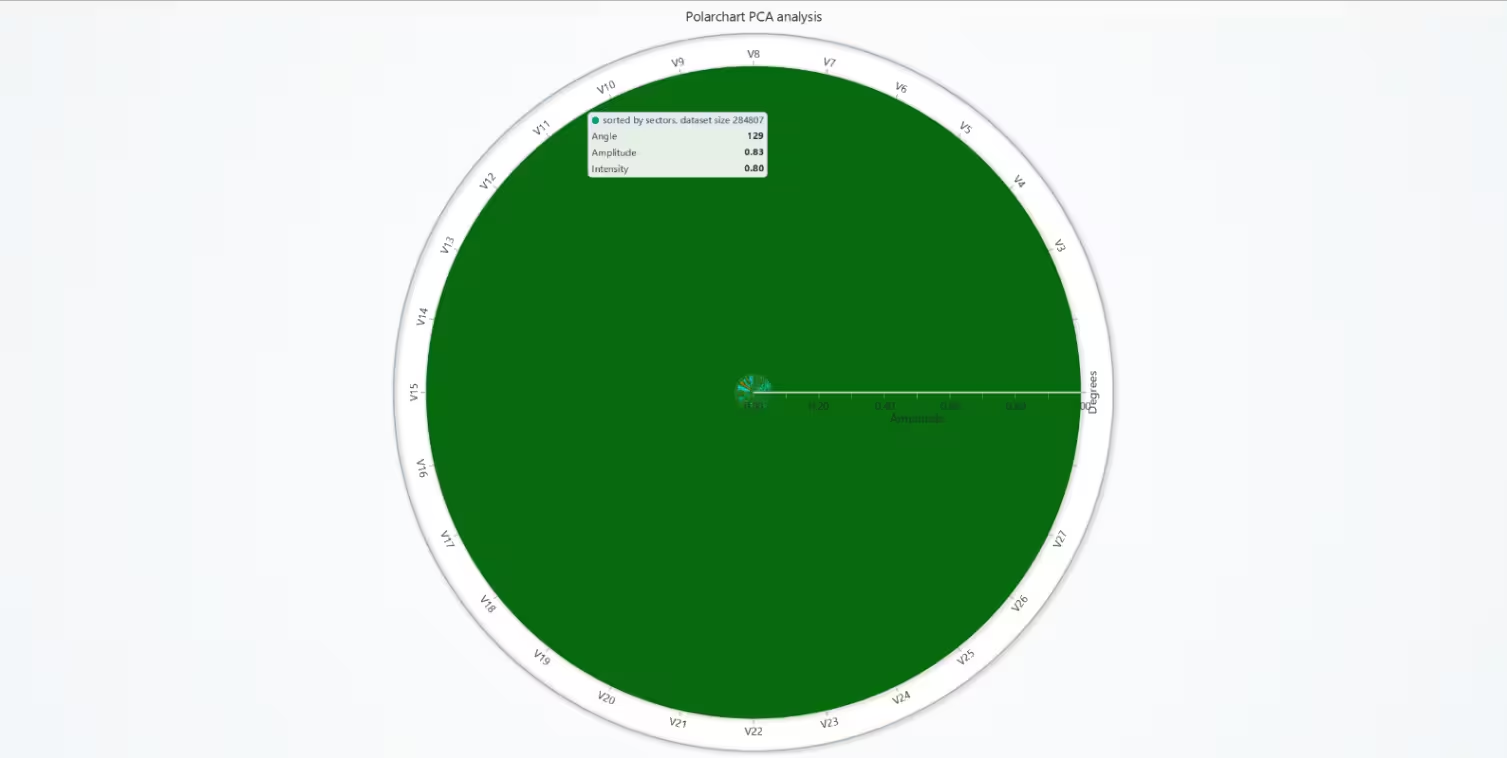
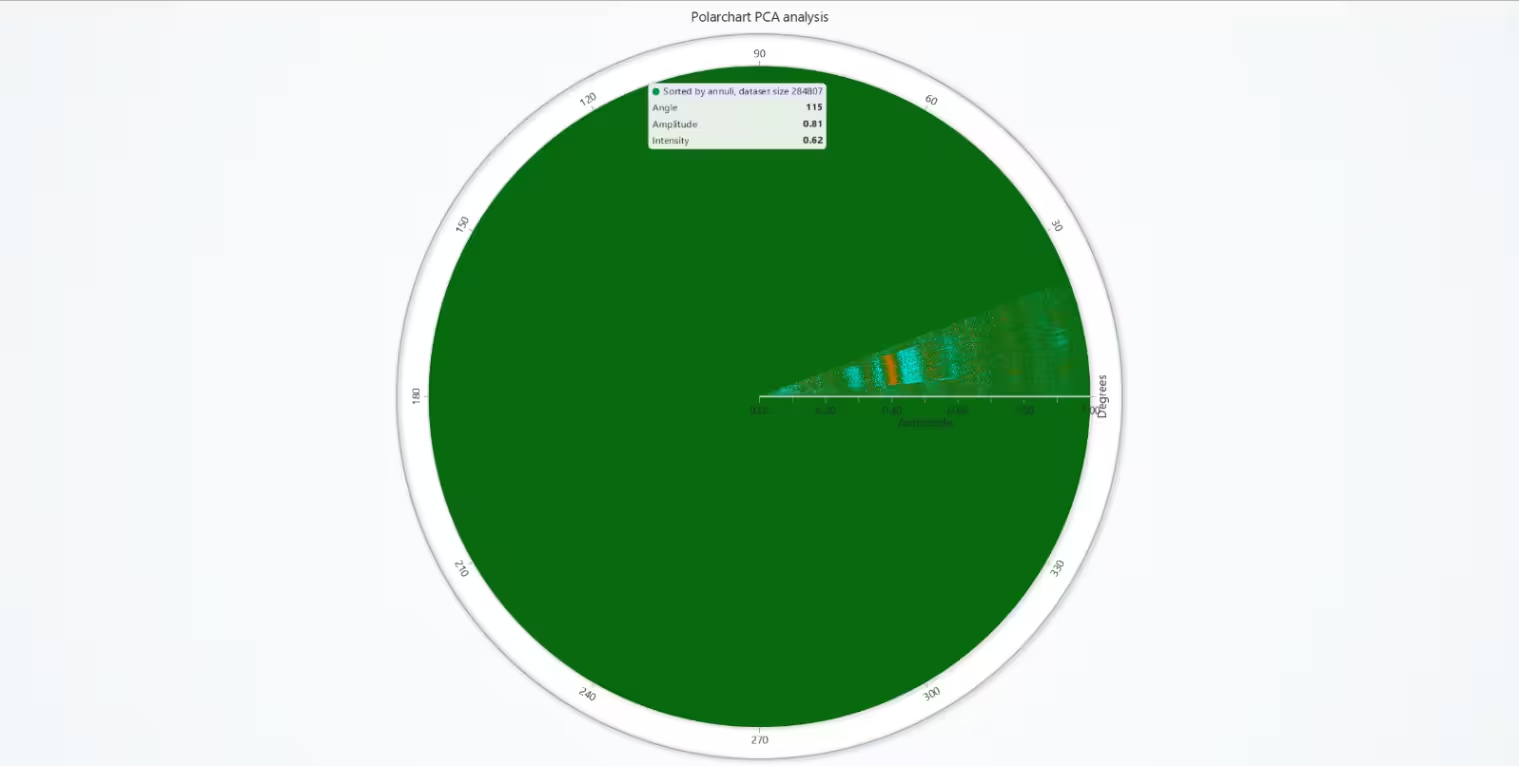
As you can see, when the whole dataset (284000+ samples instead of 492), the heatmap doesn’t give much valuable information. When the size is reduced to 492 samples, the results are much better.
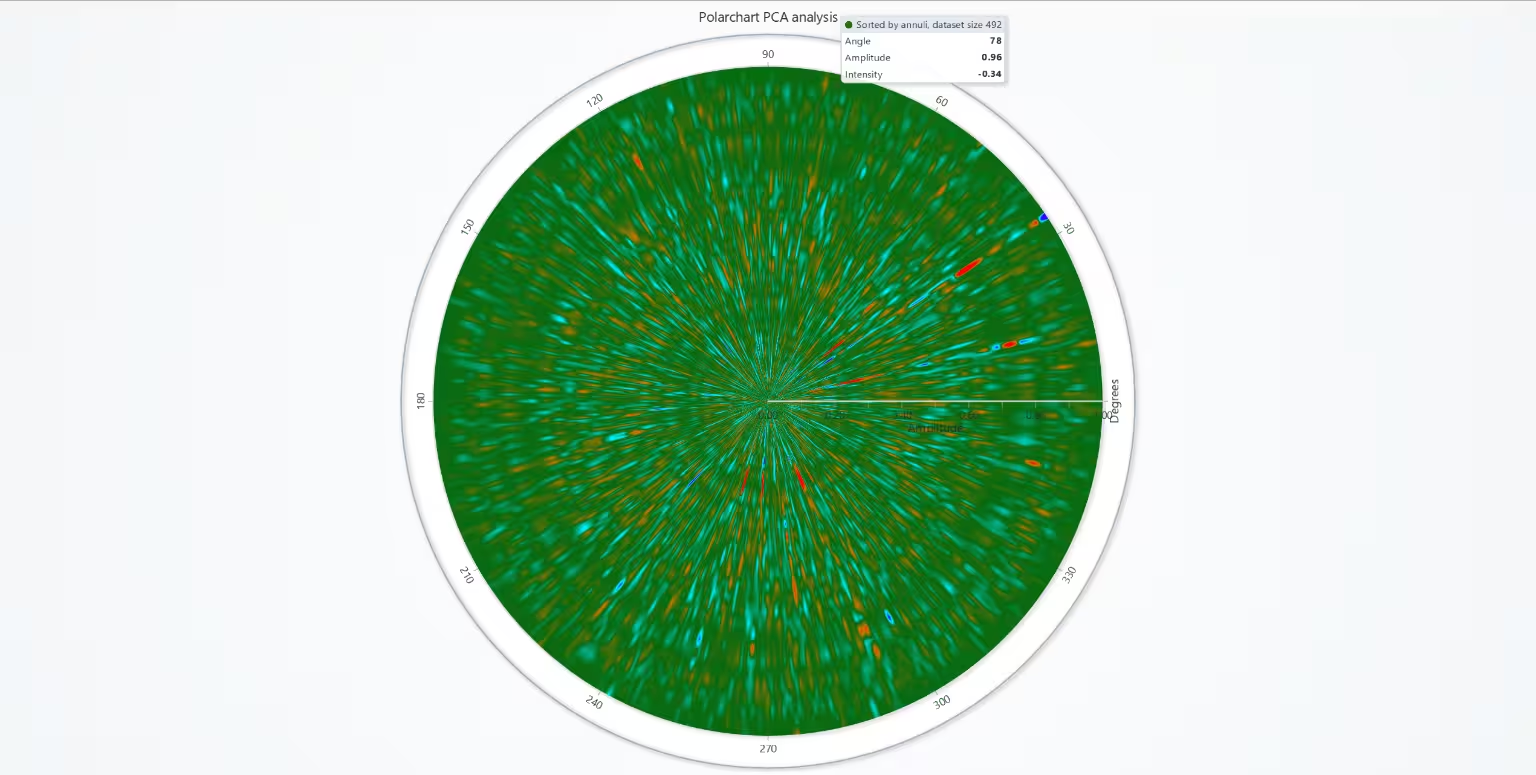
When comparing the charts with the whole dataset and the ones with only fraudulent claims, the latter have much more variance in values. There’s also an interesting pattern of certain variables being always either positive or negative, and with enough margin to get a red or dark blue mapping. This is not observable in the other charts, which seem more random.
class CreatePolarChart(PolarChart):
    def create_polar_heatmap(self, sector_count, annuli_count, data_values, tick_labels, order, map_name):
        new_heatmap = self.add_heatmap_series(sector_count, annuli_count, data_order= order)
        new_radial =  self.get_radial_axis()
        # Add additional divisions and change the angle values to the column names
        # Only done when sorting by sector as it could lead to confusion otherwise
        if order == 'sectors':
            new_radial.set_division(len(tick_labels))
            new_radial.set_tick_labels(tick_labels)
        new_heatmap.invalidate_intensity_values(data_values, 0, 0)
        new_heatmap.set_intensity_interpolation(True)
        new_heatmap.set_name(map_name)
        new_heatmap.set_palette_coloring(
            steps=[
                {'value': 12, 'color': "#3700FF"},
                {'value': 6, 'color': "#00F2FF"},
                {'value': 0, 'color': "#08690FFF"},
                {'value': -6, 'color': "#CE7900"},
                {'value': -12, 'color': "#FF0000"},
            ],
            look_up_property='value',
            interpolate=True
        )

fraud_polar = CreatePolarChart(title= 'Polarchart PCA analysis')
# Dataframe used with Polar and most scatter plots
ccFraud_PCA_chart = ccFraud_PCA_true
def generate_heatmap():
    global heatmap_matrix, heatmap_list, tick_list, sec_count, ann_count
    heatmap_matrix = []
    # Heatmap polar axis names
    tick_list = []
    ann_count = len(ccFraud_PCA_chart)
    for column in ccFraud_PCA_chart:
        heatmap_list = []
        heatmap_list.append(ccFraud_PCA_chart[column].values.tolist())
        heatmap_matrix.append(heatmap_list[0])
        tick_list.append(str(ccFraud_PCA[column].name))
    sec_count = len(heatmap_matrix)
    fraud_polar.create_polar_heatmap(ann_count, sec_count, heatmap_matrix, tick_list, 'annuli', f'Sorted by annuli, dataset size {len(ccFraud_PCA_chart)}')  #generate_heatmap()
generate_heatmap()
fraud_polar.open()

fraud_polar.create_polar_heatmap(sec_count, ann_count, heatmap_matrix, tick_list, 'sectors', f'sorted by sectors, dataset size {len(ccFraud_PCA_chart)}')

fraud_polar.open()
Note that the ccFraud_PCA_chart = ccFraud_PCA_true needs to be ccFraud_PCA_chart = ccFraud_PCA, when charting the whole dataset, the other one only charts the fraudulent cases.
How does the Amount distribution differ between fraudulent and non-fraudulent transactions?
The fraudulent transactions account for less than 1% of the samples. The whole dataset has 284,807 samples, with 492 of them being fraudulent.
Are there specific Time intervals where fraudulent transactions are more prevalent?
There doesn’t appear to be a specific pattern when they appear, although there are a few gaps in the dataset when no flagged transactions occurred.
Do the PCA-transformed features (V1 through V28) show distinct clusters for Class (fraudulent vs. non-fraudulent)?
Certain variables always have negative or positive values (often with notable deviation from the median). For the whole dataset, this type of pattern is not noticeable. One pattern that is present in both types of data is that the first PCA variables have more variance than the latter ones.
Conclusion
While the dataset was originally meant for ML training and had some issues when trying to visualize (large imbalance and most variables being transformed and thus hard to interpret), some interesting notes could be formed from it. Including patterns and differences between fraudulent transactions and legitimate ones.
Continue learning with LightningChart

Trend Lines in Trading
Trend lines are among the simplest yet most powerful tools in technical analysis. They help traders visualize market direction, identify potential support and resistance levels, and make more informed trading decisions. Despite their simplicity, trend lines remain a...
Best Python Charting Library in 2026
Python's charting ecosystem is large, overlapping, and regularly misunderstood. Most comparison guides stop at Matplotlib, Plotly, and Seaborn. This one goes further: it covers what happens when your datasets grow large, your update rates increase, or your chart types...
Best TradingView Charting Library Alternative
TradingView's charting libraries are the most visible option for fintech developers. Visibility is not the same as capability. This guide is for developers who have hit the wall on candle count limits, watermark restrictions, branding requirements, real-time...



If you have any questions, feel free to contact us!
©LightningChart Ltd 2025. All rights reserved.