Points style
PointStyle is property of many line-series (see Line-series comparison).
To show the points, set PointsVisible = true. Alter the point style by setting PointStyle properties.
PointStyle
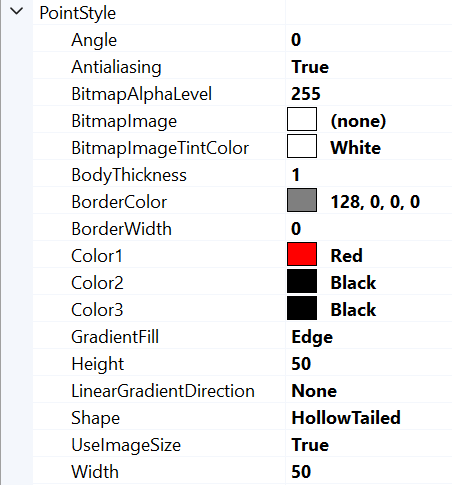
PointStyle properties
Select the shape from many pre-defined styles from PointStyle. Shape. Shapes available for PointStyle are Rectangle, Circle, Triangle, Hexagon, Flag, FlagLightning, Cross, CrossAim, Bitmap, HollowBasic, HollowBasicActive, HollowHarmonic, HollowActiveSideband, HollowSideband, HollowTailedActive and HollowTailed. PointStyle properties Angle, Height, Width, Color1-2-3, GradientFill can further be used to modify appearance of point. While there are 3 color properties not all applicable for all shape styles. So are fill properties. Shape can be framed by border (BorderColor and BorderWidth properties).
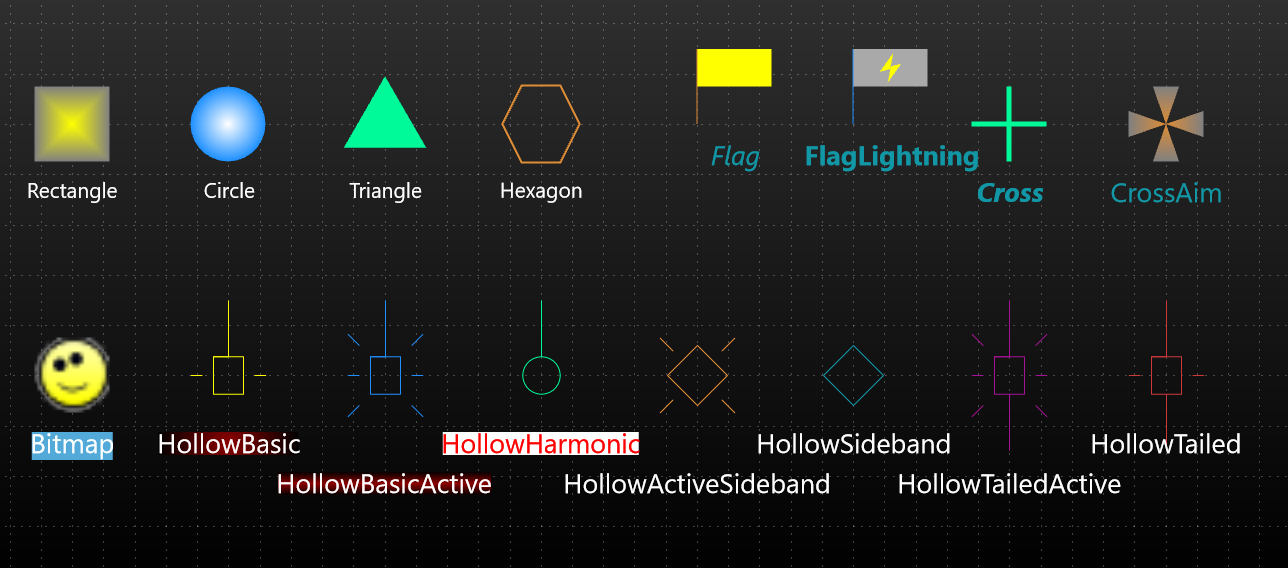
Various Shapes of PointStyle (labels are not part of PointStyle, but added for clarity).
One of the shape styles is Bitmap, which allows drawing any bitmap image in the point location. Define the bitmap image with BitmapImage property. BitmapAlphaLevel property can be used to alter the transparency of the bitmap. Adjust the bitmap color tone by changing BitmapImageTintColor to some other color than white. If UseImageSize property is enabled, then image original size is used instead of PointStyle properties Height and Width.
PointStyle properties and shapes are very similar to EventMarker's Symbol.
Coloring points individually
Starting from v.7.2, the PointLineSeries, FreeformPointLineSeries, AreaSeries and HighLowSeries have PointColor field in the data point structures.
To enable individual point coloring, set IndividualPointColoring to Color1, Color2, Color3 or BorderColor setting. To disable individual point coloring, set IndividualPointColoring = Off. The color settings correspond to that color in PointStyle property.

In top, IndividualPointColoring = Color1 (solid colored point). In the middle, IndividualPointColoring = BorderColor. In the bottom, IndividualPointColoring = Color2 (having gradient coloring with Color1 = transparent).
To see feature demonstration as example, check Point line, individually colored points, Scatter points, individually colored from our Demo.