LegendBox 3D
Legend boxes in View3D are largely similar to ViewXY’s legend boxes. However, only one legend box is allowed per graph. Also, segment-based properties do not exist since axes in View3D cannot be divided into segments. Modify the legend box properties via View3D.LegendBox.
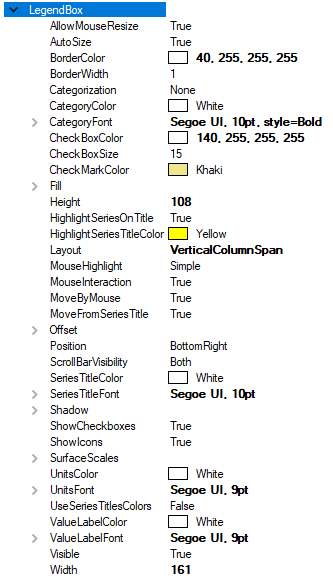
Legend box properties in View3D.
Hiding surface series palette scales
View3D has SurfaceScales property instead of ViewXY’s IntensityScales. To hide the palette scale in a legend box, set SurfaceScales.Visible = False. To resize it, set ScaleSizeDim1 and ScaleSizeDim2 properties.
Positioning legend boxes in View3D
As in ViewXY, View3D’s legend boxes can be placed automatically or manually. Automatic placement allows them to be aligned to the left/top/right/bottom side of the view, or the graph area. Control the position with Position property. Some positioning options take margins into account while some do not.
Options ignoring margins (placing the legend box in the margin area):
TopCenter, TopLeft, TopRight, LeftCenter, RightCenter, BottomLeft, BottomCenter, BottomRight, Manual.
Options placing the legend box inside the margin area:
GraphTopCenter, GraphTopLeft, GraphTopRight, GraphLeftCenter, GraphRightCenter, GraphBottomLeft, GraphBottomCenter, GraphBottomRight.
Offset property shifts the position by given amount from the position determined by Position property.
// Setting legend box position, offset shifts from RightCenter position
chart.View3D.LegendBox.Position = LegendBoxPosition.RightCenter;
chart.View3D.LegendBox.Offset = new PointIntXY(-15, -70);
Manual positioning calculates the offset from the top-left corner of the legend box to the view’s top-left corner. Note that this differs from TopLeft option, which is calculated from the top of the graph area.

Positioning options for legend box. Graph.. options place the legend box inside the margins.