ViewPie3D
ViewPie3D presents data as pie and donut charts, in 3D.
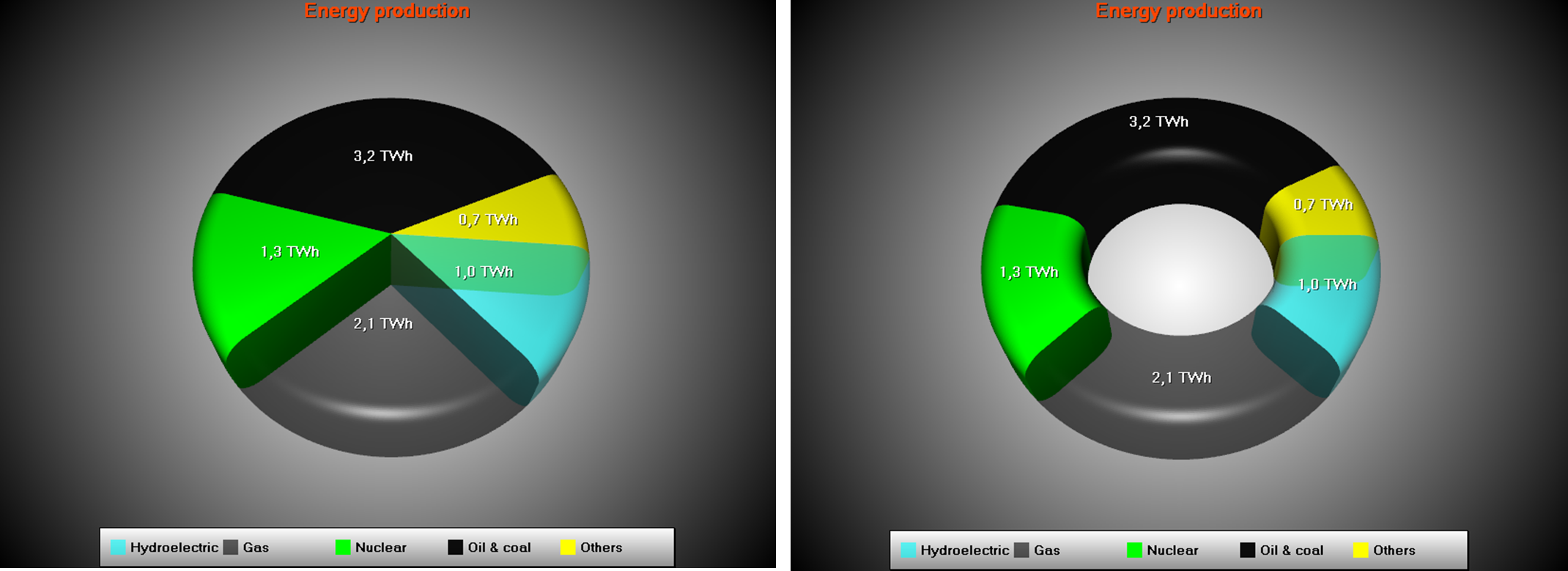
Example of a 3D Pie chart and a Donut chart.
Properties

ViewPie3D object tree.
Select the chart type, Pie or Donut, by using Style property. Control the zooming, panning and rotation with ZoomPanOptions property tree, similarly to View3D.
Camera property controls the viewpoint (see 3D Camera). Predefined lighting setup can be selected with LightingScheme property. Use Material property and its sub-properties to adjust general 3D surface appearance and shininess.
Use DonutInnerPercents to set the donut inner radius, Rounding to adjust edge rounding radius, StartAngle to rotate the pie, and Thickness to adjust pie thickness. ExplodePercents adjusts how far away the exploded pie slice is, when slice’s Explode is set true.
TitlesStyle sets the pie slice text of one of the following: Titles, Values or Percents. Edit TitlesNumberFormat for example to “0.0 TWh” to include units in the end.
Annotations can be used as in View3D.
Pie slices
Pie chart data is stored in ViewPie3D. Values collection. Each item in the list is of type PieSlice. Edit the data value with Value property. Set title string into Title.Text property. By defining TitleAlignment = Outside, the title is drawn outside the pie.
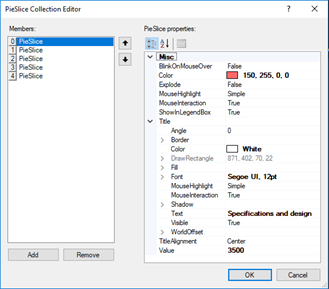
The Values list editor of a Pie chart.
Setting data by code
Data is stored in the ViewPie3D. Values list as PieSlices.
//Add pie slice data
//By using true as last parameter, the slice is automatically added to
//chart.ViewPie3D.Values collection
PieSlice slice1 = new PieSlice("Hydroelectric", Color.FromArgb(150, Color.Aqua), 1.0, chart.ViewPie3D, true);

PieSlice slice2 = new PieSlice("Gas", Color.FromArgb(150, 0, 0, 0), 2.1, chart.ViewPie3D, true);

PieSlice slice3 = new PieSlice("Nuclear", Color.Lime, 1.3, chart.ViewPie3D, true);

PieSlice slice4 = new PieSlice("Oil & coal", Color.FromArgb(240,0,0,0), 3.2, chart.ViewPie3D, true);

PieSlice slice5 = new PieSlice("Others", Color.Yellow, 0.66, chart.ViewPie3D, true);

slice3.Explode = true;
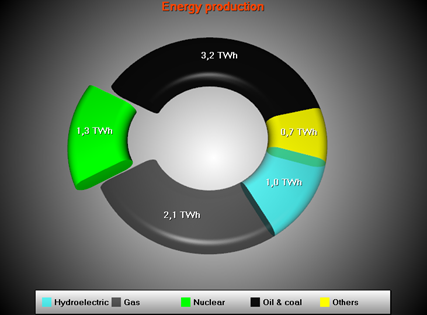
Data set into chart. Third slice is separated by using slice3.Explode = true.
Viewing pie chart in 2D
Set the camera as predefined camera from top.
chart.ViewPie3D.Camera.SetPredefinedCamera(PredefinedCamera.PieTop);
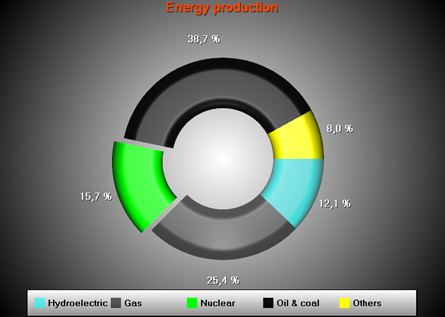
Pie chart shown as 2D, with a predefined camera from top.
Examples
To see feature demonstration as example, check Pie2D, ExamplePie3D and ExampleDonut from our Demo.