BarSeries3D
BarSeries3D allows bar data visualization in 3D.
Bars grouping
Bar series can be grouped with many options available in BarViewOptions property of View3D. BarViewOptions. ViewGrouping controls how the bars are grouped in the 3D view. It has some resemblance how XY BarSeries does grouping.
GroupedIndexedFitWidth
When ViewGrouping is set for GroupedIndexedFitWidth, BarSpacing, IndexGroupingFitGroupDistance and IndexGroupingFitSideMargins properties control distance between bars in the same group, between groups (group is formed for each BarSeries3D.Values index) and from 3D world edge in World coordinates respectively. Therefore, individual bar width (along XAxis) will be adjusted to fit all bars in available 3D world width with predefined spacing.
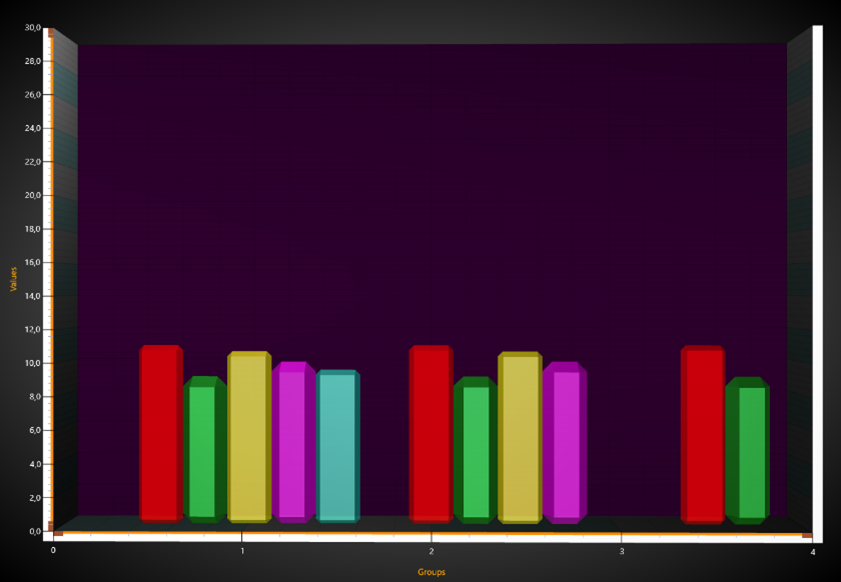
BarViewOptions.ViewGrouping = GroupedIndexedFitWidth. Bars are grouped according to their index. Bar
widths and group gaps are arranged to fit the width (along XAxis) nicely.
GroupedIndexed
When ViewGrouping is set for GroupedIndexed, the BarWidth and BarDepth properties of the bar series determines the bar width (along XAxis) and depth (along ZAxis) respectively.
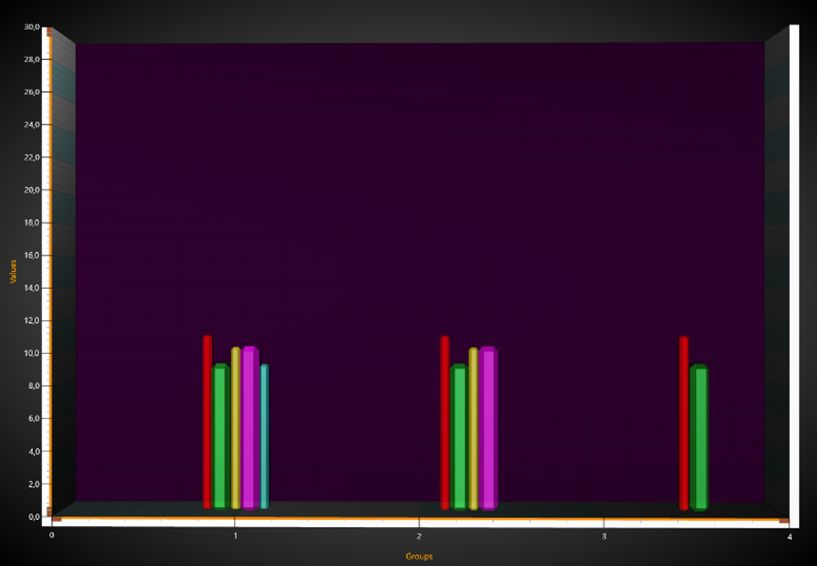
BarViewOptions.ViewGrouping = GroupedIndexed. Original bar widths apply, and groups are arranged to fit the chart width.
GroupedByXValue
When ViewGrouping is set for GroupedByXValue, the BarWidth and BarDepth properties of the bar series determines the bar width (along XAxis) and depth (along ZAxis) respectively.
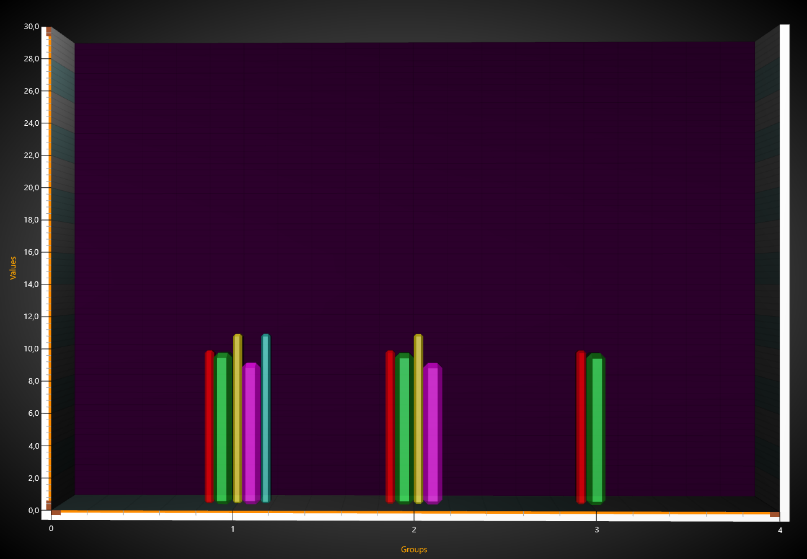
BarViewOptions.ViewGrouping = GroupedByXValue. Bar X values apply
StackedIndexed
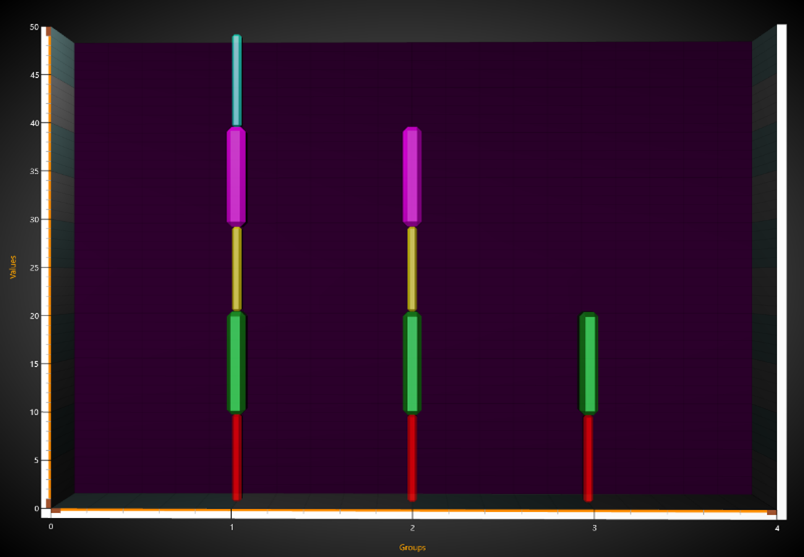
BarViewOptions.ViewGrouping = StackedIndexed. All bars having same index are stacked.
StackedByXValue
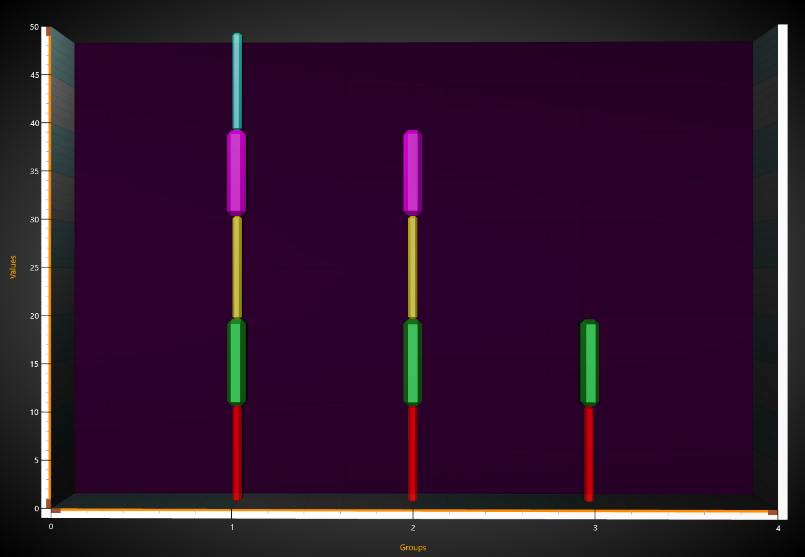
BarViewOptions.ViewGrouping = StackedByXValue. All bars having same X value are stacked. This example looks same than with StackedIndexed, as the X values and indices are same.
StackedStretchedToSum
All bars having same X value are stacked and stretched to BarViewOptions. StackSum value/property.
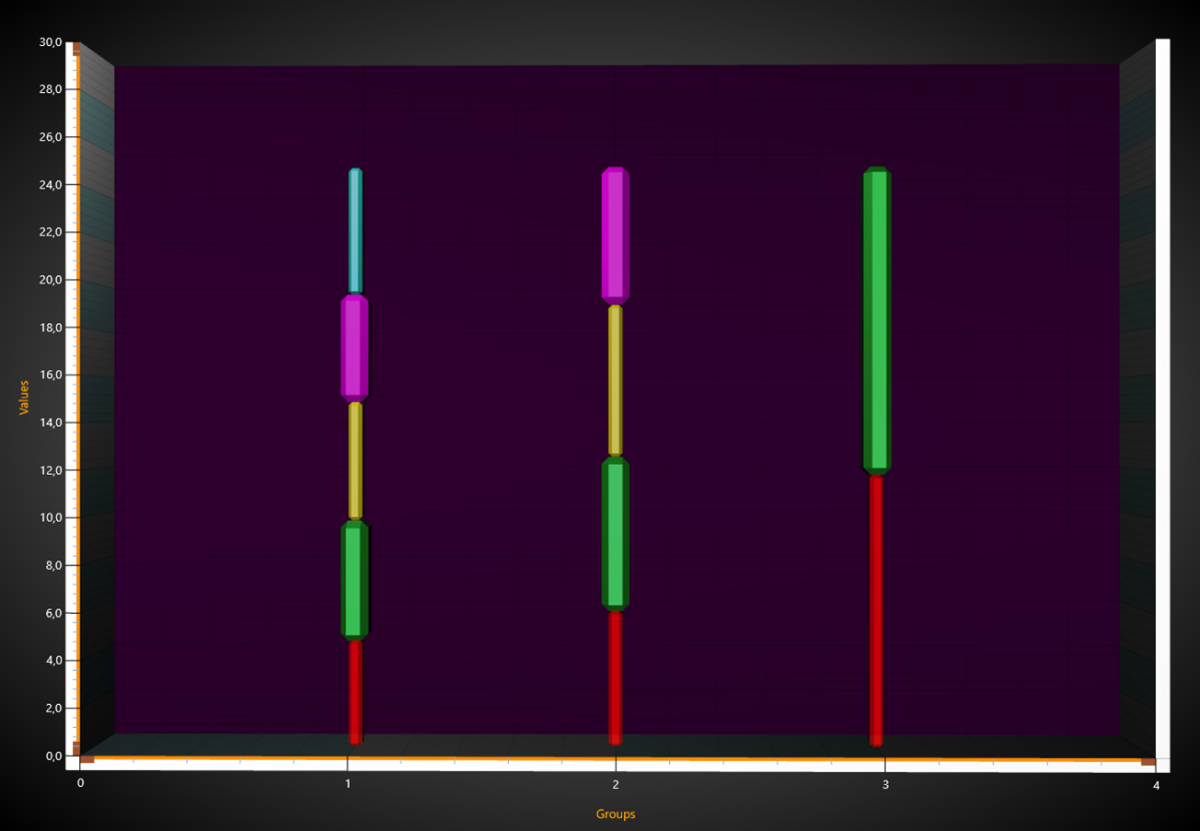
BarViewOptions.ViewGrouping = StackedStretchedToSum. All bars having same X value are stacked and
stretched to StackSum, in this case 25.
Manhattan
he first series values are shown nearest to the camera and the last series farthest. Bar X values control the bar position in X dimension.
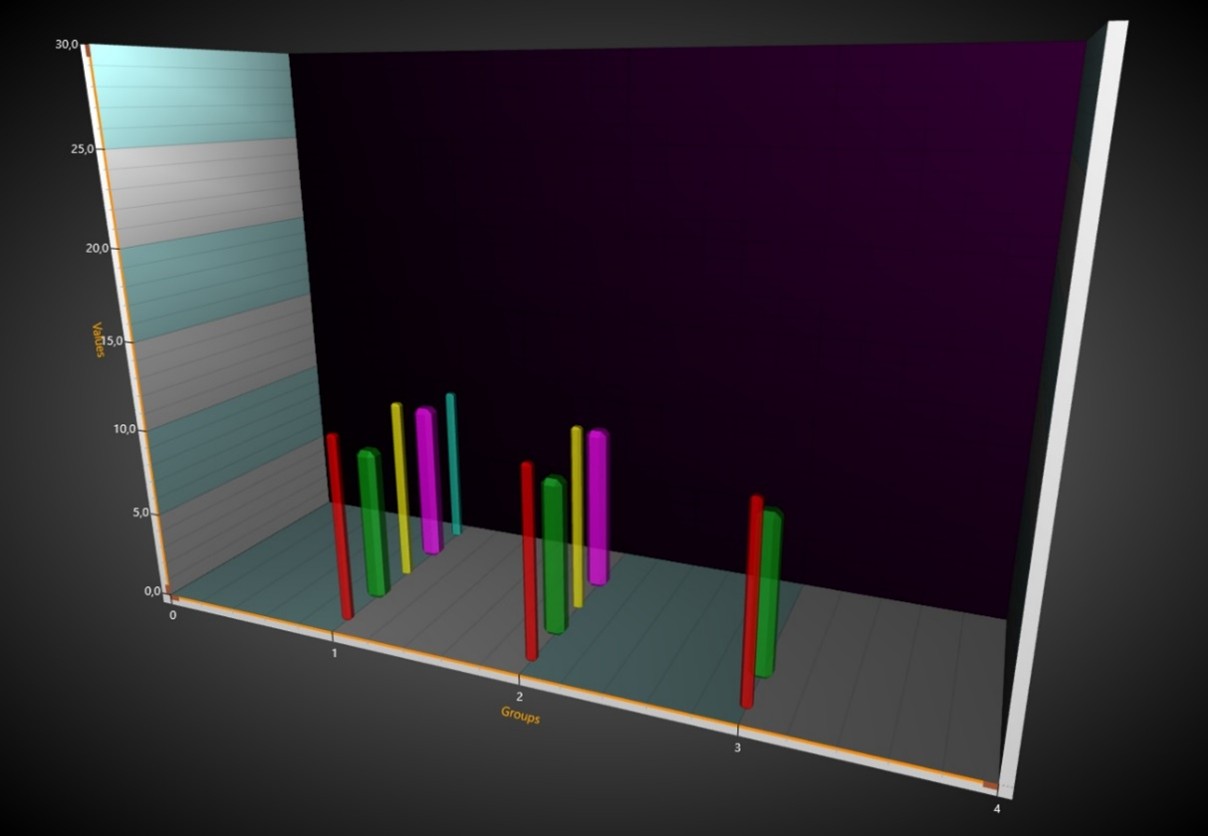
BarViewOptions.ViewGrouping = Manhattan. The first series values are shown nearest to the camera and
the last series farthest. Bar X values control the bar position in X dimension.
Bar styles
BarSeries3D has Shape property for controlling the bar shape. In addition, with some shapes, CornerPercentage can be used to change corner rounding and DetailLevel to change the visual quality.
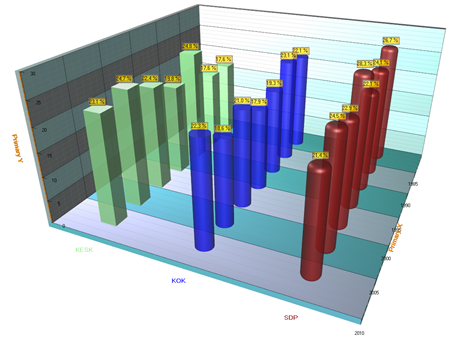
Bar shapes: Simple, Cylinder and RoundedCylinder
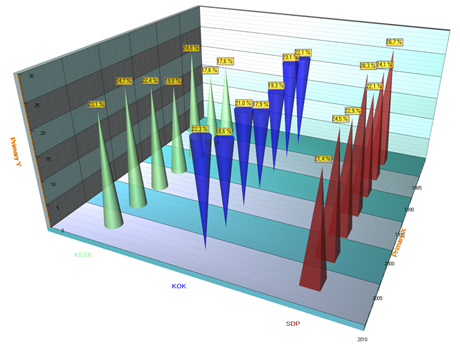
Bar shapes: Cone, ReversedCone and Pyramid.
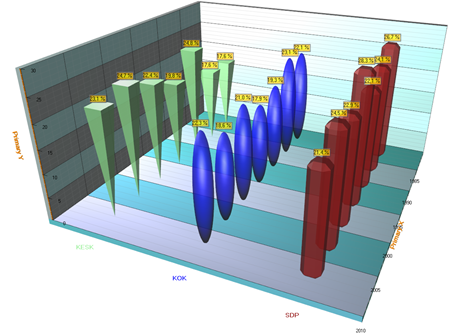
Bar shapes: ReversedPyramid, Ellipsoid and Beveled.
Setting bar series data
Bar series data can be added as BarSeriesValue3D -structures, which contains X, Y, Z and Text fields.
// create new values array
BarSeriesValue3D[] values = new BarSeriesValue3D[3];
values[0] = new BarSeriesValue3D(20, 45, 5, “”);
values[1] = new BarSeriesValue3D(30, 50, 5, “”);
values[2] = new BarSeriesValue3D(40, 35, 5, “”);

// add values to series
chart.View3D.BarSeries3D[0].AddValues(values, false);
Showing bars horizontally
Bars are drawn in Y axis direction. To show the bars vertically, rotate the camera 90 degrees.
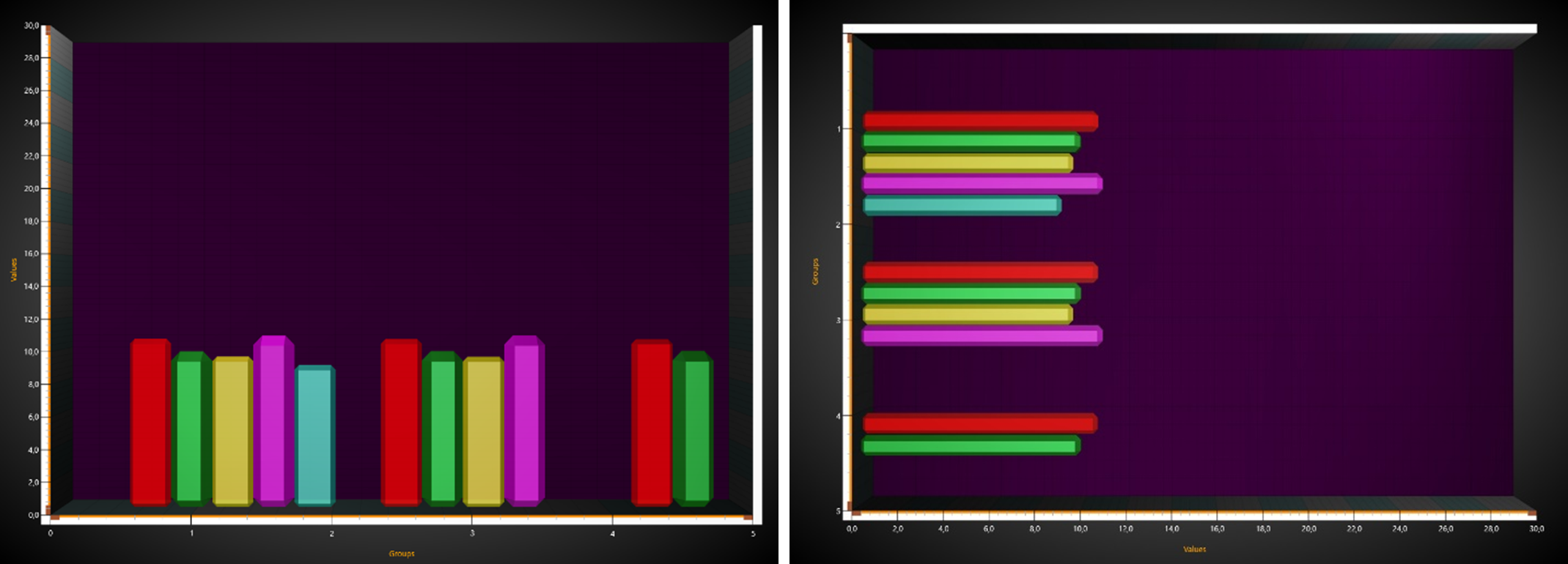
Vertical bars view on the left, horizontal bars view on the right.
The code setting up the vertical bars view of the previous figure:
chart.BeginUpdate();
chart.View3D.Dimensions.Y = 100;
chart.View3D.Dimensions.X = 150;
chart.View3D.YAxisPrimary3D.Location = AxisYLocation3D.FrontLeft;
chart.View3D.Camera.RotationX = 0;
chart.View3D.Camera.RotationY = 0;
chart.View3D.Camera.RotationZ = 0;
chart.View3D.Camera.ViewDistance = 170;
chart.EndUpdate();
The code setting up the horizontal bars view of the previous figure:
chart.BeginUpdate();
chart.View3D.Dimensions.Y = 150;
chart.View3D.Dimensions.X = 100;
chart.View3D.YAxisPrimary3D.Location = AxisYLocation3D.FrontRight;
chart.View3D.Camera.RotationX = 0;
chart.View3D.Camera.RotationY = 0;
chart.View3D.Camera.RotationZ = 90;         // <<===  !!!
chart.View3D.Camera.ViewDistance = 170;
chart.EndUpdate();
Examples
To see feature demonstration as example, check ExampleBars3D, HorizontalBars3D and BarsParty3D from our Demo.