Export and printing
There are many ways to export and print chart.
Bitmap image export (raster format)
The chart can be exported as .PNG, .BMP and .JPG file with SaveToFile() method. SaveToFile(…) method allows exporting image files with resolution decrement and smoothing/anti-alias options. To export to a stream, use SaveToStream() method.
Vector image export
ViewXY, ViewPolar and ViewSmith can be also exported as .EMF and .SVG formats. View3D and ViewPie3D don't currently support it. Use SaveToFile or SaveToStream method with selected vector file format.
The vector output is simplified and all details, such as complex point styles, may be presented as a plain color and simple shape. The vector output may also contain some bitmap elements.
If user needs a lot of scaling of image, then vector-format is better option. For example, fonts in chart is scaled better in vector format. However, if user needs smooth color gradients (e.g. heatmap), then raster image format will save those details better.
Copy to clipboard
The chart can be copied to clipboard by calling CopyToClipboard(…). ViewXY, ViewPolar and ViewSmith can copied with CopyToClipboardAsEmf() method in vector format.
Capturing to byte array
The chart has CaptureToByteArray method, to get as a fast raw image data copy to external components or further processing of data.
Usage
int width;
int height;
PixelFormat format;
byte[] aData = _chart.CaptureToByteArray(out width, out height, out format);
Bitmap bitmap = new Bitmap(width, height, System.Drawing.Imaging.PixelFormat.Format32bppArgb);
System.Drawing.Imaging.Bitmapdata bitmapData = bitmap.LockBits(new System.Drawing.Rectangle(0, 0, width, height), System.Drawing.Imaging.ImageLockMode.ReadOnly, System.Drawing.Imaging.PixelFormat.Format32bppArgb);
IntPtr ipDst = bitmapData.Scan0;
int iRowByteCount = width * 4;
int iSrcIndex = 0;
for (int iY = 0; iY < height; iY++)
{
Marshal.Copy(aData, iSrcIndex, ipDst, iRowByteCount);
ipDst = new IntPtr(ipDst.ToInt64() + bitmapData.Stride);
iSrcIndex += iRowByteCount;
}

bitmap.UnlockBits(bitmapData);
Get chart as bitmap
The chart has CaptureToBitmap method, which returns platform specific (WinForms, WPF or UWP) image. BitmapAntialiasOptions can be set as input argument.
Setting output stream for continuous frame writing
Use chart.OutputStream property to set a stream into which the chart will write it’s rendered frames.
This property is intended as the fastest way to capture continuous frames from the chart, especially on Headless mode.
The stream is a raw byte stream, with each pixel described with 4 bytes, one byte per channel. The order of the channels depends on the renderer and its settings.
Use GetLastOutputStreamFormat and GetLastOutputStreamSize methods to find out the format and output size of the last written image.
Produced image size should be the size of the chart in pixels.
On the contrary to the other properties of the LightningChart, set stream is NOT disposed on chart's dispose.
On the contrary to the other properties, setting this property will not cause new frame to be rendered.
Printing and PrintPreview
Call PrintPreview() method to open a print preview dialog or Print() to directly print with default settings. Call Print(…) to print with manual settings. Printing ViewXY, ViewPolar and ViewSmith supports vector printing as well. Supply Raster or Vector format to parameter to Print(…) method.
In version 12.5 PrintPreview dialog was revised. Now in WinForms dialog is available in several languages: EN, DE and FI (more language support can be added upon request). Note, that WPF does not have multilingual support.
Required language is set with following line at the start of application's constructor:
CultureInfo.CurrentUICulture = new CultureInfo("de-DE", true);
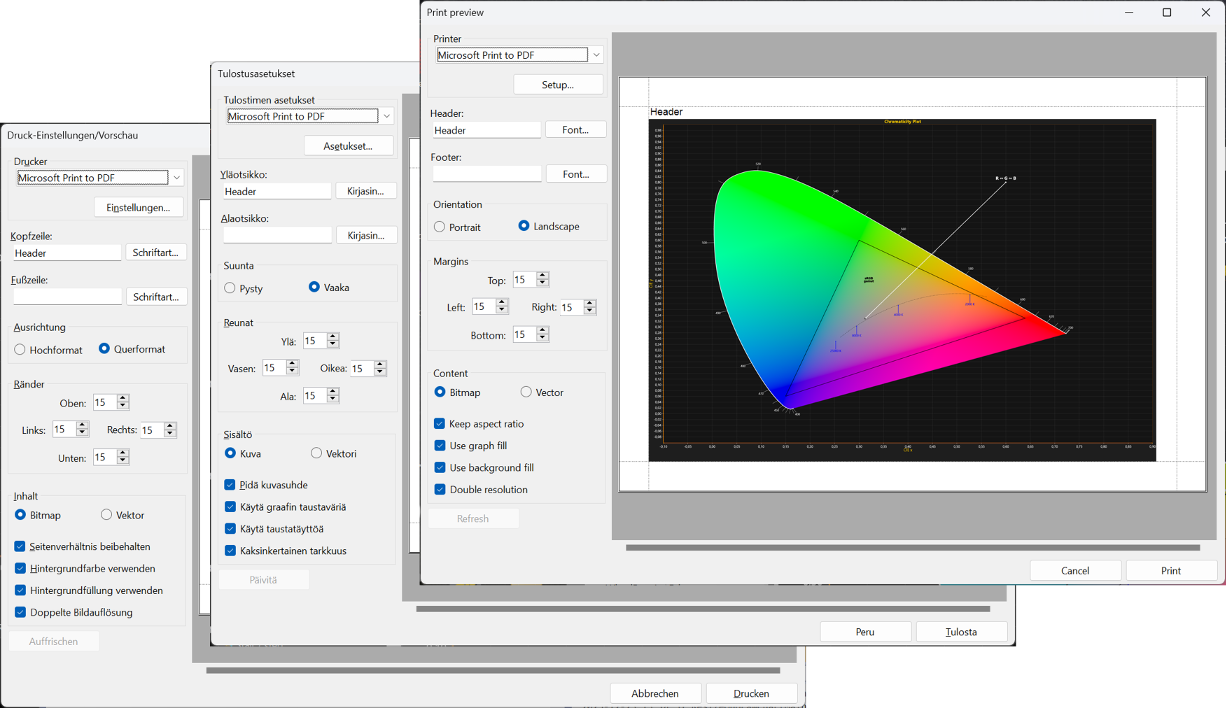
Print preview dialog in EN, DE and FI
In addition,
- 'Setup' button displays printing-preferences (Windows OS dialog).
- For smoother handling experience, preview image is not redrawn after each property change, but only after 'Refresh' button click.
- PrintPreview dialog setting are saved and loaded next time from user's app folder (file "LightningChartPrintPreviewSettings.json").
- User now can control visibility and settings of PrintPreview by calling method with VisibilityState and EnableState parameters.
- There is also new event PrintPreviewF1Pressed which is raised when F1 key is pressed on PrintPreview dialog.
PrintPreview parameters, VisibilityState and EnableState
PrintPreview() method has several overloads. Of particular interest is one with VisibilityState and EnableState parameters. This allows to manage which dialog's control to be shown and how they are set.
VisibilityState has Orientation (Portrait & Landscape), Format (Bitmap & Vector), Margins, Options (checkboxes KeepAspectRatio, GraphFill, BackgroundFill and DoubleResolution) flags. There is also All and None flags.
EnableState has Bitmap (Bitmap vs Vector setting), Portrait (Portrait vs Landscape), BackgroundFill (checkbox checked), GraphFill (checkbox checked), KeepAspectRatio (checkbox checked), DoubleResolution (checkbox checked) flags. There is also All and None flags.
For example, following code excerpt with modify dialog to show only groups of Orientation and Margins controls, and enable/use specified flags (Bitmap, Landscape, BackgroundFill, GraphFill and KeepAspectRatio).
private void buttonPrint_Click(object sender, EventArgs e)
{
    foreach (LightningChart lc in _chartsSelected)
    {
        // show only groups of Orientation and Margins controls
        VisibilityState showState = VisibilityState.Orientation | VisibilityState.Margins;

        // enable/use Bitmap, Landscape, BackgroundFill, GraphFill and KeepAspectRatio
        EnableState enableState = EnableState.Bitmap | EnableState.BackgroundFill | EnableState.GraphFill | EnableState.KeepAspectRatio;


        lc.PrintPreviewF1Pressed += Lc_PrintPreviewF1Pressed;
        string strPrinterName = string.Empty;
        string strFooter = null;
        Padding margin = new Padding(15);

        lc.PrintPreview("Header", ref strPrinterName, ref strFooter, ref margin, showState, ref enableState);

        lc.PrintPreviewF1Pressed -= Lc_PrintPreviewF1Pressed;
    }
}
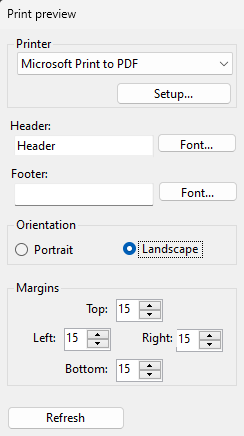
Print preview dialog configured to only groups of Orientation and Margins controls.
XAML serialization
LightningChart .NET supports XAML serialization from version 12.0.1. This means that .NET class XamlWriter can be used to serialize LightningChart object into XAML markup, while .NET class XamlReader can be used to read XAML input and create a LightningChart object. By using XamlWriter.Save() and XamlReader.Load() methods user can save the state of the Chart (save value for the most of its properties) and import that state next time user opens the application.