Surface
Chart3D includes a feature for rendering high resolution 3D surfaces.
This can mean up to millions or even billions of data points displayed at high speed and colored according to user configured color rules.
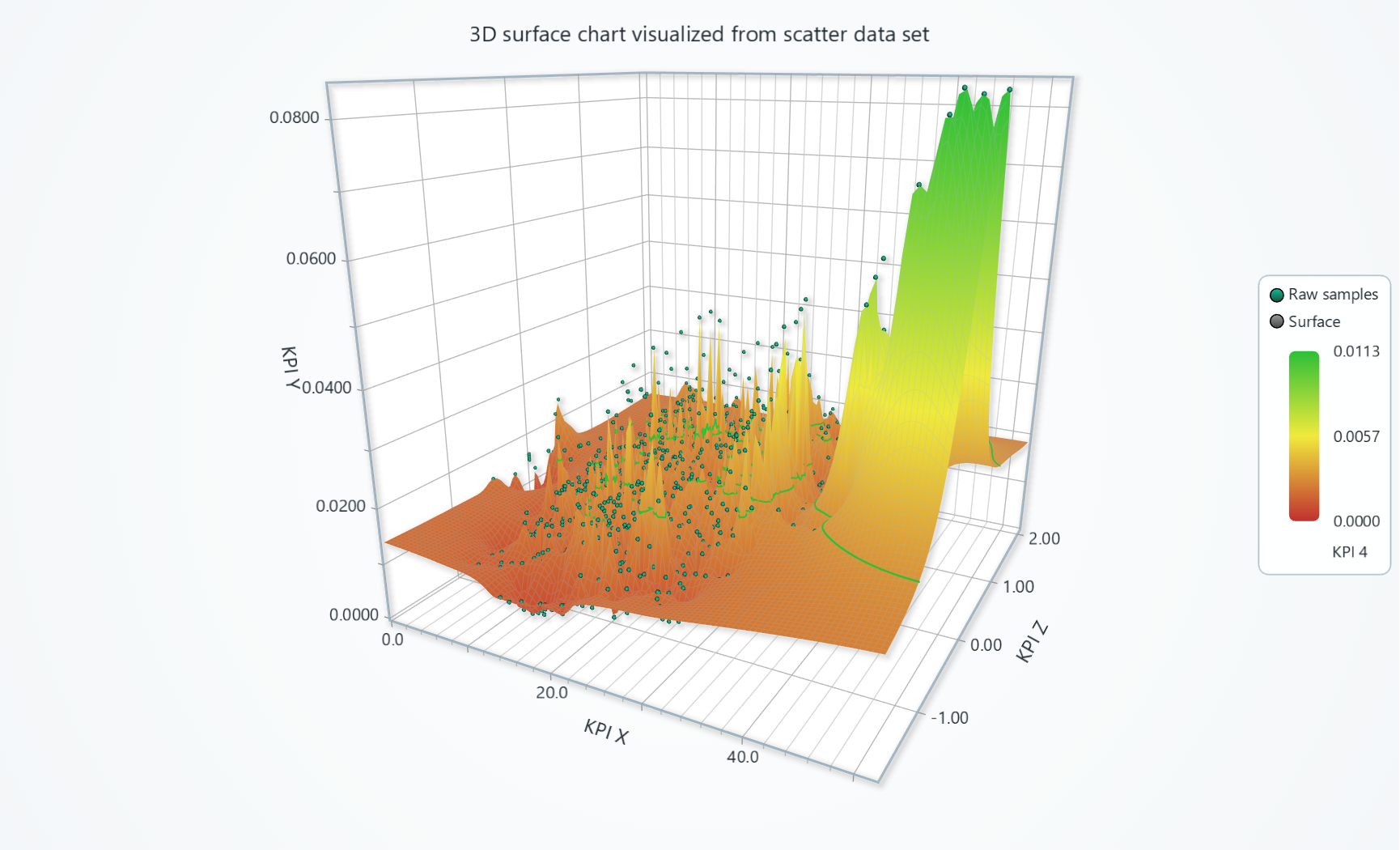
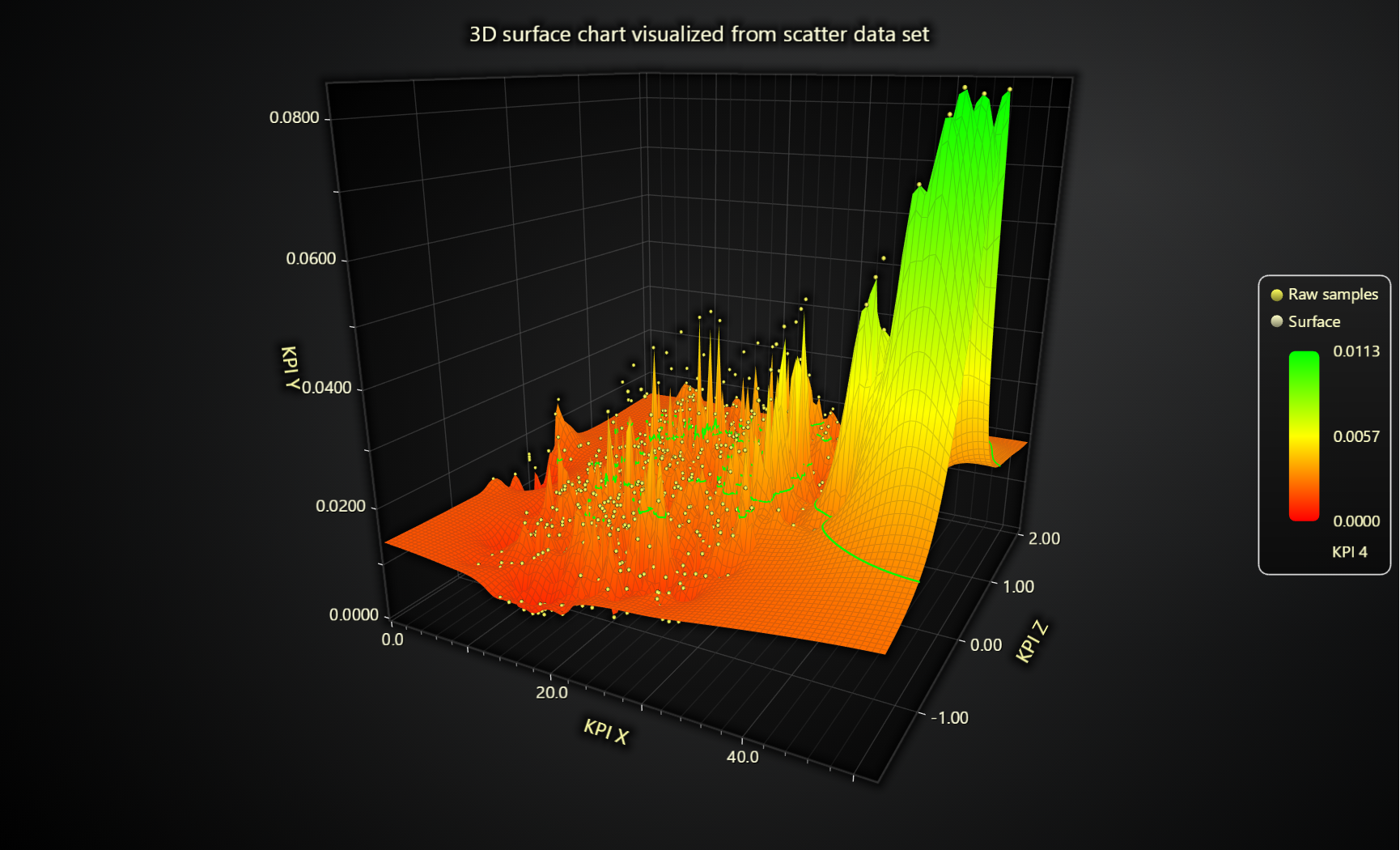
This section is about so called "static surfaces", for scrolling and time heatmaps see Scrolling surface.
With LightningChart, Surface charts are extremely similar to Heatmaps. As such, we recommend you to also check out the Heatmap guide.
// Creation of surface series
const surfaceSeries = chart
    .addSurfaceGridSeries({
        columns: 3,
        rows: 4,
        dataOrder: 'columns',
    })
    .setStart({ x: 0, z: 0 })
    .setStep({ x: 1, z: 1 })
Surface height map
Surface series consume height data as uniform number matrixes. You can imagine this as a table of numbers, where each cell is an Y coordinate:
| column 0 | column 1 | column 2 | |
|---|---|---|---|
| row 0 | 0 | 4 | 8 |
| row 1 | 1 | 5 | 9 |
| row 2 | 2 | 6 | 10 |
| row 3 | 3 | 7 | 11 |
surfaceSeries.invalidateHeightMap([
    [0, 1, 2, 3],
    [4, 5, 6, 7],
    [8, 9, 10, 11],
])
"uniform" means that when you attach this data table to a pair of X and Z axes, the X and Z step between each column and row is always the same.
Color by height
The most common way of coloring a surface is to color each location along the surface by its Y coordinate.
surfaceSeries.setFillStyle(new PalettedFill({
    lookUpProperty: 'y',
    lut: new LUT({
        interpolate: true,
        steps: [
            { value: 0, color: ColorCSS('red') },
            { value: 100, color: ColorCSS('green') },
        ]
    })
}))
Color by separate data set
Surfaces can also be colored by a separate data set from the height map. As in, each coordinate in the surface can have separate Y coordinate as well as other number Value which is used for coloring.
surfaceSeries.setFillStyle(new PalettedFill({
    lookUpProperty: 'value',
    lut: new LUT({
        interpolate: true,
        steps: [
            { value: 0, color: ColorRGBA(255, 0, 0) },
            { value: 10, color: ColorRGBA(0, 0, 255) },
        ],
    }),
}))
// NOTE: Intensity values do not affect surface geometry, but only coloring!
surfaceSeries.invalidateIntensityValues([
    [0, 1, 2, 3],
    [4, 5, 6, 7],
    [8, 9, 10, 11],
])
Percentage color lookup
LUT has also a percentageValues option, which you can use if you want to use % values of the present min-max lookup value range, rather than specific value steps:
new LUT({
    percentageValues: true,
    interpolate: true,
    steps: [
        // 0 = 0 %, 1 = 100%
        { value: 0, color: ColorCSS('red') },
        { value: 1, color: ColorCSS('green') },
    ]
})
For more details about style API, please see Styles, colors and fonts.
Intensity interpolation
// Enable intensity interpolation
surfaceSeries.setIntensityInterpolation('bilinear')
// Disable intensity interpolation
surfaceSeries.setIntensityInterpolation(undefined)
Disable wireframe
surfaceSeries.setWireframeStyle(emptyLine)
Contours
Contour lines can be enabled with setContours method:
heatmapSeries.setContours({
    valueSource: 'intensity',
    levels: [
        { value: 25 },
        { value: 50 },
        { value: 75, strokeStyle: new SolidLine({ thickness: 1, fillStyle: new SolidFill({ color: ColorRGBA(255, 0, 0) }) }) }
    ]
})
Each contour level can have individual stroke style.
It is also possible to choose between two different sources for contour data, intensity and y.
Extrapolating surface data from scatter data set
One common way of using surface charts is to extrapolate a surface height map from a scattered 3D data set. For example, see the picture below, which displays both Raw samples (as scatter points) and the extrapolated surface:
We have computation algorithms for performing this extrapolation, but they are not publicly exposed. If you would be interested in testing this, then please get in touch.
Partial data supply
Surface also supports modifying only a sub set of the entire data array.
surfaceSeries.invalidateHeightMap({ iColumn: number; iRow: number; values: number[][] })
3D color shading
This section works the same as for Line, to avoid duplication of guides, please refer to the section under Line
Depth testing
This section works the same as for Line, to avoid duplication of guides, please refer to the section under Line
Interactions with data points
This section works the same as for Line, to avoid duplication of guides, please refer to the section under Line