Legend
All charts will create a default legend on initialization, which can be accessed through the legend property of the chart:
const legend = chart.legend


Additional legends can be added to the chart with addLegend:
// Add an additional "default" legend
const legend2 = chart.addLegend()

// Add a custom legend
const customLegend = chart.addLegend({ customLegend: legendLogic })
See Custom Legend section for more details on creating custom legends.
Legend options
The legend can be configured with LegendOptions object, which can be passed to ChartOptions.legend property when creating the chart:
const chart = lightningChart().ChartXY({
    legend: {
        title: 'Legend',
        position: LegendPosition.RightCenter,
    },
})
LegendOptions can also be updated with legend.setOptions method:
legend.setOptions({
    visible: false,
})
Automatic legend entries
The default legend of the chart will automatically display all series and components created in the chart.
This can be controlled with LegendEntryOptions.show property, which is set to true by default.
// Disable automatic legend entries
const chart = lightningChart().ChartXY({
    legend: {
        entries: {
            show: false,
        },
    },
})

// Show specific series in legend
const series = chart.addPointLineAreaSeries({ legend: { show: true } })
For user-created legends, entries are not automatically displayed.
To add a series to the legend, use legend.add method:
// Create a new legend and add a series to it
const userLegend = chart.addLegend()
userLegend.add(series)
Legend title
// During chart creation
const chart = lightningChart().ChartXY({
    legend: {
        title: 'Legend',
        titleFont: { size: 10 },
        titleFillStyle: new SolidFill({ color: ColorRGBA(255, 0, 0) }),
    },
})

// After chart creation
chart.legend.setOptions({
    title: 'Legend',
    titleFont: { size: 10 },
    titleFillStyle: new SolidFill({ color: ColorRGBA(255, 0, 0) }),
})
For more details about style API, please see Styles, colors and fonts.
Legend position
For most chart types, the legend will be positioned on the bottom center of the screen by default, outside of the chart area.
This can be changed by setting the LegendOptions.position property to value from LegendPosition enum,
or a fixed pixel position as relative chart coordinates:
// During chart creation, using LegendPosition enum
const chart = lightningChart().ChartXY({
    legend: {
        position: LegendPosition.RightCenter,
    },
})

// After chart creation, using fixed position
chart.legend.setOptions({
    position: { x: 0, y: 250, origin: UIOrigins.LeftTop },
    orientation: LegendOrientation.Horizontal,
})
If you want to position the legend inside the chart area while using LegendPosition enum,
set LegendOptions.renderOnTop to true:
const chart = lightningChart().ChartXY({
    legend: {
        renderOnTop: true,
    },
})
Example of using multiple legends with fixed positions on stacked Y axes:
chart.getDefaultAxisY().dispose()
const channels = new Array(5).fill(0).map((_, i) => {
    const axisY = chart.addAxisY({ iStack: i }).setTitle(`Ch #${i + 1}`)
    const series = chart.addPointLineAreaSeries({ yAxis: axisY, dataPattern: 'ProgressiveX' })
    const legend = chart.addLegend()
    legend.add(series)
    return { series, axisY, legend }
})

chart.addEventListener('layoutchange', (event) => {
    channels.forEach((ch) => {
        const axisYLayout = event.axes.get(ch.axisY)
        if (!axisYLayout) return
        ch.legend.setOptions({
            position: { x: axisYLayout.left + axisYLayout.width, y: axisYLayout.bottom + axisYLayout.height, origin: UIOrigins.LeftTop },
        })
    })
})
Legend background
Some chart types have a background for the legend by default, while others do not.
This can be hidden or styled with LegendOptions.backgroundVisible
// Hide background
legend.setOptions({
    backgroundVisible: false,
})
// Show background with custom style
legend.setOptions({
    backgroundVisible: true,
    backgroundFillStyle: new SolidFill({ color: ColorRGBA(255, 0, 0) }),
    backgroundStrokeStyle: new SolidLine({ thickness: 1, fillStyle: new SolidFill({ color: ColorRGBA(0, 255, 0) }) }),
})
For more details about style API, please see Styles, colors and fonts.
Legend entries
Legend entry options
LegendEntryOptions can be configured in SeriesOptions.legend while creating the series:
const series = chart.addPointLineAreaSeries({
    legend: {
        show: true,
        text: 'Line Series',
        buttonSize: 25,
        buttonShape: PointShape.Triangle,
    },
})
LegendEntryOptions can be updated with legend.setEntryOptions:
legend.setEntryOptions(series, {
    show: false,
})
Style legend entries
Applying same style for every entry should be done via LegendOptions.entries:
// During chart creation
const chart = lightningChart().ChartXY({
    legend: {
        entries: {
            textFillStyle: new SolidFill({ color: ColorRGBA(255, 0, 0) }),
            textFont: { size: 10 },
            buttonShape: PointShape.Square,
            buttonFillStyle: new SolidFill({ color: ColorRGBA(255, 0, 0) }),
            buttonSize: 10,
        },
    },
})

// After chart creation
chart.legend.setOptions({
    entries: {
        textFillStyle: new SolidFill({ color: ColorRGBA(255, 0, 0) }),
        textFont: { size: 10 },
        buttonShape: PointShape.Square,
        buttonFillStyle: new SolidFill({ color: ColorRGBA(255, 0, 0) }),
        buttonSize: 10,
    },
})
For more details about style API, please see Styles, colors and fonts.
Individual styles for specific entries should be applied using LegendEntryOptions:
// During series creation
const series = chart.addPointLineSeries({
    legend: {
        textFillStyle: new SolidFill({ color: ColorRGBA(255, 0, 0) }),
        textFont: { size: 10 },
        buttonShape: PointShape.Square,
        buttonFillStyle: new SolidFill({ color: ColorRGBA(255, 0, 0) }),
        buttonSize: 10,
    },
})

// After series creation
chart.legend.setEntryOptions(series, {
    textFillStyle: new SolidFill({ color: ColorRGBA(255, 0, 0) }),
    textFont: { size: 10 },
    buttonShape: PointShape.Square,
    buttonFillStyle: new SolidFill({ color: ColorRGBA(255, 0, 0) }),
    buttonSize: 10,
})
Altering legend entries text
legend.setEntryOptions(series, {
    text: 'Temperature',
})
Example of showing cursor values in legend entries:
chart.addEventListener('cursortargetchange', (event) => {
    channels.forEach((ch) => {
        const hit = event.hits?.find((item) => item.series === ch.series)
        chart.legend.setEntryOptions(ch.series, {
            text: hit ? `${ch.series.getName()} (${hit.axisY.formatValue(hit.y)})` : ch.series.getName(),
        })
    })
})
Entry Icons


Normally, legend displays colored circles next to each legend entry.
These can be replaced with a different PointShape or a custom Icon:
// Change shape of all entries during chart creation using PointShape
const chart = lightningChart().ChartXY({
    legend: {
        entries: {
            buttonShape: PointShape.Triangle,
        },
    },
})

// Change shape of specific entry during series creation using Icon
const legendImage = new Image()
legendImage.src = 'ekg.png'
const icon = chart.engine.addCustomIcon(legendImage)
const series = chart.addPointLineAreaSeries({
    legend: {
        buttonShape: icon,
    },
})
Alternatively, Icons can be associated with a series directly, which automatically results in them being displayed in the Legend:
series.setIcon(icon)
Events
Event callbacks can be attached to legend entries with LegendEntryOptions.events:
const chart = lightningChart().ChartXY({
    legend: {
        entries: {
            events: {
                pointermove: (event: MouseEvent,info: { entry: LegendEntry; allEntries: LegendEntry[] }) => {
                    console.log('Pointer move on entry', info.entry)
                },
                click: (event: MouseEvent, info: { entry: LegendEntry; allEntries: LegendEntry[] }) => {
                    console.log('Click on entry', info.entry)
                },
            },
        },
    },
})
Click behavior
By default, clicking on a legend entry will result in the respective component being hidden, until clicked again.
This is equivalent to programmatical use of setVisible method.
This behavior can be customized by passing predefined behavior from LegendEntryClickBehaviors
or a custom callback function to LegendEntryOptions.events.click.
The built-in click interaction can be disabled with LegendEntryClickBehaviors.doNothing.
// During chart creation, change click behavior of all entries using LegendEntryClickBehaviors
const chart = lightningChart().ChartXY({
    legend: {
        entries: {
            events: {
                click: LegendEntryClickBehaviors.doNothing,
            },
        },
    },
})

// During series creation, change click behavior of specific entry using LegendEntryClickBehaviors
const series = chart.addPointLineAreaSeries({
    legend: {
        entries: {
            events: {
                click: LegendEntryClickBehaviors.focusClicked,
            },
        },
    },
})

// After series creation, change click behavior of specific entry using custom callback
chart.legend.setEntryOptions(series, {
    events: {
        click: (event, info: { entry: LegendEntry; allEntries: LegendEntry[] }) => {
            // Hide all entries
            info.allEntries.forEach(entry => entry.setVisible(false))
        },
    }
})
Entries with LUT, color lookup table
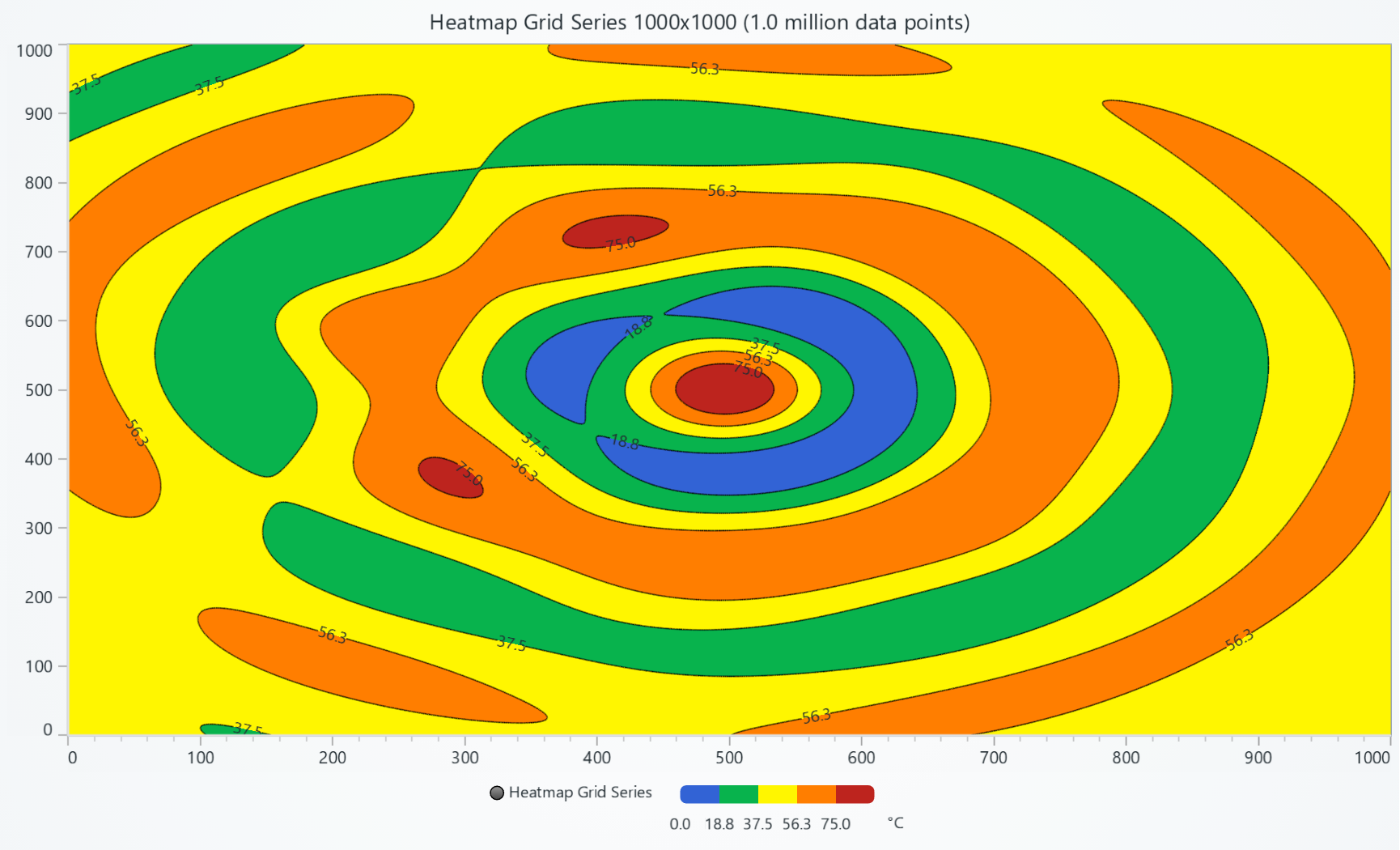
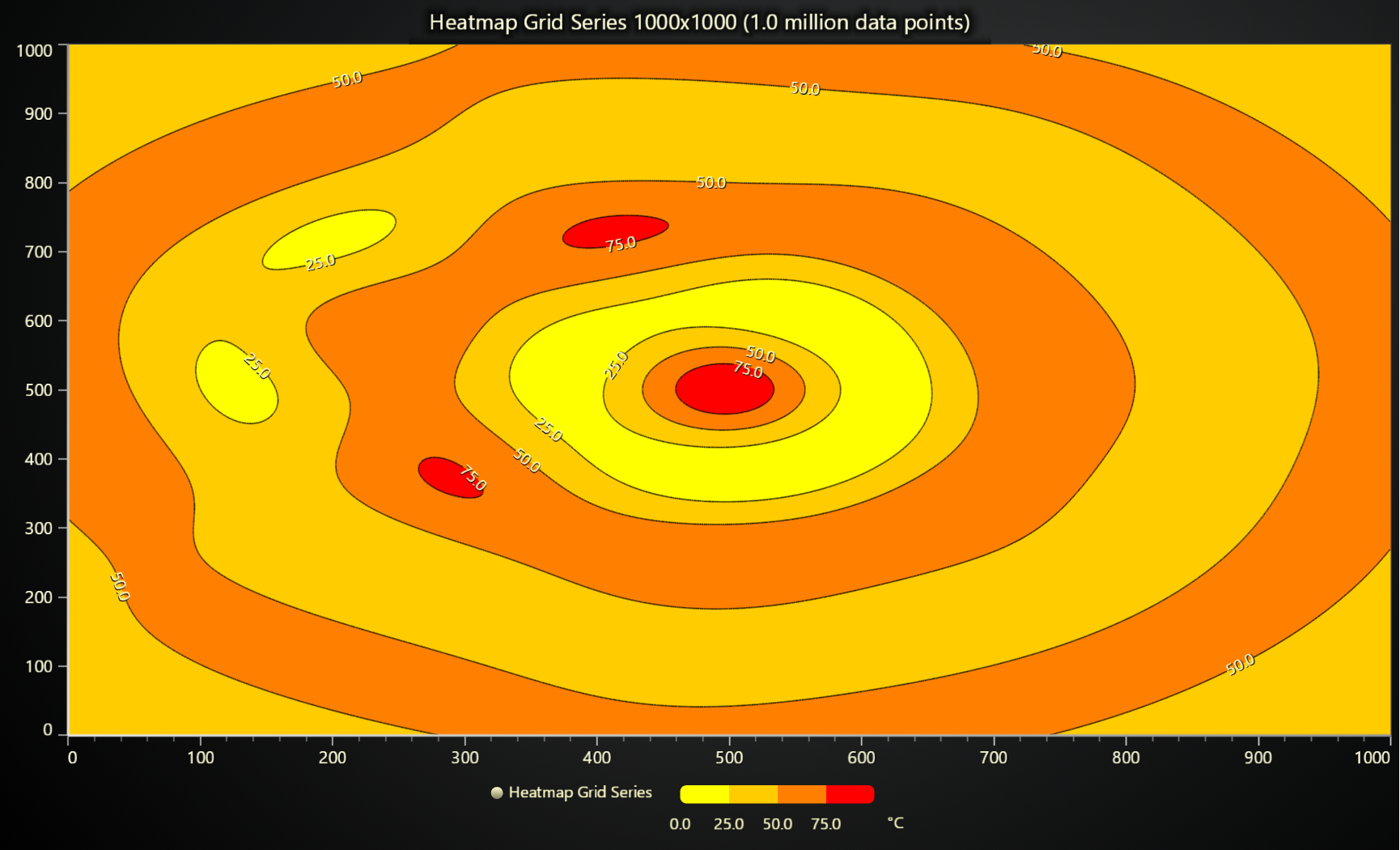
When a component with an active LUT (e.g. Heatmap series with PalettedFill style) is attached to legend,
the legend will automatically display the color rules.
Please note that this is only activated if the series style has a LUT.
If you want to disable automatic LUT element creation for legend entry, pass null to LegendEntryOptions.lut:
const series = chart
    .addPointLineAreaSeries({
        legend: { lut: null }, // Disable LUT on legend entry
    })
    .setPointFillStyle(
        new PalettedFill({
            lut: new LUT({
                steps: [
                    { value: 0, color: ColorRGBA(0, 0, 0) },
                    { value: 10, color: ColorRGBA(255, 0, 0) },
                    { value: 100, color: ColorRGBA(0, 255, 0) },
                ],
                interpolate: false,
            }),
        }),
    )

// Or alternatively, disable legend entry LUT for existing series/entry
chart.legend.setEntryOptions(series, { lut: null })
It is also possible to provide LUT directly to the legend as an entry:
legend.add(
    new LUT({
        steps: [
            { value: 0, color: ColorRGBA(0, 0, 0) },
            { value: 10, color: ColorRGBA(255, 0, 0) },
            { value: 100, color: ColorRGBA(0, 255, 0) },
        ],
        interpolate: false,
    }),
    { text: 'Temperature', buttonSize: 15 }
)
Legend LUT labels
Legend LUT label formatting can be configured via LUT.formatter property:
heatmapSeries.setFillStyle(new PalettedFill({
    lut: new LUT({
        interpolate: true,
        steps: [
            { value: 0, color: ColorRGBA(255, 0, 0) },
            { value: 10, color: ColorRGBA(0, 0, 255) },
        ],
        formatter: (value) => value.toFixed(0) // show 0 decimals
    }),
}))
The LUT formatter affects both legends and cursors.
Alternatively, text displayed in each LUT label can be specified like this as well:
new LUT({
    steps: [
        { value: 0, color: ColorRGBA(255, 0, 0), label: '0.0' },
        { value: 1, color: ColorRGBA(0, 255, 0), label: '' },
        { value: 2, color: ColorRGBA(0, 0, 255), label: '100 %' },
    ]
})
Legend LUT unit
Unit label displayed in legend can be configured via property of LUT:
new LUT({
    units: 'Voltage (V)'
})
LUT length and thickness
// Modifying default values for all LUT entries during chart creation
const chart = lightningChart().ChartXY({
    legend: {
        lutLength: 100,
        lutThickness: 10,
    },
})

// Modifying values for specific entry during series creation
const series = chart
    .addPointLineAreaSeries({
        legend: {
            lutLength: 100,
            lutThickness: 10,
        },
    })
    .setPointFillStyle(
        new PalettedFill({
            lut: new LUT({
                steps: [
                    { value: 0, color: ColorRGBA(0, 0, 0) },
                    { value: 10, color: ColorRGBA(255, 0, 0) },
                    { value: 100, color: ColorRGBA(0, 255, 0) },
                ],
                interpolate: false,
            }),
        }),
    )

// Modify existing entry LUT length and thickness
chart.legend.setEntryOptions(entryWithLUT, {
    lutLength: 100,
    lutThickness: 10,
})
Combining multiple series into 1 entry
Using combineAttachables you can form legend entries that are actually composed of several independent series.
const series1 = chart.addLineSeries({ legend: null })
const series2 = chart.addLineSeries({ legend: null })
chart.legend.add(combineAttachables(series1, series2))
Custom legend
Custom legends can be created by providing LegendLogic function to as a parameter to addLegend method,
or by passing it to the ChartOptions.legend.customLegend property when creating the chart, which will override the default legend.
LegendLogic returns a LegendHandle object, which contains the following methods:
update: Called before rendering the legend to update any internal state usingLegendRenderInfo. AMarginobject can be returned to allocate space for the legend within the chart area.plot: Called to render the legend.dispose: Called when the legend is disposed. It should clean up any resources used by the legend. Optional.
Below is an example of custom legend logic to display a vertically scrollable legend using HTML.
const legendLogic = (initConfig: LegendInitConfig) => {
    const legendDiv = document.createElement('div')
    initConfig.panel.engine.container.append(legendDiv)
    legendDiv.style.position = 'absolute'
    legendDiv.style.right = `0px`
    legendDiv.style.top = `0px`
    legendDiv.style.padding = '1rem'
    legendDiv.style.fontFamily = 'Segoe UI'
    legendDiv.style.userSelect = 'none'
    legendDiv.style.overflowY = 'auto'
    legendDiv.style.height = '100%'
    legendDiv.style.display = 'flex'
    legendDiv.style.flexDirection = 'column'
    const update = (renderInfo: LegendRenderInfo) => {
        legendDiv.innerHTML = ''
        renderInfo.entries.forEach((entry) => {
            const item = document.createElement('span')
            item.innerHTML = entry.options.text || ''
            item.style.cursor = 'pointer'
            item.style.color = entry.component && entry.component.getVisible && entry.component.getVisible() ? 'white' : 'gray'
            legendDiv.appendChild(item)
            const eventHandlerClick = entry.options.events?.click
            if (eventHandlerClick)
                item.addEventListener('click', (event) => eventHandlerClick(event, { entry, allEntries: renderInfo.entries }))
        })
        const bounds = legendDiv.getBoundingClientRect()
        return { left: 0, right: bounds.width, top: 0, bottom: 0 }
    }
    const plot = (renderInfo: LegendRenderInfo) => {}
    const dispose = () => {
        legendDiv.remove()
    }
    return { plot, update, dispose }
}

const chart = lightningChart()
    .ChartXY({
        legend: {
            customLegend: legendLogic,
        },
    })
    .setCursorMode('show-nearest')

for (let i = 0; i < 30; i++) {
    chart
        .addLineSeries({ schema: { x: { auto: true }, y: { pattern: null } } })
        .setName(`Series #${i + 1}`)
        .appendSamples({ y: new Array(10).fill(0).map(Math.random) })
}