Creating app for ARM-device
Windows has traditionally run on machines that are powered by x86 / x64 processors, but more recently, also runs on devices powered by Arm processors.
Arm-powered devices are particularly interesting because the power-frugal nature of the Arm architecture enables these devices to offer longer battery life while delivering great performance. Arm Systems on Chip (SoC) often include other key features such as a powerful CPU, GPU, Wi-Fi & mobile data networks, as well as Neural Processor Units (NPUs) for accelerating AI workloads.
UWP application
Universal Windows Platform (UWP) apps can be configured to run on not only on traditional architectures (like x86 and x64), but also on ARM and ARM64.
How users should setup application with LightningChart in UWP and how to build it for ARM-devices is discussed elsewhere see Creating UWP project.
WPF application for ARM-device
This chapter/article demonstrates how to use LightningChart WPF with .NET 8.0 to implement a desktop application that runs on Arm64.
x86 and x64 (software) Emulation on ARM
Emulation makes the rich ecosystem of Windows apps available on Arm, allowing users to run the apps they care about without any modifications to the app. Windows 11 on Arm supports emulation of both x86 and x64 apps. Windows 10 on Arm also supports emulation, but only for x86 apps. See more How emulation works on Arm
Native ARM support
While having your app run under emulation on Arm devices is a great place to start, your app will benefit from native performance gains and the unique qualities of Arm-powered devices if you rebuild to add Arm support to your app.
Starting from around version .NET 6.0 it is possible to bring Windows Forms and WPF apps to ARM-devices. Running your desktop applications on ARM devices natively can significantly speed up performance for your end users. see more in following video
ARM-device
For testing purpose we will use Raspberry Pi 4 model B.
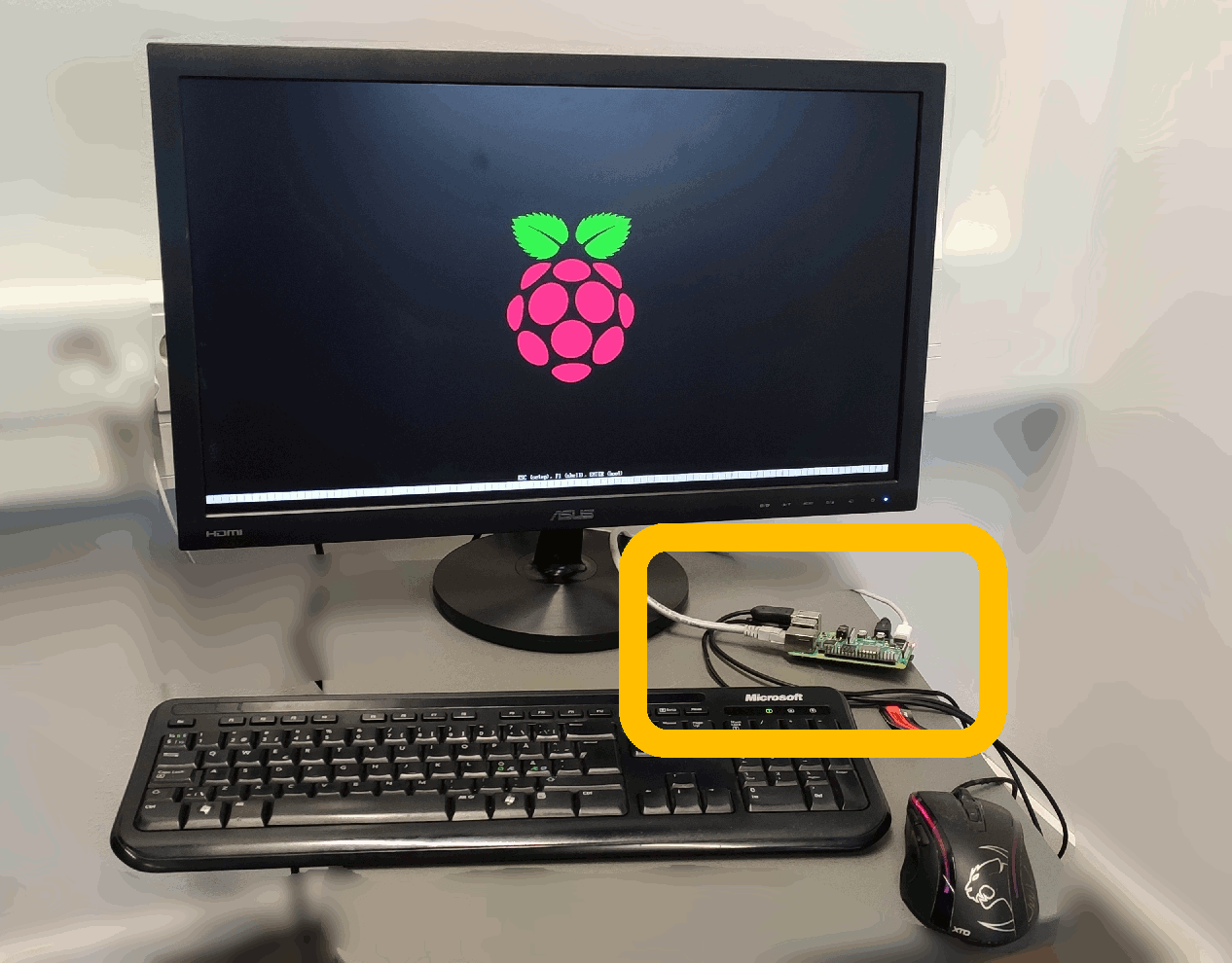 ARM-device: Hardware
We have Windows 11 ARM64 version installed there...
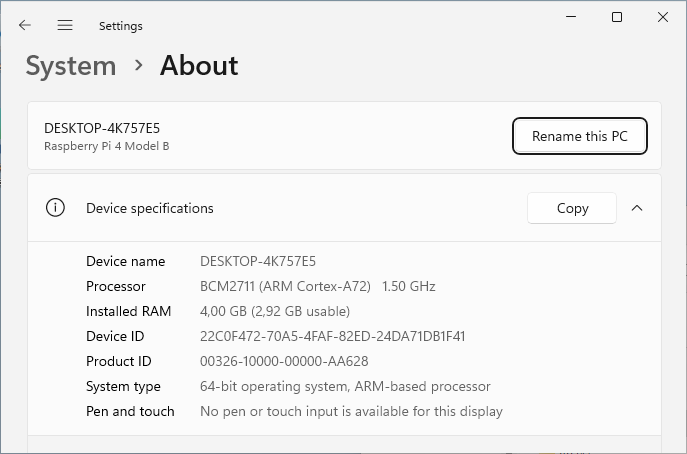 ARM-device: Software
Create the project
Use Visual Studio 2022 to create a new project or open existing one. While user can create LightingChart based charting application from scratch (for example, see Tutorials), it will much easier just extract ready made project from Interactive Examples App.
For this test we will extract ExampleAreaSeriesRealTimeXY as .NET 8.0 project.
Building and running an application
Next we will prepare an application for ARM64, ARM32 and x86_64 builds. The steps as following:
- Click the Any CPU drop-down menu and select Configuration Manager…:
 Visual Studio Configuration-Manager
- In the Configuration Manager, click New… from the Active Solution Platform drop-down menu:
- In the New Solution Platform window, select ARM64, and click the OK button. Then repeat step for x86, x64 and ARM32 solution platform.
 Visual Studio, New Solution Platform
- Next we build application for all solution platforms of interest (ARM64 in particular).
- Then we transfer application to device and run.
 RaspberryPi4B running real-time example built for ARM64 platform
Note that one can run x64 platform build on ARM-device (software emulation). However, native (ARM) platform build will make application to run significantly faster.