Legend
A legend can be added to a chart with addLegendBox method:
const legend = chart.addLegendBox()
Series and other components can be attached to legends using LegendBox.add method:
legend.add(chart)   // Add all components inside chart that support legend
legend.add(series)  // Add 1 series only


Legend title
legend
    .setTitle('Title')
    .setTitleFont((font) => font.setSize(10))
    .setTitleFillStyle(new SolidFill({ color: ColorRGBA(255, 0, 0) }))
For more details about style API, please see Styles, colors and fonts.
Style legend entries
Applying same style for every entry should be done via Legend builder:
const legendBuilder = LegendBoxBuilders.VerticalLegendBox.styleEntries((entry) => entry
    .setTextFillStyle(new SolidFill({ color: ColorRGBA(255, 0, 0) }))
    .setTextFont((font) => font.setSize(10))
    .setButtonShape(PointShape.Square)
    .setButtonOnFillStyle(new SolidFill({ color: ColorRGBA(255, 0, 0) }))
    .setButtonSize({ x: 10, y: 10 }),
)
const legend = chart.addLegendBox(legendBuilder)
For more details about style API, please see Styles, colors and fonts.
Whereas individual styles should be applied with LegendBox.setEntries method, after the series are attached to the legend:
legend.setEntries((entry, component) => {
    // `component` = reference to series that entry represents
    // `entry` has methods to configure legend entry
})
Altering legend entries text
The most convenient way to alter the text displayed in legend, is to configure component "names". For example:
lineSeries.setName('Temperature')
Note that the name has to be set before adding the component to the Legend.
Legend positioning
By default, the legend will be positioned on the right side of the chart. Behind the scenes, LegendBox is a type of LightningChart UI element, so it can be freely positioned. See general section about UI elements for more information.
You can also select another built-in preset to position the legend at the top right corner of the chart.
const legend = chart.addLegendBox(LegendBoxBuilders.HorizontalLegendBox)
User interactions
Clicking on a legend entry will result in the respective component being hidden, until clicked again. This is equivalent to programmatical use of setVisible method.
The built-in click interaction can be disabled like this:
legend.add(chart, { toggleVisibilityOnClick: false })
Legend Icons
Normally, LegendBox displays colored circles next to each legend entry.
These can also be replaced with custom Icons:


const legendImage = new Image()
legendImage.src = 'ekg.png'
const icon = chart.engine.addCustomIcon(legendImage)
legend.setEntries((entry, component) => {
    entry.setButtonShape(icon)
})
Alternatively, Icons can be associated with a series directly, which automatically results in them being displayed in the Legend:
// NOTE: Has to be done before series is added to Legend!
series.setIcon(icon)
Legend background
// Hide background
legend.setBackground((background) => background
    .setFillStyle(emptyFill)
    .setStrokeStyle(emptyLine)
)
legend.setBackground((background) => background
    .setFillStyle(new SolidFill({ color: ColorRGBA(255, 0, 0) }))
    .setStrokeStyle(new SolidLine({ thickness: 1, fillStyle: new SolidFill({ color: ColorRGBA(0, 255, 0) }) }))
)
For more details about style API, please see Styles, colors and fonts.
Remove gradient coloring
By default, legend entries color matches the series they are attached to, but with a small gradient to make the button look nicer. The gradient can be removed to show the series color exactly:
legend.add(chart, { matchStyleExactly: true })
Legend with LUT, color lookup table
When legend is attached to a component with an active LUT (e.g. Heatmap series with PalettedFill style), the legend will automatically display the color rules.
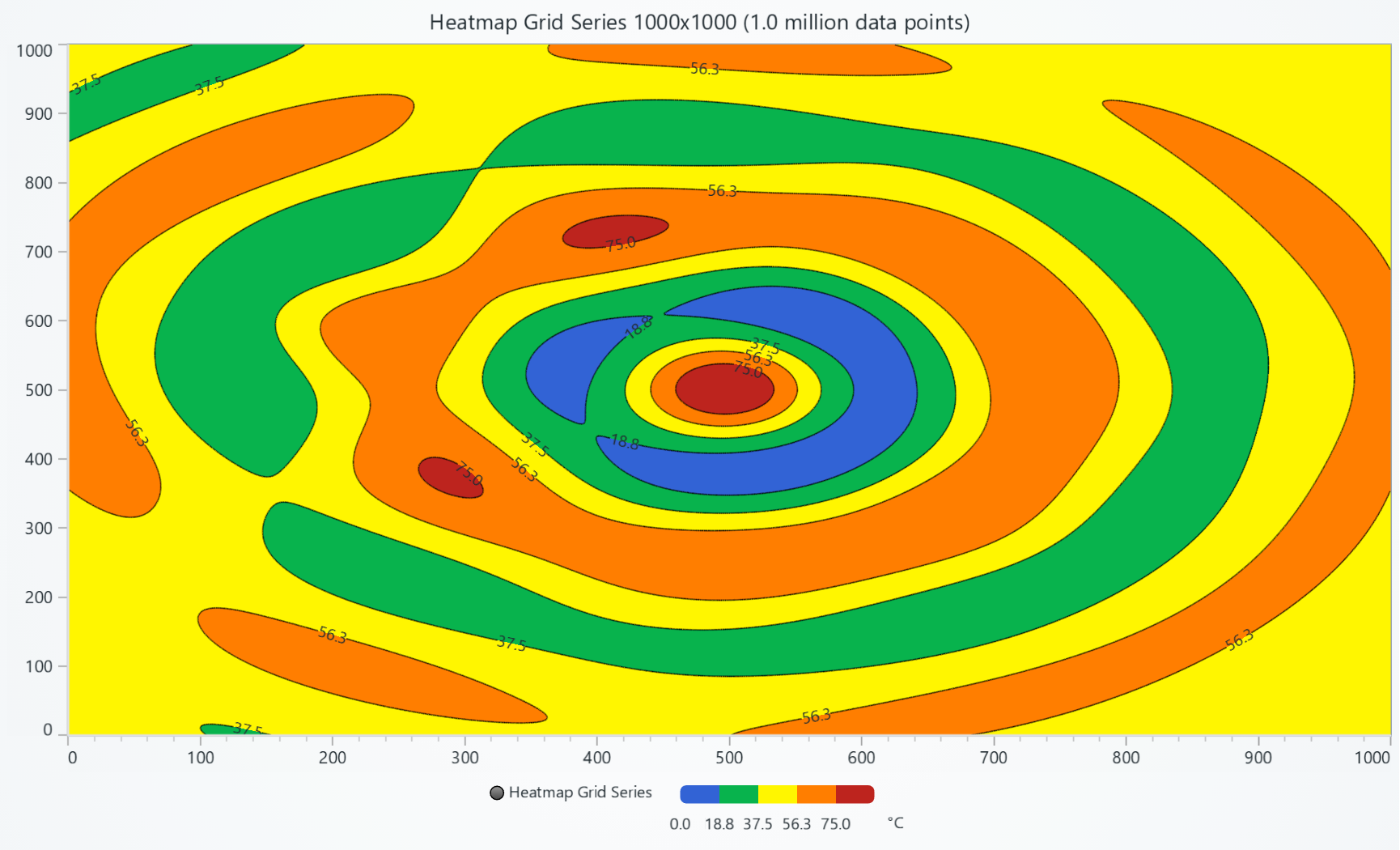
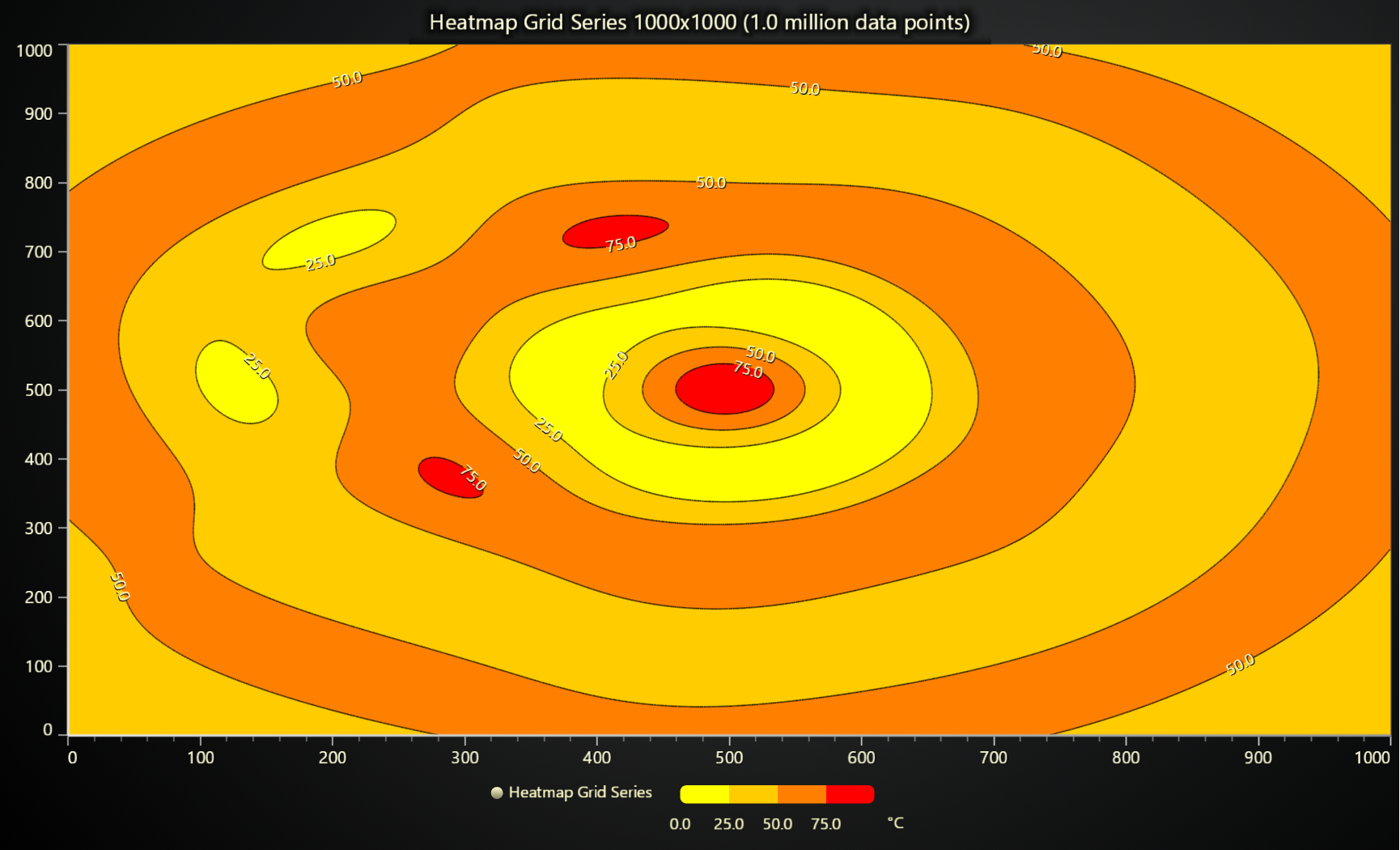
Please note that this is only activated if the series style has a LUT when it is attached to a legend.
Legend LUT labels
Labels displayed in Legend can be configured via properties of LUT:
new LUT({
    steps: [
        { value: 0, color: ColorRGBA(255, 0, 0), label: '0.0' },
        { value: 1, color: ColorRGBA(0, 255, 0), label: '' },
        { value: 2, color: ColorRGBA(0, 0, 255), label: '100 %' },
    ]
})
Legend LUT unit
Unit label displayed in legend can be configured via property of LUT:
new LUT({
    units: 'Voltage (V)'
})
More Legend LUT configurations
Accessing full configuration API of Legend LUT, requires a type check using isLUTCheckBox:
legend.setEntries((entry, component) => {
    if (isLUTCheckBox(entry)) {
        entry
            .setLUTDisplayProportionalSteps(true)
            .setLUTLength(100)
            .setLUTThickness(10)
    }
})
This gives API access to interface UILUTCheckBox.
Modifying Legend during run-time
Many applications may involve legend styles and content changing during run-time. The easiest way to handle this is to destroy the legend and recreate it from scratch when a structural change occurs:
if (legend) legend.dispose()
legend = chart.addLegendBox().add(chart)
// ... any other legend API usage
Custom legend
Sometimes, users need a large number of legend entries in 1 chart. Legends however don't have any automatic wrapping logic that would split entries to columns and rows similarly like flexible content in web applications.
If your use case is like this, you may want to consider implementing the legend using your native frontend framework and either place it above the charts or next to the charts. This kind of inter-operation is highly recommended by LightningChart, as legends are easy to implement with many UI frameworks and it is also easy to connect to the charts if needed.
See inter-operation with external HTML guide for more related information.