License activation
Trial license is automatically installed when you use LightningChart .NET control for the first time. If trial extension is required, then contact us to discuss your needs. Once you receive trial-license-key (extension), follow the procedures described in Installing and activating License-Key paragraph.
Obtaining License-Key
Once license is bought, the License-Key for software developer could be downloaded from LightningChart’s customer Portal. An account in Portal could be created by Team Manager or user oneself.

Email address and password is required for login. Portal account is created once user requested SDK-installer link (see Get SDK installer). Users are able to modify profile information once sign-in to Portal.
There are 2 main types of accounts in Portal: Team Manager and Team Member. Team Manager can manage own team members by inviting them, disabling, editing their account details and assigning team members for each purchased license.
Licenses section in Portal allows to check all information on existing licenses type, subscription period, assigned team member, license key and so on. You can also purchase new products and renew existing license subscriptions, as well as set an auto renewal for them. In the Licenses section you can also claim your existing subscription.
NOTE, user who purchased license directly in Portal or claimed existing license successfully will become Team Manager automatically. Please allow 1 business day for license to appear in the account once purchasing is done.

Team Manager or Team Member who has assigned license could download License-Key (*.ALF file) by clicking key-icon. License-Key should be activated on computer where charting application will be developed.
Installing and activating License-Key
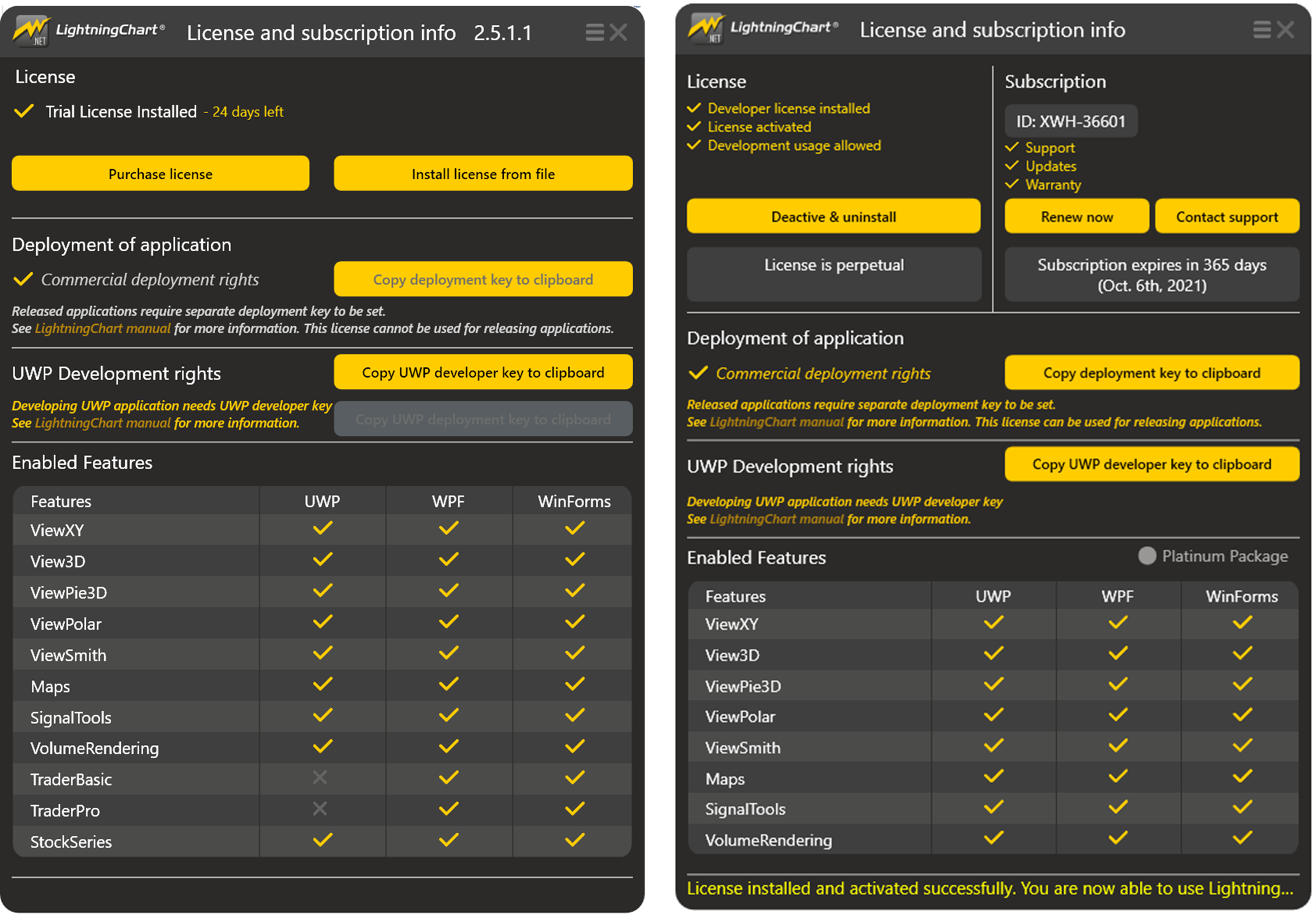
Manage licenses by running the License Manager application from the Dev Center or from Windows start menu: Programs / LightningChart .NET SDK / License Manager.
When dragging a LightningChart component from Toolbox into an application the first time, a license key is asked in a license manager window. Add the license key from the received license file by clicking Install license from file and browsing the .alf file.

Per-developer licenses are activated to LightningChart License Server over internet automatically after adding the license file.
If online activation is not possible due to for example internet connection being not available or the connection being too slow, the licenses can be activated via e-mail as well. Request offline activation button becomes available after the respective online action has failed one or two times. Deactivating the license offline works similarly.
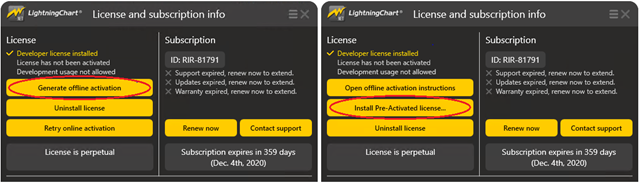
Clicking the offline buttons gives on-screen instructions. Follow them to send an e-mail message to LightningChart licensing team at [email protected].
LightningChart will provide instructions how to install the license offline. Expect a reply in 1 business days.
Removing a license
If license is about to be transferred to another computer, it should be first deactivated from old machine.
License can be removed from the system with Deactivate & uninstall button. Online connection is required for automatic deactivation. If internet connection is not available, deactivation can be done via e-mail as instructed in the previous chapter.
After the license has been deactivated, it can be installed on another computer.

Updating a license
After initial installation of license, it can still be updated, for example when subscription period is extended, it is upgraded to better edition, or when source code is bought etc. NOTE, license is not automatically updated on user’s machine. Therefore, each user should take action to ensure that license on developer machine is up-to-date. To do that the old license has to be deactivated and removed first (see the previous paragraph “Removing a license” how to do this). Afterwards obtain the new license key (.alf file) from the LightningChart’s customer portal. Then install it according to the instructions on paragraph Installing and activating License-Key.
Managing license in Portal
LightningChart’s customer Portal allows users to browse products, download trial versions and manage license subscriptions in one place. This document will lead you through the main sections and tools available in Team Manager Account and Team Member Account at Portal.
This chapter is about LightningChart .NET specific Portal features. However, Portal also serves similar purpose for other products of LightningChart Ltd. Therefore, in your Portal account you may see additional options.
Team Manager Account
When you register as a developer with a company, you will get a Team Manager Account. Below is the description of each section of Team Manager Account.
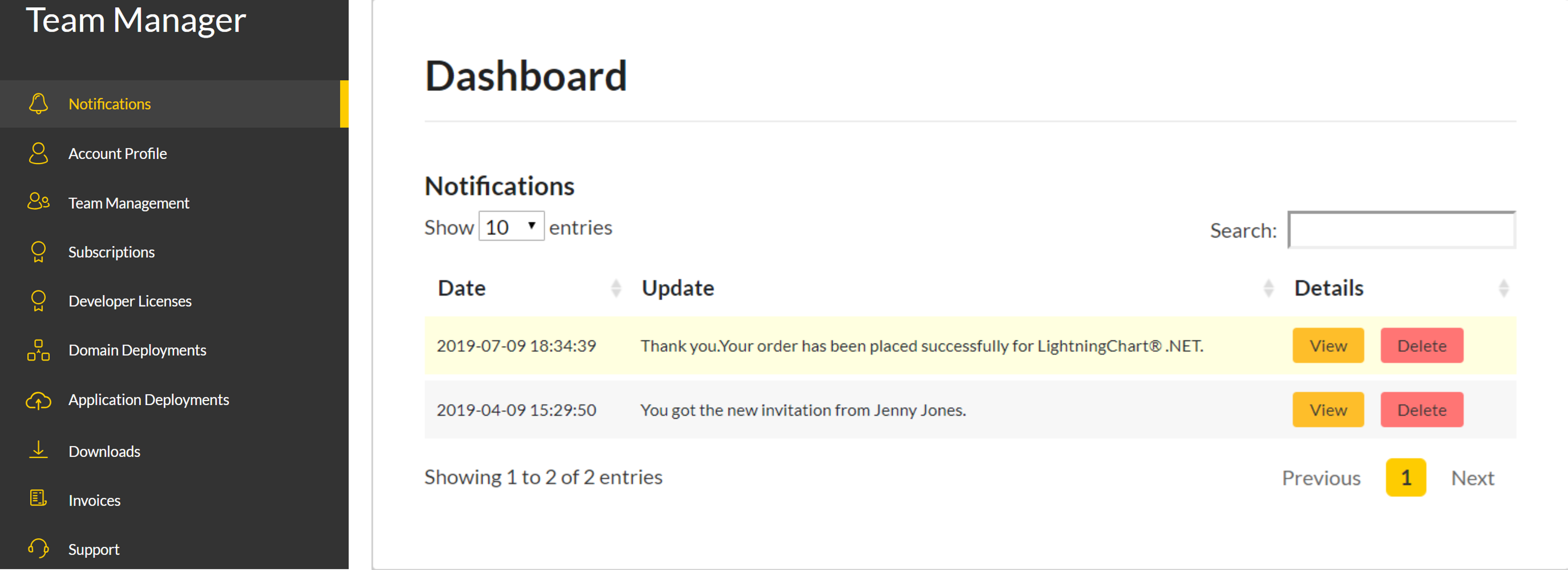
Notifications Dashboard
All notifications, orders history, invitation requests and other details are reflected in the account’s Dashboard section.
 Notifications Dashboard
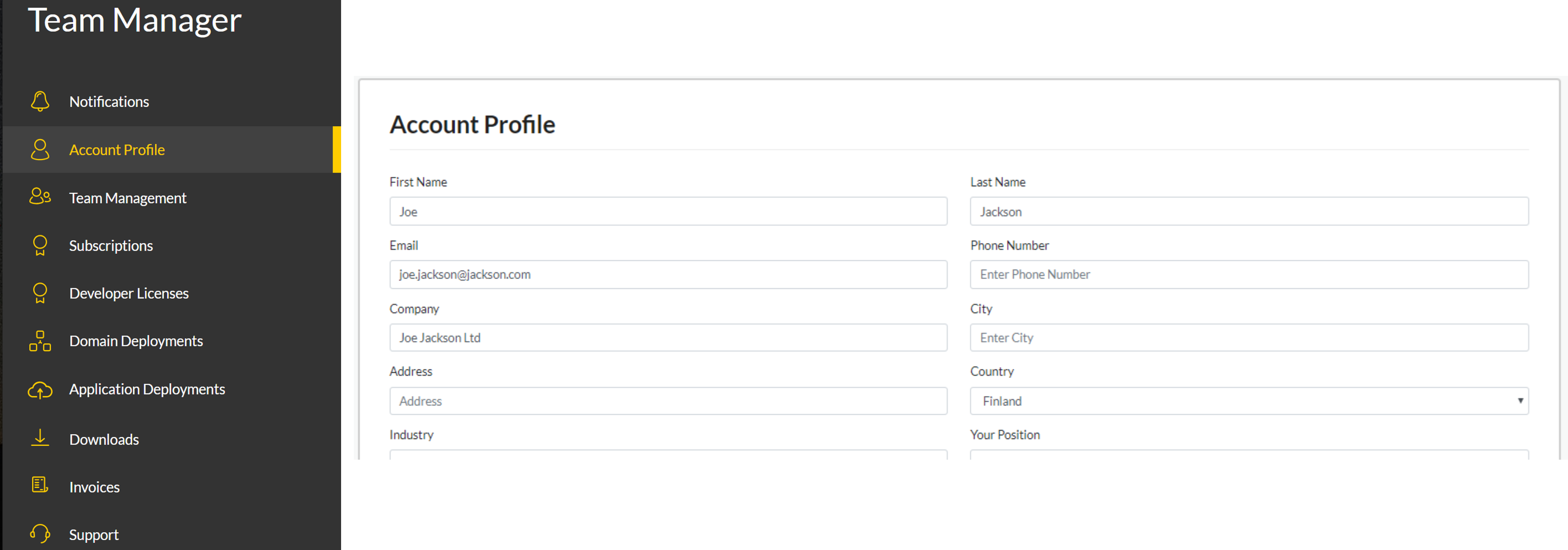
Account Profile
You can check and change your personal information and notification settings in the Account Profile section.
 Account Profile
Team Management
In this section, you can manage your team members by inviting them, disabling, editing their account details and assigning your team members for each purchased license.
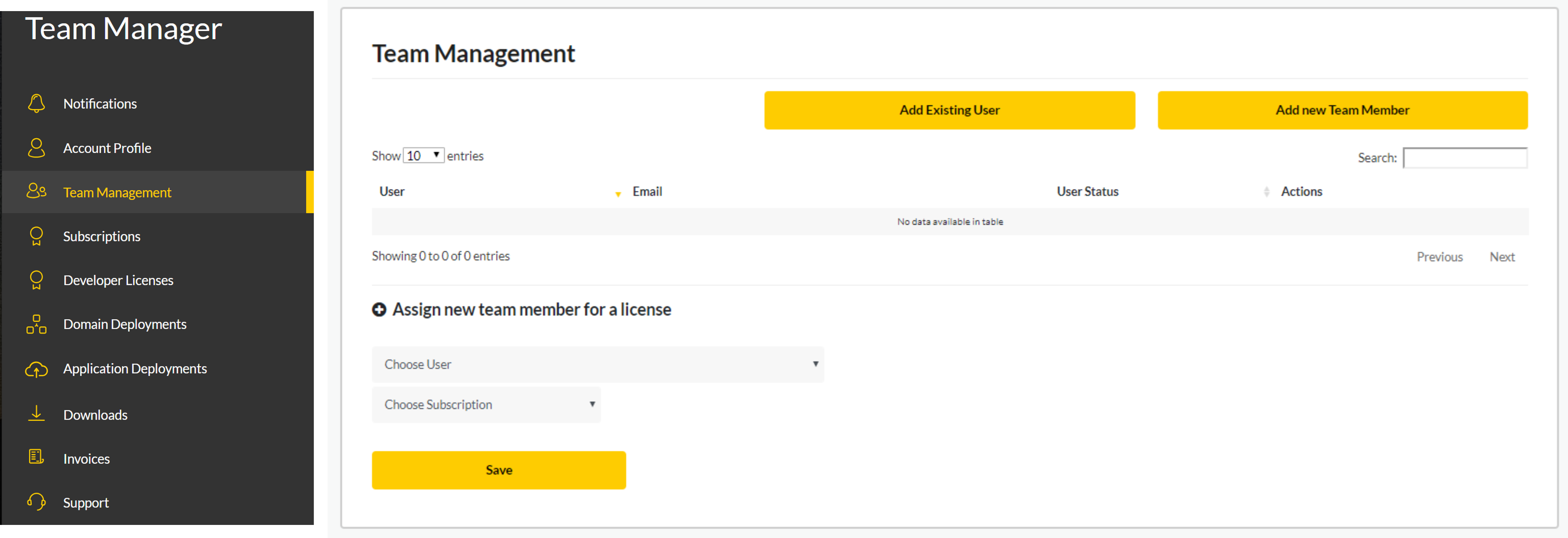 Team Management
(Developer) Licenses
This section allows to check all information on existing licenses type, subscription period, assigned team member, license key and so on.
In the Licenses section you can also claim your existing subscription to transfer it to the LightningChart Portal.
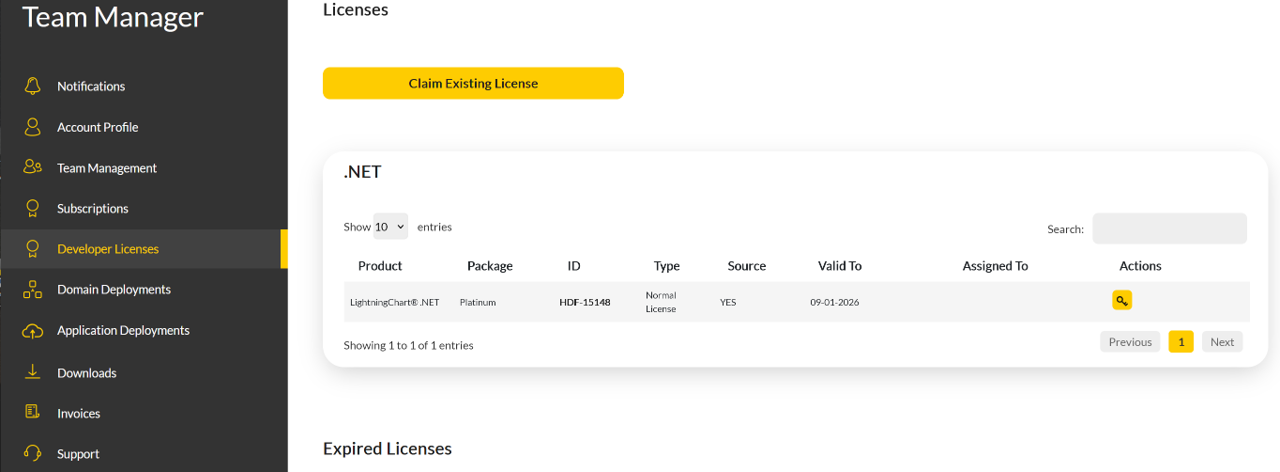 Licenses
Downloads
Here you can check all available versions of your purchased products and read change logs.
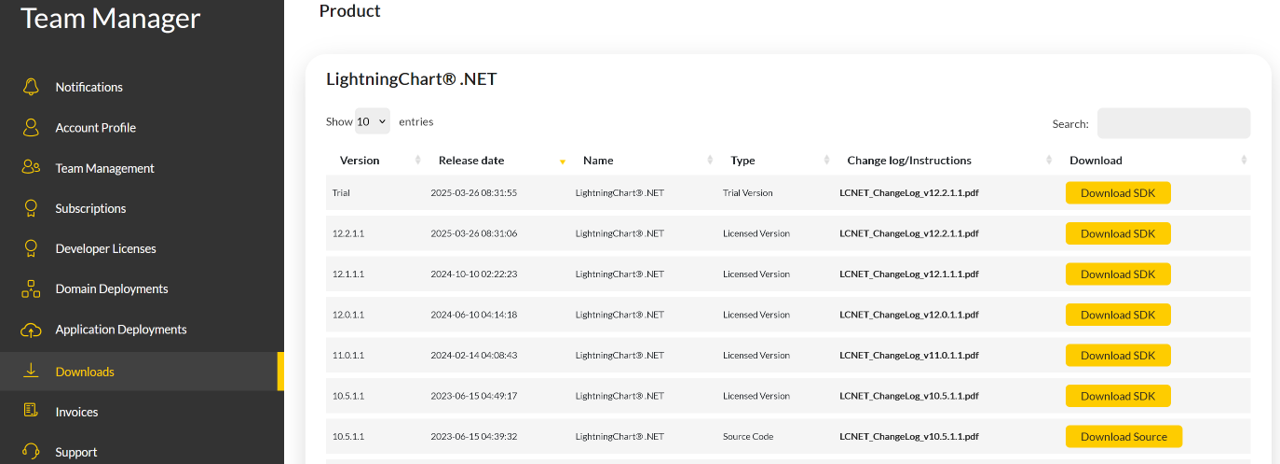 Downloads
Invoices
After purchasing products, you will get email notification about order. However, invoices are not maintain in the Invoices section anymore.
Support
Portal's ticketing system became obsolete in 2026. While it is still possible to see old tickets, the fastest way to get help is to write email to [email protected] (please mention subscription ID in email).
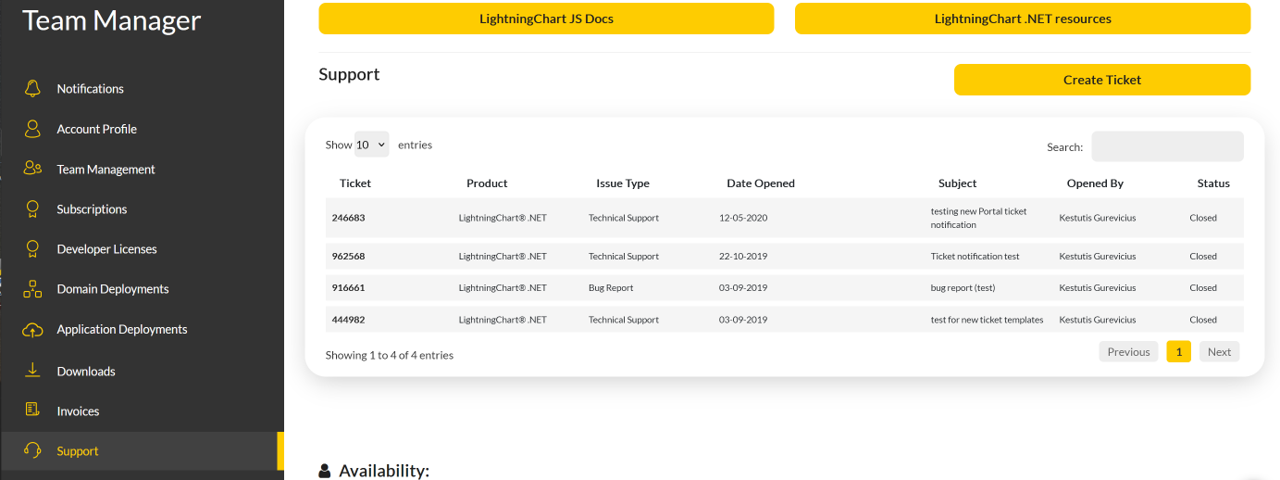 Support
Team Member Account
When you accept an invitation to join a team which was sent to you by another user, you get a Team Member Account. Below is the description of each section of the Team Member Account.
Notifications Dashboard, Account Profile, Licenses, Downloads and Support sections will look the same and give same information as described for Team Manager account.
Invitation Requests
The only new section for member account is Invitation Requests. In this section, you can accept invitations from your Team Manager when they invite you to join their team.
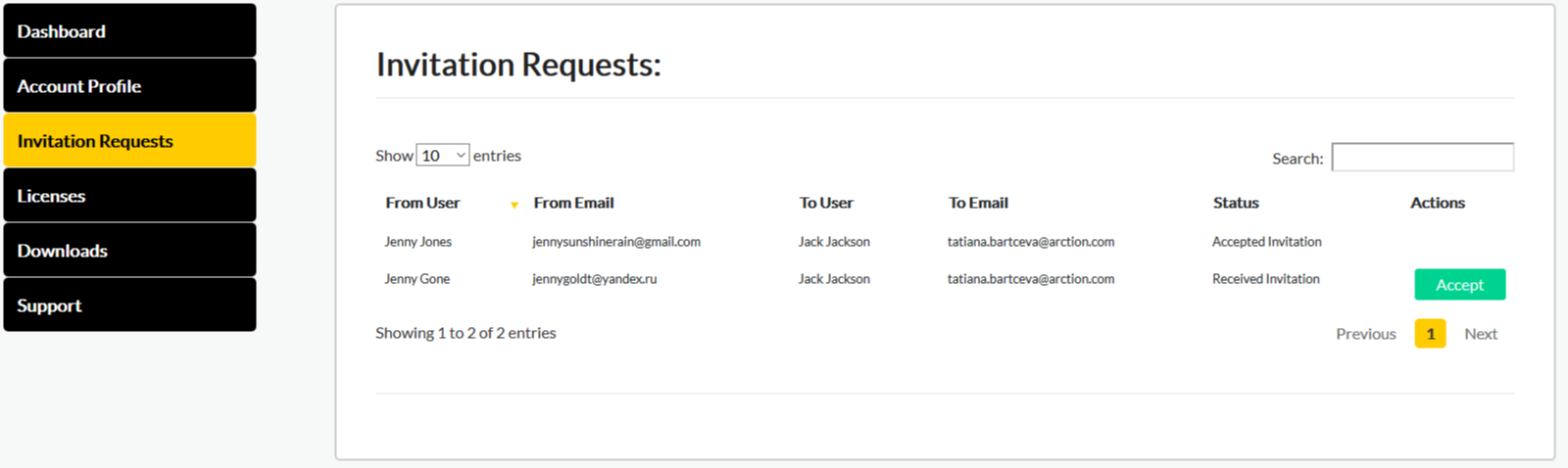 Invitation Requests